Your sessions on the NAS
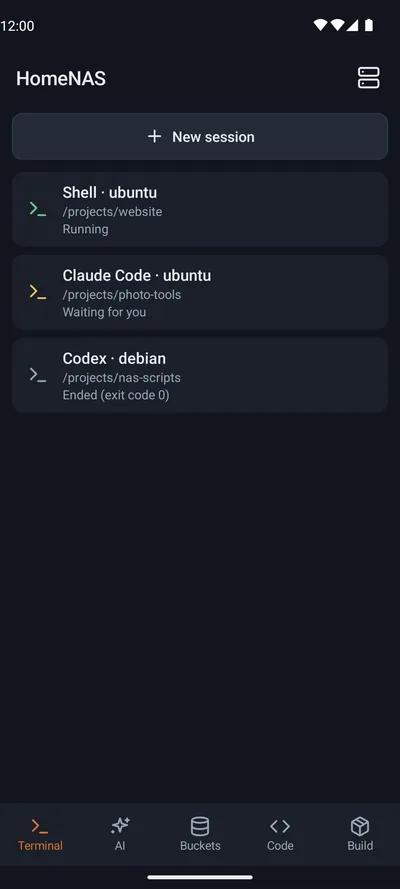
Running sessions come first, and a session that waits for your answer is marked.
Bucket & Code›Android
 Bucket & Code
Work with Bucket & Code on your NAS from your phone: terminal sessions, AI tools in a project folder, buckets, code and App Builder builds.
The app is not published yet.
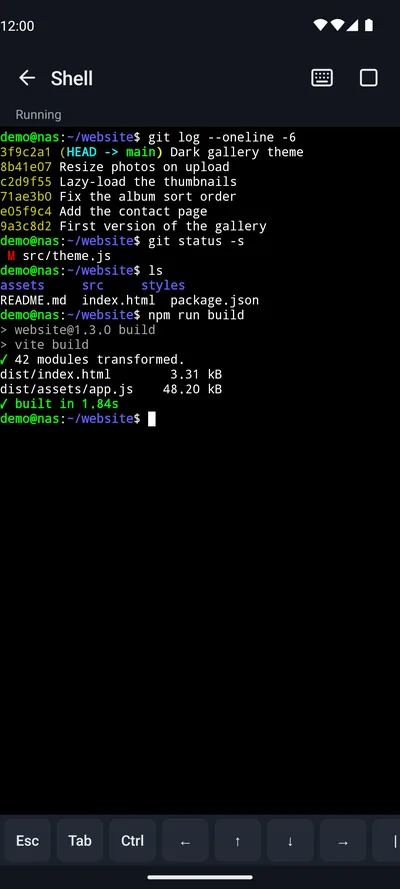
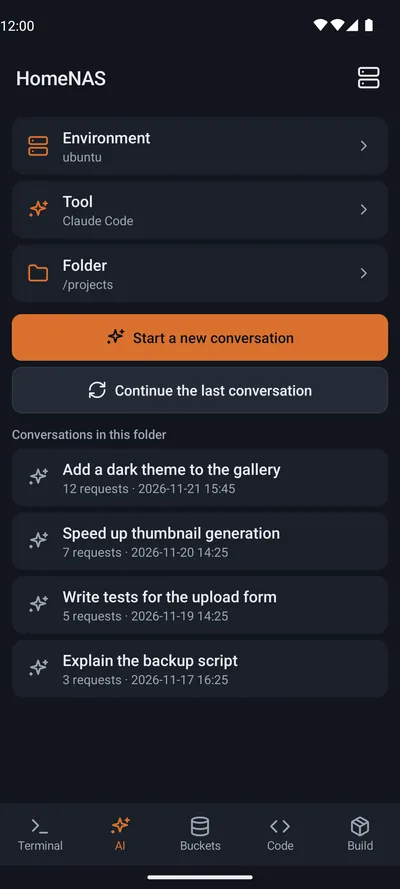
The app pairs with Bucket & Code on your QNAP NAS. It has five tabs: Terminal, AI, Buckets, Code and Build.
Running sessions come first, and a session that waits for your answer is marked.
Esc, Tab, Ctrl and the arrows sit above the keyboard. If the connection drops, the session stays on the NAS.
Start an AI tool installed in an environment, in a folder you pick, or continue an earlier conversation.
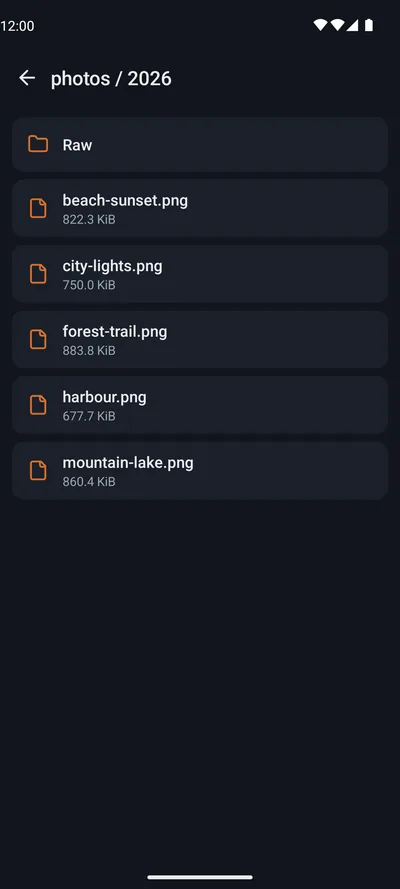
The buckets your account may read. Text files and pictures open on the phone.
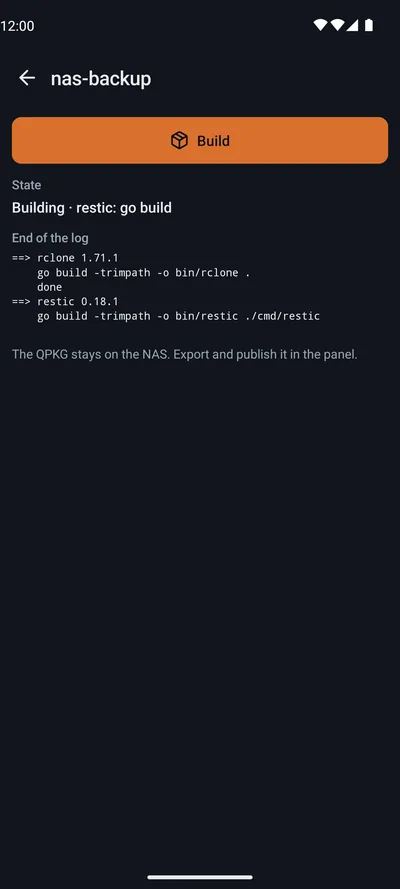
Start a build of an App Builder app after a confirmation, then watch its state and the end of its log.
Terminal, AI and Build need the developer or admin role, as in the panel.
On a computer on your home network, open the Bucket & Code panel and go to:
The page shows a QR code. The code works once, for 10 minutes.
Connect the phone to the same network as the NAS. In the app, tap “Add server”, then “Scan the QR code”.
Or type the address and the code. Under the QR code the page shows the address, the code and the certificate fingerprint. Type the address and the code in the app. Pair only if the app shows the same fingerprint.
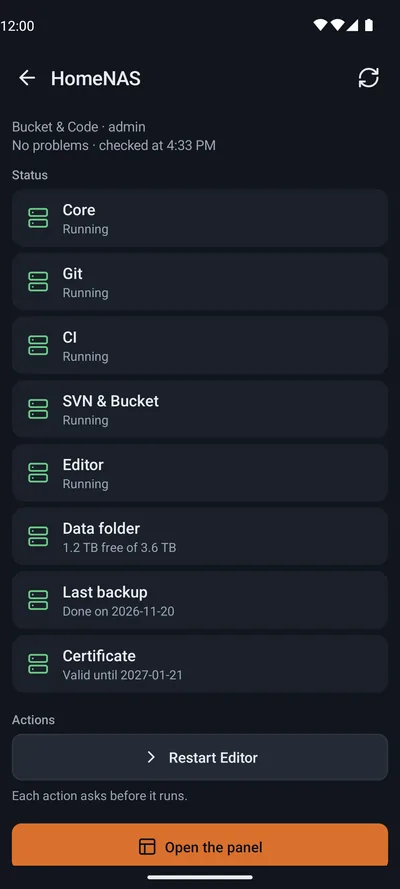
An administrator turns on “Remote access” on the Phone app page. Forward the TCP port that the page names on your router. The app then connects through that port, which answers only paired phones.
Android 8.0 or newer. Away from home, the app connects through the phone port, which needs Android 10 or newer. On Android 8 and 9 the app works on your home network only.
Bucket & Code on a QNAP NAS, with the Phone app page in its panel. Each account pairs its own phone, and the app works with that account's role.
Bucket & Code is freeware by Silas, Mariusz Grzybacz. It is an independent project, not made or endorsed by QNAP or Google. QNAP is a trademark of QNAP Systems, Inc.
Android, Google Play and the Google Play logo are trademarks of Google LLC. The Android robot in the site's menu is reproduced or modified from work created and shared by Google and used according to the terms of the Creative Commons 3.0 Attribution License.