Bye-bye Plesk, hello WebPortico on QNAP
Plesk? Bye-bye! You pay for a Plesk server and for the panel’s licence, while the QNAP at home runs day and night anyway. Let’s bring the sites home!

WebPortico has an import from Plesk built in. It connects to your server and copies the sites, databases, mail and DNS zones to the NAS. Plesk keeps serving your visitors in the meantime. After the import, you switch the traffic to the NAS once the copy works.
What you need
- A QNAP NAS with an Intel or AMD processor and QTS 6.0 or QuTS hero 6.0 or later.
- WebPortico from App Center (the QNAP Utilities repository). MailServerPro for the mail, TurboDNS for DNS; the import tells you what is missing.
- The root password of the Plesk server, so your own server or a VPS. Shared hosting does not give you root.
- A public IP address and access to your router’s settings.
I. Copy from Plesk
- Sign in to the NAS, open WebPortico and go to Import from Plesk.
- Type the server address, the SSH port and the root password, for example 203.0.113.20 and 22, and click Connect. WebPortico creates an SSH key and uses it to sign in from then on. That keeps the server as safe as it can be, and you can revoke or change the password straight away.
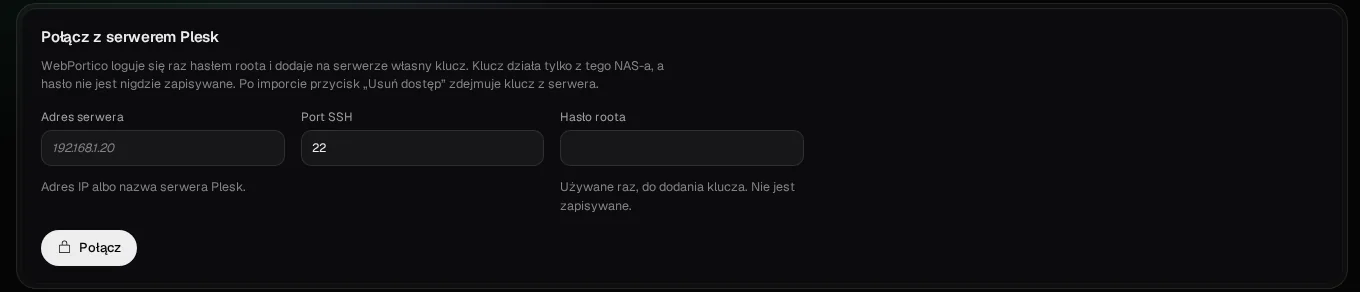
- Click Run dry run. The dry run changes nothing. You should see what moves to the NAS and what stays on Plesk.

- Read the notes marked Needs your action. Those are the things to do by hand.
- Click Import at the first domain and wait until the run ends with Done. Do the same with the other domains.
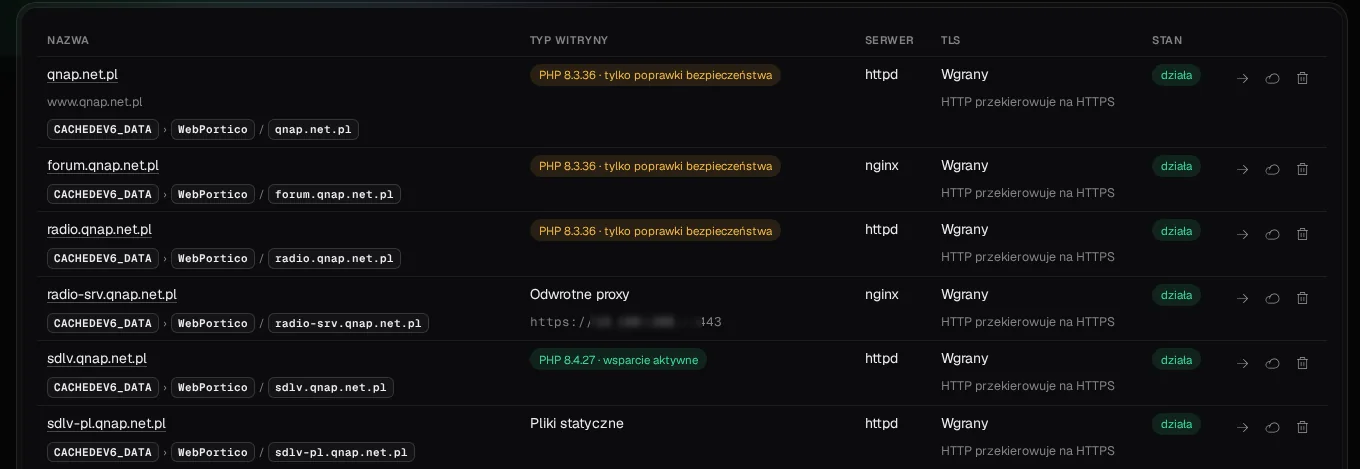
You can refresh the copy as often as you like: each later import brings over what changed on Plesk.
II. Before you switch
- A day before, lower the time to live (TTL) of your DNS records to a few minutes.
- Did the site use Redis? After every import, put the socket from the site’s Cache panel into its configuration file. Without it the site shows error 500.
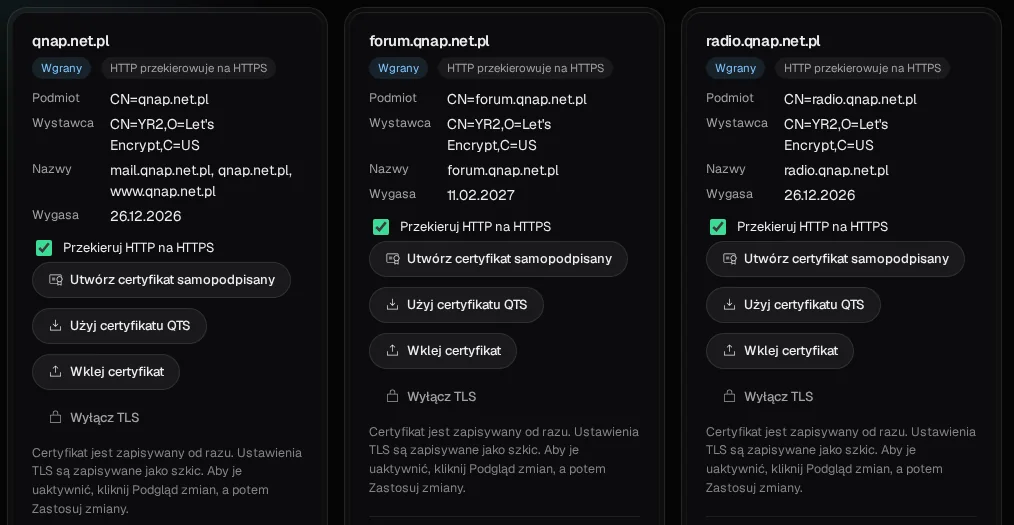
- On the SSL/TLS page, give every name a real certificate: request Let’s Encrypt (DNS-01 through Cloudflare or DNS-01 through OVHcloud) or paste Plesk’s current certificate. Tick Redirect HTTP to HTTPS.
- In MailServerPro, set the Host name and the HELO name (the same as your address’s PTR record).
- (optional) Until the switch, block outgoing port 25 from the NAS on your router, for IPv4 and IPv6. This stops uncontrolled mail, for example from web applications.
- Want to see the copy under its real domain? Add the domain with the NAS’s local address to your computer’s hosts file (
C:\Windows\System32\drivers\etc\hosts). Remove the line when you are done.
III. The switch
- Pick a quiet hour and close the site on Plesk, for example switch a forum off with a message for visitors.
- In WebPortico, click Run dry run again and import the domain one last time.
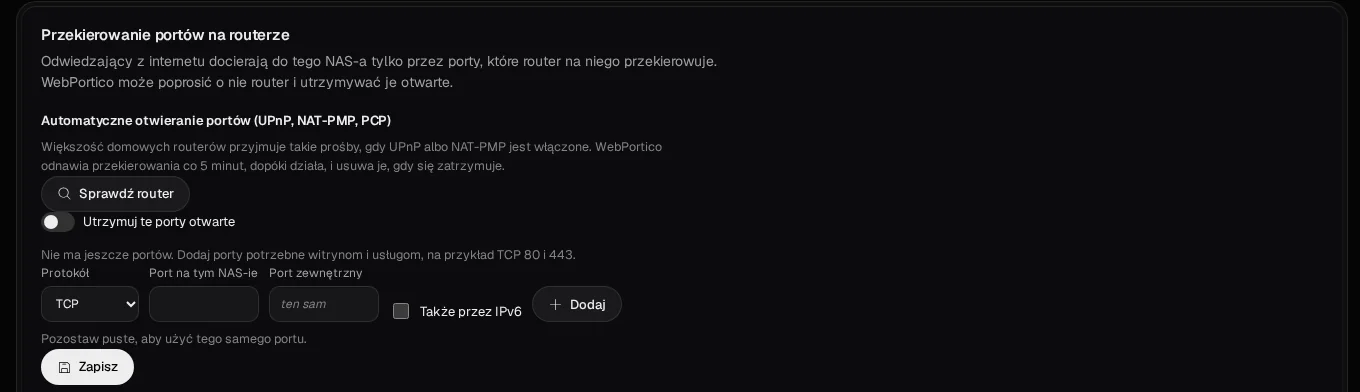
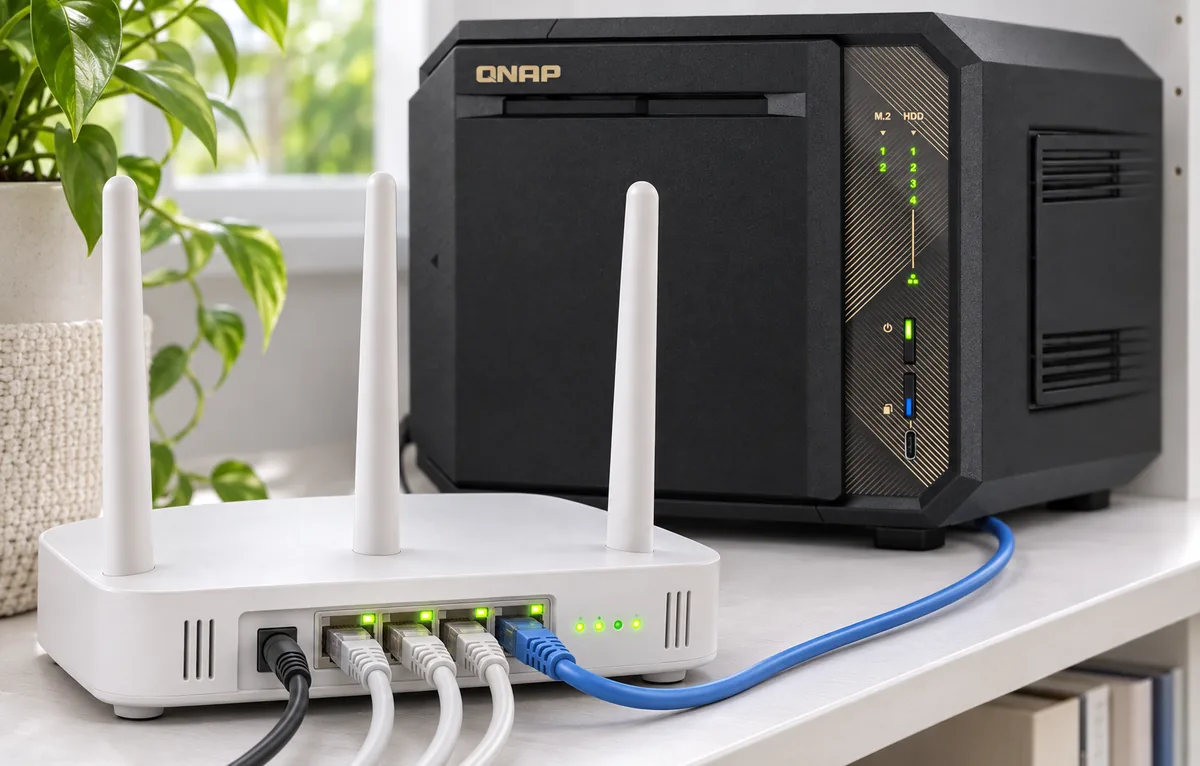
- Forward the ports to the NAS on your router: sites 80 and 443, mail 25, 465, 587 and 993, DNS 53 (only with TurboDNS). WebPortico does it itself on the Front server and ports page if your router accepts UPnP, NAT-PMP or PCP (a UniFi gateway through its API key). On any other router, set the forwards by hand. For IPv6, open the same ports in the router’s IPv6 firewall.
- Point the domain’s A records at your public address. Show the records to enter tells you the rest. If Plesk ran the DNS, click Preview the zone in TurboDNS, then Send zone to TurboDNS.
- If you blocked port 25, lift the block. Open the site on the NAS and turn its tasks on (untick Paused).
- Click Remove access.
WARNING! Once the site runs on the NAS, do not import its domain again with the site ticked. (The import would overwrite it with Plesk’s old copy.)
Voila! A QNAP is more than a NAS!
What to check?
- Open the site on a phone on mobile data.
- Send a mail to someone outside your domain. On MailServerPro’s Deliverability page you can see whether your address is on any block list.
How to go back?
Until you open the site on the NAS, you lose nothing: point the forwards and the DNS records back at Plesk and open the site there. Keep Plesk for another week. Before you switch it off, let it send the mail still waiting in its queue.
PS. Did you know you can earn money with this?