SVN repositories and versioned buckets on your NAS
Bucket & Code Server IDE serves Subversion repositories and buckets. A bucket is a network drive (WebDAV) that keeps every saved file as a revision, so any earlier version can be read or put back. Users sign in to both with their panel accounts.
- ModuleSVN & Bucket on
- Createa repository or a bucket
- Permissionsper account
- Connectsvn, Finder, davfs2, rclone
- Go backany older version
The app password card comes from the panel’s test data. The repository is called docs,
the bucket shared, and the NAS is at 192.168.1.20.
01Turn on the module
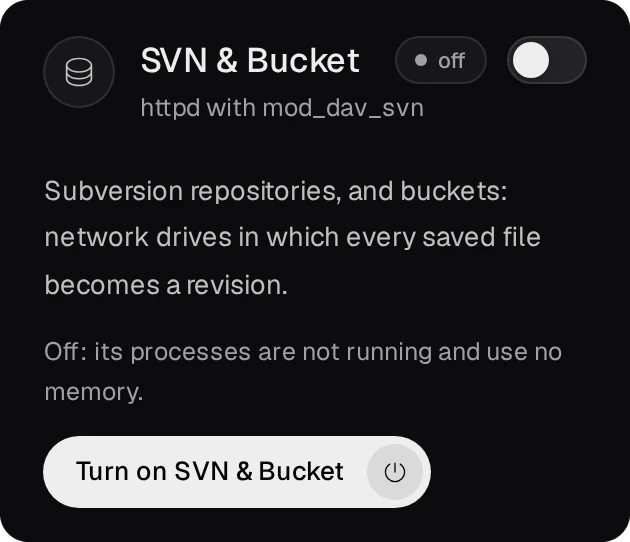
On the Overview, an admin presses Turn on SVN & Bucket on its tile. The tile shows running when the module is ready.
02Create a repository or a bucket
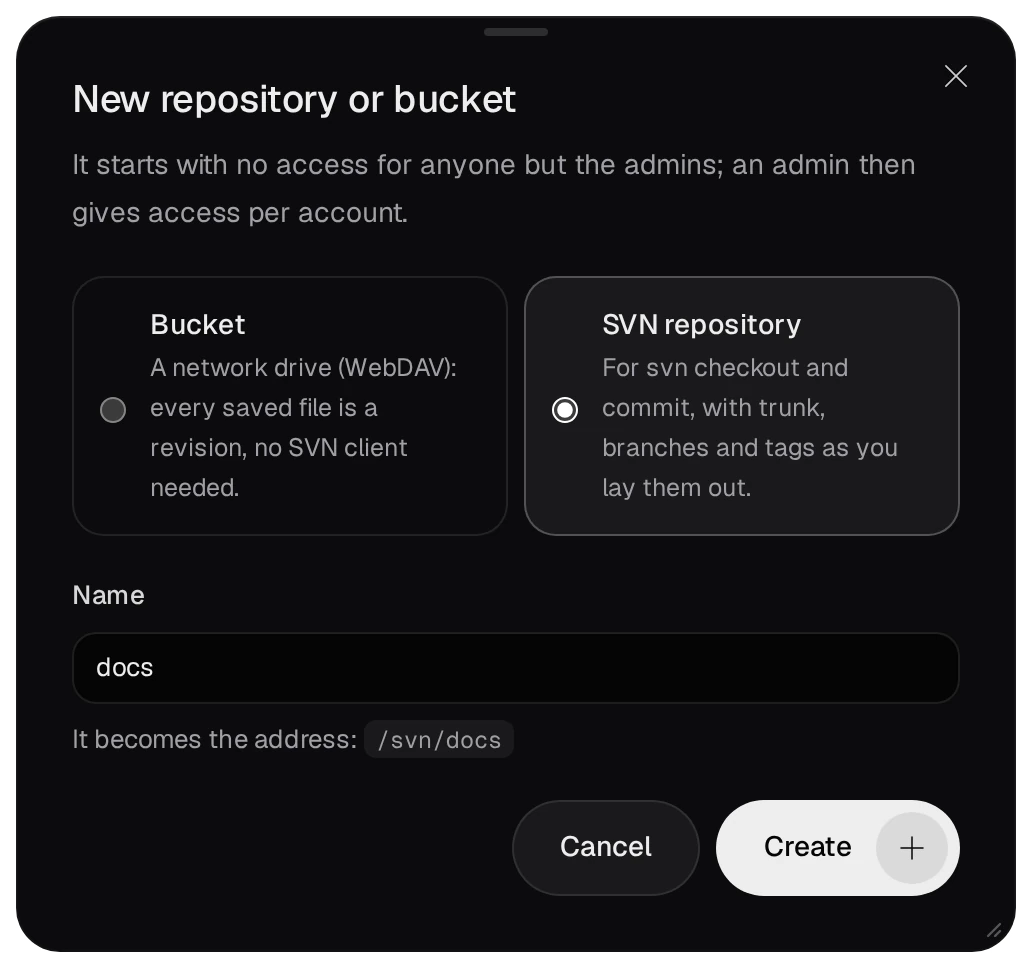
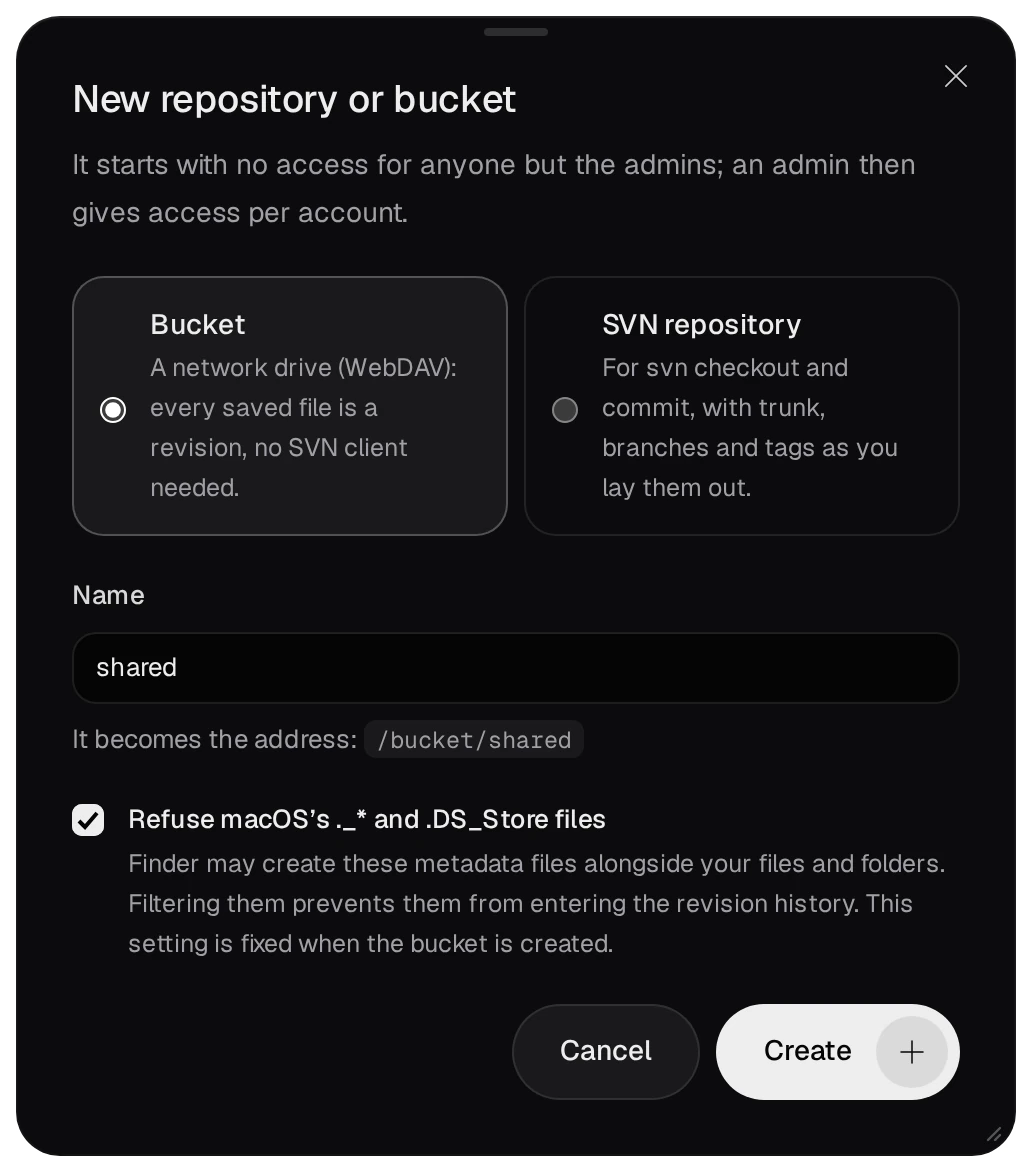
On the SVN & Bucket page an admin presses New repository or bucket.
- Choose SVN repository for
svn checkoutandcommit, or Bucket for a network drive that needs no SVN client. - Type a Name. It becomes the address:
/svn/docsor/bucket/shared. - For a bucket, leave Refuse macOS’s ._* and .DS_Store files ticked. Finder writes those files beside every file it copies; when they are refused, they never become revisions. The choice cannot be changed later.
- Press Create.
Deleting one moves it to the trash in the data folder, which a built-in job empties after 7 days.
03Give access
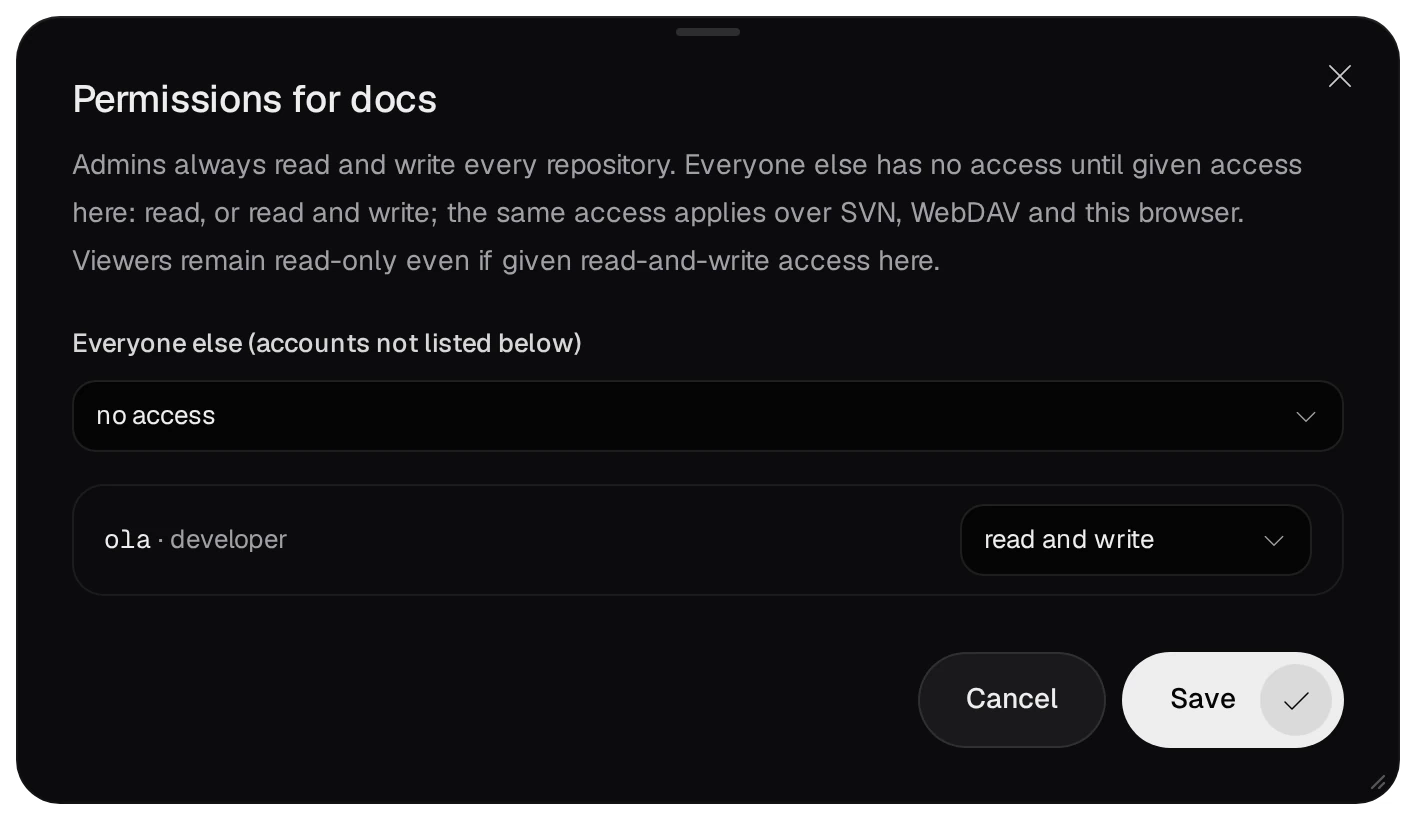
A new repository or bucket gives no access to anyone but the admins. The people icon on its row opens Permissions for docs. Set Everyone else for the accounts not listed, and read or read and write for each account that needs more, then press Save. The same access applies over SVN, WebDAV and the panel's browser. Admins can always read and write; a viewer can read at most.
04Check out an SVN repository
The SVN & Bucket page shows the checkout command with the repository's address. Any Subversion client works (svn, TortoiseSVN, an IDE's SVN support) with the panel's username and password. A commit needs read and write access.
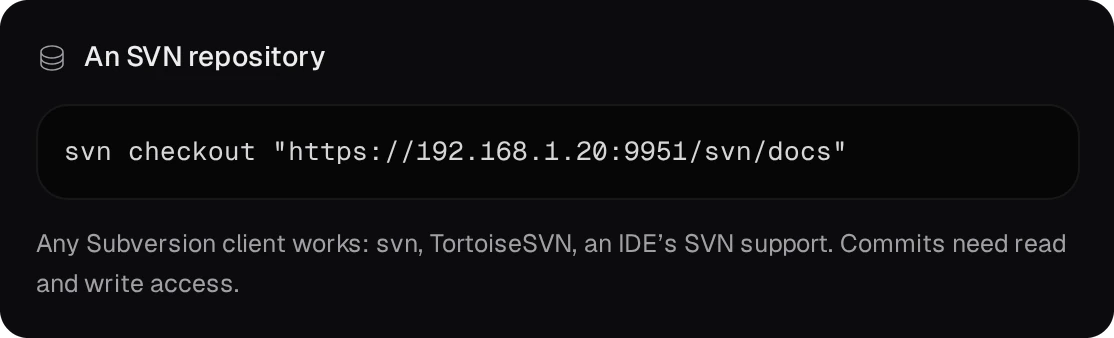
The NAS answers HTTPS with its self-signed certificate at first, so a client asks you to trust it or refuses it. The Network page shows its fingerprint to compare.
05Connect a bucket as a network drive
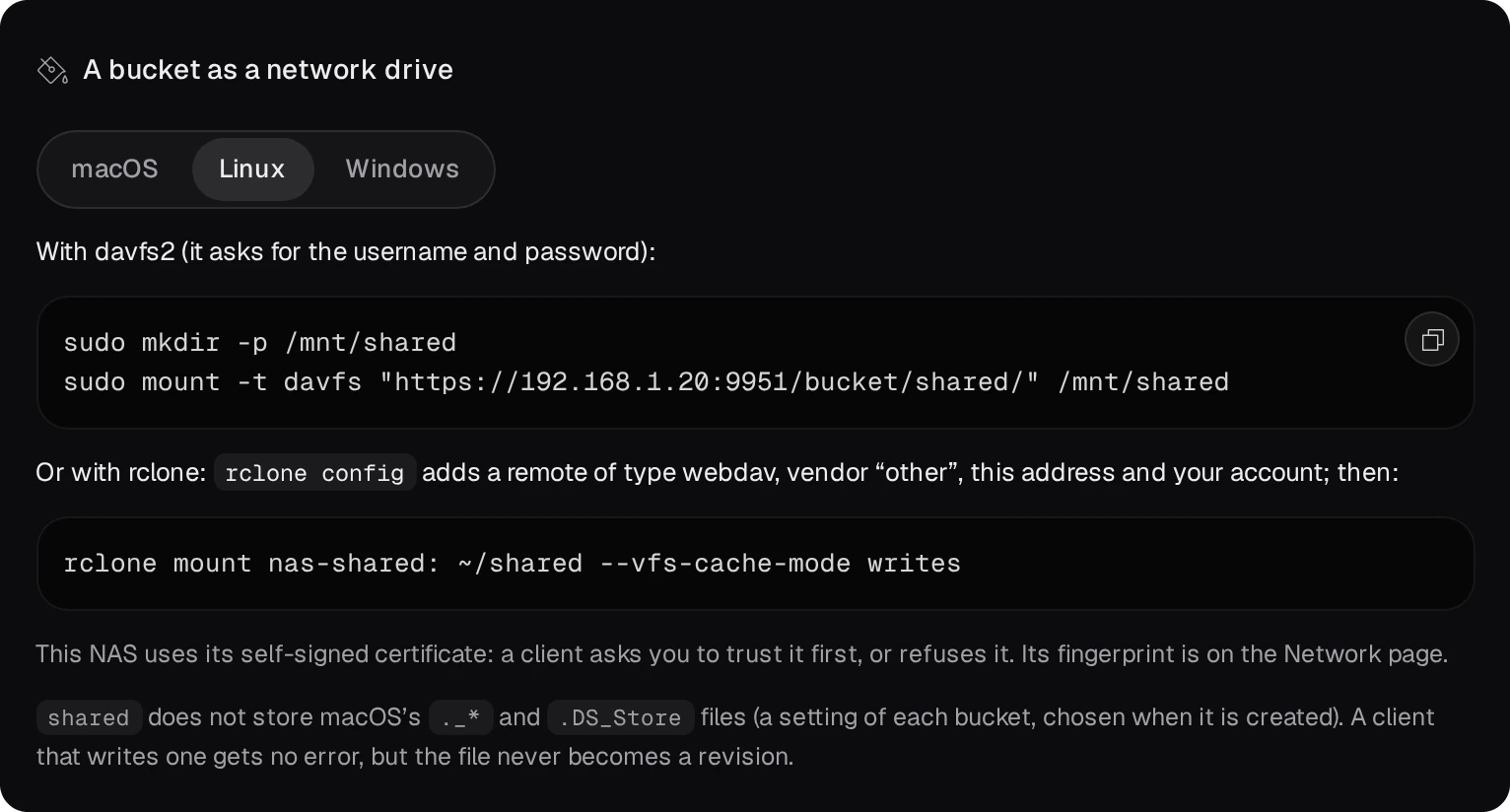
The same page shows the bucket's address for each system.
- macOS: in Finder, Go → Connect to Server (⌘K), then
https://192.168.1.20:9951/bucket/shared/.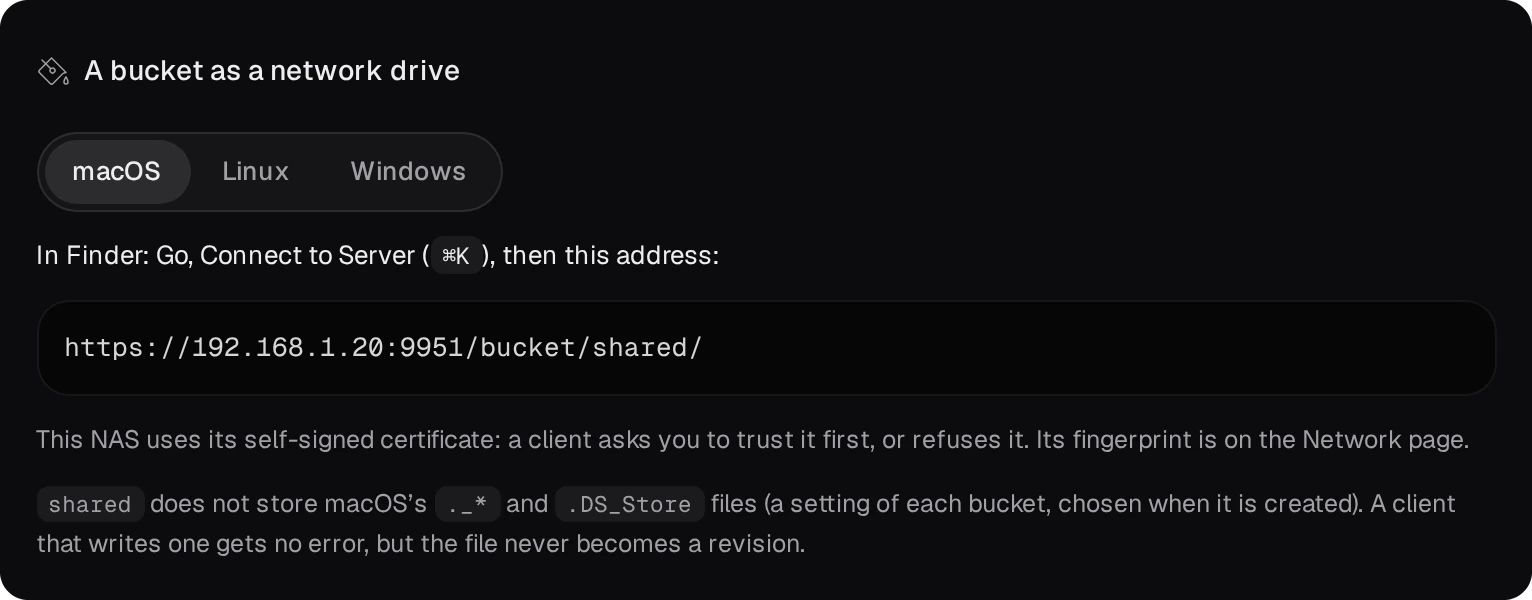
- Linux: mount it with davfs2, or add an rclone remote of type webdav with vendor
“other” and mount that.
- Windows: Explorer's WebClient signs in only over HTTPS with a certificate Windows trusts,
so Explorer needs a reverse proxy with a real certificate in front of the NAS. Without one, use WinSCP or
Cyberduck (WebDAV with TLS), or rclone;
rclone mounton Windows needs WinFsp.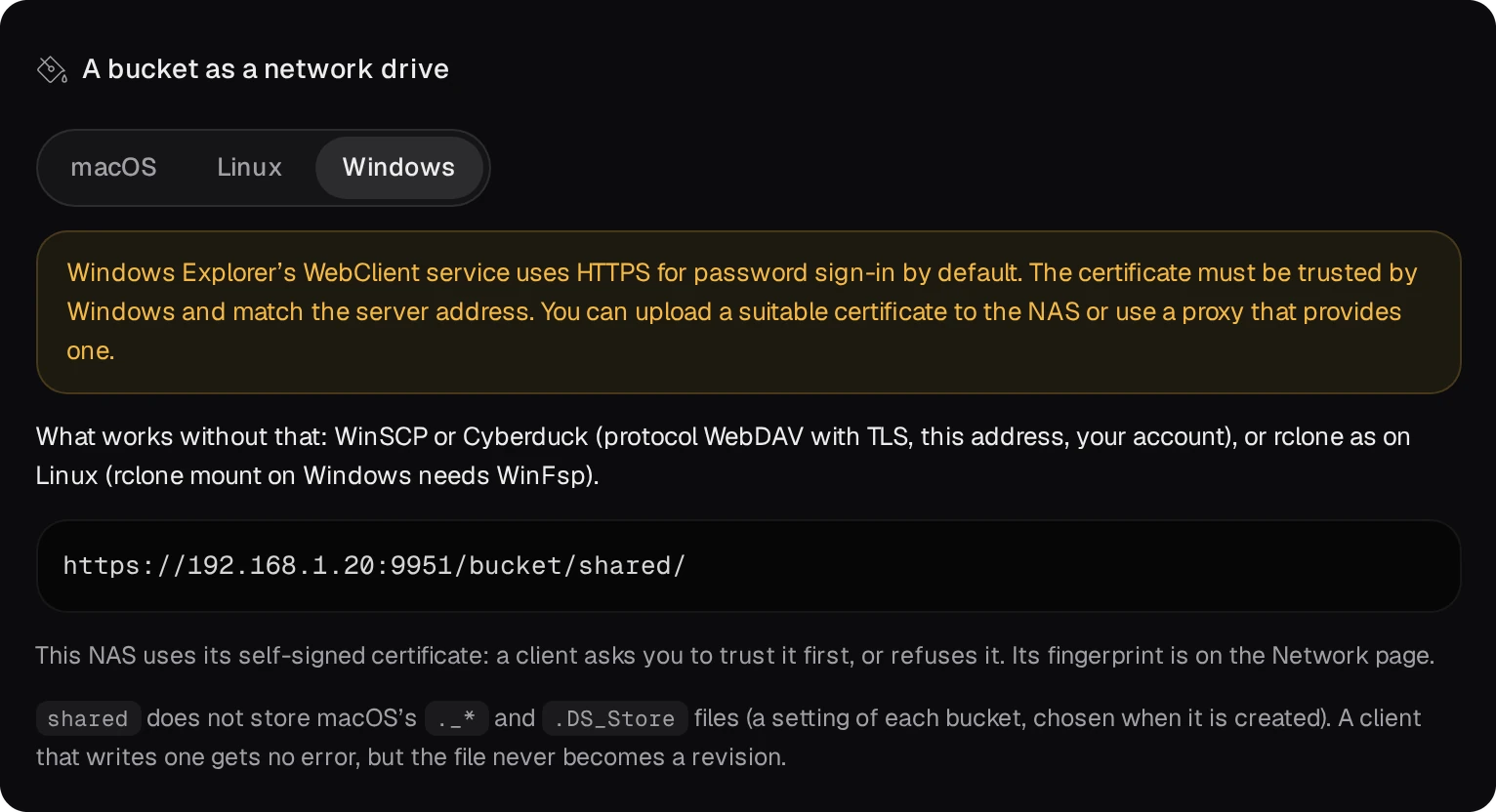
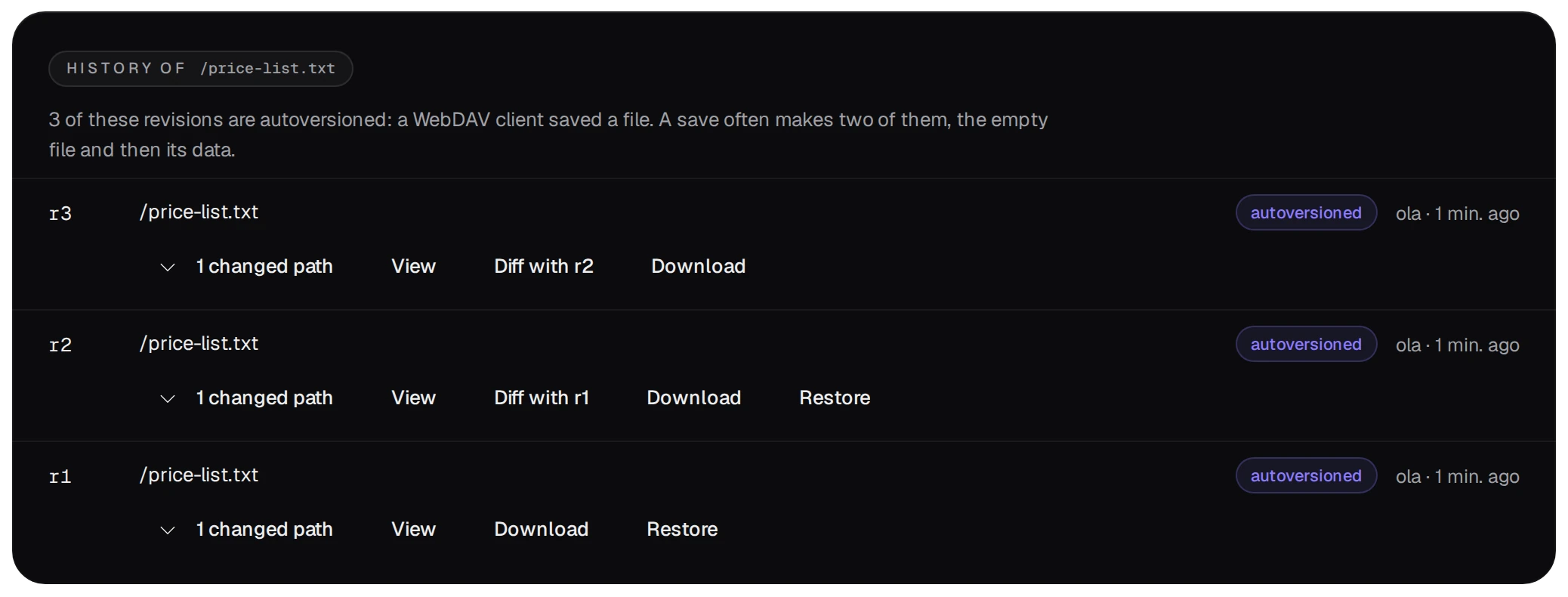
Each save becomes a revision with the account's name and the time. Many clients write an empty file first and the data after it, so one save can make two revisions. A refused macOS file gives the client no error; it just never becomes a revision.
06History and older versions
Open a file and press History of this file. Each revision has its message, its author, View, a diff with the one before it, Download and Restore.
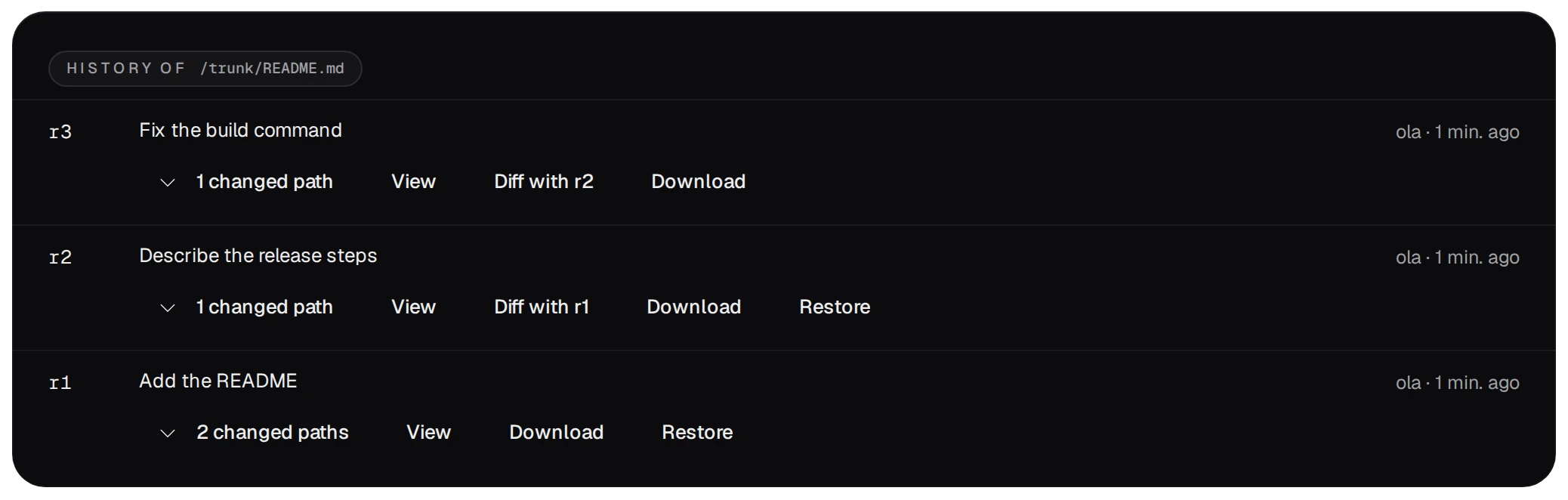
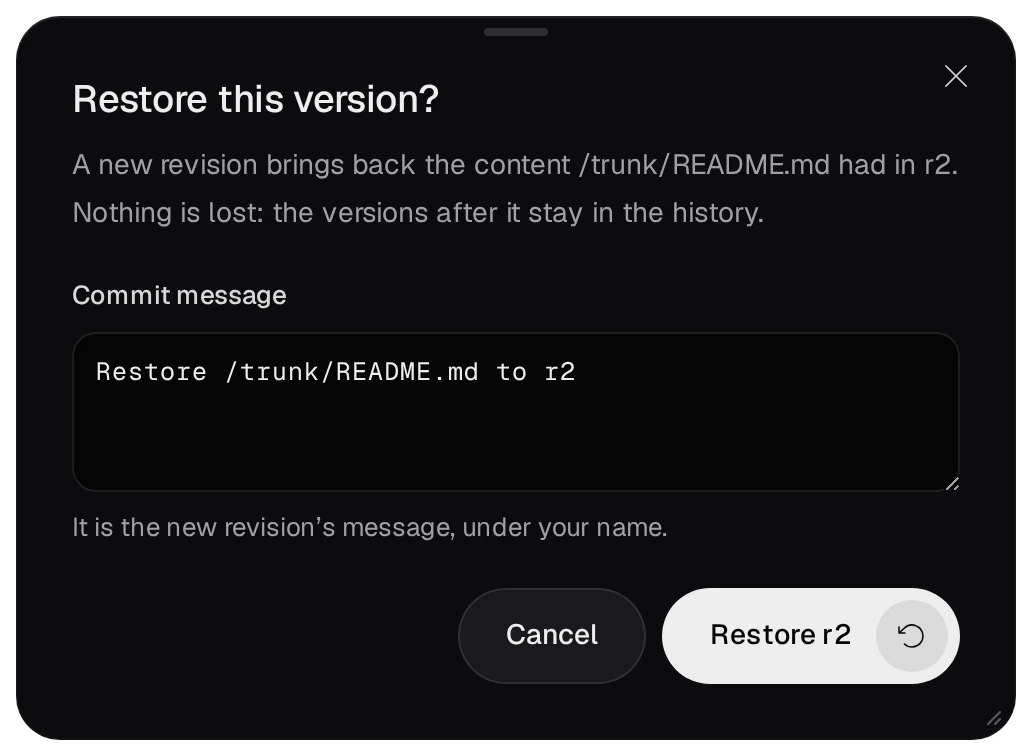
An older version shows Restore this version to accounts with read and write. It asks for a commit message and saves the old content as a new revision, so the versions after it stay in the history.

A bucket keeps the same history. Its revisions are marked autoversioned: a WebDAV client saved the file.
07Show a repository on the web
The On the web switch on a row (admin) gives anyone with the address a read-only page of the
files, the history and the diffs, without an account. View on the web opens it:
https://192.168.1.20:9951/svn-web/docs/ for a repository, /bucket-web/<name>/ for
a bucket.
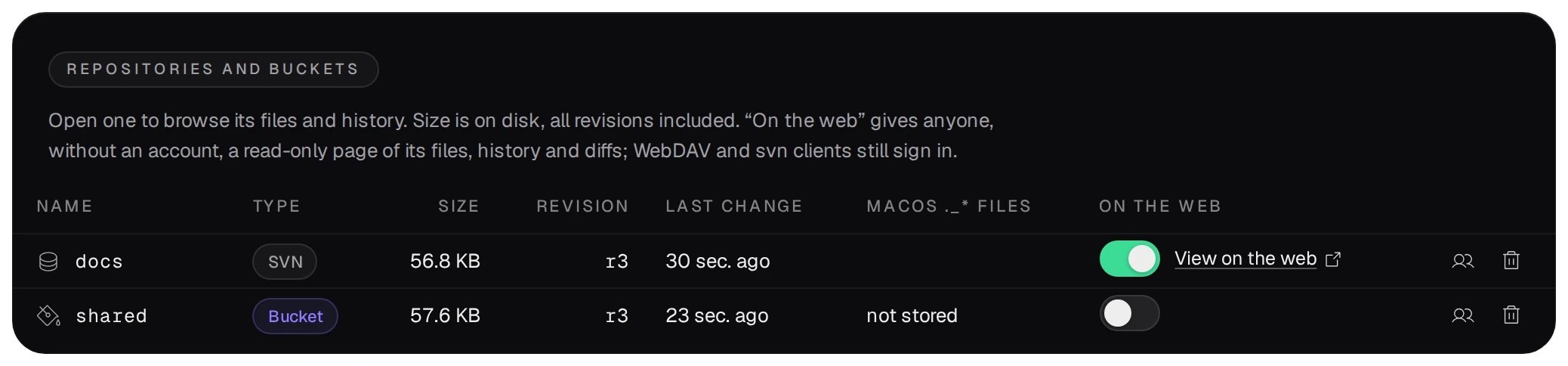
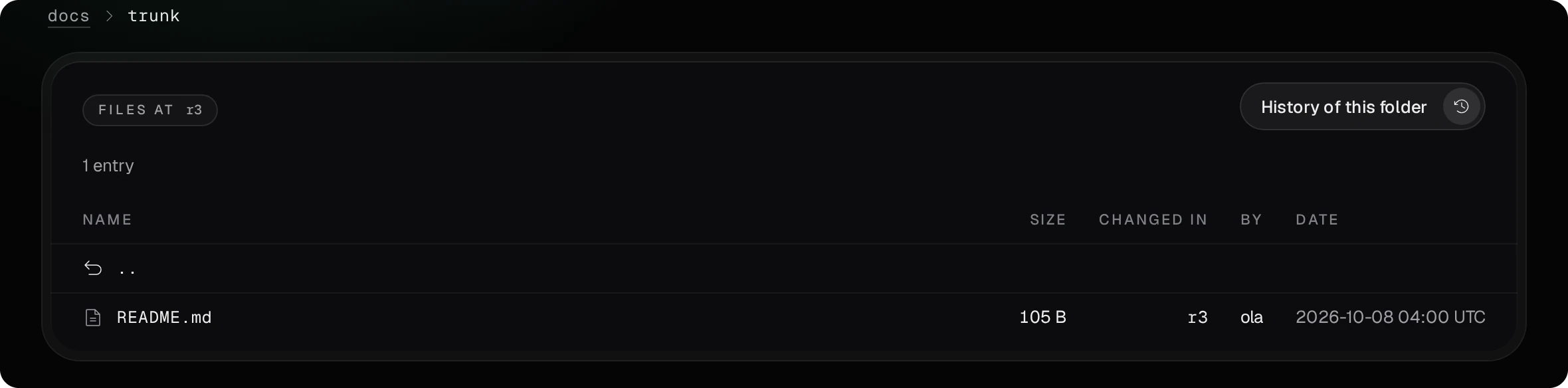
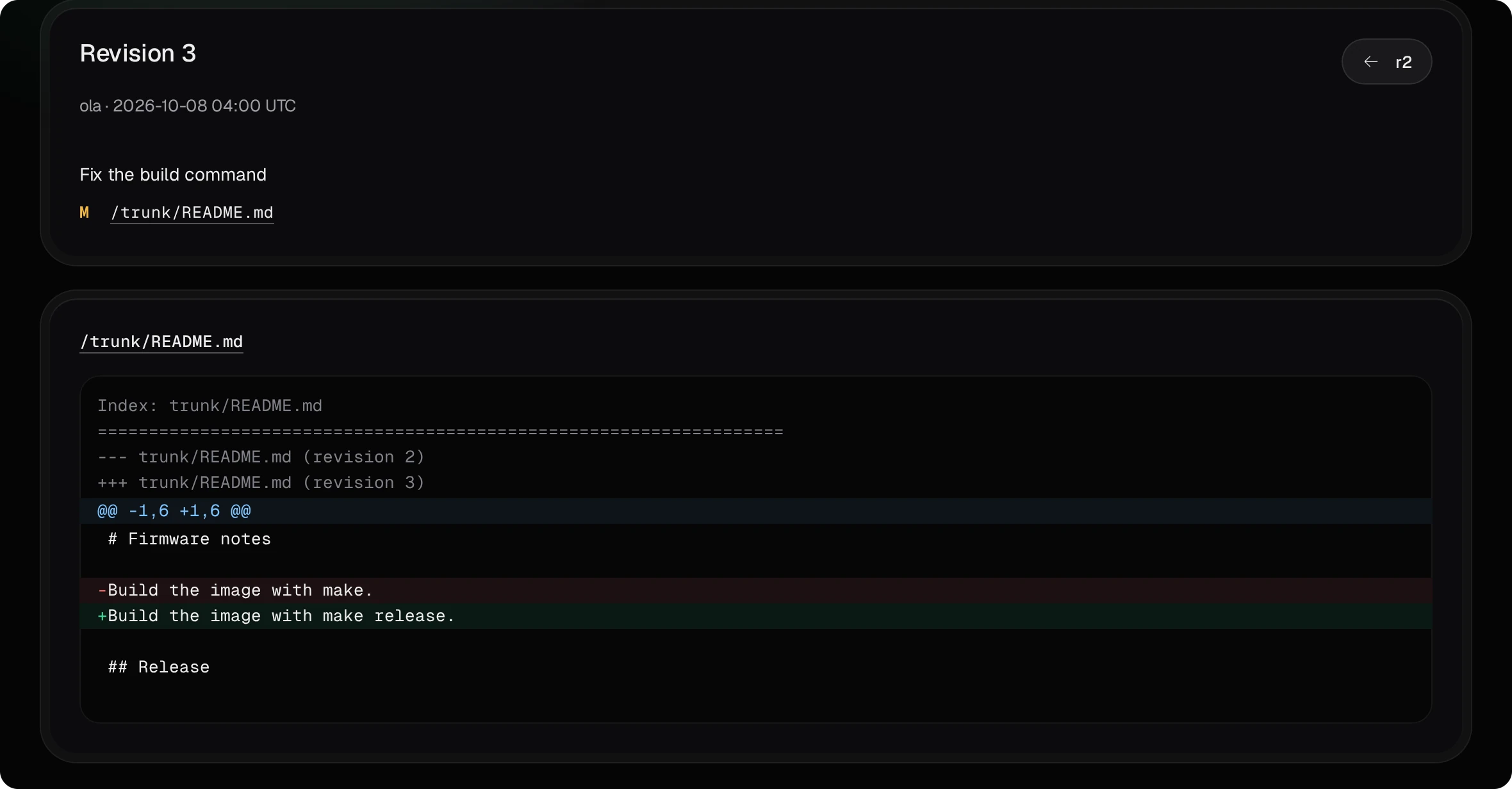
- The pages change nothing. svn and WebDAV clients still sign in, also for a public repository.
- A repository that is not public and a name that does not exist give the same answer, so the pages do not tell which names exist. Search engines are asked not to index them.
08Two-factor authentication and the app password
An account with two-factor authentication does not use its password in SVN and WebDAV clients. On its account page, Create an app password shows a random password once. A new one replaces the old, and changing the password or turning two-factor authentication off removes it.

Five wrong passwords within 15 minutes lock that account from that address, and the address itself, for 15 minutes, as at the panel's sign-in. The user guide lists the WebDAV clients and their limits.