Your domain on your NAS: website, DNS and mail from the first day
Three apps from this site’s App Center repository run a whole domain on one QNAP NAS. WebHostPro serves the website, TurboDNS is the domain’s DNS server, and MailServerPro handles its mail. When you add the site, WebHostPro sends TurboDNS every record the domain needs: one template filled in with the NAS’s public address, plus the mail records from MailServerPro. Using example.com, this guide starts from a NAS without these apps and ends with a website, a mailbox and a test message.
- Installthree apps
- Mailadministrator, host name, DKIM
- SiteAdd site, dry run, apply
- Outsiderouter and registrar
- Checkcertificate, a test message
The pictures were taken on a test NAS with WebHostPro 0.7.0, TurboDNS 1.2.0 and MailServerPro 0.5.0, with each field filled in as this guide says. Two come from newer versions: the domain’s page with its DNS note from MailServerPro 0.5.1, and the DNS step from WebHostPro 0.7.1 with sample data. The examples use the domain example.com, the public
address 192.0.2.10 and the NAS’s local address 192.168.1.20. Replace them with your own.
01What you need
First, four terms that all three apps use:
- A record is one entry in a domain’s DNS. An A record gives an IPv4 address, AAAA an IPv6 address, MX the mail server, and TXT a piece of text, such as the mail rules. A CNAME points to another name, which is looked up instead.
- A zone is all the records of one domain.
- A name server holds a zone and answers questions about its records. The registrar, the company that sold you the domain, tells the rest of the internet which name servers answer for it.
- A glue record is a name server’s IP address, kept by the registrar. It is needed when the name server’s name lies inside the domain it serves, such as
ns.example.comforexample.com. Without it, nobody could find that name server.
You need:
- A domain that you own, and the right to change its name servers and add glue records at the registrar.
- A QNAP NAS with an Intel or AMD processor (x86_64) on QTS 6.0 or QuTS hero 6.0 or newer. The three apps are published for x86_64 only.
- A public IPv4 address that reaches the NAS, with the router forwarding the ports from section 06 to it. A fixed address is best: when it changes, you have to send the records to TurboDNS again and change the glue records at the registrar. If your provider shares one address among many customers (CGNAT), your connection has no public address of its own; see section 12.
- A fixed address of the NAS on the local network, so that the forwarded ports always reach it. Set it in QTS or reserve it in the router’s DHCP server.
Mail asks more of your Internet provider than a website does. Other mail servers deliver on port 25, and some
providers block that port on home connections. Many receiving servers also check the name of your public address
(its PTR record), and only the provider can set it to mail.example.com. Some refuse mail from
addresses that providers give to homes, or file it as spam. Ask your provider about all three before you count
on mail from the NAS.
02Install the three apps
- In App Center open ⚙ Settings → App Repository → Add. Name it
QNAP Utilities, pastehttps://www.qnaputilities.com/repo.xmland press Add. - Open QNAP Utilities in the left column and install (example) TurboDNS, (example) MailServerPro and (example) WebHostPro. The order does not matter.
- App Center’s Open button opens each app’s panel. Each panel uses a self-signed certificate, so the browser asks once whether to trust it.
| App | Panel address | First visit |
|---|---|---|
| WebHostPro | https://192.168.1.20:9541/ | First sign-in: set the panel’s password |
| TurboDNS | https://192.168.1.20:9531/ | First sign-in: set the panel’s password |
| MailServerPro | https://192.168.1.20:9581/admin/ | First administrator: see section 03 |
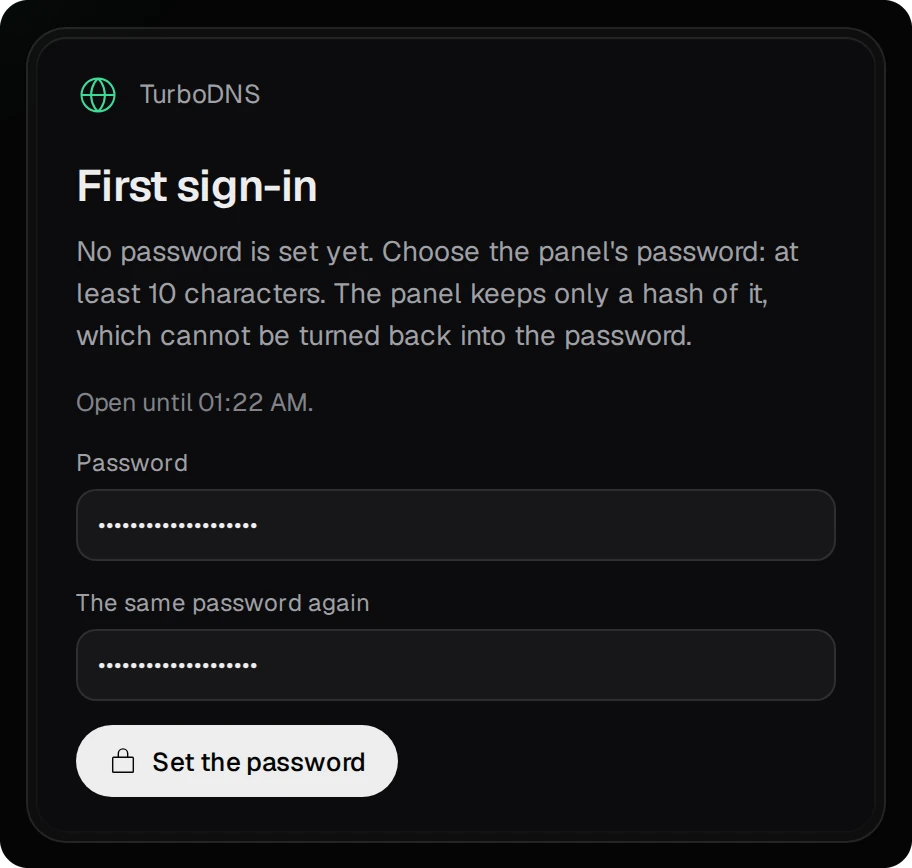
On First sign-in, type a password of at least 10 characters twice and press Set the password. The page accepts it only from a computer on the local network, and only within 60 minutes of the panel starting. To get the page back, restart the app in App Center. The apps never make up a password and never write one down.
03Mail first: the administrator, the host name, the DKIM key
Set up mail before the site. WebHostPro sends MailServerPro’s records only for a domain that MailServerPro serves, and the DKIM record only once its key exists. With mail ready first, applying the site’s plan once fills the whole zone.
- The first administrator. Open MailServerPro from a computer on the local network. The page
First administrator asks for Your mail address at your domain and a password. Type your own
address, for example
anna@example.com, and a password of at least 10 characters twice, then press Make the administrator. MailServerPro makes the domainexample.com, the mailboxanna@example.comand the aliaspostmaster@example.com, which delivers to it. The same address and password sign in to this panel and to webmail. An address at a mail provider such as Gmail is refused, because its domain would become one of this server’s.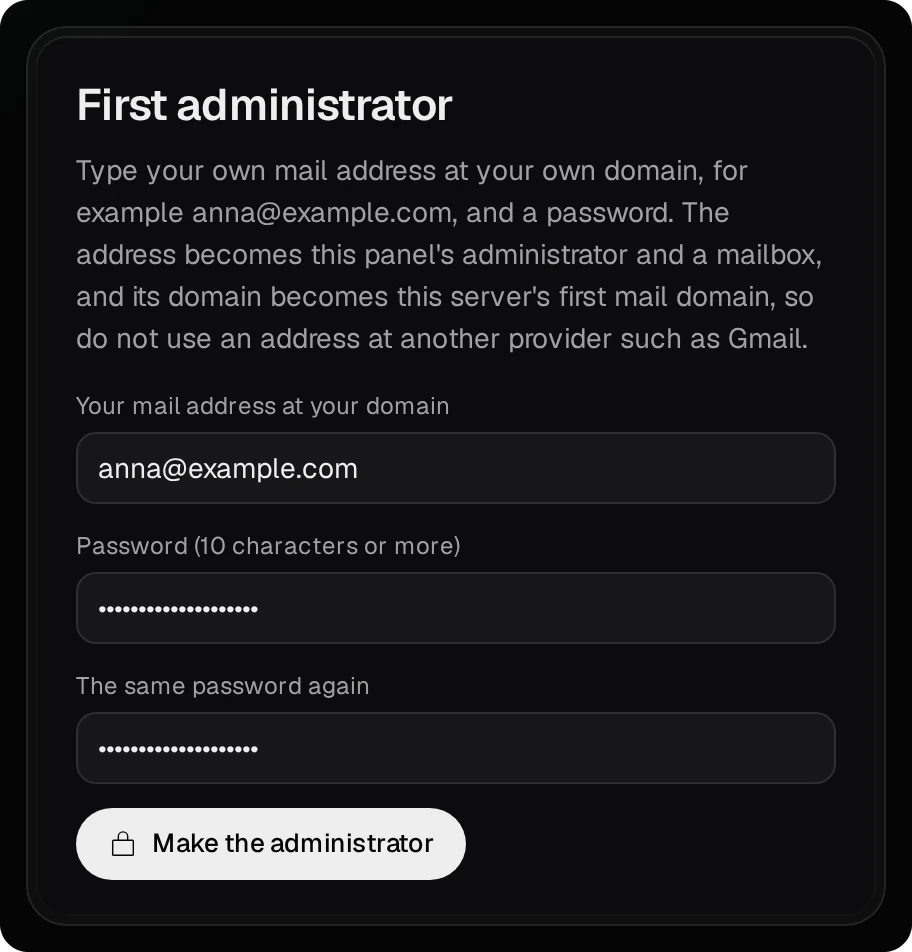
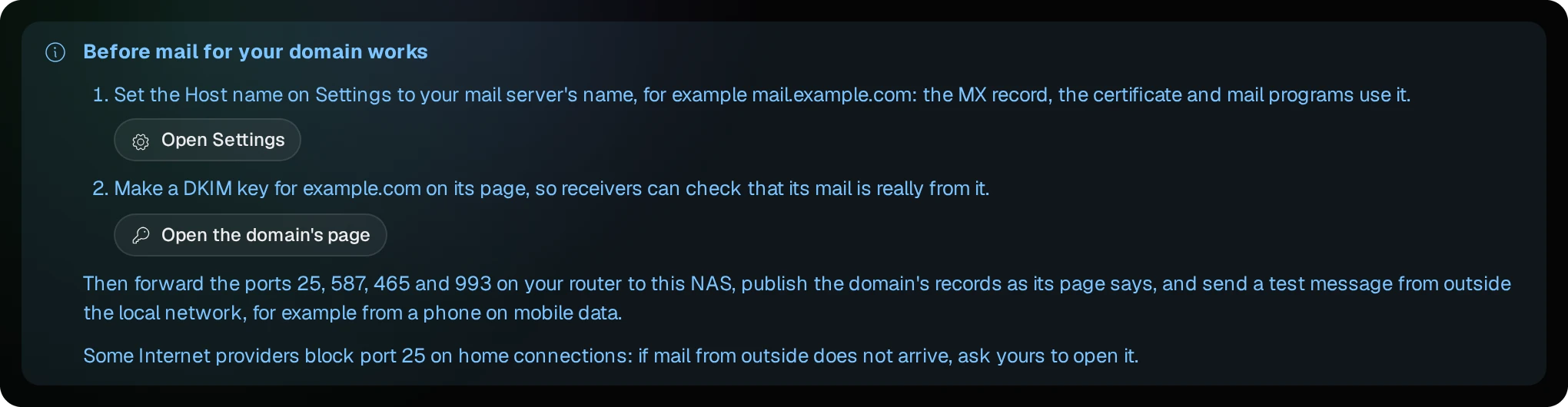
- What is left. Under Before mail for your domain works, the Overview
lists each step still open, with a button that takes you to it.
- The host name. Press Open Settings, set Host name to
mail.example.comand press Save and apply. This is the mail server’s name on the internet, used by the MX record, the certificate and mail programs. The field starts with the placeholdermail.example.org; TurboDNS’s template usesmail.example.com, and the two must match.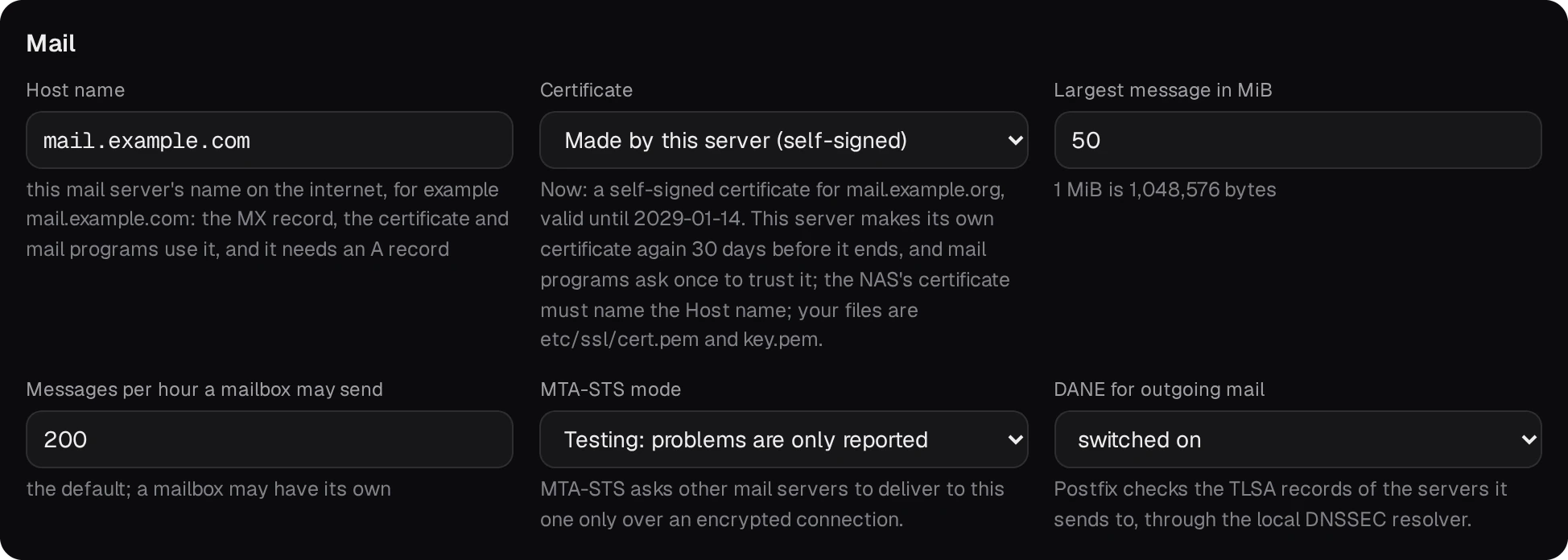
- The DKIM key. Back on the Overview, press Open the domain’s page,
then Make a DKIM key. From then on Rspamd, the spam filter, signs the domain’s mail with this key,
and receiving servers check the signature against the key’s TXT record. The record is named after the
month, for example
s202610._domainkey.example.com.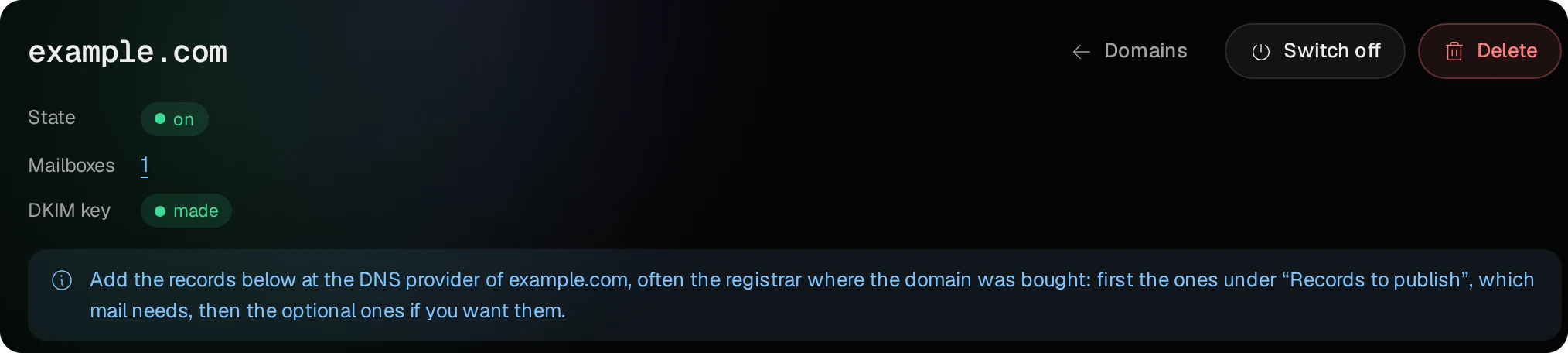
The domain’s page also lists Records to publish. TurboDNS does not answer for the domain yet, so the page says to add them at the domain’s DNS provider. Do not copy them by hand: when you apply the site’s plan in section 04, WebHostPro sends these records to TurboDNS. The list is only for a domain whose DNS runs elsewhere.
Add more mailboxes on Mailboxes → Add a mailbox. Each mailbox signs in to webmail and to mail programs with its full address and its own password.
04The website: Add site
On WebHostPro’s Sites page, press Add site. The first time, the panel asks Where do the sites’ folders go? With a QTS shared folder you can reach the site’s files from File Station, SMB and the editor; WebHostPro’s data folder keeps them inside the app. On QuTS hero, a shared folder with Advanced Folder Permissions may lock the sites’ accounts or the web servers out. The apply then stops, explains why and asks again.
The wizard has seven steps. Nothing is saved until the dry run in the last one.
- Domain. Type
example.comas Name. It cannot be changed later. Leave Also www.example.com ticked; add other names under More names, one per line.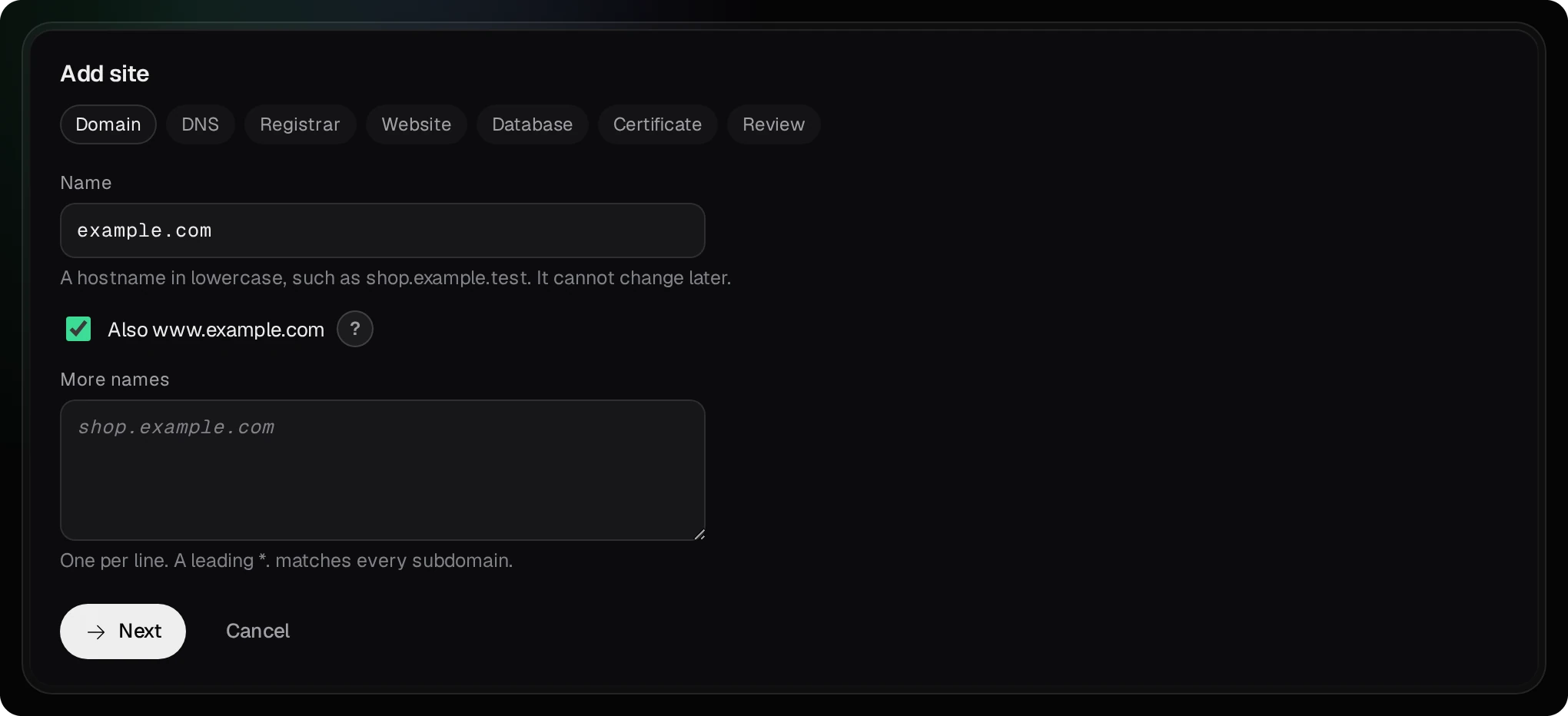
- DNS. For Who answers for the names of example.com? leave TurboDNS on this
NAS, which is already chosen while TurboDNS runs. The answer under it, Cloudflare or OVHcloud, from the zone TurboDNS keeps on this NAS, is for a domain whose DNS stays at one of those providers (section 07); the picture shows that choice. Zone is the domain you bought. The panel fills in
This NAS’s public IPv4 address (it asks OpenDNS) and Its public IPv6 addresses (it reads
the NAS’s network interfaces). Check both, and clear the IPv6 field if your router does not pass IPv6 to
the NAS. Leave Second name server (optional) empty: the zone then gets the name servers
ns.example.comandns1.example.com, both on this NAS. Records TurboDNS gets says that the zone comes from the hosting template, with MailServerPro’s records (section 05).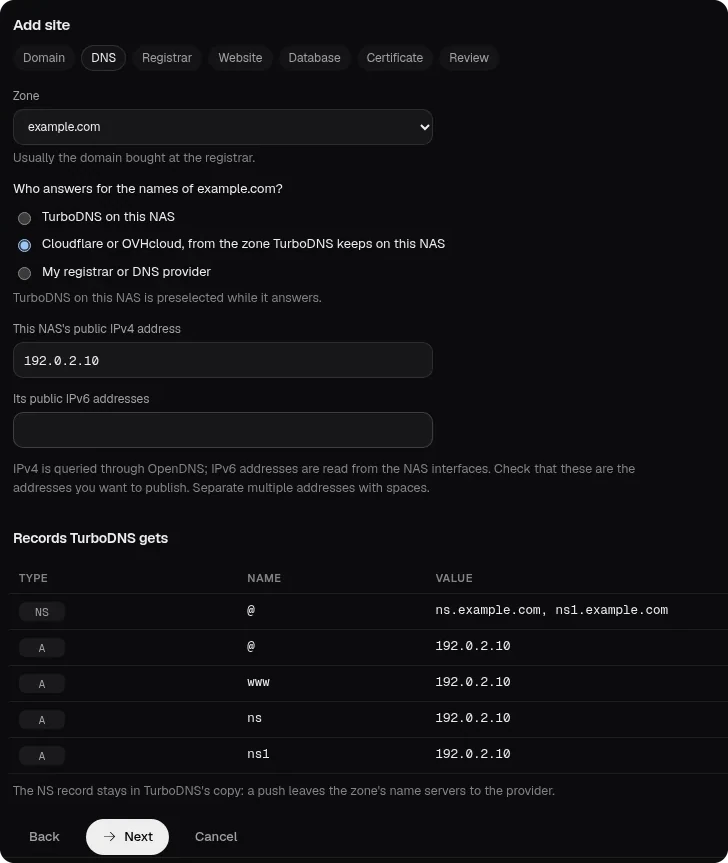
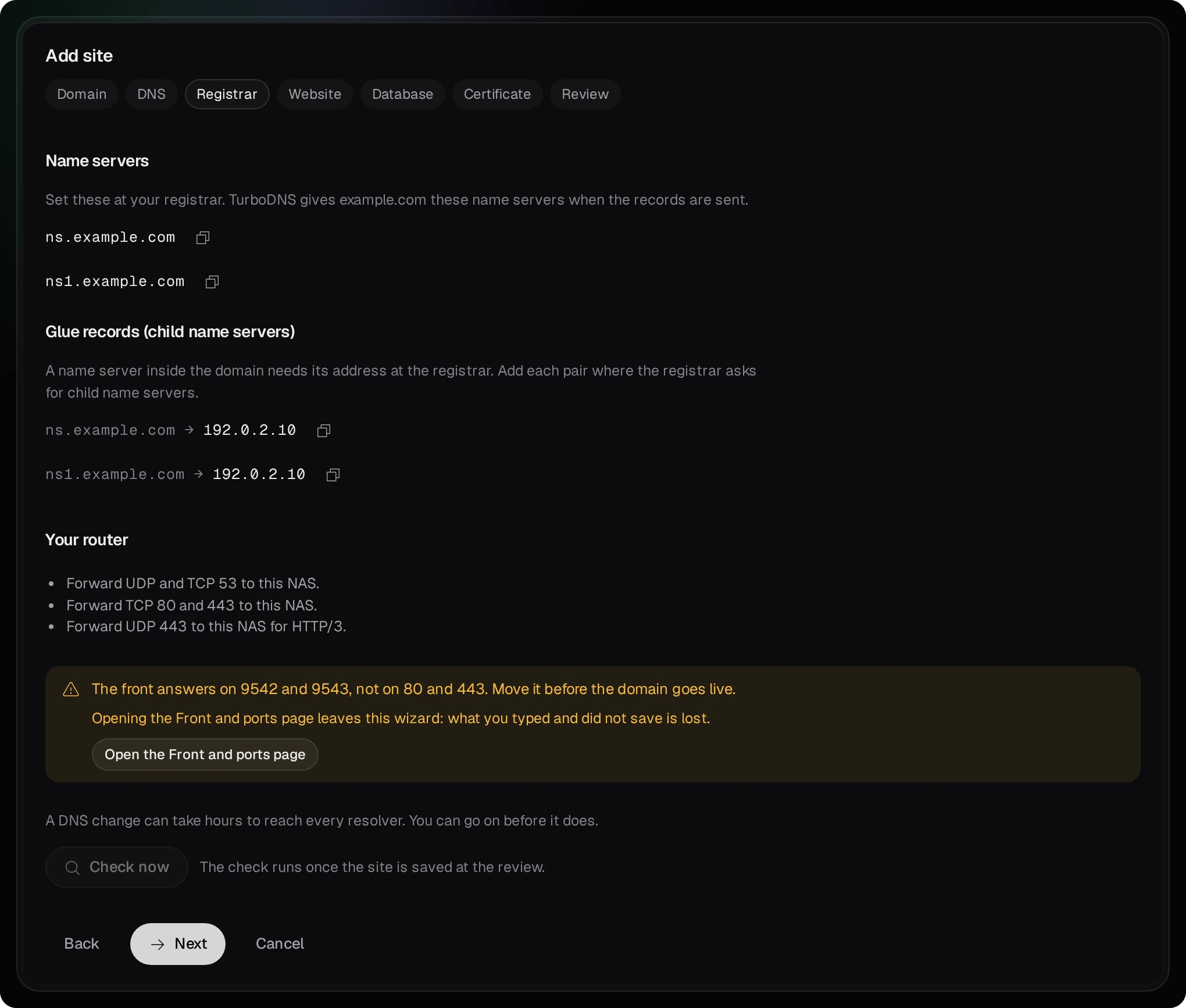
- Registrar. This step lists what to enter at the registrar, each value with a
copy button: Name servers and Glue records (child name servers). Under Your router it
lists the ports to forward and where the front, WebHostPro’s web server, answers. Enter these after you apply the plan (sections
06 and 07).
- Website. Pick the kind of site: PHP for an application such as WordPress, with its own PHP; Static files for HTML, CSS and pictures; Reverse proxy to pass visitors on to
another service on the NAS or the local network. Under Web server, nginx serves the site by itself, while httpd reads
.htaccessfiles for sites that need them. A PHP site also has a PHP version.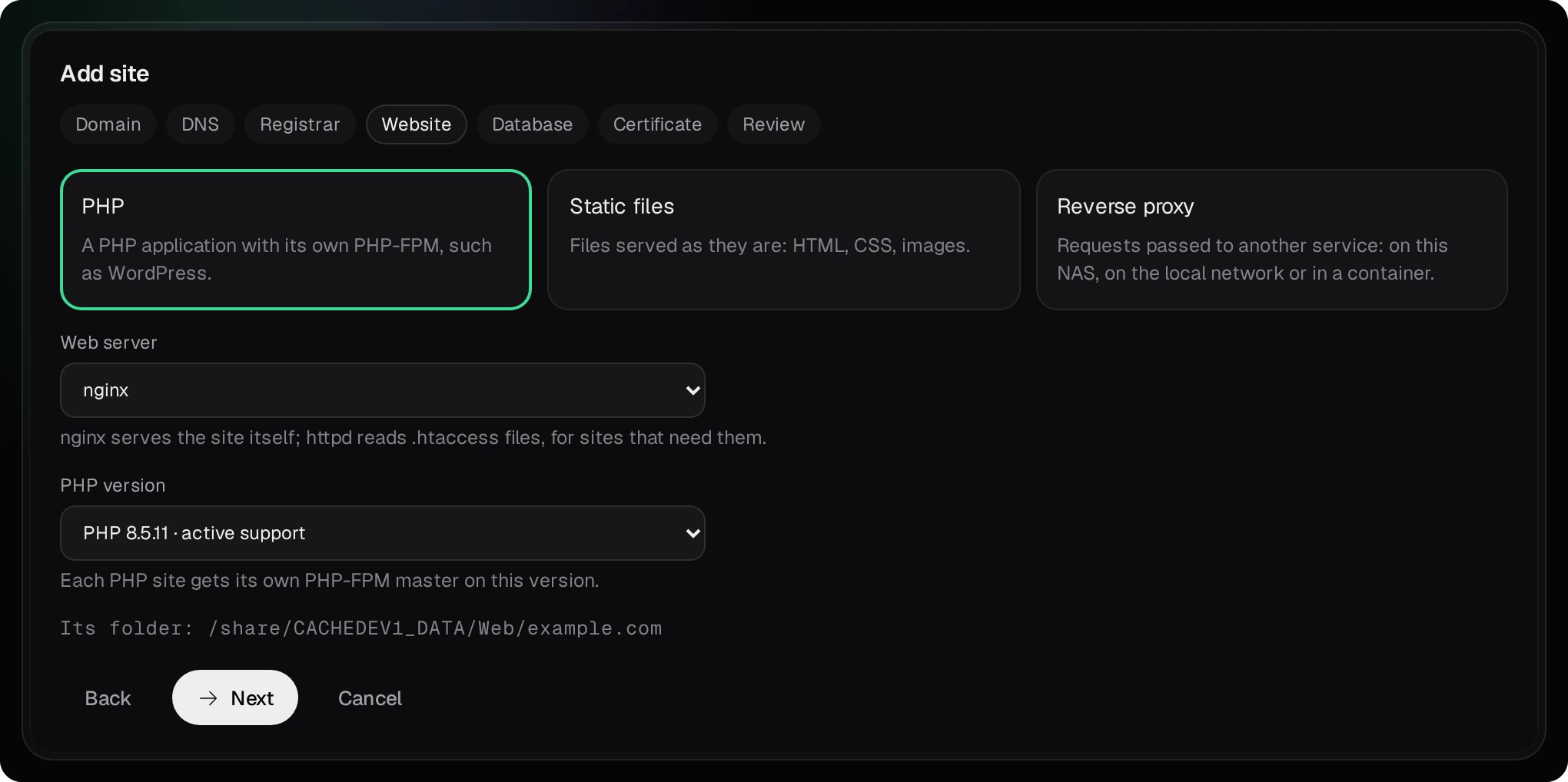
- Database (a PHP site only). Database engine is No database unless you pick MariaDB, PostgreSQL or Percona Server, which gives the site its own Database and User. The dry run creates them and shows the password once, so copy it right away.
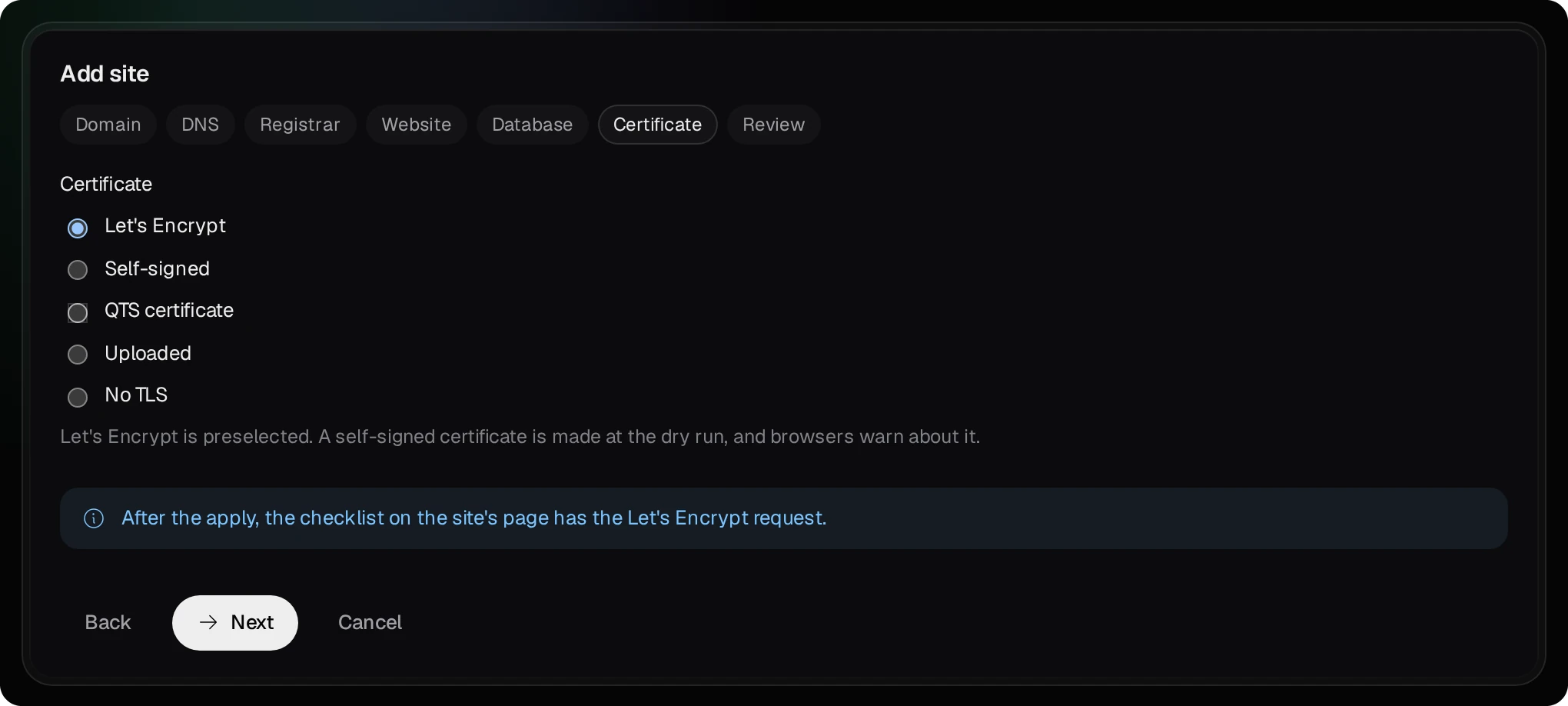
- Certificate. Leave Let’s Encrypt, a free certificate authority that browsers trust.
You request the certificate from the site’s checklist after the apply (section 08). A
self-signed certificate is made at once, but browsers warn about it.
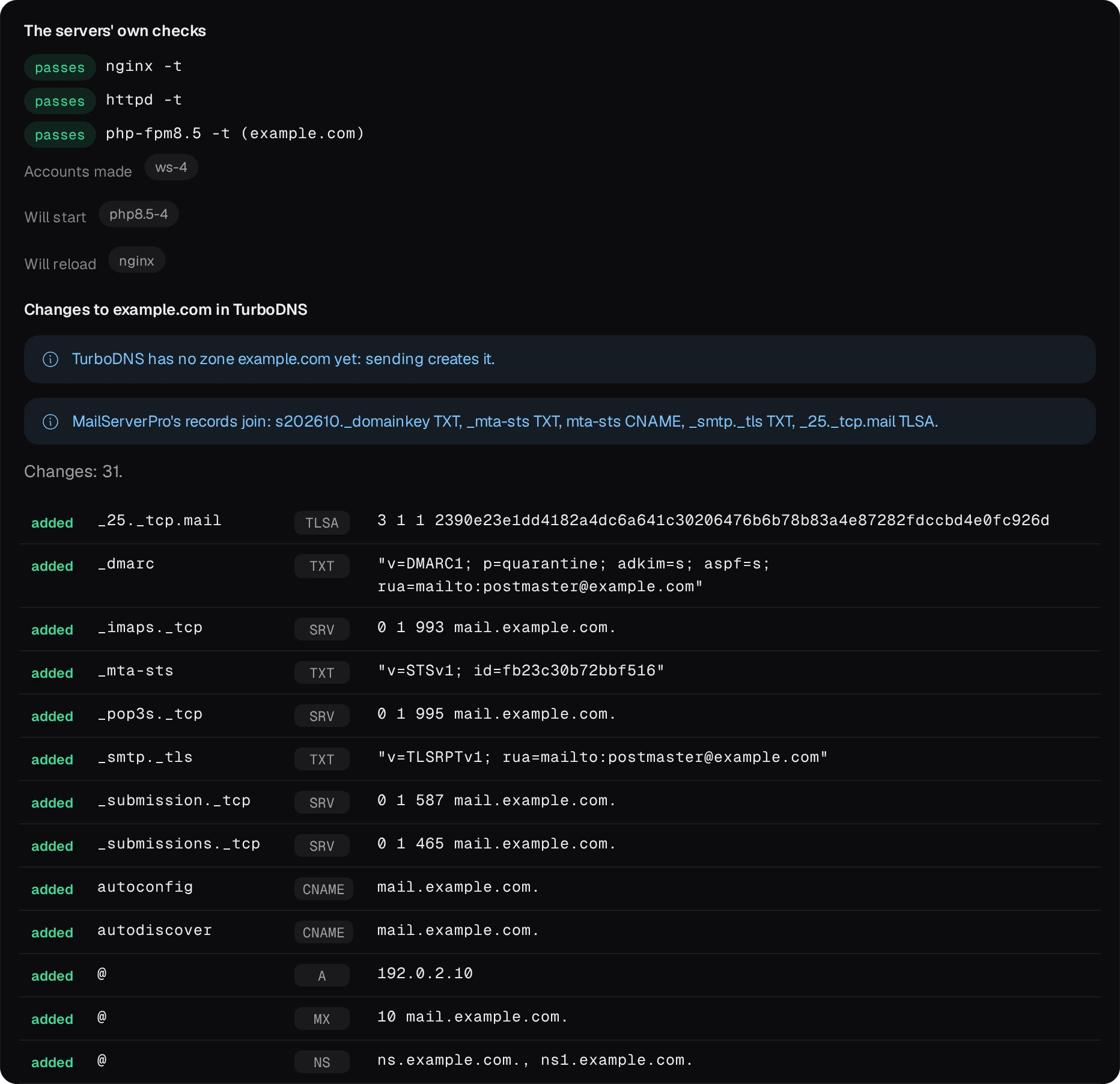
- Review. Press Dry run. It saves the site as a draft, runs the web servers’ own checks and lists every file that will change; the site is not live yet. Below the site’s plan, TurboDNS’s changes list every record the zone will get. Apply this plan makes the site live, then sends TurboDNS’s changes. A snapshot keeps the files as they were.
The site now has a folder of its own in the sites’ folder, and visitors get whatever is in its public/ folder. Copy the site’s files there with File Station or SMB, or with Open in the editor on the site’s
Files tab when Bucket & Code Server IDE runs on the NAS. Until public/ has a page, the
site answers 403. PHP may be unable to write to files that another account copied in: Fix permissions on the
Files tab gives them to the site’s own account.
05The zone from the hosting template
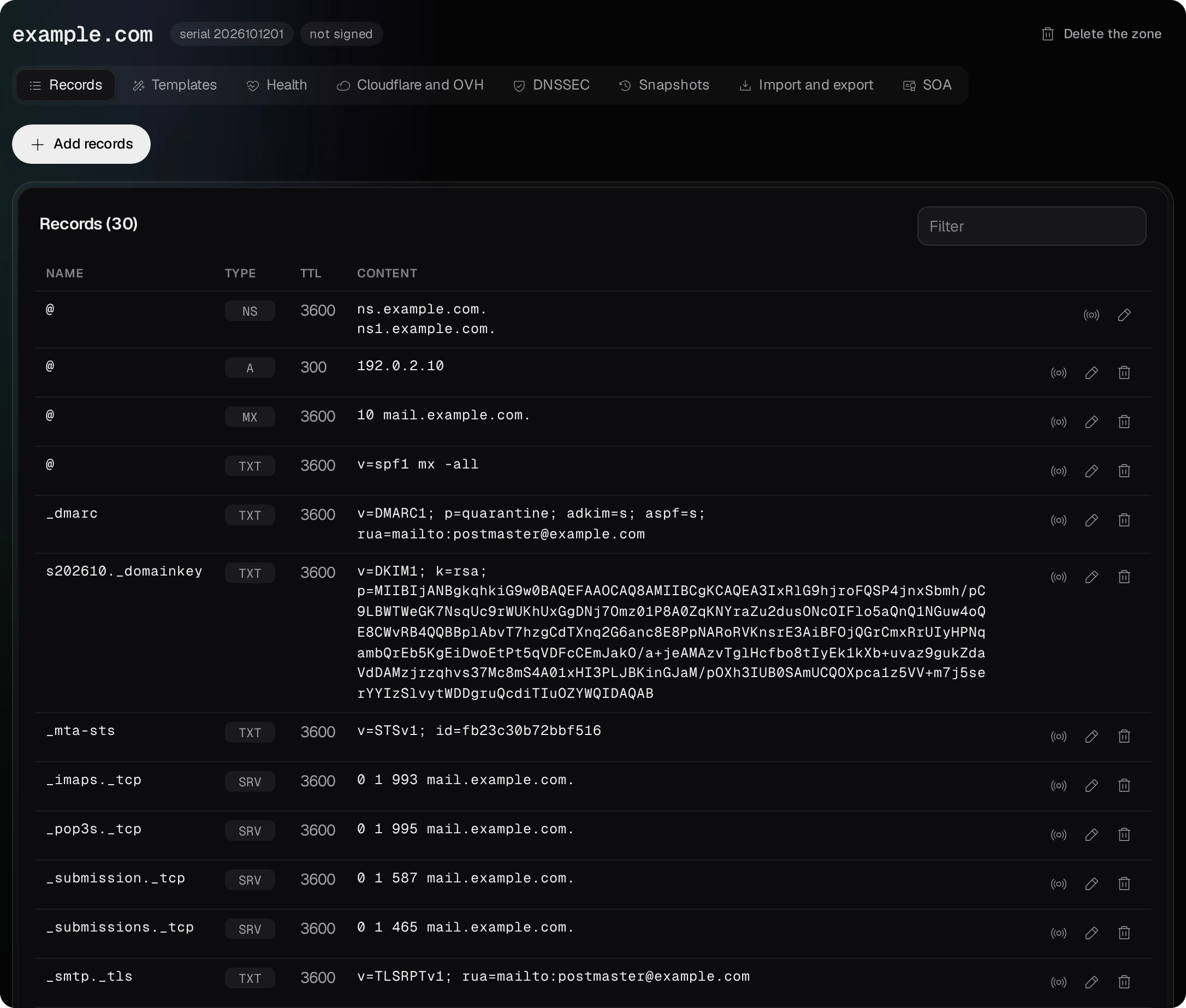
TurboDNS’s hosting template holds every record a domain needs when its website, mail and DNS run on this
NAS. With example.com and 192.0.2.10 it writes these records:
| Name | Type | Value | What it is for |
|---|---|---|---|
@ | NS | ns.example.com ns1.example.com | the name servers, both on this NAS |
@ www ns ns1 webmail
mail imap imaps pop pop3 pop3s
smtp smtps mailserver | A, and AAAA with an IPv6 address | 192.0.2.10 | the website, the name servers and the mail names point at the NAS |
ftp | CNAME | example.com | the same address as the domain |
autoconfig autodiscover | CNAME | mail.example.com | where mail programs look for their settings |
@ | MX | 10 mail.example.com | other servers deliver the domain’s mail there |
@ | TXT | v=spf1 mx -all | SPF: only the MX server sends the domain’s mail |
_dmarc | TXT | v=DMARC1; p=quarantine; adkim=s; aspf=s;
rua=mailto:postmaster@example.com | DMARC: what a receiver does with mail that fails SPF and DKIM, and where it sends reports |
_submission._tcp _submissions._tcp _imaps._tcp
_pop3s._tcp | SRV | ports 587, 465, 993 and 995 on mail.example.com | the ports mail programs use to send and read mail |
MailServerPro adds the records only it can know:
| Name | Type | What it is for |
|---|---|---|
s202610._domainkey | TXT | DKIM: the public key that checks the signature of the domain’s mail |
_mta-sts, mta-sts | TXT, CNAME | MTA-STS: asks other servers to deliver over an encrypted connection, and names the host that publishes the policy |
_smtp._tls | TXT | TLS-RPT: other servers report encryption failures to
postmaster@example.com |
_25._tcp.mail | TLSA | DANE: the hash of the mail certificate’s key; it counts only in a zone signed with DNSSEC |
TTL is how many seconds other servers may keep an answer before they ask again. The addresses have 300 seconds, so a new address reaches resolvers within five minutes; the other records have an hour. In TurboDNS the zone’s Records tab shows them all.
The template gives addresses to the names in this table. A site on another name in the domain, such as shop.example.com, gets its own A record (and AAAA, when there is an IPv6 address) from WebHostPro, along with the site’s other records.
The template without a website. For a domain with mail but no site, apply the same template
in TurboDNS itself. Press New zone, type example.com and keep the name servers
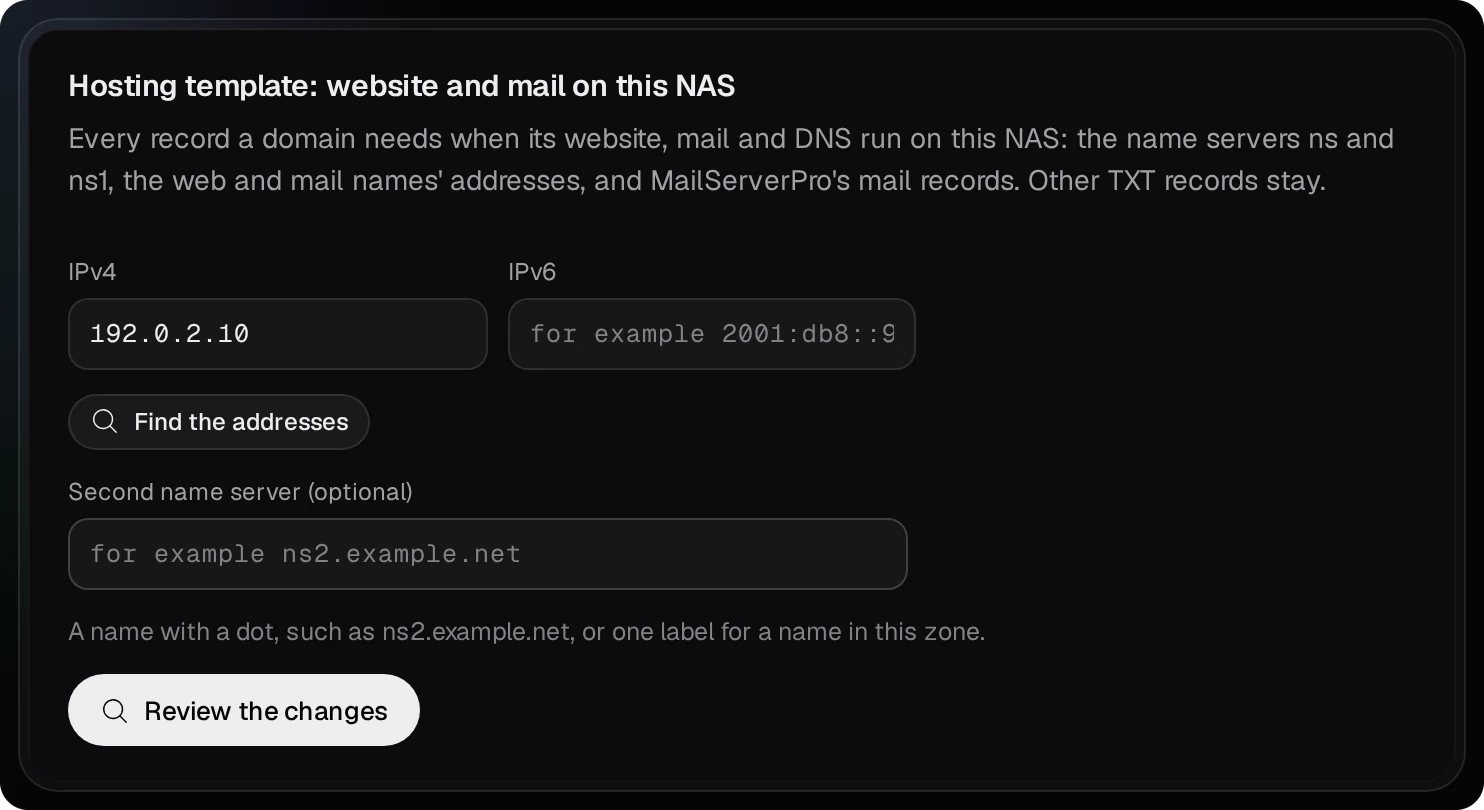
ns and ns1, then open the zone’s Templates tab. The card Hosting
template: website and mail on this NAS takes the IPv4 and IPv6 addresses (Find the addresses fills
them in) and shows the dry run on Review the changes; Apply the changes writes the records. This card leaves out MailServerPro’s own records: copy each one from MailServerPro’s Records to publish and add it on the Records tab with Add records.
06The router and the front
Forward these ports from the public address to the NAS’s local address:
| Port | Protocol | For |
|---|---|---|
| 53 | UDP and TCP | TurboDNS: other servers ask it about example.com |
| 80 | TCP | the website over HTTP, and Let’s Encrypt’s check |
| 443 | TCP, and UDP for HTTP/3 | the website over HTTPS |
| 25 | TCP | mail from other servers |
| 587 and 465 | TCP | sending from mail programs outside the local network |
| 993 | TCP | reading mail (IMAP) outside the local network; 995 too for POP3 |
WebHostPro’s nginx is the front: every visitor to every site passes through it. It listens on 9542 (HTTP) and 9543 (HTTPS), because QTS often keeps 80 and 443 for itself. There are two ways to reach it:
- The front on 80 and 443. The Front and ports page shows what holds each port and the steps in QTS that free it, with what each step breaks. WebHostPro never changes QTS’s settings itself. When both ports are free, Move the front to 80 and 443 moves it; Move the front back to 9542 and 9543 undoes it. The router then forwards 80 to 80 and 443 to 443.
- The front on its own ports. The router forwards 80 to 9542 and 443 to 9543, and QTS keeps
its ports. Redirect HTTP to HTTPS still sends a visitor to
https://example.comwithout a port.
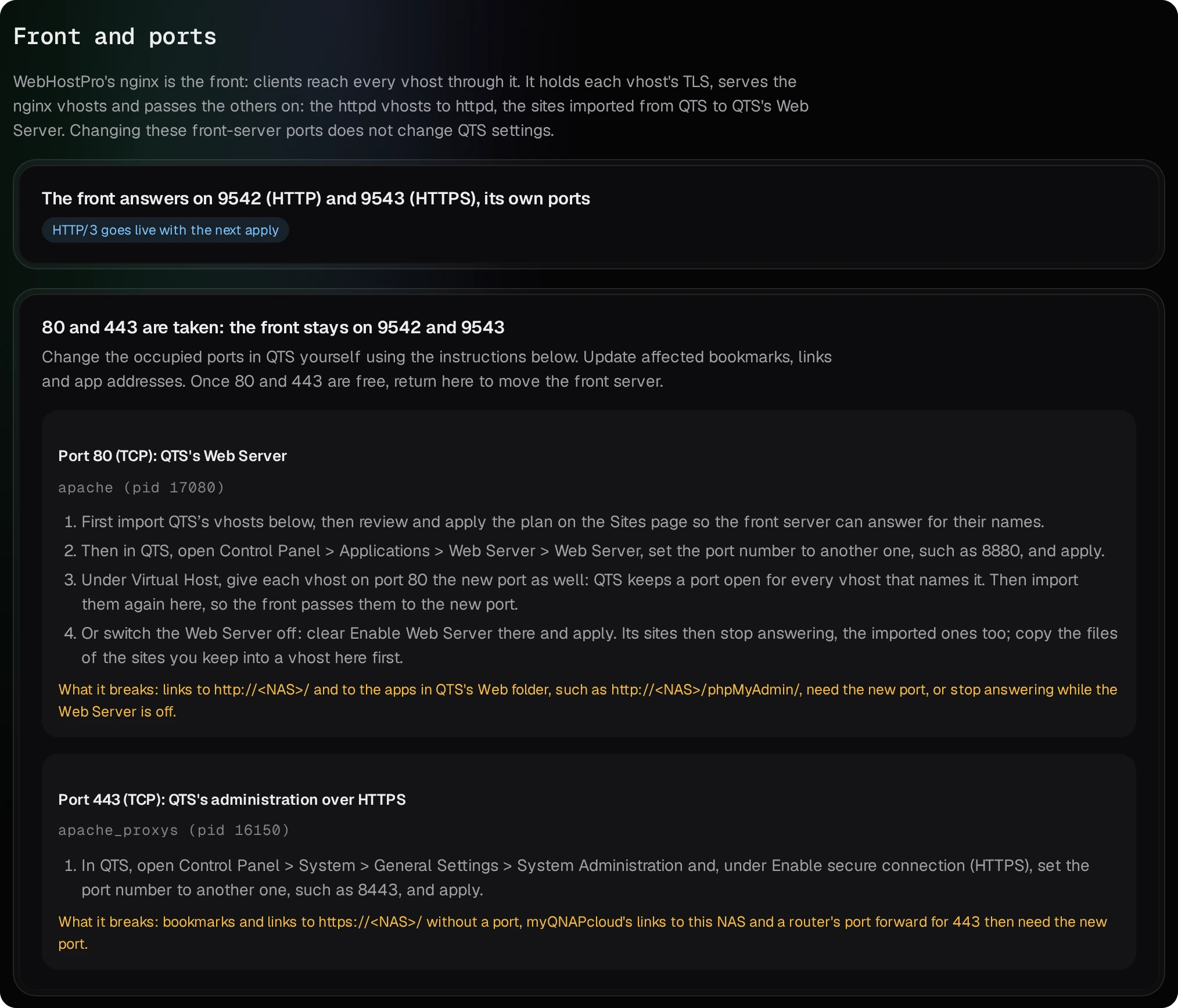
UDP 443 is needed only when the Front and ports page says HTTP/3 on. Many routers do not pass a request from the local network to their own public address, so test from outside, for example from a phone on mobile data.
07At the registrar
TurboDNS answers for the zone once the apply has sent it there. Then, at the registrar:
- Create the glue records: the host
ns.example.comwith the address192.0.2.10, and the hostns1.example.comwith the same address. Registrars call them glue records, child hosts or private name servers. - Set the domain’s name servers to
ns.example.comandns1.example.com.
The site’s checklist shows the same values with copy buttons, under At the registrar. A change at the registrar takes hours to reach every resolver; you can carry on in the meantime.
ns and ns1 meet a registrar’s rule of two name servers, but they are the same
NAS: while it is off or offline, nothing answers for the domain. A registrar that wants two different machines
refuses the pair. TurboDNS does not hand the zone to any other DNS server: it allows zone transfers only to the NAS itself. DNSSEC, which signs the zone’s answers, is optional: the zone’s DNSSEC tab signs the zone
and shows the DS record, which only the registrar can publish.
The DNS stays at Cloudflare or OVHcloud
If the domain’s name servers are Cloudflare’s or OVHcloud’s and stay so, pick <em>Cloudflare or OVHcloud, from the zone TurboDNS keeps on this NAS</em> in the wizard’s <em>DNS</em> step. TurboDNS gets the site’s records just as when it answers itself and keeps the zone on the NAS; you push a copy to the provider. The registrar keeps the provider’s name servers, and this zone needs no port-53 forward on your router. The <em>Registrar</em> step and the checklist show <em>At the provider</em> instead of name servers and glue records.
- In TurboDNS open Provider accounts. For Cloudflare give an API token with Zone · DNS · Edit, and Zone · Zone · Edit if Cloudflare does not hold the zone yet. For OVHcloud give the application key, the application secret and the consumer key; OVHcloud takes a push only into a zone it already holds. Save checks them with the provider at once. With an account saved, the dry run of the hosting template says when the provider already holds the zone, and then asks for no glue record.
- Open
example.comin TurboDNS, then its Cloudflare and OVH tab, and press Review the changes. The dry run lists every step; Push the changes runs them, then reads the zone back and compares. TurboDNS pushes nothing by itself: a later change in the zone reaches the provider at the next push.
The SOA record, the provider’s own name servers and DNSSEC records are not pushed. A record TurboDNS creates at Cloudflare is DNS only; a name you proxy there answers with Cloudflare’s addresses, so the live check keeps waiting for it. The live check skips the name servers at the registrar and the glue records, each with its reason, still asks about TurboDNS on this NAS, and passes when the public resolvers and the front answer. For the certificate WebHostPro picks HTTP-01 when the front is on port 80, otherwise DNS-01 through Cloudflare when it has a Cloudflare token saved, otherwise HTTP-01. DNS-01 through TurboDNS fails here: its challenge record stays in TurboDNS’s copy of the zone, which the provider sees only after a push. To choose the method yourself, pick HTTP-01 or DNS-01 through Cloudflare on the site’s Domains and TLS tab.
08The checklist and the certificate
After the apply, the site’s Overview shows Finish setting up example.com. Each row is To do or Done:
| Row | What it does |
|---|---|
| Site applied | done once the site is live |
| Records in TurboDNS | In TurboDNS since and a time once TurboDNS’s plan for the domain has nothing to change; otherwise Send records sends them |
| At the registrar | the name servers and glue records of section 07, with copy buttons; At the provider when Cloudflare or OVHcloud answers for the domain |
| Live check | Check now asks whether the domain points at this NAS |
| Certificate | Ask Let’s Encrypt |
| Finish | Close the checklist once the domain works; the Overview keeps a Domain setup link that opens it again |
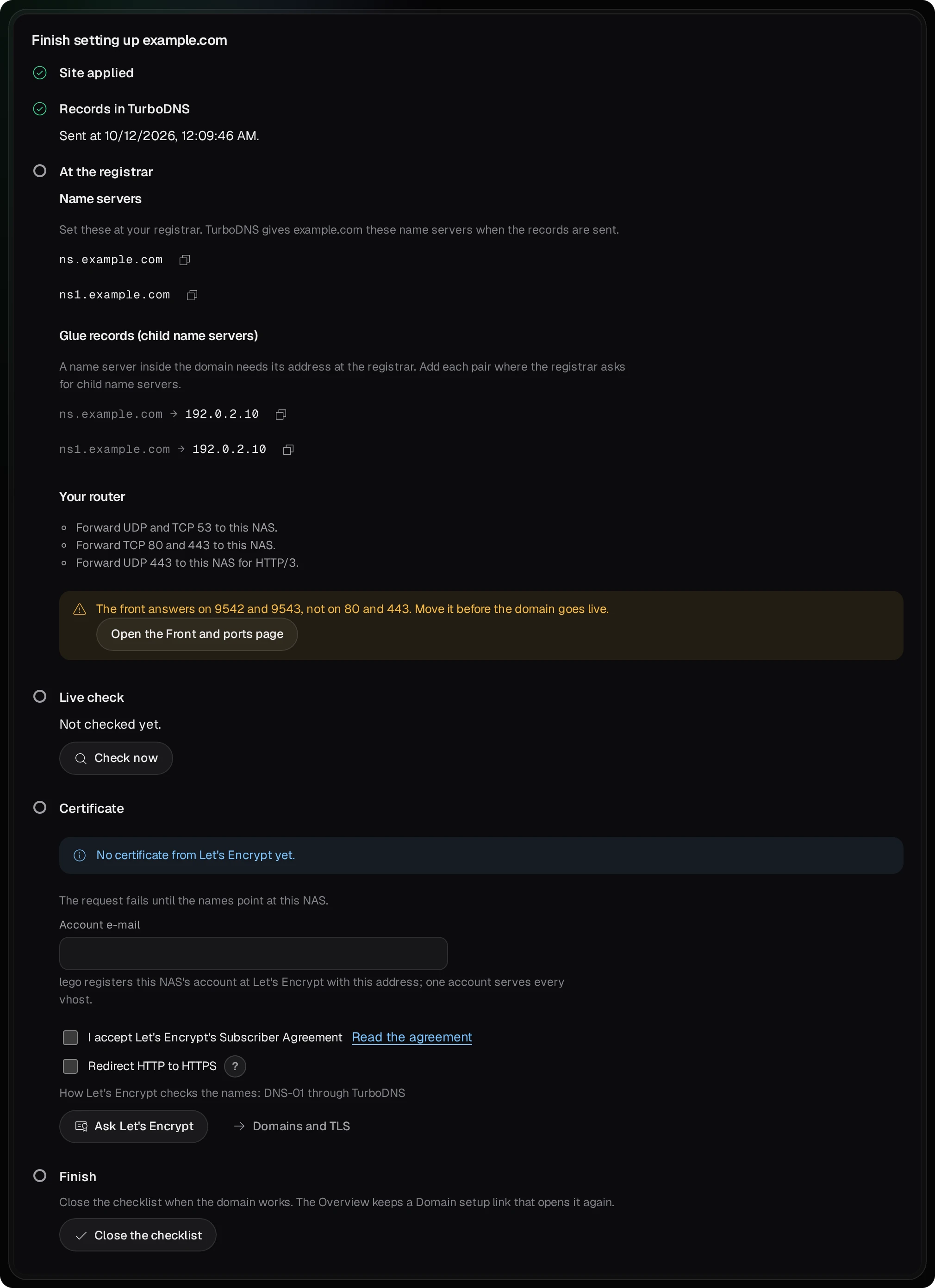
Check now tests seven things from the NAS: Name servers at the registrar, Glue records, TurboDNS on this NAS, Public resolvers, The www name, The front over HTTP and The front over HTTPS. Each one says Matches, Not yet, Differs, No answer or Skipped, with what it expected and what it found. The check passes when the registrar names this NAS’s name servers, public resolvers give the site’s address and the front answers over HTTP. For hours after a change at the registrar, not passed yet is normal: press Check now again later. The check runs on the NAS, so it cannot see whether ports 53, 80 and 443 reach the NAS from the internet.
The certificate. Once the check passes, Ask Let’s Encrypt becomes the main button. Type the Account e-mail (one account serves every site) and, the first time, tick I accept Let’s Encrypt’s Subscriber Agreement. The row names how Let’s Encrypt checks the names: with the front on port 80 it fetches a file over HTTP (HTTP-01); with the front on its own ports and TurboDNS on the NAS, it looks for a TXT record that WebHostPro adds through TurboDNS and removes afterwards (DNS-01). The site’s Domains and TLS tab changes the way. When the certificate is there, run the dry run on the Sites page and apply it: only then does the site serve it. WebHostPro renews it by itself when 30 days or less are left.
09Mail on a phone and in mail programs
Webmail is at https://192.168.1.20:9581/ on the local network. Sign in with a mailbox’s full
address and its password. For a mail program or a phone’s mail app, the Overview’s At a
glance lists the settings:
| Setting | Value |
|---|---|
| Server for reading and for sending | mail.example.com |
| User name | the full mail address, such as anna@example.com |
| Reading (IMAP) | port 993, SSL/TLS |
| Sending (SMTP) | port 587 with STARTTLS, or port 465 with SSL/TLS |
| Password | the mailbox’s password, for both |
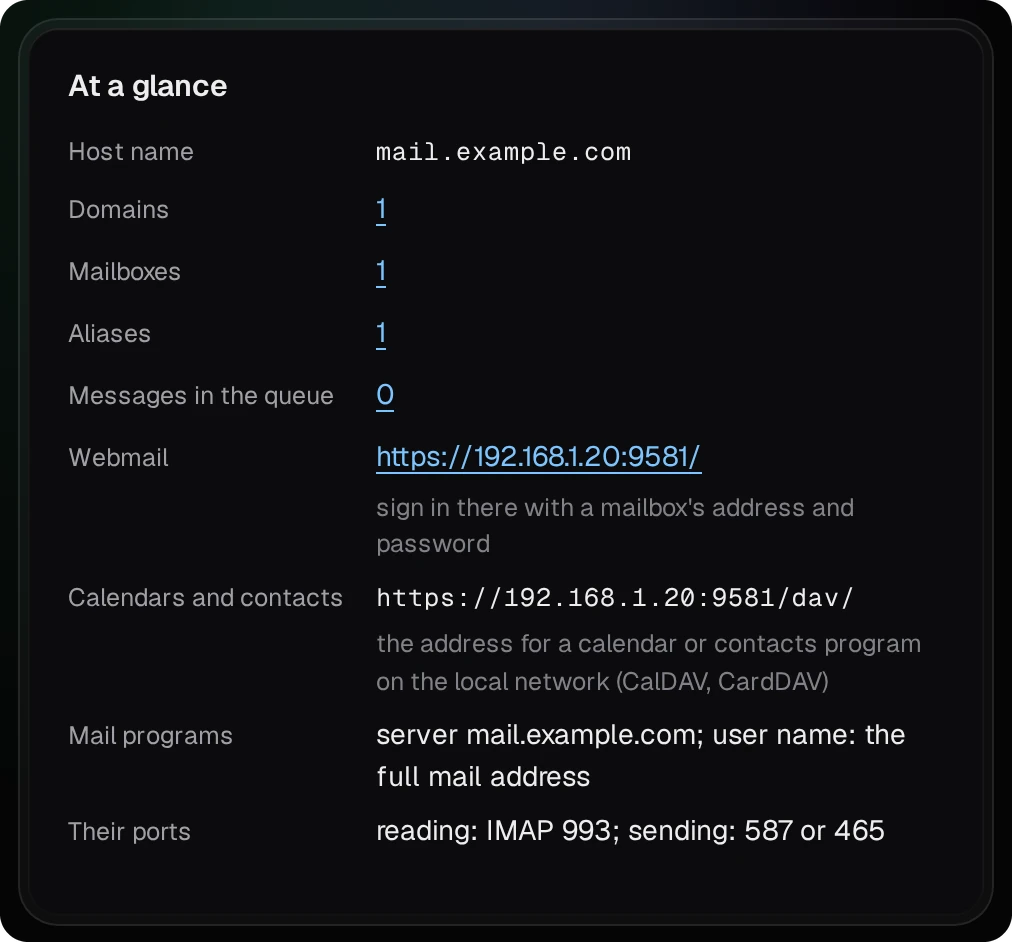
The mail ports have a certificate of their own. MailServerPro makes a self-signed one for its Host name, so a mail program or a phone asks once whether to trust it. On Settings, Certificate can take The NAS’s certificate from QTS instead, which must name the Host name, or Files you put in the data folder.
Calendars and contacts are at https://192.168.1.20:9581/dav/ on the local network, with the same
address and password.
Webmail from outside. A WebHostPro site can put MailServerPro’s web pages on the
internet. Add a site named webmail.example.com with the More names
mta-sts.example.com autoconfig.example.com autodiscover.example.com, the kind Reverse proxy
and the Proxy target https://127.0.0.1:9581. Webmail then answers at
https://webmail.example.com/, other mail servers can read the domain’s MTA-STS policy, and mail
programs that look for their settings at autoconfig.example.com find them. MailServerPro sees each
visitor’s own address, so failed sign-ins lock out that visitor and not the whole site. Its admin panel answers
under these names too, at /admin/. Without this site, type a mail program’s settings by
hand.
10Check that it works
- In WebHostPro. Check now on the site’s checklist (section 08).
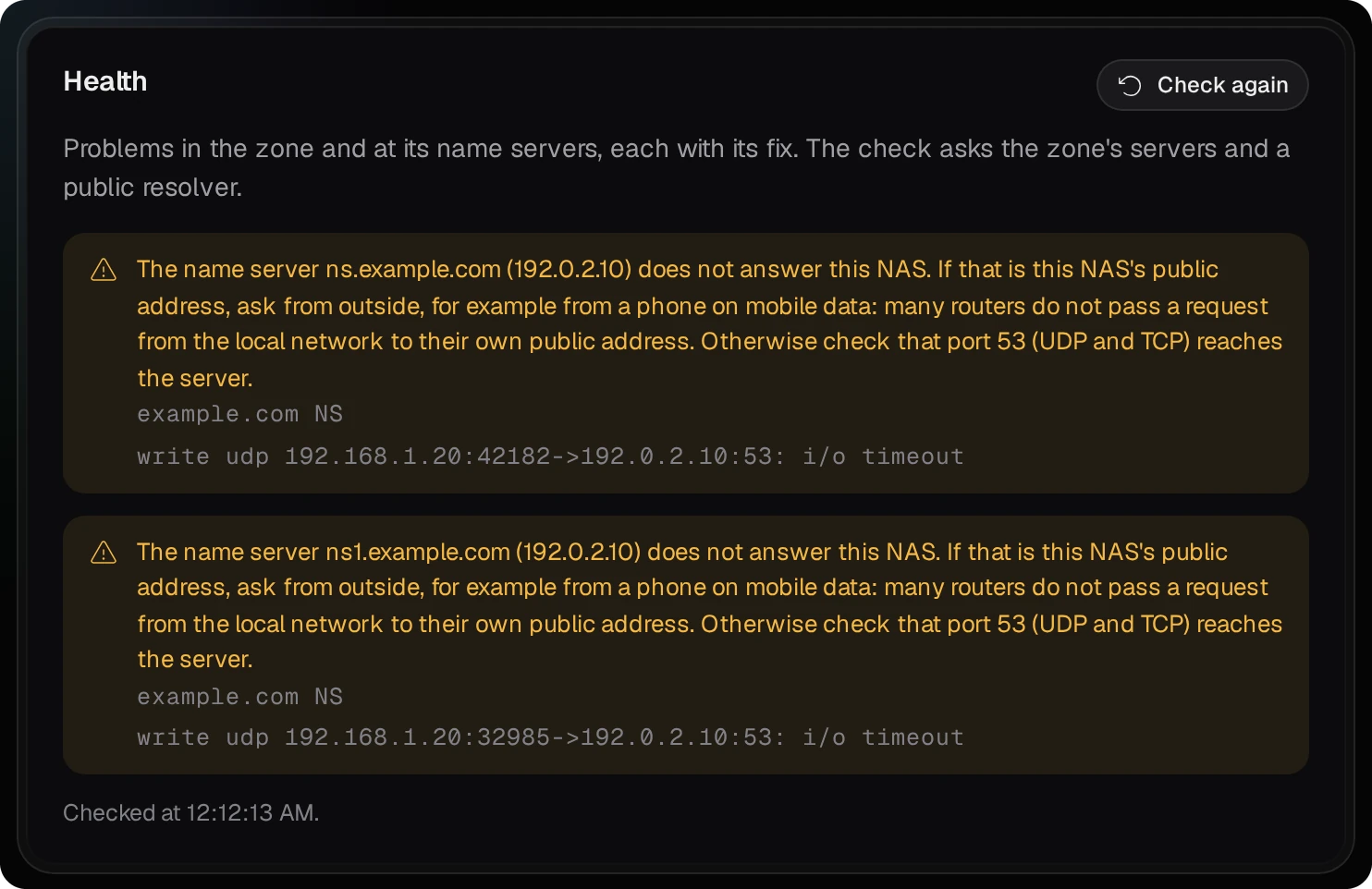
- In TurboDNS. The zone’s Health tab lists the zone’s problems, each with
its fix: name servers that do not answer or serve an old copy, and a DS record at the registrar that does not
match. Check propagation on a record’s row shows what this NAS, each of the zone’s name
servers and the public resolvers 1.1.1.1, 8.8.8.8 and 9.9.9.9 answer. A name server at the NAS’s public
address may not answer the NAS itself, because of the router; ask from outside to be sure.
- From a computer. Ask a public resolver for the name servers, the site’s address, the
MX record and the DKIM key (
digon macOS and Linux;nslookup -type=NS example.com 1.1.1.1and so on, on Windows):
dig +short NS example.com @1.1.1.1
dig +short A www.example.com @1.1.1.1
dig +short MX example.com @1.1.1.1
dig +short TXT s202610._domainkey.example.com @1.1.1.1
- The site. Open
https://example.com/andhttps://www.example.com/on a phone on mobile data. - A test message. Sign in to webmail as
anna@example.comand write to a mailbox at another provider. In the received message’s headers (often “Show original”),Authentication-Resultsshould saydkim=pass,spf=passanddmarc=pass. Reply to it: the reply reaches webmail when port 25 reaches the NAS. A message still waiting to go out shows on MailServerPro’s Queue page, with the reason.
11When something fails
Each app explains what went wrong in its own words. These are the messages you are most likely to see on the first day:
- “The first-run setup closed 60 minutes after the panel started.”
- WebHostPro, TurboDNS
- The panel takes its first password only in the first hour after it starts. Restart the app in App Center and set the password within the hour.
- “The first sign-in works only from a computer on the local network.”
- TurboDNS (WebHostPro says it in other words)
- The panel takes its first password only from a computer on the local network. Open it from a computer at home or in the office, not over the internet.
- “The mail server has no administrator yet. The first one is made from a computer on the local network …”
- MailServerPro
- MailServerPro makes its first administrator only for a computer on the local network (a private or loopback address). Open its panel from a computer at home or in the office.
- a placeholder beside the Host name
- MailServerPro, At a glance
- The mail server has no name on the internet yet. Type it under Settings → Host name, such as
mail.example.com(section 03). - “The plan is gone: it is older than 30 minutes, was used, or TurboDNS restarted. Ask for a new one.”
- WebHostPro, sending the records
- A plan can be sent once, within 30 minutes. Press Ask again, read the new plan and send it.
- “Last check …: not passed yet.”
- WebHostPro, the checklist
- At least one item of the live check does not match yet. Read the items that do not say Matches. Right after a change at the registrar, wait and check again.
- “The front is on port 9542, not 80: your router must pass port 80 from the internet to port 9542 of this NAS, or pick DNS-01.”
- WebHostPro, Let’s Encrypt
- Let’s Encrypt’s HTTP-01 check comes in on port 80, and the front listens on 9542. Forward port 80 to 9542, or move the front (section 06).
- “The last run (…) failed: …”
- WebHostPro, Domains and TLS
- The words after the colon come from Let’s Encrypt. Most often the names do not point at the NAS yet, or port 80 does not reach it.
- “PowerDNS does not answer”
- TurboDNS, the status bar
- The panel gets no answer from its DNS server, PowerDNS. Stop and start TurboDNS in App Center, then read its log.
- stopped beside a service
- MailServerPro, Overview
- That part of the mail server is not running. Open its log beside it. Stopping and starting the app in App Center starts every service again.
The logs:
- WebHostPro: each site’s Logs tab, the Services page, and the files in
logs/of its data folder,<install volume>/WebHostPro(nginx, httpd, PHP and Let’s Encrypt each have their own). - TurboDNS:
data/log/pdns.log(the DNS server) anddata/log/panel.log(the panel) in the app’s install folder, such as/share/CACHEDEV1_DATA/.qpkg/TurboDNS. - MailServerPro: the Logs page of its panel, and the files in
log/of its data folder,<install volume>/MailServerPro.
WebHostPro installed again, or its data moved
Each site runs under an account of its own, ws-1, ws-2 and so on, and the
account’s description in /etc/passwd names WebHostPro’s data folder. If you remove WebHostPro and install it again on the same volume, it uses the same data folder and the sites come back as they were. A new install with a different data folder, while the old accounts are still there, refuses its first dry run and names the
ws- line in the way.
To move WebHostPro’s data to another volume, stop WebHostPro in App Center, move its data folder, write the
new path into etc/data-dir in WebHostPro’s install folder and start it again. The start takes the sites’ accounts back, changing only their description to the new folder, and writes the servers’ files for the new folder, so the sites answer at once, with no apply. If the old folder is still there (a copy, not a move), or none of the sites was ever applied, the next dry run is refused and names each ws- line: as admin in an SSH session, change that line’s description to WebHostPro site of and the new folder. Do not start a second install on an empty data folder to replace the first one: it takes over neither the
sites nor their accounts.
12Without a public address
Behind CGNAT, or with a router that forwards no ports, WebHostPro can still put the website on the internet through a Cloudflare Tunnel: cloudflared on the NAS connects out to Cloudflare, and Cloudflare passes the site’s visitors to the front. The domain’s name servers must then be Cloudflare’s, so TurboDNS does not answer for it. Mail cannot reach the NAS this way: other servers deliver to the MX address on port 25.
- In the wizard’s DNS step pick My registrar or DNS provider and clear This NAS’s public IPv4 address. The site is then saved without a checklist. Add no A, AAAA or CNAME record for the site’s names at Cloudflare yourself.
- Finish the wizard and apply the site.
- On Front and ports, in the card Reach the sites from the internet through Cloudflare, paste an API token of your Cloudflare account with the permissions the card lists, press Check the token, pick the zone and press Turn the tunnel on.
- Turn on Reach this site from the internet through Cloudflare for the site.
Through the tunnel, visitors see Cloudflare’s certificate. On Cloudflare’s free plan one request uploads at most 100 MB, and Cloudflare waits at most 125 seconds for an answer. Turn the tunnel off before you remove WebHostPro: the removal leaves its records and the tunnel at Cloudflare.