Claude Code, Gemini CLI and Codex CLI in the editor on your NAS
The editor of Bucket & Code Server IDE is VS Code in the browser, one instance for each account. Each account installs the AI command-line tools it wants into its own home folder, signs in to them with its own account at their vendor, and runs them in the editor's terminal next to its projects.
- Installinto your home folder
- Startin the editor's terminal
- Sign inyour own account
- Projectthe skill it reads
- Endwhen it idles
The pictures come from the Editor settings page and the editor of Bucket & Code Server IDE with each
step done as this guide describes. The account is called ola; no tool was signed in.
01Before you start
- The Editor module is on: an admin presses Turn on Editor on its tile on the Overview. The editor is for developer and admin accounts.
- The editor's terminal is a root shell on the NAS, and so is everything an assistant runs in it: on QTS the package's processes run as admin. Give the developer role only to people you would give the NAS's admin password, and read what an assistant wants to run before you let it.
- The NAS reaches the internet: the tools download from their vendors and talk to their services.
02Install a tool
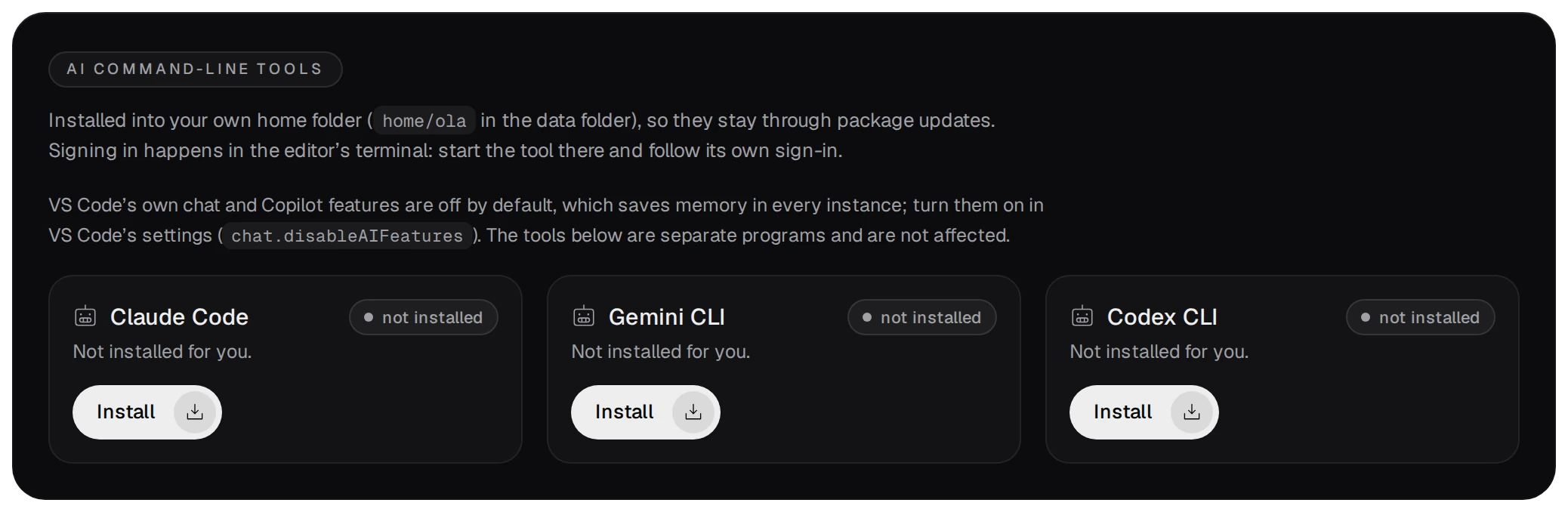
On the Editor settings page, the AI command-line tools card lists the three tools. Each account installs, updates and removes them for itself; another account does not see them.
| Tool | Installed with | Command |
|---|---|---|
| Claude Code | Anthropic's installer, npm if that fails | claude |
| Gemini CLI | npm, @google/gemini-cli | gemini |
| Codex CLI | npm, @openai/codex | codex |
- Install runs a job, with its log on the Jobs page. The tool goes into your home
folder (
home/<account>in the data folder:~/.local/bin,~/.npm-global/bin), which is on the terminal'sPATHand stays through package updates.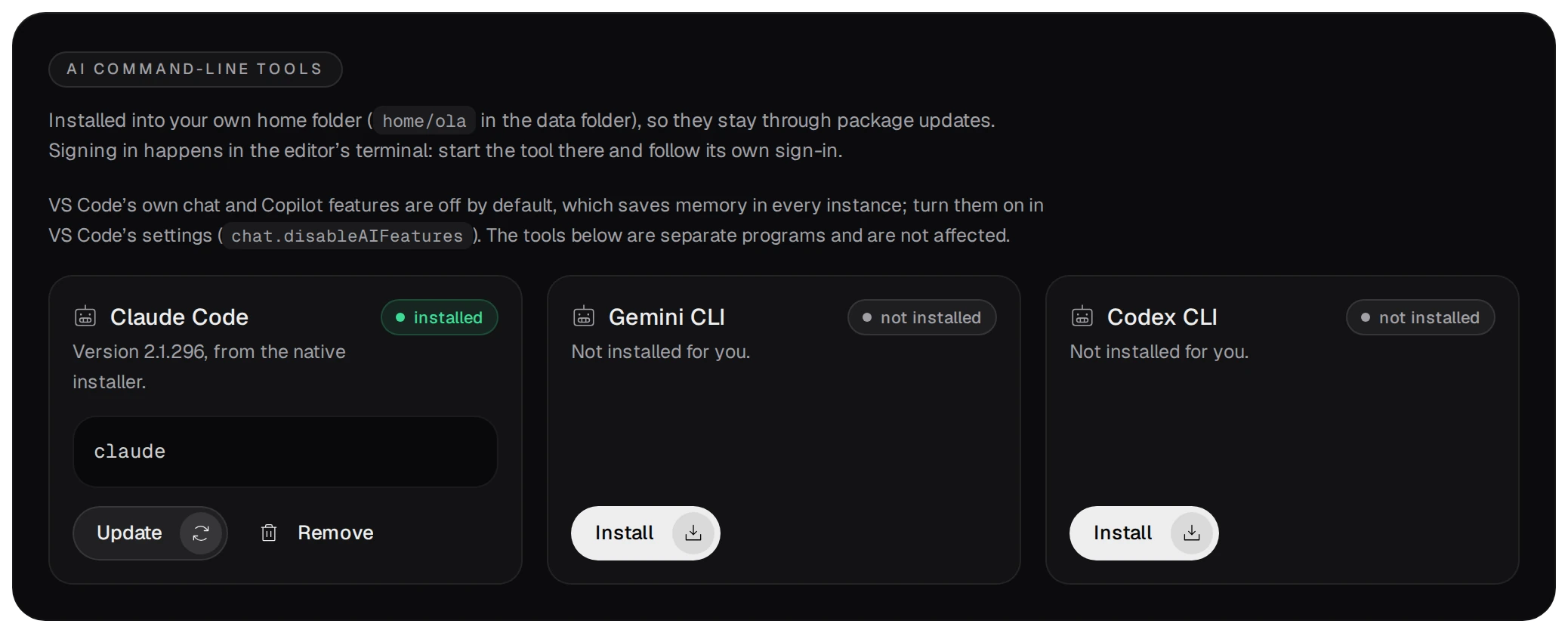
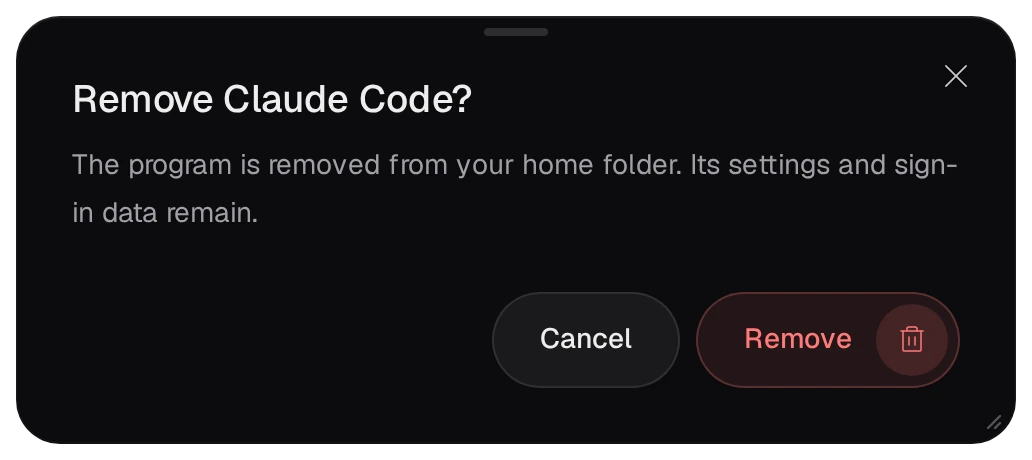
- Update installs the newest version the same way. Remove takes the program out of your
home folder; its settings and sign-in stay there.
03Start it and sign in
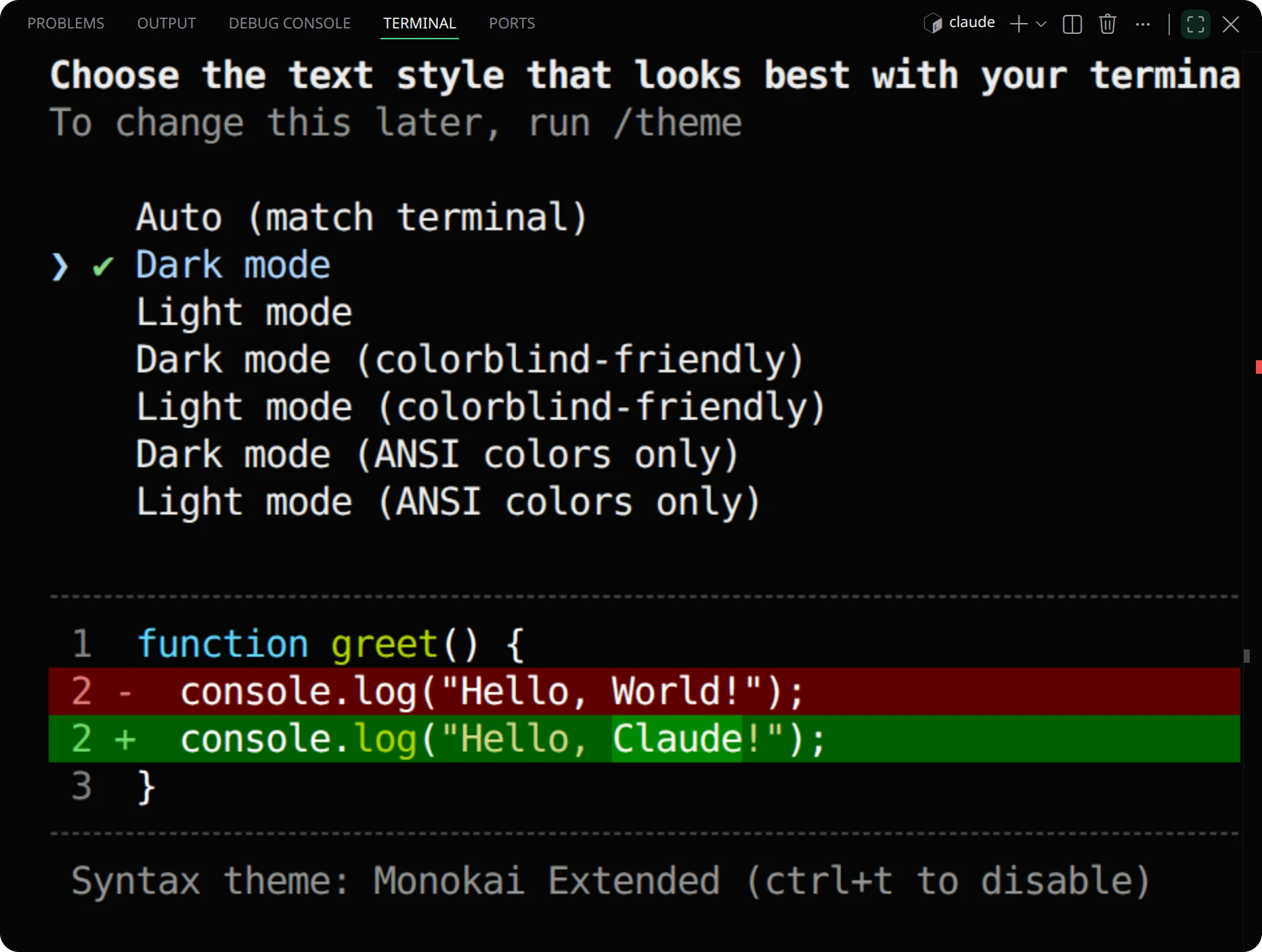
Open the editor on the Editor settings page opens VS Code in a new tab. Open a terminal (Ctrl+`), go into the project's folder and start the tool:
# in the editor's terminal: the editor and its terminal start in projects/
cd mytool
claude        # or gemini, or codex
On its first start each tool asks for its own setup and sign-in: an account with its vendor or an API key, always yours. The tool keeps its sign-in in your home folder.
- Claude Code also comes as an extension, Claude Code for VS Code, from the Extensions view (Ctrl+Shift+X).
Extensions come from Open VSX, and each account keeps its own in
ide/<account>/extensions. Its panel signs in to Anthropic. - The extension's panel is a view the extension draws itself, and the browser shows such views only when it trusts the panel's certificate. With the self-signed certificate accepted through the browser's warning page the panel stays empty; the Editor settings page says so. Trust the certificate (Download the certificate on the Network page), or run Claude Code: Open in Terminal from the command palette, which works with any certificate.
- VS Code's own chat and Copilot features are off (
chat.disableAIFeatures), which saves memory in every instance. The tools above are separate programs and are not affected.
04The skill in every project
Every project that New project makes carries a skill for AI assistants: guidelines for
working on a QNAP NAS. It explains what the NAS is at the shell (a RAM-disk root, BusyBox, no systemd, no
package manager), its storage and ports, and how to build, sign and publish with this package (bvs env
run, bvs qbuild, the App Builder, the package repository). It also lists what an assistant
must not suggest, such as apt on the NAS or allowing unsigned apps in App Center.
# a project made by New project
projects/mytool/
  AGENTS.md                  # points to the skill
  .claude/skills/qnap-dev/   # the skill itself
- Start the assistant in the project's folder, not in
projects/: each tool looks for these files in the folder it starts in. - Claude Code loads the skill from
.claude/skills/when a task needs it. Codex CLI readsAGENTS.md. Gemini CLI readsAGENTS.mdonce the project's.gemini/settings.jsonholds{"context": {"fileName": ["AGENTS.md", "GEMINI.md"]}}. - A project made before the package had the skill, or copied from the Examples gallery, gets it by copying
/usr/bin/bucketvs/share/skills/qnap-devinto its.claude/skills/.
05An agent keeps the editor running
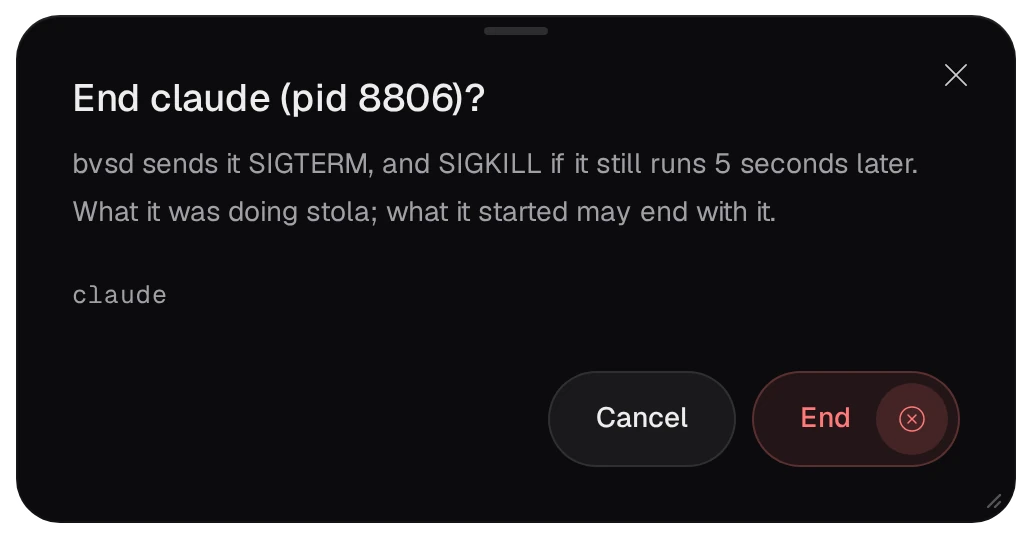
An instance stops after 30 minutes without traffic from a browser, but never while something started from it still runs. An AI agent waiting at its prompt counts: Memory and processes on the Editor settings page marks it AI agent, with a pin under Keeps it running.
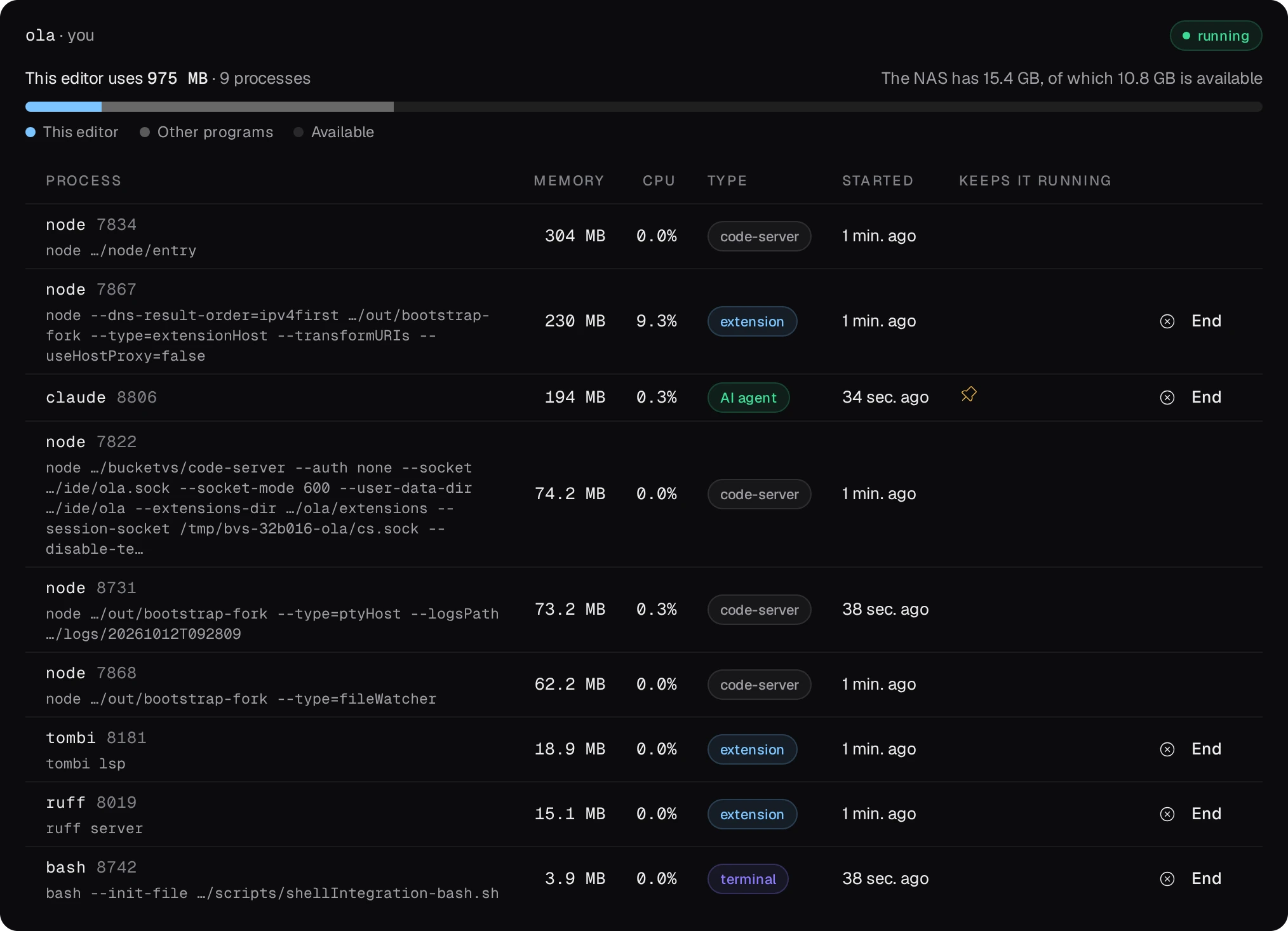
When the agent is no longer needed, end it in the terminal, or press End in its row. bvsd sends it SIGTERM, and SIGKILL if it still runs 5 seconds later; the agent stops in the middle of what it was doing. With nothing left running and no browser open, the instance then stops after its idle time.