Scheduled jobs on your NAS: cron with a log, and notices when something fails
The Jobs page of Bucket & Code Server IDE runs your commands on a cron schedule and keeps the log of every run. A job can send a notice when a run fails: to the QTS System Logs, and to Telegram, Discord, Slack or e-mail once you add their addresses.
- Schedulecron fields, with the next runs
- Commandbash, run as root
- Run nowa run and its log
- Built inthe package's own jobs
- NoticesSystem Logs and your chat
The pictures come from a test NAS and show the words of version 1.0.0-49. The address in the Notifications picture is a sample.
01The Jobs page
The page has two tabs. Scheduled lists the cron jobs: the package's built-in jobs and the ones accounts made. Operations lists the last 50 long operations bvsd ran, such as installs and data moves, newest first.
A row of Scheduled shows the job and its owner, the schedule in words and as written, the next run, and a switch that turns the job on or off. Open a row for the job's command, its runs and their logs. The pill at the top of the page names the NAS's time zone, and every time on the page is in it.
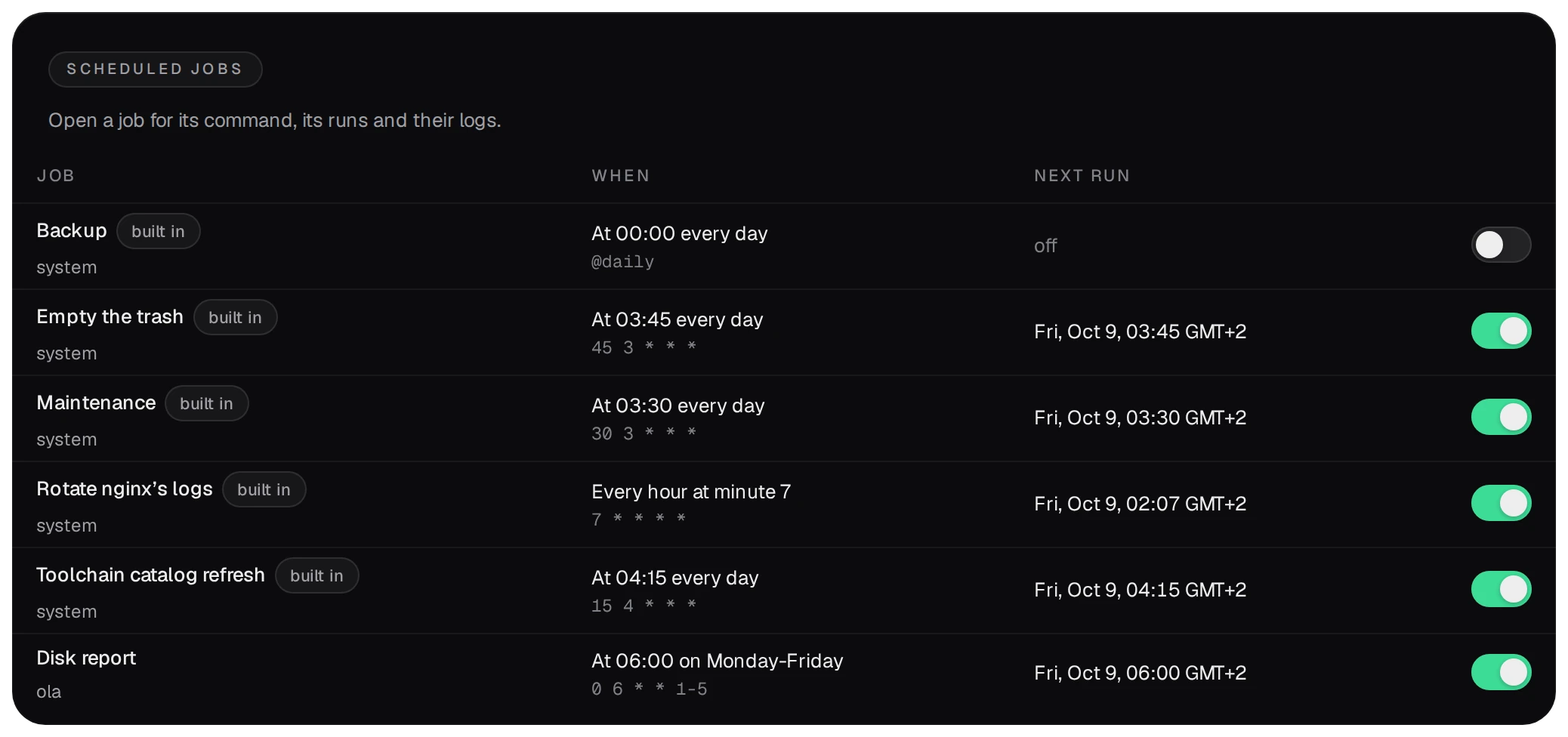
- A developer makes jobs and changes or deletes their own. An admin changes every job.
- Every signed-in account reads the list, the commands and the logs, a viewer too.
02A job from scratch
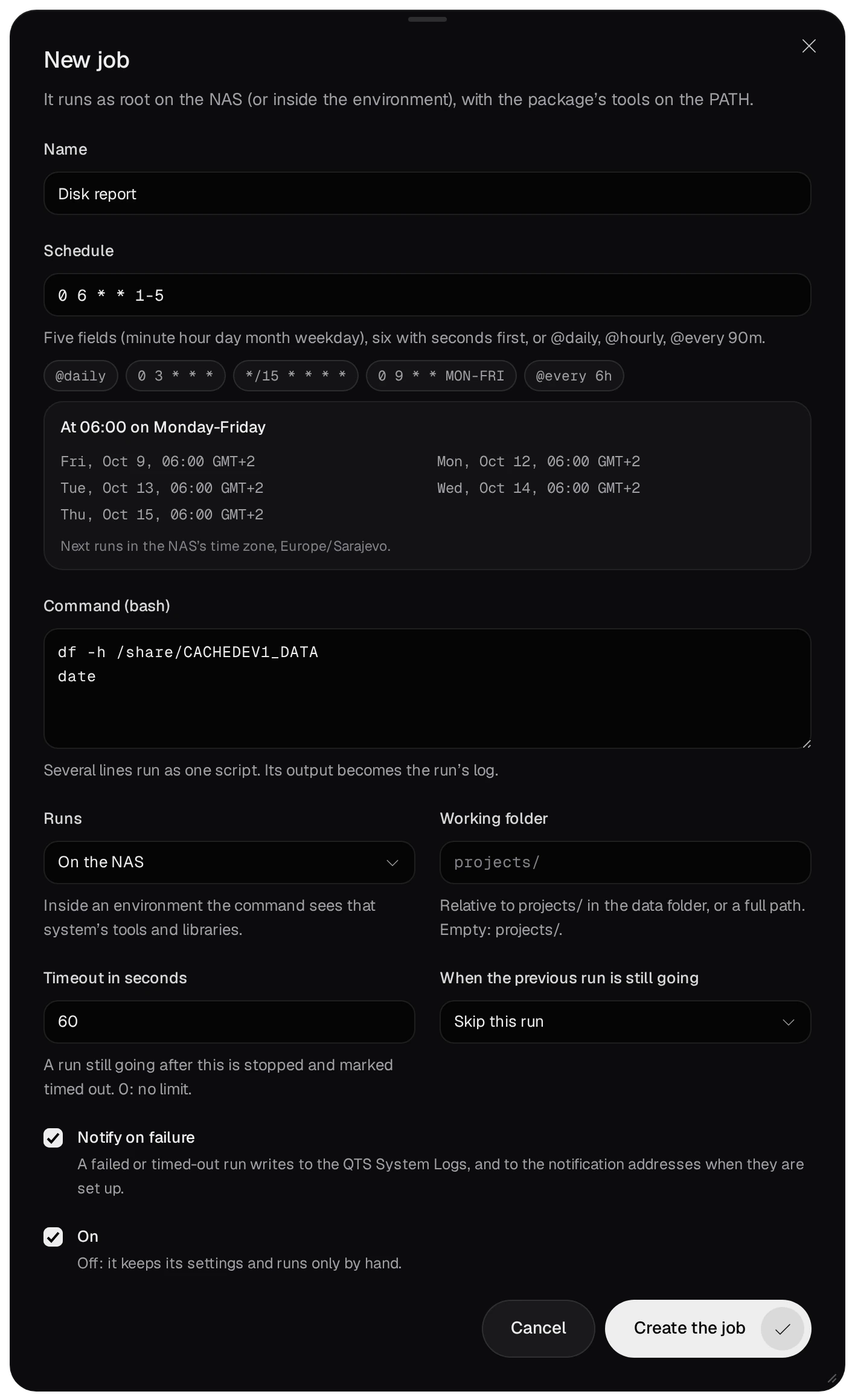
- Press New job and give it a Name.
- Type the Schedule: five fields (minute hour day month weekday), six with seconds first, or
@daily,@hourly,@every 90m. The examples under the field fill it in. The box below says the schedule in words and lists its next five runs in the NAS's time zone. A prefix such asCRON_TZ=Europe/London 0 3 * * *runs a job in another time zone. - Write the Command (bash) as you would type it in a terminal. Several lines run as one script, and what they print becomes the run's log.
- Runs: On the NAS, or inside one of your environments, where the command sees that
system's tools and libraries. Working folder is relative to
projects/in the data folder, or a full path; empty meansprojects/. Inside an environment onlyprojects/is there, as/projects. - Timeout in seconds: a run still going after it is stopped and marked timed out. A new job starts at 3600; 0 means no limit. When the previous run is still going: Skip this run, or Run it after the previous one, and then at most one run waits.
- Notify on failure and On are ticked for a new job. A job switched off keeps its settings and runs only by hand. Press Create the job.
On the nights the clocks change, jobs follow Debian cron's rule. A job with * or
*/N at the start of its minute or hour field, @hourly or @every follows
elapsed time: in autumn it runs in both passes of the repeated hour, and in spring the skipped hour does not
come. Any other job runs each of its times once. A time in the repeated hour runs once, and a time in the
skipped hour runs right after the change.
03Run now, the runs and their logs
Run now in the job's dialog starts a run at once, beside the schedule, unless a run of the job is still going. The dialog lists the runs with when each started, how long it took, its result and its exit code. Pick a run to read its log under the list.
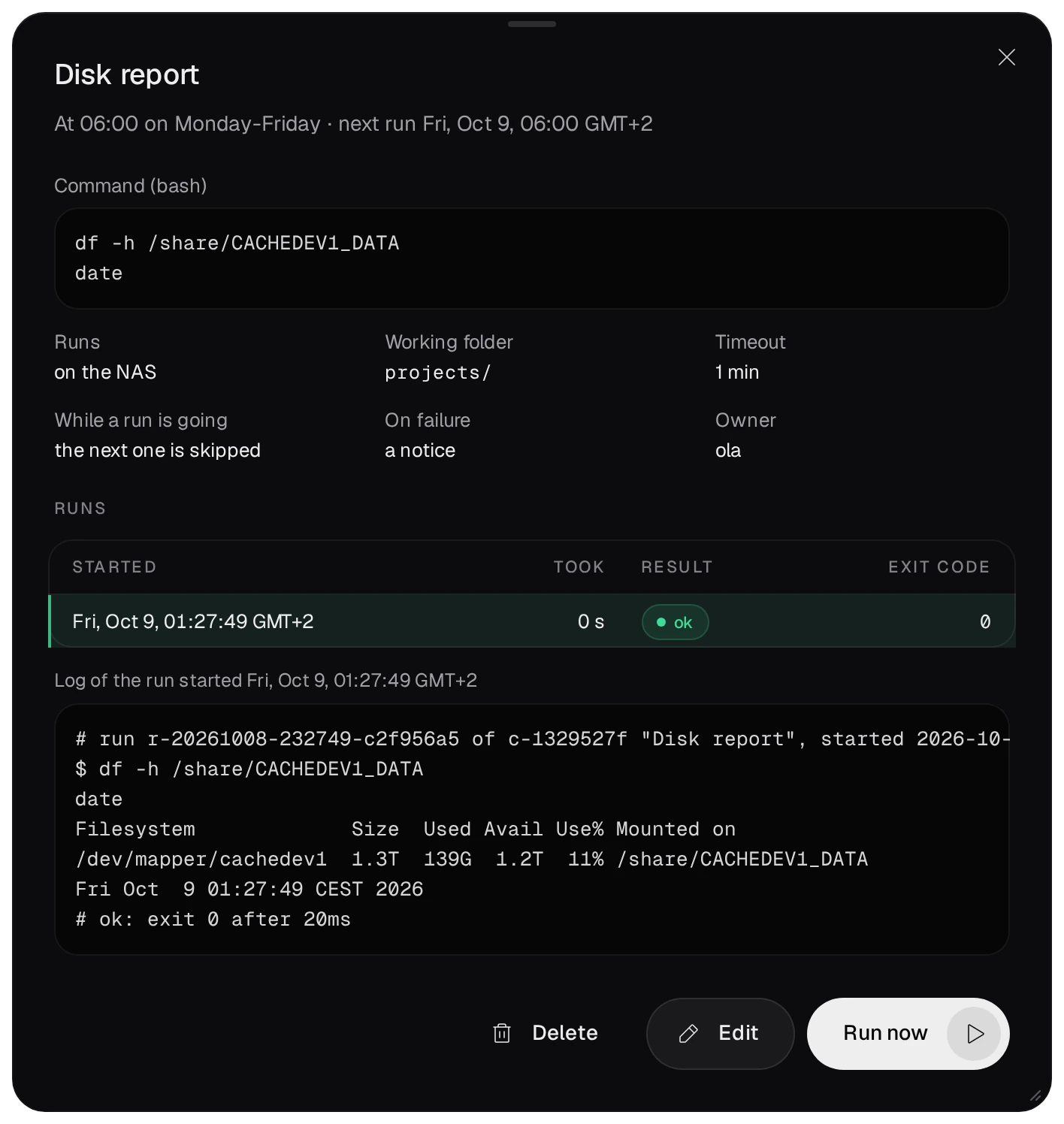
- The first and last lines of a log are bvsd's. The first names the run and the job, and when and by whom it started: an account, or the schedule. Its time is in UTC, while the list of runs shows the NAS's time. The last gives the result and how long the run took.
- A job keeps its last 100 runs, each with the last 4 KB of its output. The whole log of a run is kept 30 days.
- A run that failed or timed out puts a red last run failed next to the job in the list, and the Jobs tile on the Overview counts the job under failing.
- When the command ends, what it started in the background keeps running. A timeout, deleting the job or stopping the package sends the run's whole process group SIGTERM, and SIGKILL 5 seconds later.
- Edit changes the job. Delete stops a run that is going and deletes the job with its runs and logs. Only the job's owner and an admin see these buttons; anyone else gets Close.
04Built-in jobs
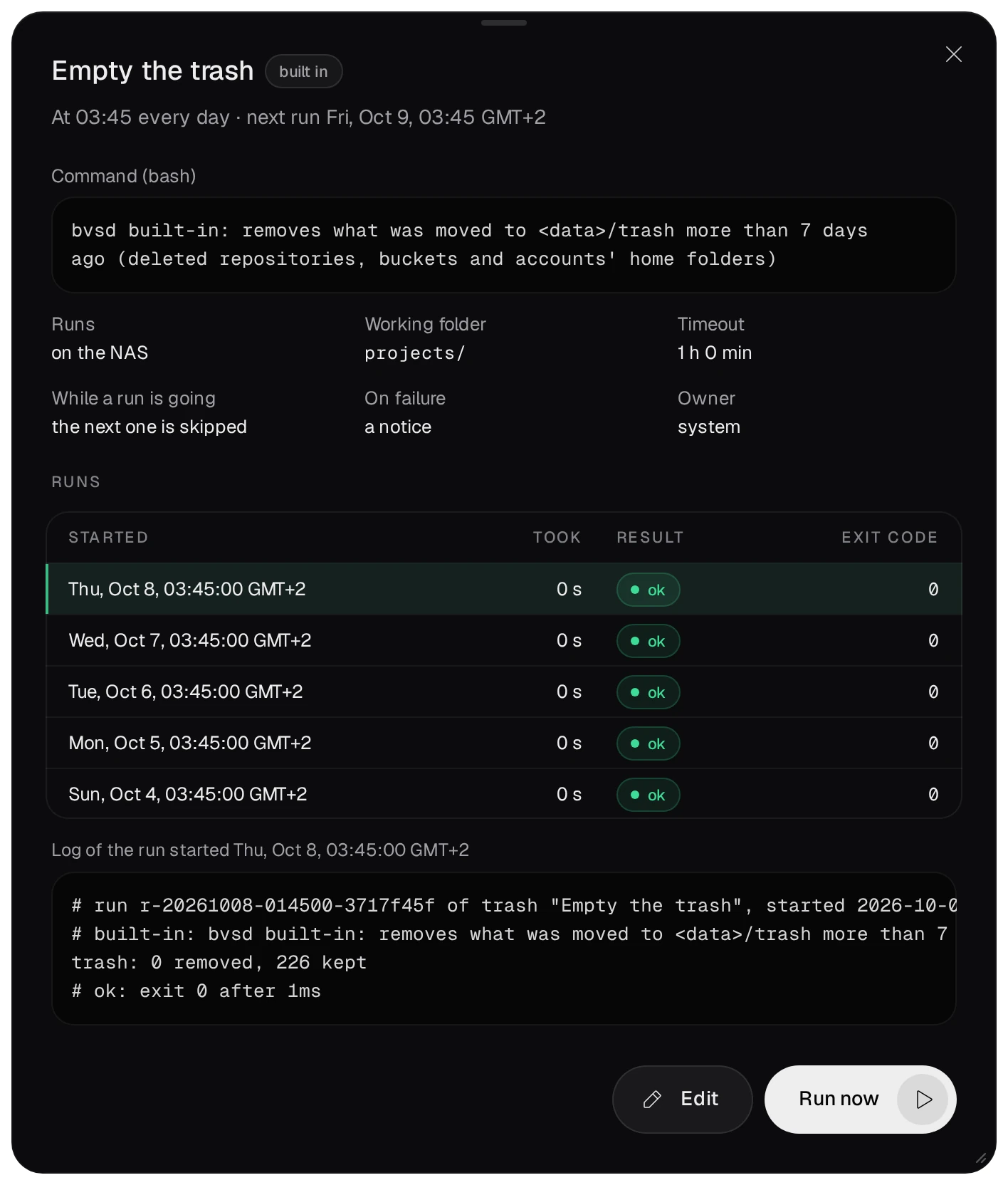
The jobs marked built in are bvsd's own, owned by system.
| Job, when | What it does |
|---|---|
Backup@daily by default | the backup the Backups page sets up, once Scheduled backups is on there; that page keeps its schedule and its switch |
| Maintenance 03:30 daily | removes what nothing changed for 10 days from tmp/ in the data folder, and rotates log/audit.log over 10 MB |
| Empty the trash 03:45 daily | removes what was moved to trash/ in the data folder more than 7 days ago: deleted repositories, buckets and accounts' home folders |
| Toolchain catalog refresh 04:15 daily | fetches the signed toolchain catalog, and uses it when its signature is good and it is newer |
| Rotate nginx's logs every hour, at minute 7 | renames nginx-access.log or nginx-error.log to .1 once it is over 20 MB, keeps five old files and tells nginx to reopen its logs |
An admin can change a built-in job's schedule, its timeout, what happens while a run is going and the notice on failure, and switch it off. Its name, command, environment and working folder stay, and it has no Delete.
05Notices
bvsd writes every notice to the QTS System Logs. Notifications on the System page also sends them to chat and mail services through shoutrrr URLs: Telegram, Discord, Slack, e-mail, a webhook and others.
- Under Addresses (shoutrrr URLs), press Add an address and paste one URL per service,
for example
telegram://<token>@telegram?chats=<chat id>orgeneric+https://example.com/hook. - Under Also sent to the addresses, untick what should stay in the System Logs only. All four are ticked on a new installation.
- Press Save.
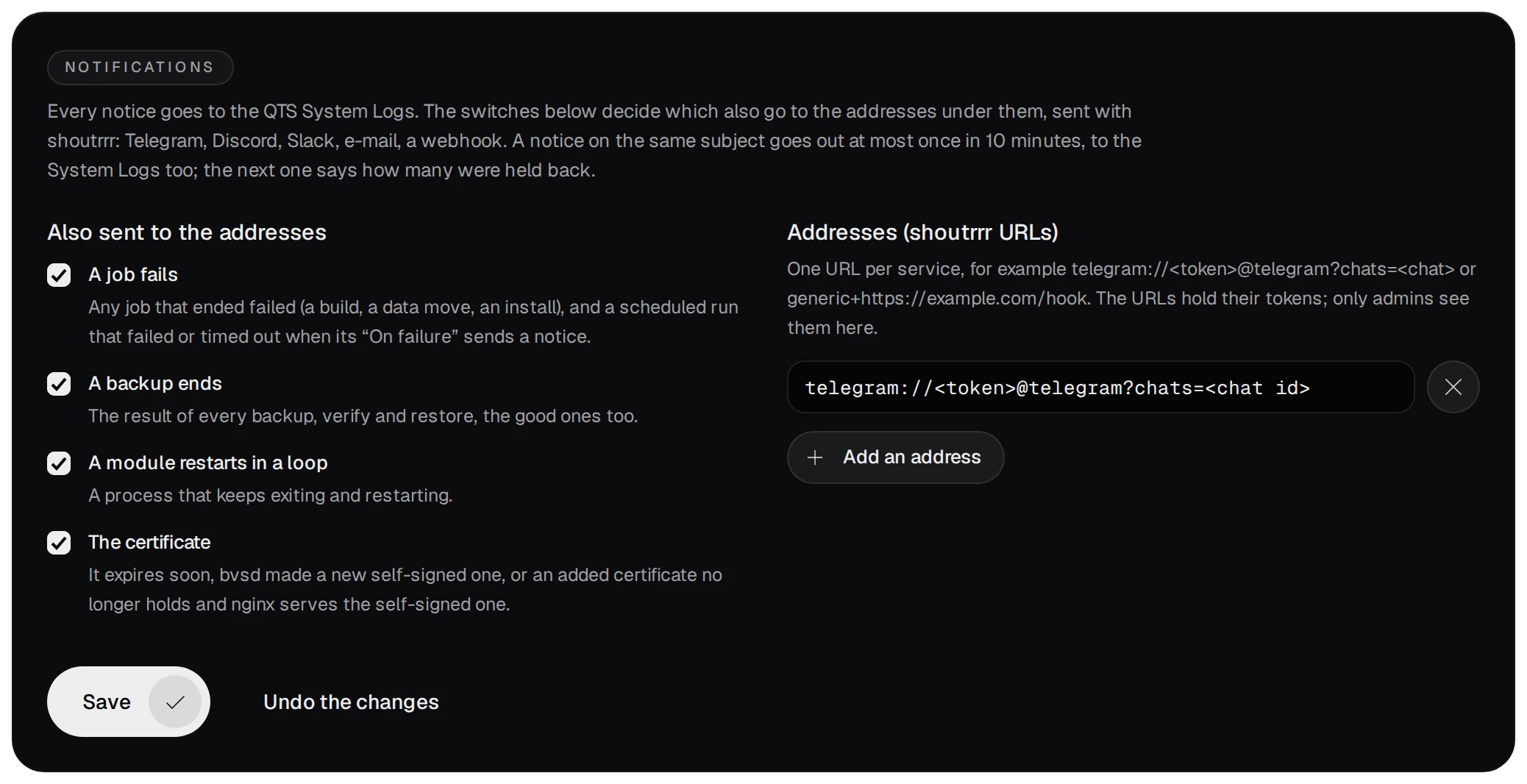
| Switch | The notice comes when |
|---|---|
| A job fails | a run of a cron job with a notice on failure failed or timed out, or an operation failed: a build, a data move, an install |
| A backup ends | a backup, a verify or a restore ended, the good ones too, or a scheduled backup could not start |
| A module restarts in a loop | a process keeps exiting and restarting |
| The certificate | an uploaded certificate has 30 days or less, nginx fell back to the self-signed certificate, or bvsd made a new self-signed one |
| none, always sent | settings were refused at start, an unfinished data move was found, leftover processes were ended, or the configuration could not be written |
- A notice on the same subject goes out at most once in 10 minutes, to the System Logs too. The next one says how many were held back.
- Each address gets its own send, with a 10-second limit. A send that fails is logged with the URL's scheme only, since the rest of the URL holds its token.
- Only an admin edits the addresses and the switches. Other accounts see the switches and the scheme of each URL.
The NAS's admin can also set the addresses over the package's CLI socket. The list sent replaces the addresses saved before, and the switches keep their values:
/usr/bin/bucketvs/bin/curl --unix-socket /usr/bin/bucketvs/var/run/bvsd-cli.sock \
  -X PUT -H 'Content-Type: application/json' \
  -d '{"notify":{"shoutrrr_urls":["telegram://<token>@telegram?chats=<chat id>"]}}' \
  http://bvsd/api/v1/settings
06Root, and what other accounts read
- A job's command runs as root, on the NAS or inside the environment, whoever made the job. A developer can make jobs, so a developer can run any command on the NAS as root. Give the developer role only to people you would give root on the NAS.
- A job runs only while its owner is an enabled developer or admin (version 1.0.0-52 and later). While the owner is disabled or has the viewer role, each of the job's times is recorded as a skipped run that says why, such as its owner ola is disabled, and Run now answers with the same reason; a run that is going is stopped. The job runs again once the account is enabled, or a developer again. Deleting an account deletes its jobs with their runs and logs. Built-in jobs run whatever happens to an account.
- Every signed-in account, a viewer too, reads every job's command and the output of its runs. Keep
passwords and tokens out of the command: put them in a file under
etc/in the data folder that only root reads (chmod 600), and have the command read that file.