Backups in Bucket & Code Server IDE
The Backups page (admin) copies the settings, the accounts, every repository and your work to the targets you choose, on a schedule, and removes older copies according to the retention settings. A restore can put back everything, one repository or one project folder.
- Contentswhat to tick
- Scheduleoff until you turn it on
- Targetsa folder, rsync, rclone
- Encryptionthe secret key, shown once
- Restoreeverything, or one part
A new installation has no backup yet, so the run list, the restore dialog and the secret key come from the panel's test data. Every key in them is a sample.
01What a backup holds
Each run is a folder backups/<id>/ in the data folder, with a manifest.json that
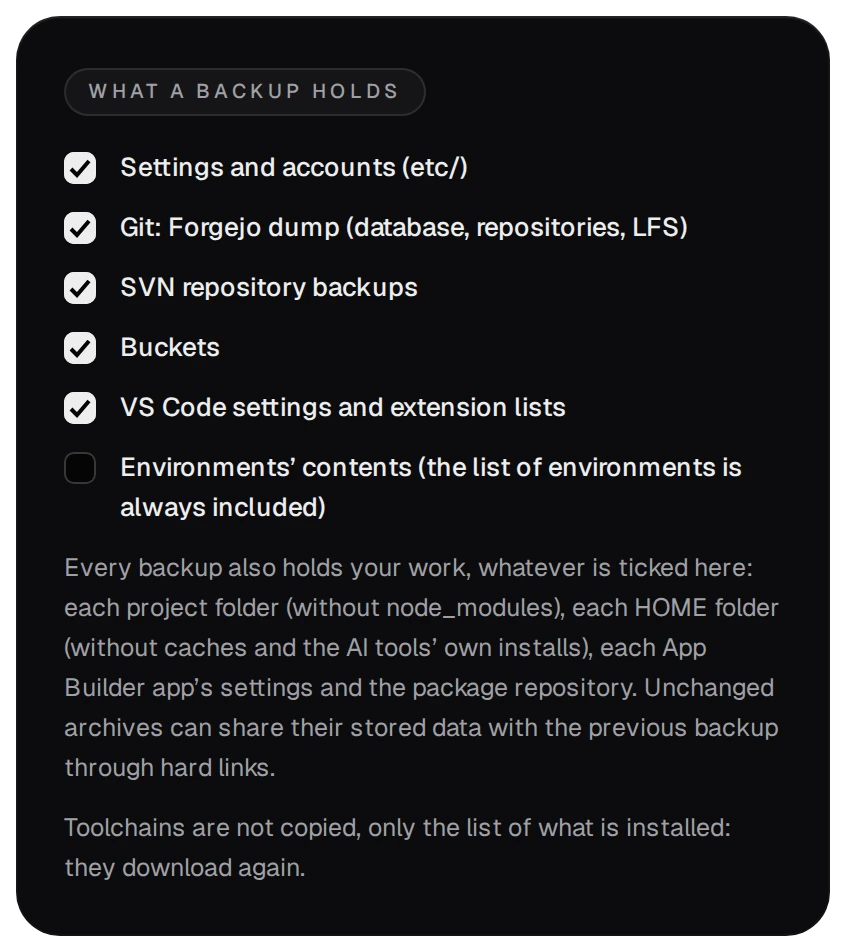
lists every file with its sha256. Tick the parts under What a backup holds.
| Part | What it copies |
|---|---|
| Settings and accounts | the settings, the accounts and their two-factor secrets, the TLS key, the backup keys |
| Git | Forgejo's dump: repositories, wikis, LFS objects, attachments and its database |
| SVN repositories, buckets | every repository; a revision copied once is not copied again |
| VS Code settings and extension lists | each account's own settings and its list of extensions |
| Environments | off by default, since they can be made again |
| Always, ticked or not | the project folders (without node_modules), the HOME folders, the App Builder apps' settings and the package repository |
02Schedule and copies kept
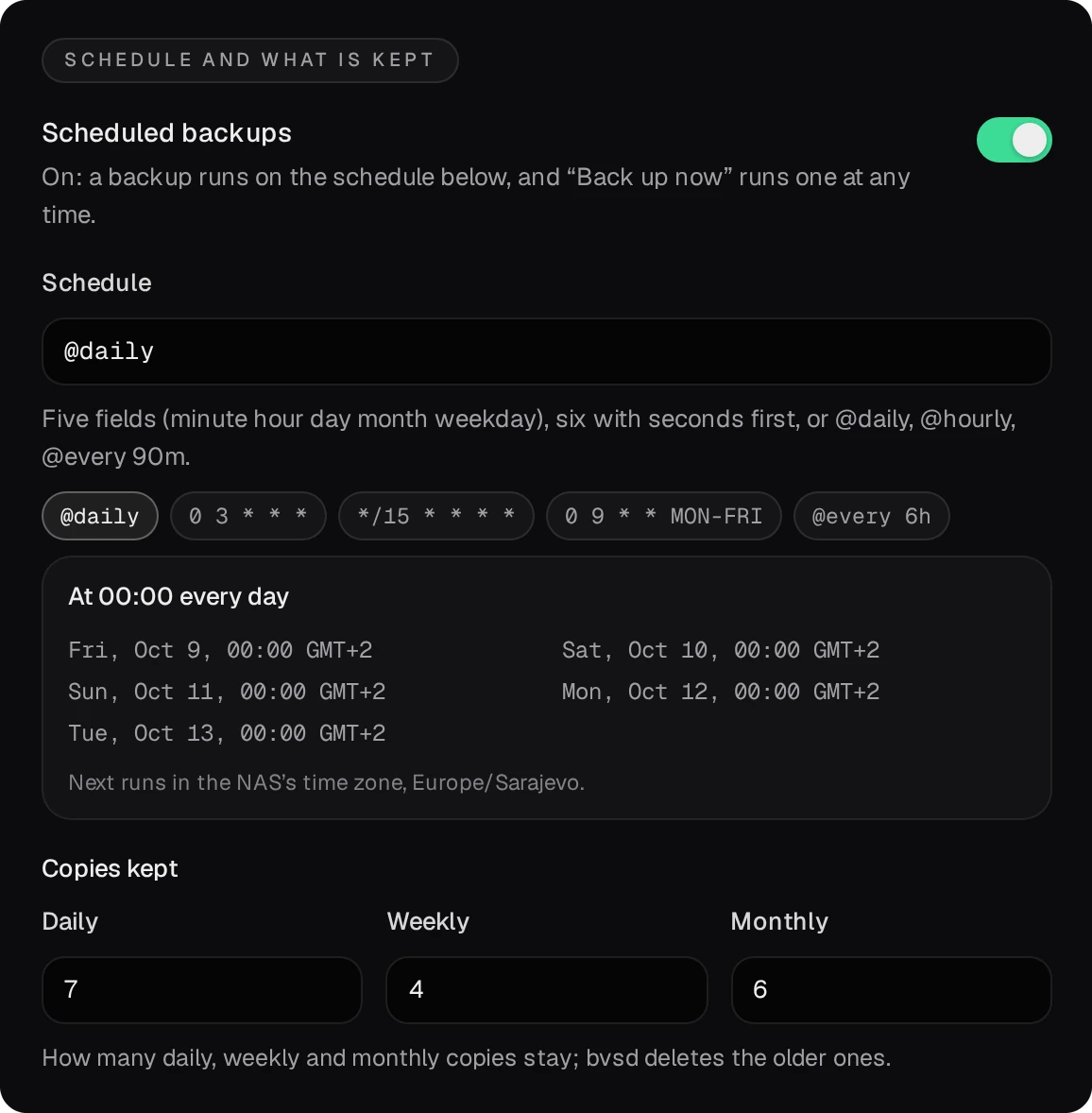
- Turn on Scheduled backups. On a new installation it is off, so a backup runs only with Back up now.
- Leave Schedule at
@daily(00:00 every day), or type five cron fields. The box below it lists the next runs in the NAS's time zone. - Copies kept: the newest run of each of the last 7 days, 4 weeks and 6 months stays, and the newest good run always stays. Then press Save the backup settings.
If the NAS was off at the scheduled time, the missed backup runs 10 minutes after the package starts.
03Where the copies go
Each run is written in the data folder and then copied to every target. Press Add a target and choose its Type; Test tries the target before you save.
- Local folder: a folder on this NAS, for example
/share/Backup/BucketVS(Choose browses the shared folders). Each copy takes only the space of what changed. It is not encrypted, and since it sits on the same disks as the data, it protects against mistakes but not against losing the NAS.
- rsync over SSH:
user@host:pathon another machine. With Sign in with the package's backup key ticked, add the line the page shows to~/.ssh/authorized_keysof that account.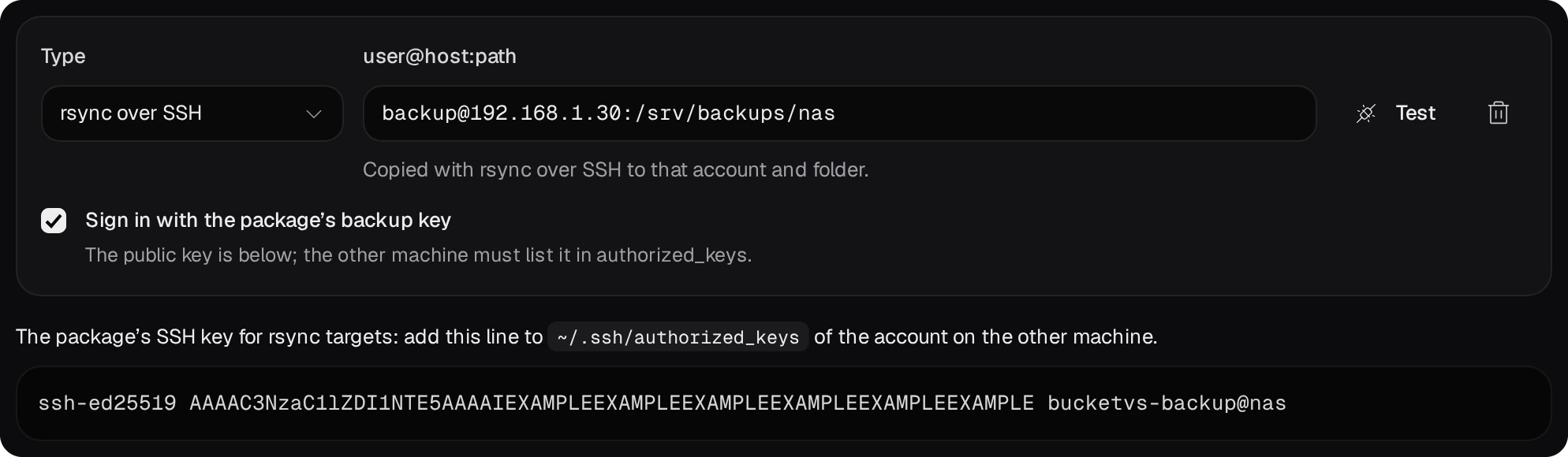
- rclone remote:
remote:path, a remote defined inetc/rclone.confof the data folder, such as S3, B2, SFTP, WebDAV or Google Drive.
A target that fails is named in the run's result, and the run itself stays good.
04Encrypt what leaves the NAS
A backup holds the backup key, rclone.conf, the TLS key and the two-factor secrets, so the page
saves an rsync or rclone target only with encryption on.
- Turn on Encrypt copies that leave the NAS and press Create the key.
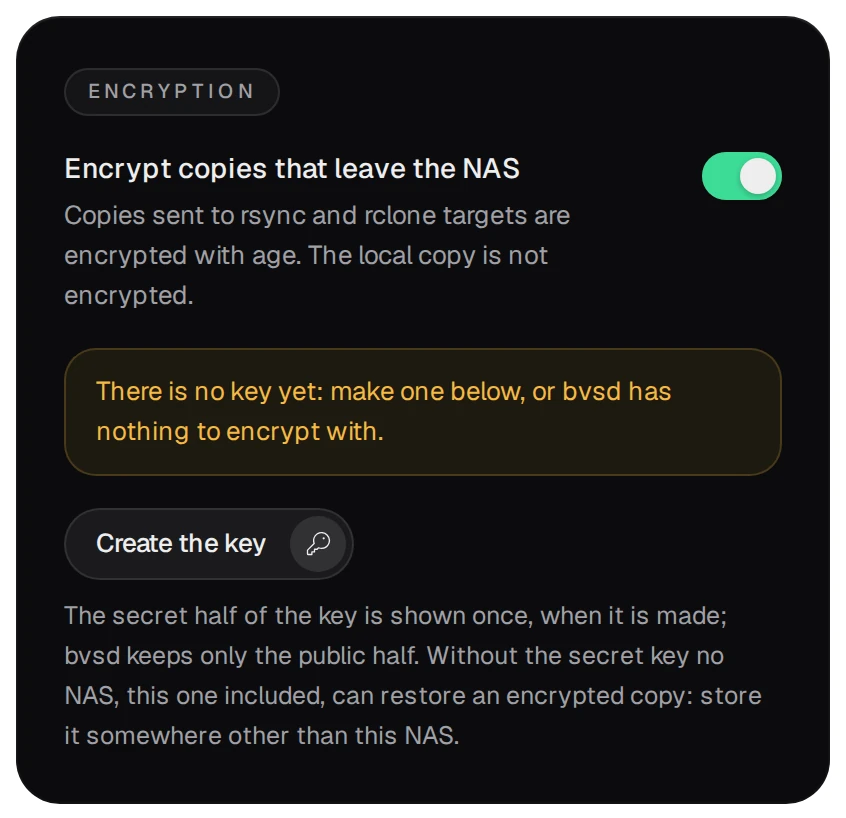
- Copy the secret key the dialog shows and store it away from this NAS. It is shown only this once: bvsd
keeps the public half, and without the secret half no NAS, this one included, can restore an encrypted copy.
Press I have stored it, then Save the backup settings.
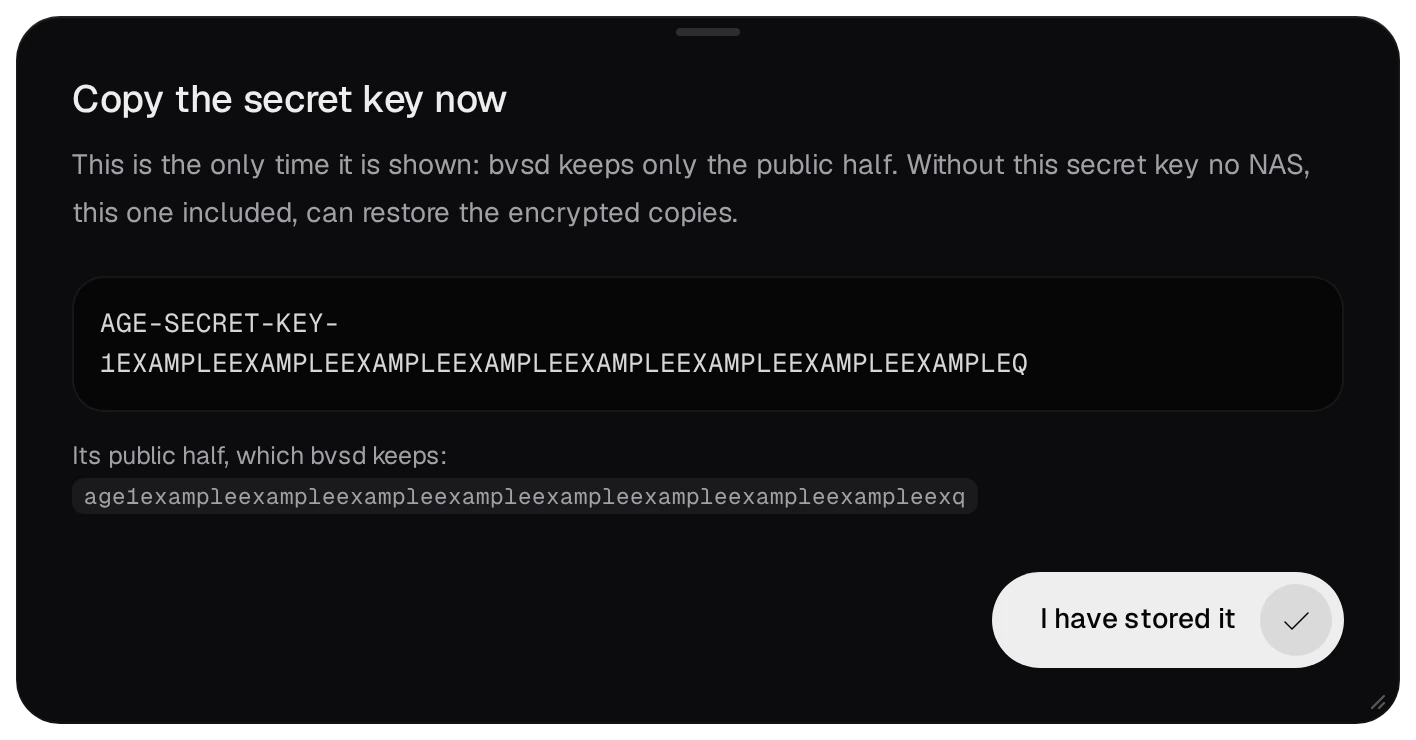
The copies are encrypted with age. A new key encrypts the runs from then on, and older copies still need the old secret key. The local folder's copy is never encrypted.
05Back up now
Back up now, at the top of the page, starts a run at once.
Two runs on one day count as one: when the newer run finishes, the earlier run of that day is removed. A Back up now in the afternoon therefore replaces that morning's scheduled run. When the morning's state matters, copy that run somewhere else first.
06Verify and restore
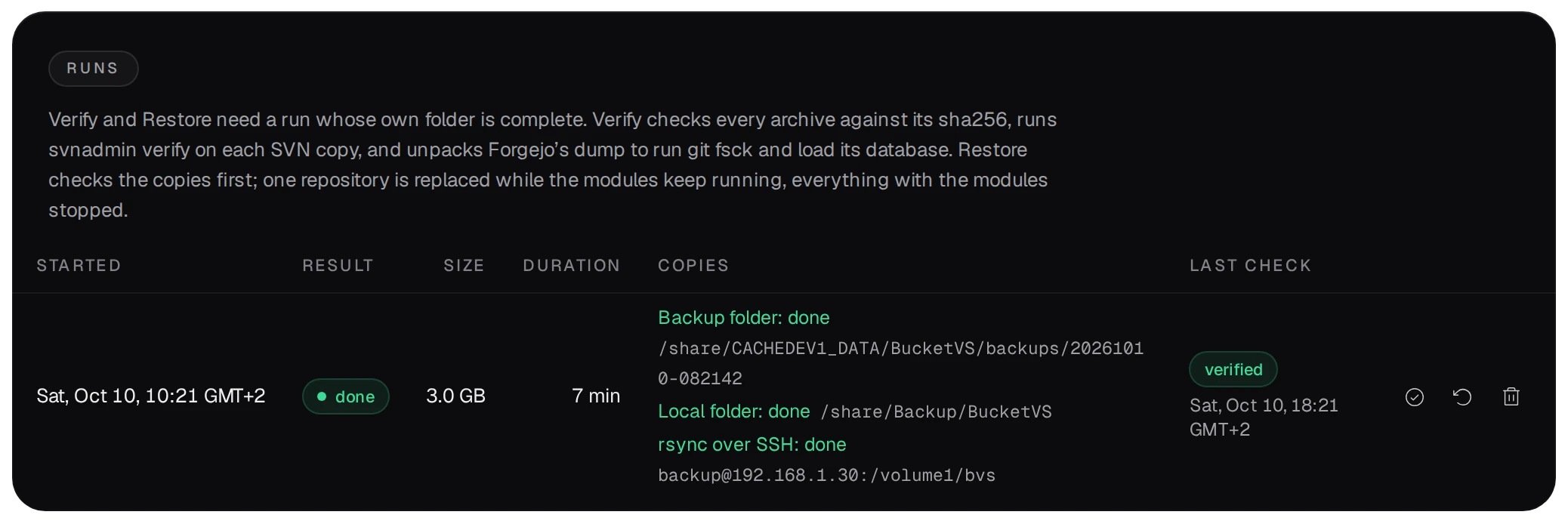
The Runs list shows each run with its copies. The buttons in a run's row are Verify,
Restore and Delete. Verify reads the run back: every archive against its sha256,
svnadmin verify on each SVN copy, and git fsck with a check of Forgejo's
database.
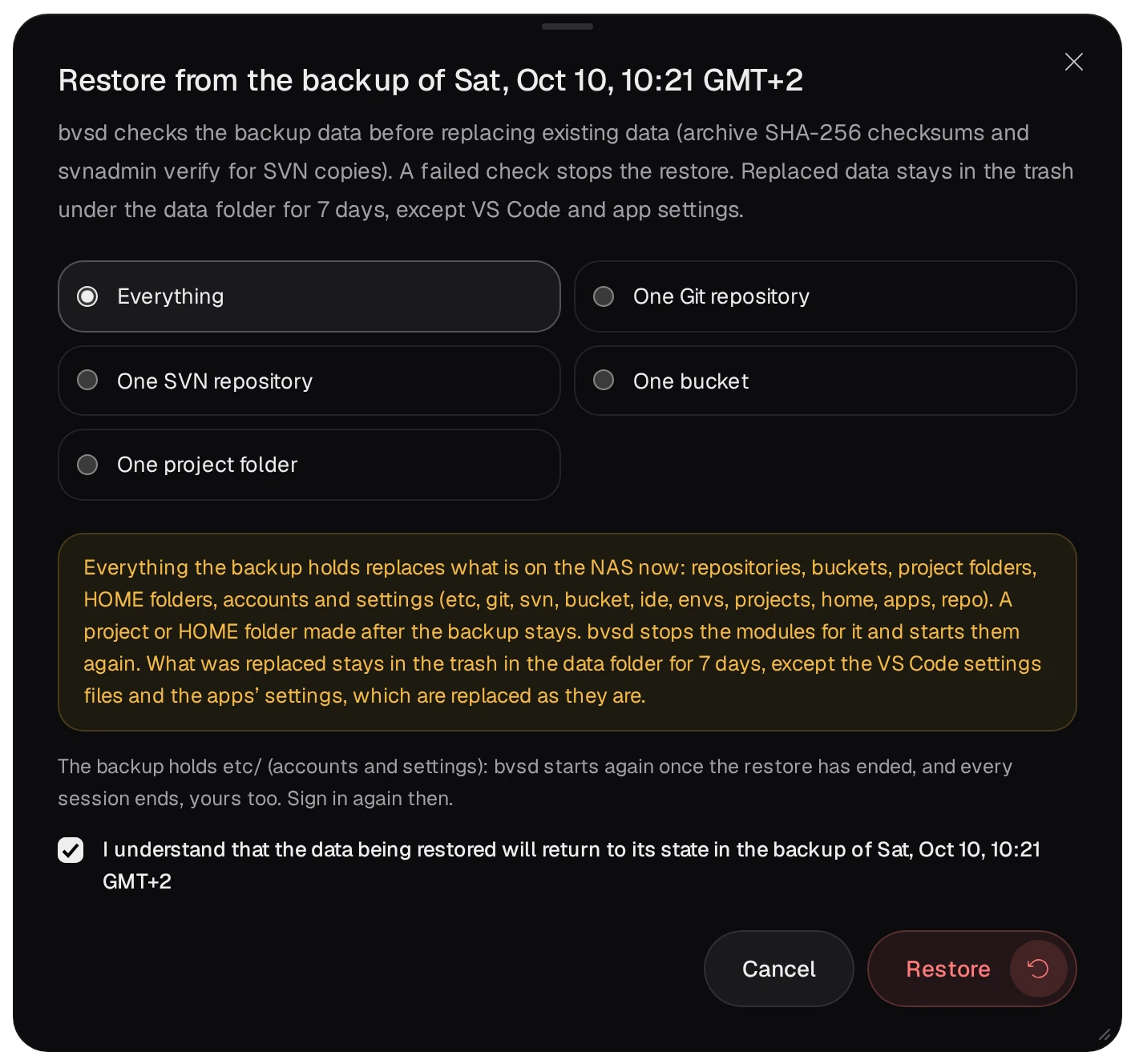
Restore puts back Everything, One Git repository, One SVN repository, One bucket or One project folder.
- Nothing on the NAS changes before the run's copies pass their checks; a copy that fails stops the restore.
- What a restore replaces goes to the trash in the data folder for 7 days, so a restore can be undone. The VS Code settings files and the apps' settings are the exception: they are replaced without a copy in the trash.
- Restoring one repository or one project folder leaves the modules running.
- Everything asks you to tick I understand that the data being restored will return to its state in the backup of … first. The restore stops the modules; when the backup holds the settings, bvsd restarts with them and every session ends, yours included. A project or HOME folder made after the backup stays.