A website from Git: build at every push, publish to your NAS's web server
Bucket & Code Server IDE keeps a static website in a Git repository on your NAS. Its pages
live in src/, a Makefile copies them into public/, and every push runs a link check on
the NAS's own runner. One button copies public/ to a web server, such as QTS's Web Server on the
same NAS, and reads the page back to prove it is there.
- Targeta folder and its address
- ProjectNew project, Static website
- Pushmake test at every push
- Publishpublic/ to the target
The pictures come from the panel of Bucket & Code Server IDE with each field
filled in as this guide describes. The NAS is at 192.168.1.20 and the account is called ola.
01A web target
A web target is where a website goes: a folder of this NAS that a web server answers for, or an rclone remote
such as your own server over SFTP, FTP, WebDAV or S3. QTS's Web Server (Control Panel → Applications → Web
Server) answers for the Web share at http://<NAS address>/, so a folder in it is the simplest
target.
- On the Publish page (an admin's, under Administration) press Add a target in the Web targets card.
- Choose A folder of this NAS, give it a Name, and type the Folder: a folder of its
own inside a share, such as
/share/Web/mysite. It is empty or new, never a whole share, and it stays outside the data folder. - Type the Public address that serves it, here
http://192.168.1.20/mysite/: withhttp://orhttps://, without a user, a password, a query or a fragment. Press Add the target.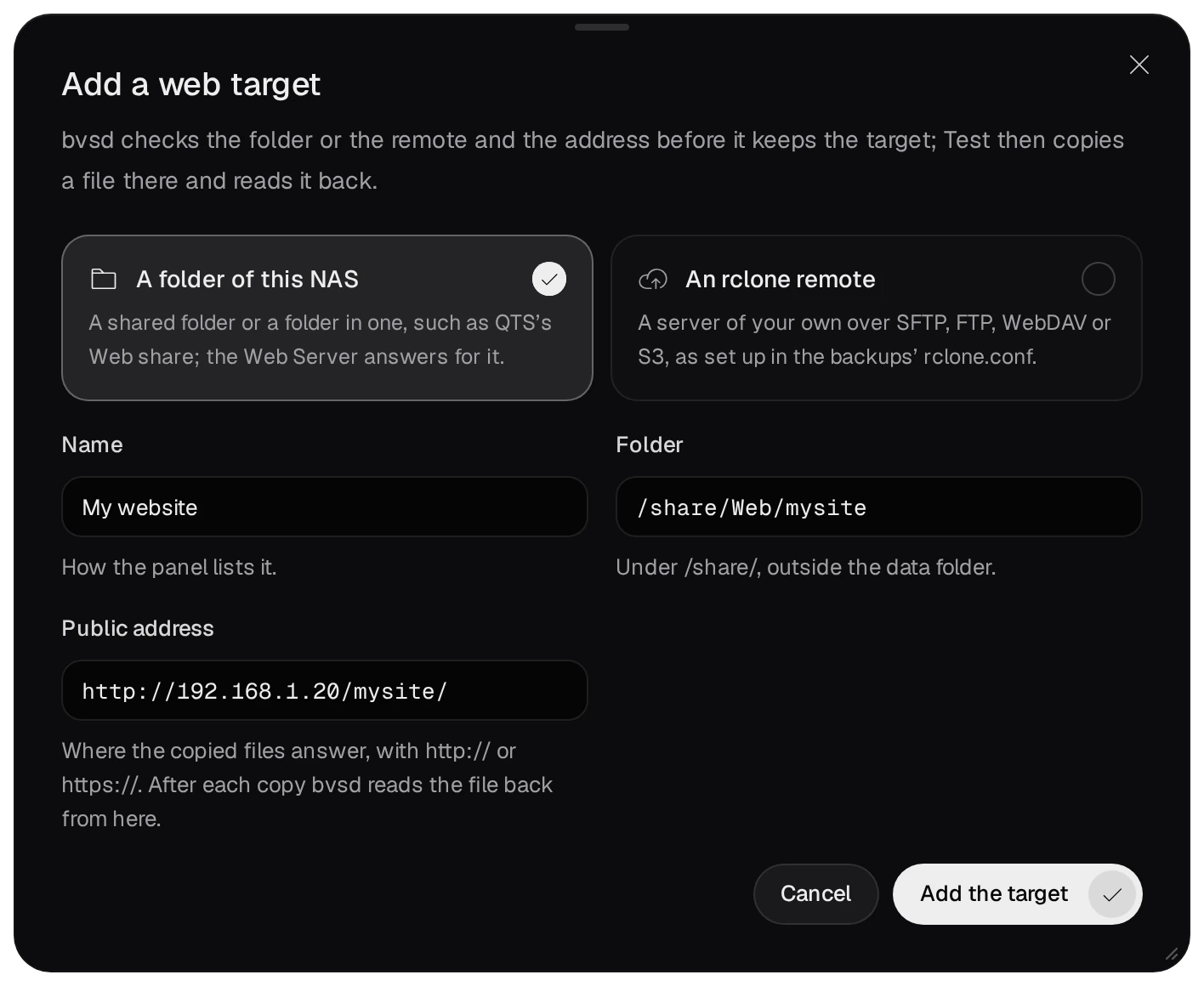
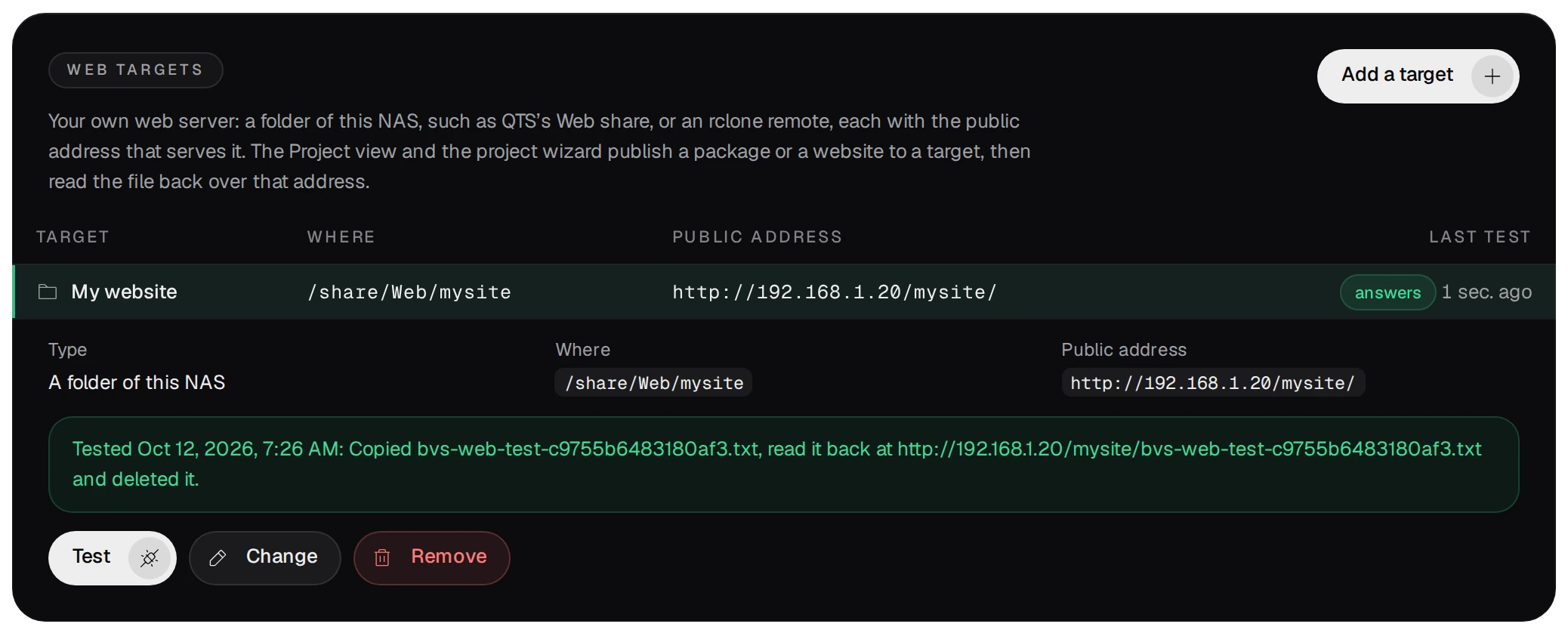
- Pick the target in the list and press Test. It copies a small file into the folder, reads it back
from the public address and deletes it.
An rclone target names a remote of the backups' rclone.conf and a path on it, with the public
address that serves that path.
02The website project
Open New project from the Git page or the command palette (developer role; the Publish step below is an admin's).
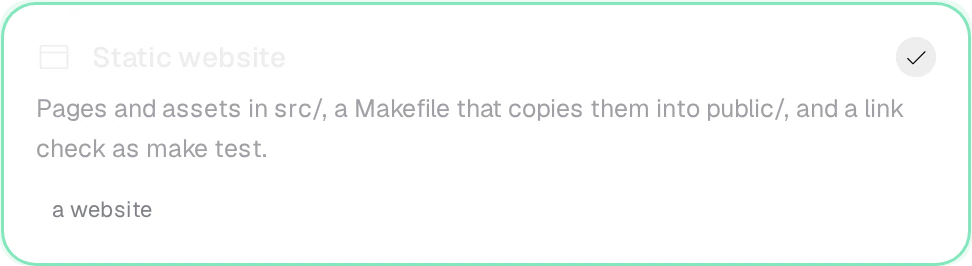
- Template: under Websites choose Static website.
- Name and visibility: the name, for example
mysite, names the repository and the folderprojects/mysite. Leave it Private unless every account may read it.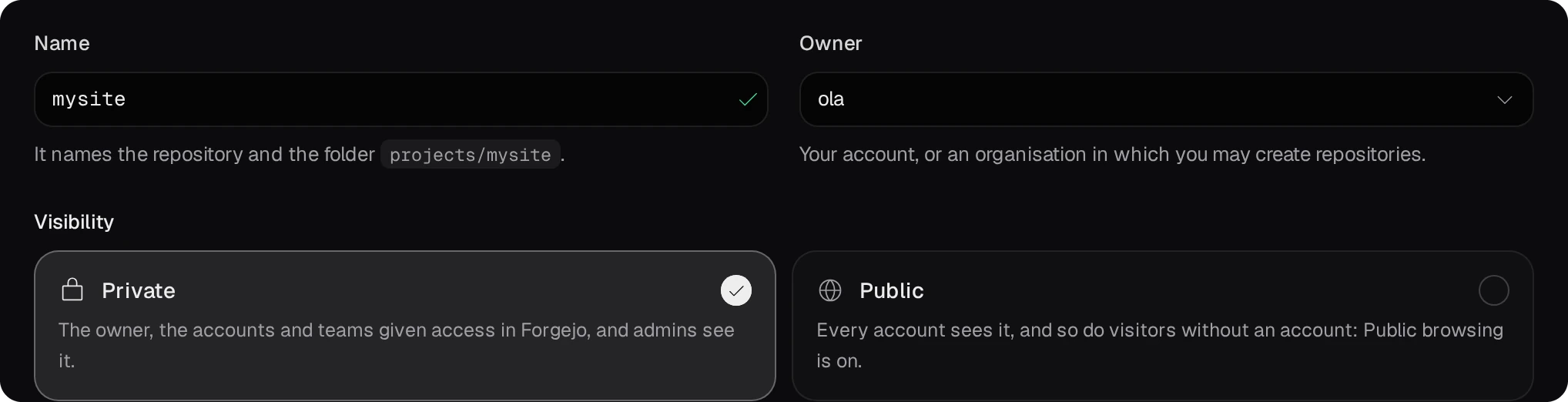
- Build: leave Build right after creating on.
- Publish: turn on Publish to my web server and pick the target. Add a target here
does the same as the Publish page.
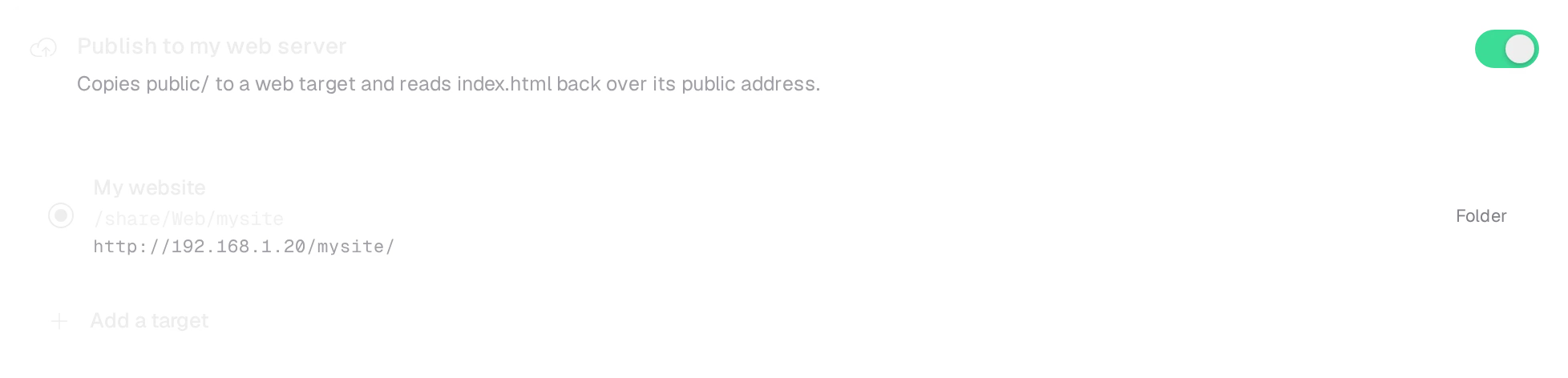
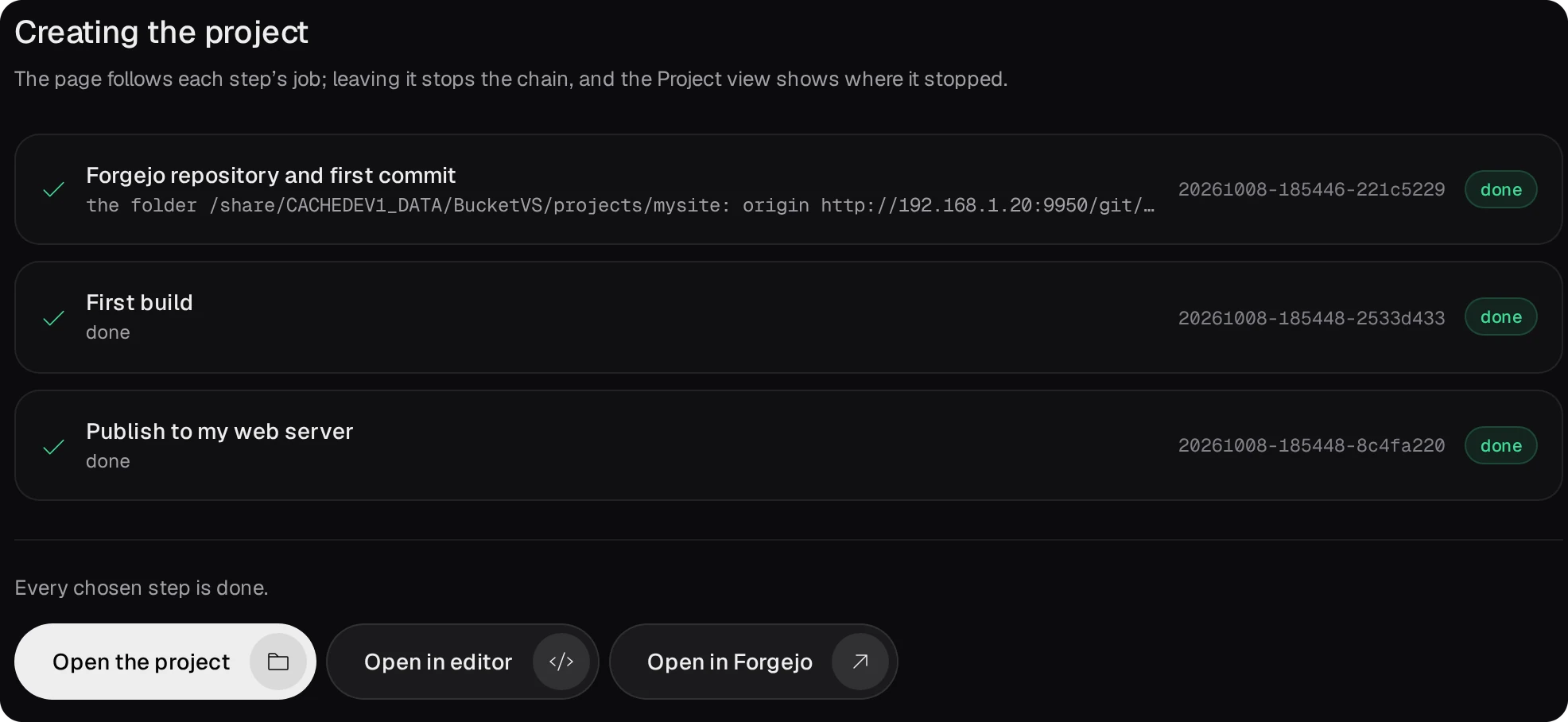
- Review, then Create project. The page follows each step: the repository and its first
commit, the first build, and the publish.
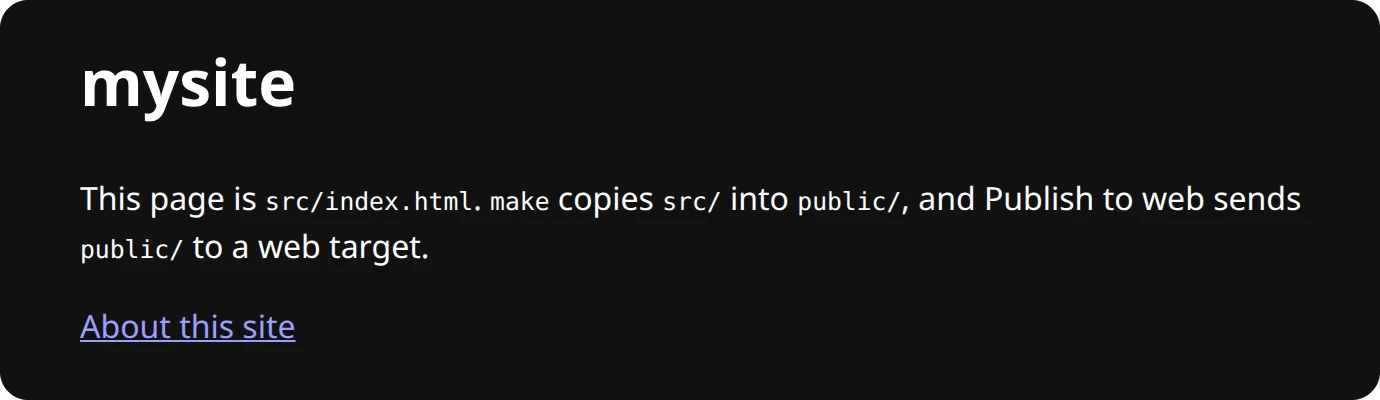
The site answers at the target's public address:
03Edit, push, publish
- Edit the pages in
src/in the editor (the project is in itsprojects/folder), commit and push.makecopiessrc/intopublic/;make testchecks that every localhref=andsrc=of the pages leads to a file ofpublic/;make cleanremovespublic/. - Every push runs the project's workflow on the NAS's runner while the CI module is on:
make testin the Ubuntu 24.04 builder environment. A broken link fails the run.
- The project's page (Projects, or the Editor's side bar) builds and publishes by hand:
Build runs
make, Rebuild runsmake cleanand thenmake, and Publish to My website (an admin's) sendspublic/to the target. Publishing never runs by itself after a push.
04What a publish does
- It makes the target folder hold the site and nothing else: a file the site no longer has is removed. bvsd marks
the folder with a file
.bvs-web-targetthe first time it writes there (the test does too); a folder that holds other files and not this one is refused, so a publish never empties a folder that is not the site's. - After the copy it reads
index.htmlback from the public address and compares it byte for byte. When the address does not serve what was copied, the job fails withweb_check:and both values: the folder is not the one the web server answers for, or the address is wrong. - A project that makes a QPKG publishes the same way: the newest
.qpkgand its.sha256, checked by sha256.