Your own App Center: ship your QPKG packages from Git to every NAS
Bucket & Code Server IDE keeps an App Center repository on your NAS. A QPKG project made with New project builds at every Git push and publishes the signed package into it. Your other NAS units add the repository's address in App Center once, then install and update your packages like any other app. Cloudflare Tunnel can publish the repository, and optionally Git, without opening a router port.
- Preparemodules, QDK, a certificate
- ProjectNew project, QPKG package
- Signtwo secrets in Forgejo
- Repositoryits address in App Center
- Interneta packages hostname
The pictures come from the panel with each field filled in as this guide describes. The addresses are those of a NAS at 192.168.1.20, and the published names are examples under example.com.
01Before you start
- Git, CI and the Editor must be on: an admin turns each on with its button on the Overview (Turn on Git, Turn on Git and CI, Turn on Editor). The New project wizard needs Git and the Editor, and CI runs the project's workflow at every push.
- QDK must be installed: on the Toolchains page, QNAP tab, install QNAP QDK 2.5.0.
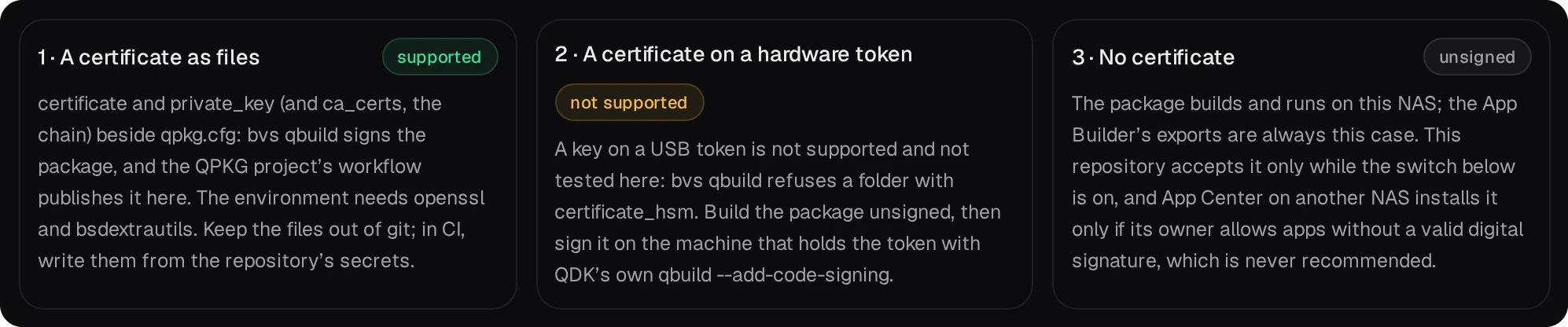
- You need a code-signing certificate issued to you by QNAP, as files:
certificate,private_keyand, for the chain,ca_certs. App Center checks a package's code signature when it installs it, and the repository on the Packages page takes code-signed packages only. A certificate on a hardware token is not supported.
02Create the project
Open New project from the Git page or the command palette (developer role).
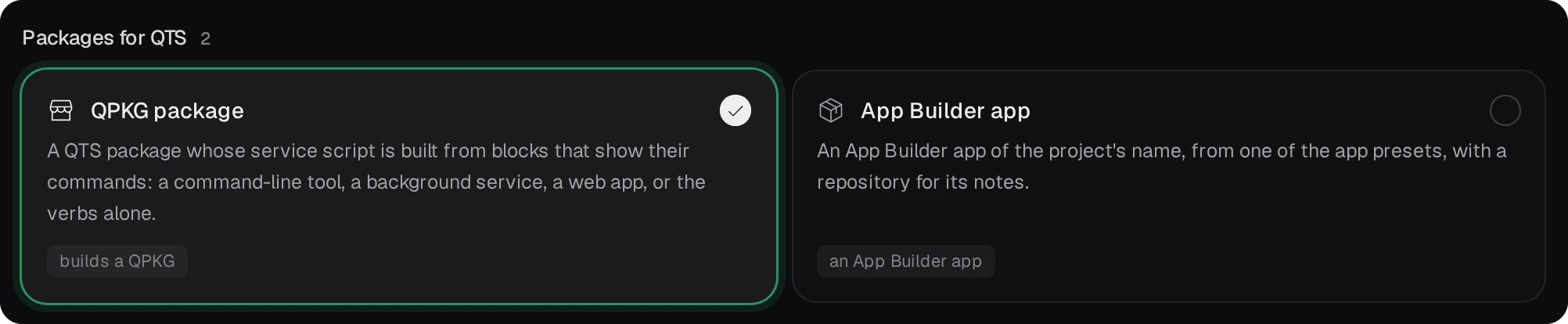
- Template. Under Packages for QTS choose QPKG package and press
Next.
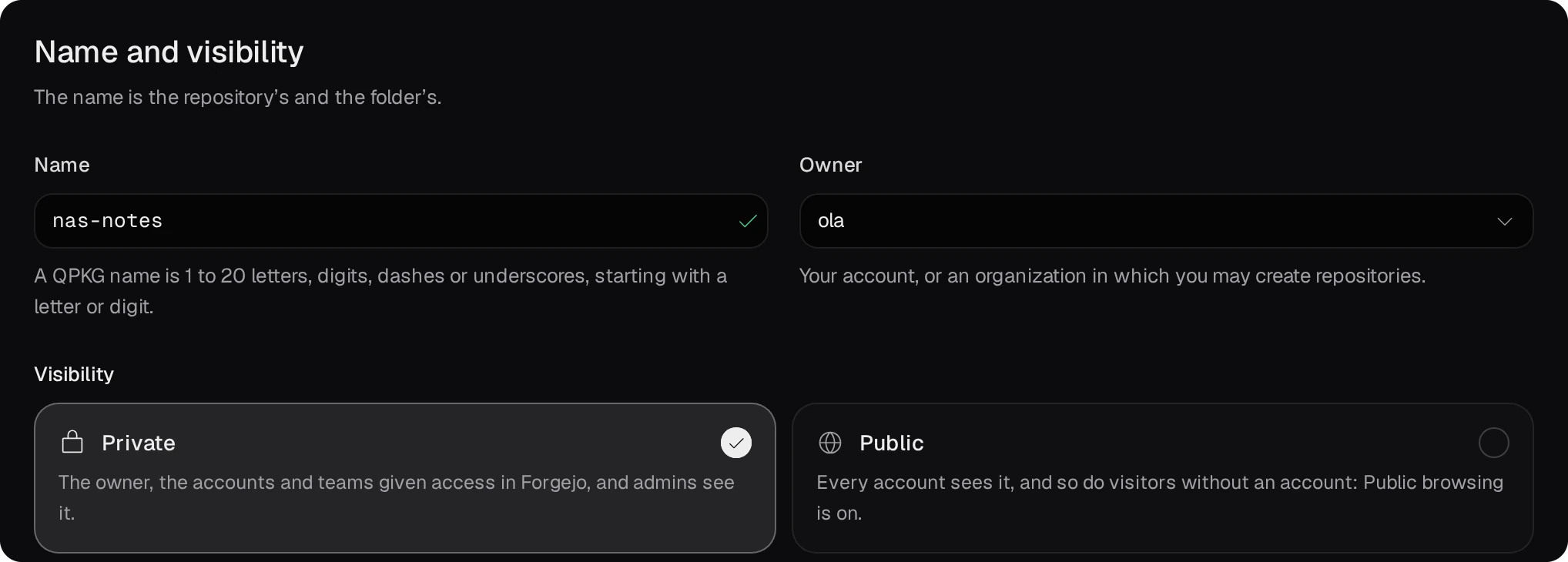
- Name and visibility. The name is the repository's, the folder's and the package's:
1 to 20 letters, digits, dashes or underscores. The owner is your account or an organization; leave the
project Private.
- Service. Choose how the package starts and stops: Command-line tool links the
program into
/usr/bin, Background service runs it as an account of its own, Web app also gives it App Center's Open button, and Empty has only the bare service verbs (start, stop and so on). You can change these blocks later in Project view.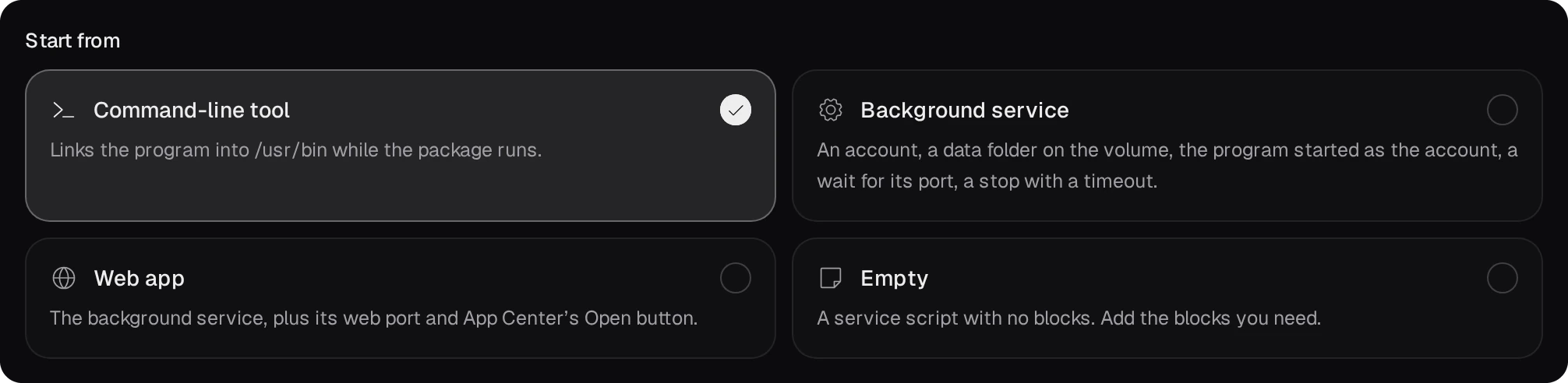
- Build. Pick the environment the project builds in and leave Build right after
creating on.


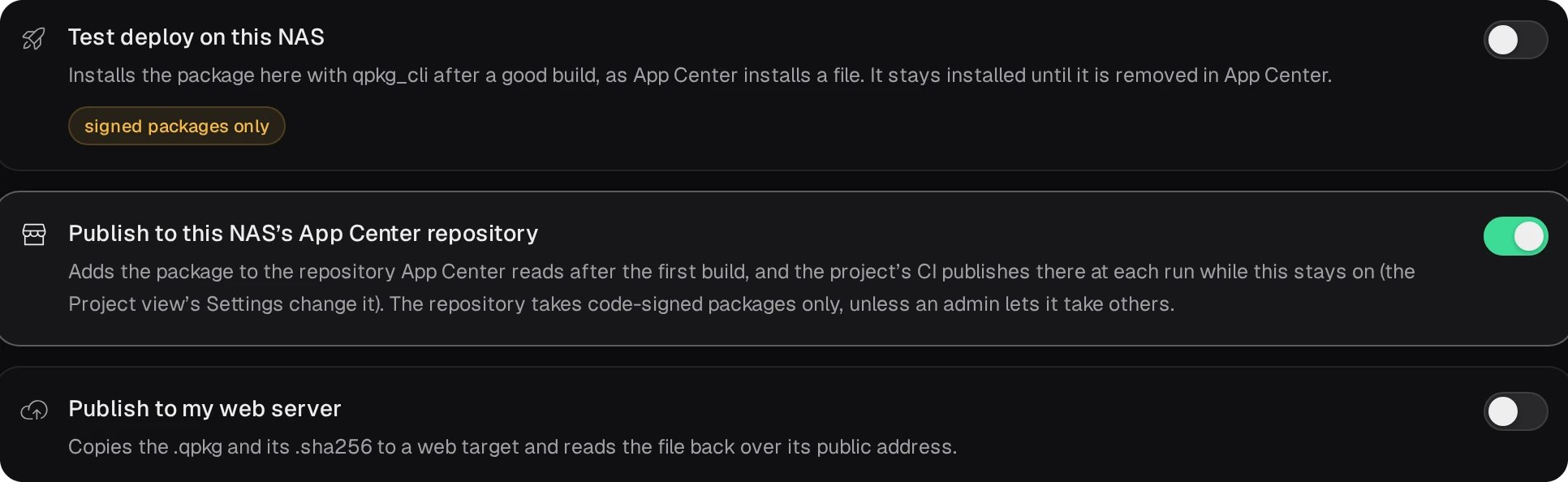
- Publish. Turn on Publish to this NAS’s App Center repository. The same switch then stays in the project's settings and lets CI publish at every run.
- Review. Check the steps that will run and press Create project.
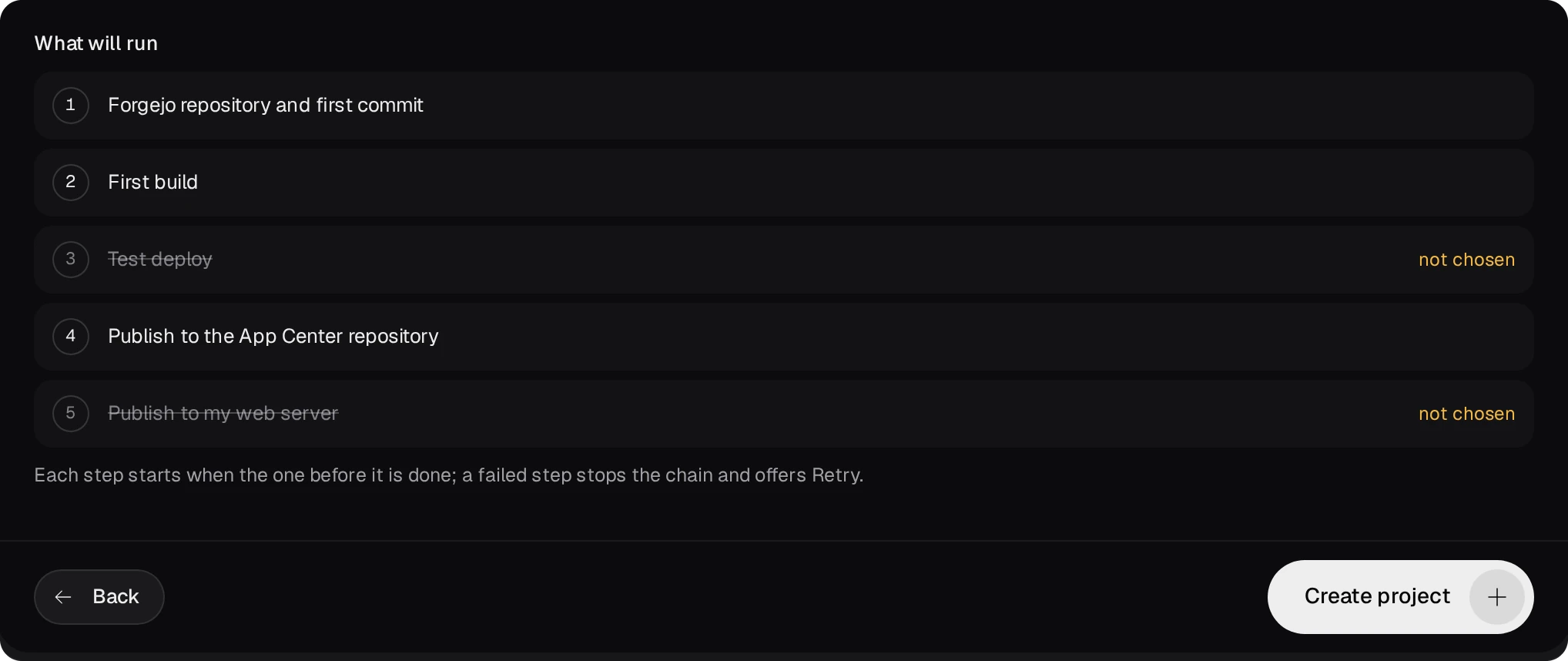
The first job makes the repository in Forgejo and the folder projects/<name> with the
first commit: the template's files and the workflow .forgejo/workflows/build.yml. The first build
has no certificate yet, so its publish step stops and says the package carries no code signature. The switch
stays on, and once step 03 is done every push publishes.
03Sign every build
On the NAS, put the certificate's files next to qpkg.cfg in projects/<name>.
The template's .gitignore keeps them out of git. A build in that folder then signs the package,
and the first line of bvs qbuild says case 1. When the environment lacks openssl
or bsdextrautils, it stops and names the command that adds them.
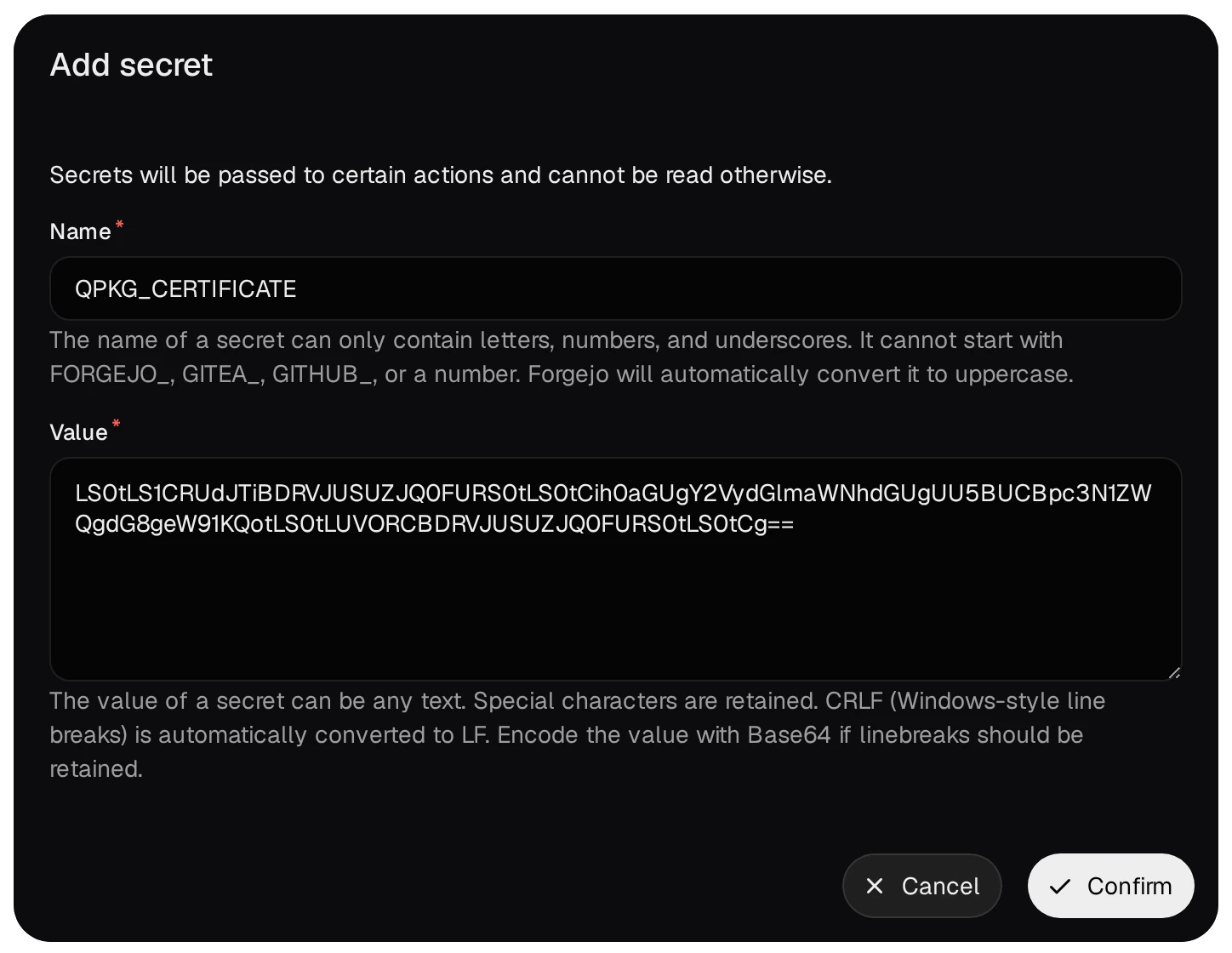
CI checks the repository out without those files, so it gets them from two secrets. In Forgejo open the
repository's Settings → Actions → Secrets and press Add secret twice:
QPKG_CERTIFICATE with the output of base64 -w0 certificate, and
QPKG_PRIVATE_KEY with that of base64 -w0 private_key. Forgejo itself asks for
Base64 when a value's line breaks must survive. A certificate with a chain needs a third secret,
QPKG_CA_CERTS, and a third line in the first step that writes it to ca_certs.
Then add two steps to .forgejo/workflows/build.yml: one that writes the files before the
build, right after the checkout, and one at the end of the list that removes them whatever the result. The
template's own steps stay as they are.
# .forgejo/workflows/build.yml: the two new steps, in the template's steps list
    steps:
      - uses: actions/checkout@v4
      - name: certificate from the secrets
        run: |
          printf '%s' "$CERT" | base64 -d > certificate
          printf '%s' "$KEY" | base64 -d > private_key
          chmod 600 private_key
        env:
          CERT: ${{ secrets.QPKG_CERTIFICATE }}
          KEY: ${{ secrets.QPKG_PRIVATE_KEY }}
      # the template's build and publish step follows here, unchanged
      - name: remove the certificate
        if: always()
        run: rm -f certificate private_key ca_certs
04Every push publishes
Each push to the repository runs the workflow on the NAS's own runner. It builds the package and publishes
it with --latest, so repo.xml lists the new version at once and App Center offers it
at its next check. An unsigned build is
not published: the run ends with a warning that names the reason.
The project's page (Projects, or the Editor's side bar) runs the same steps by hand: Build, Rebuild, Test deploy (an admin's, signed packages only) and Publish.
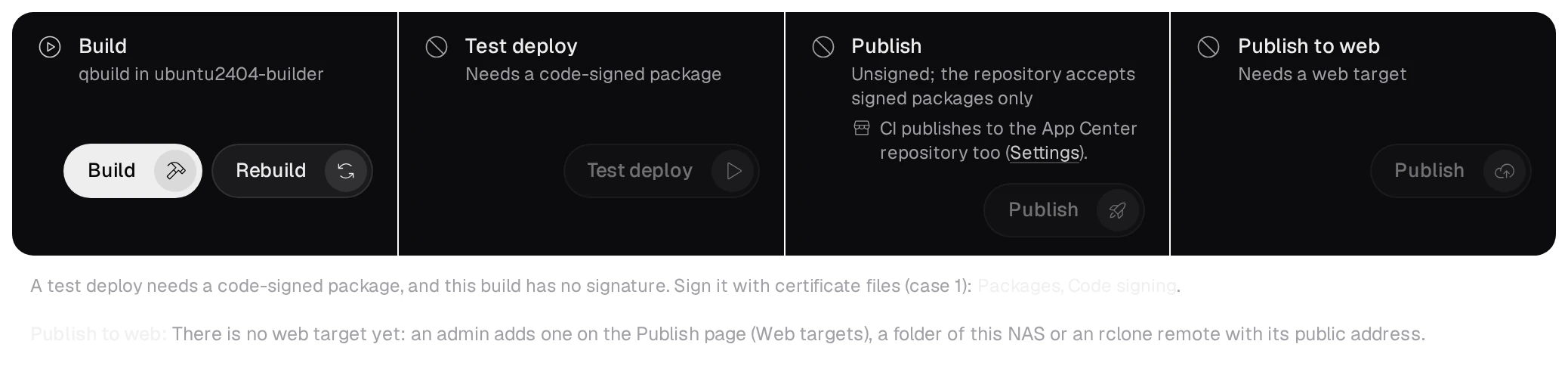
Its Settings card holds the switch Publish to the App Center repository. While it is off, a CI run skips the publish with a notice.

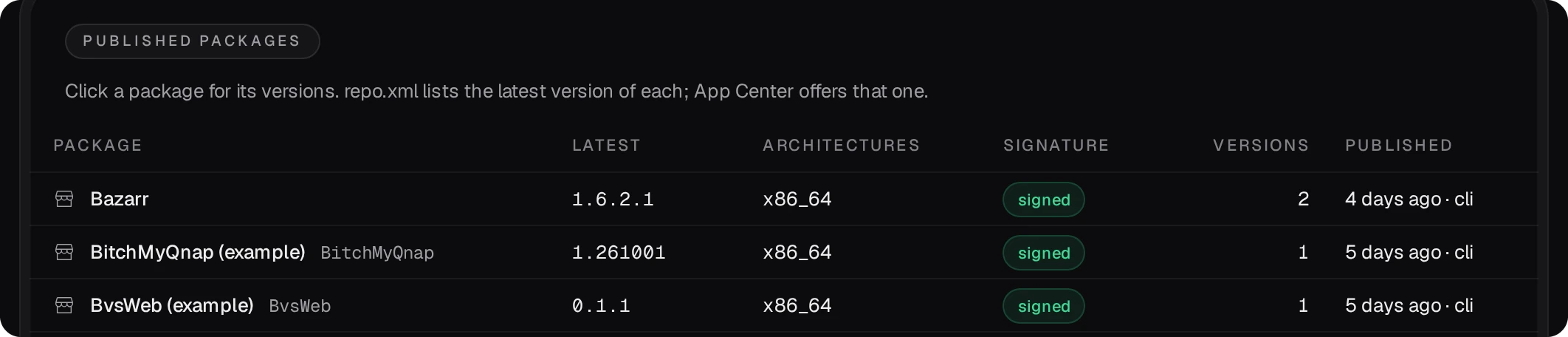
The Packages page lists every package with its latest version and signature. A version a developer uploads there by hand waits until an admin makes it the latest.
05Add the repository on your other NAS units
- Copy the address from the App Center address card on the Packages page.
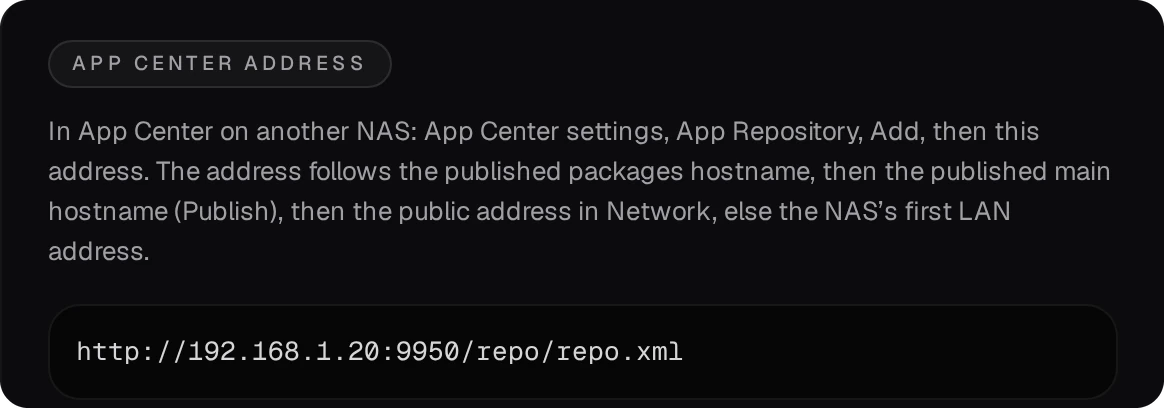
- On the other NAS: App Center → ⚙ Settings → App Repository → Add. Give it a name, paste the address and press Add.
- Your packages are under that name in App Center's left rail. Install them there. When the repository lists a newer version, App Center offers it as an update.
This LAN address works for NAS units in your network. For a NAS outside it, publish the repository on the internet.
06Over the internet with Cloudflare Tunnel
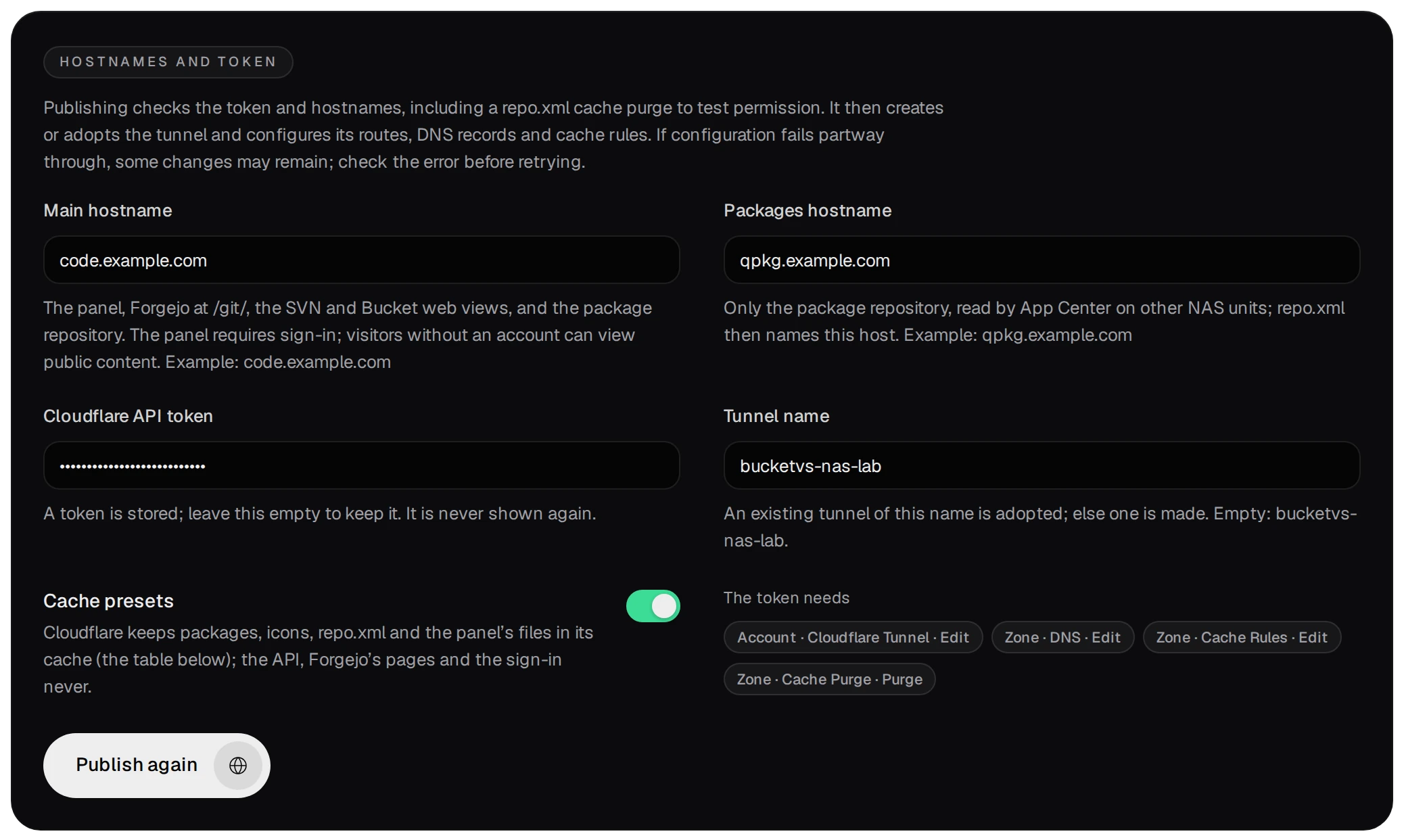
The package ships cloudflared, which dials out from the NAS to Cloudflare: no router port is opened, and Cloudflare holds the certificates for the names. You need a domain whose DNS is at Cloudflare and an API token for that zone (dash.cloudflare.com, My Profile → API Tokens) with four permissions: Account, Cloudflare Tunnel, Edit; Zone, DNS, Edit; Zone, Cache Rules, Edit; Zone, Cache Purge, Purge. If the token has Client IP Address Filtering, put both public addresses of the NAS in it, IPv4 and IPv6.
| Name | What it serves |
|---|---|
Packages hostnameqpkg.example.com | only GET and HEAD of /repo/, which is all App Center on your other NAS units needs |
Main hostnamecode.example.com | the panel, Forgejo at /git/ for
clone and push over HTTPS, the repository read only, the web view of public repositories and the user
guide |
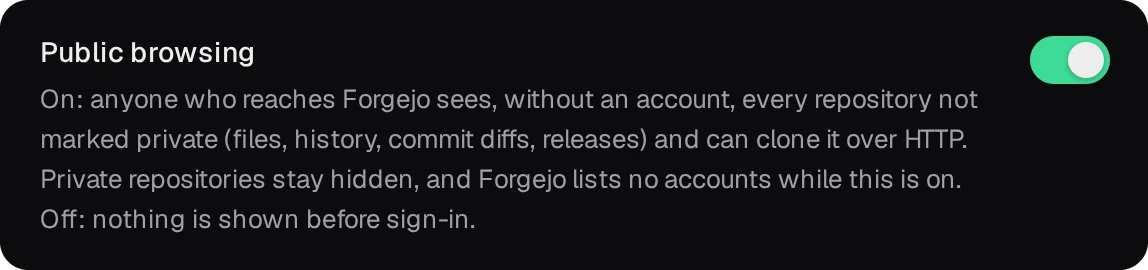
- For a main hostname, first turn on Public browsing on the Git page and press
Save and restart Forgejo: the Publish page refuses a main hostname while it is off. Repositories marked
private stay hidden.
- Open Publish under Administration (admins only). Type the names and the token, keep
Cache presets on and press Publish. The package checks everything at Cloudflare first,
changes nothing there when a check fails, and says what to fix.
- Then it makes the tunnel, points each name at it and starts cloudflared. The Tunnel card shows
the connections.
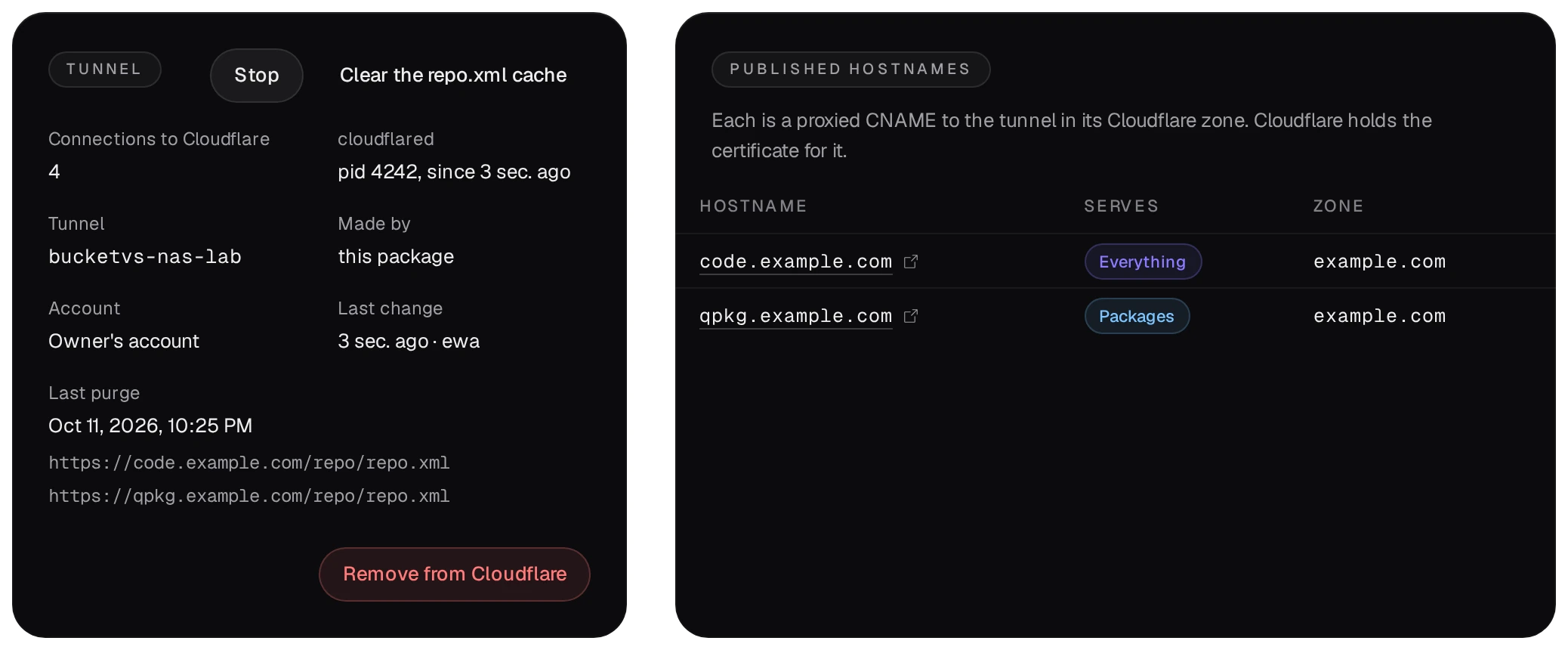
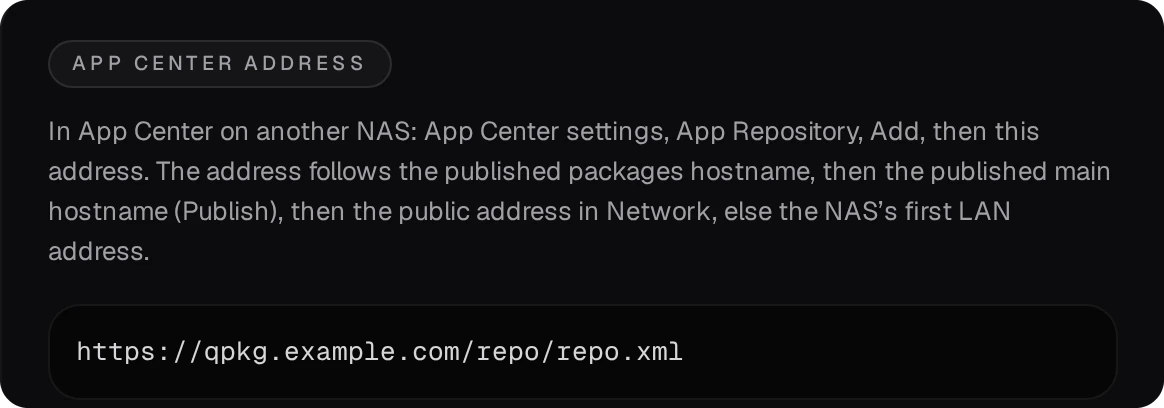
- The App Center address on the Packages page now names the packages hostname. Add that address on NAS units
outside your network.
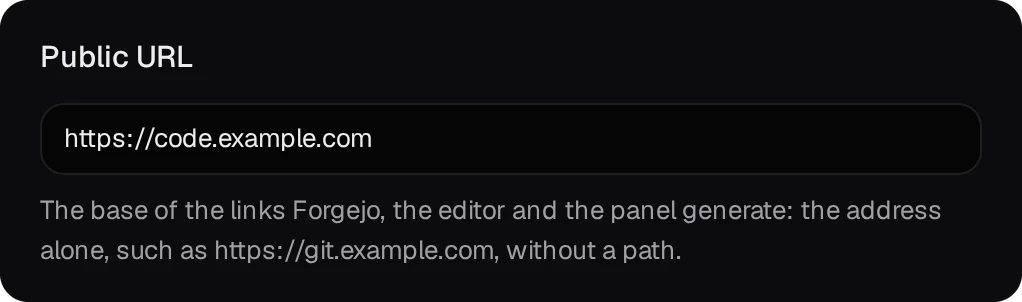
- With a main hostname, set Public URL on the Network page to its address, so that Forgejo's links and HTTPS clone addresses use it.
- Git over SSH does not go through the tunnel. From outside, clone and push over HTTPS, or forward a router port to the Git over SSH port (9952) and set SSH host in clone URLs on the Network page.
- Cloudflare takes requests up to 100 MB. Push or upload anything larger over the LAN address.
- A publish into the repository clears
repo.xmlfrom Cloudflare's cache at once, so App Center sees the new version at its next check.
07What the internet reaches
The Publish page lists what each name serves and the cache rules beside it.
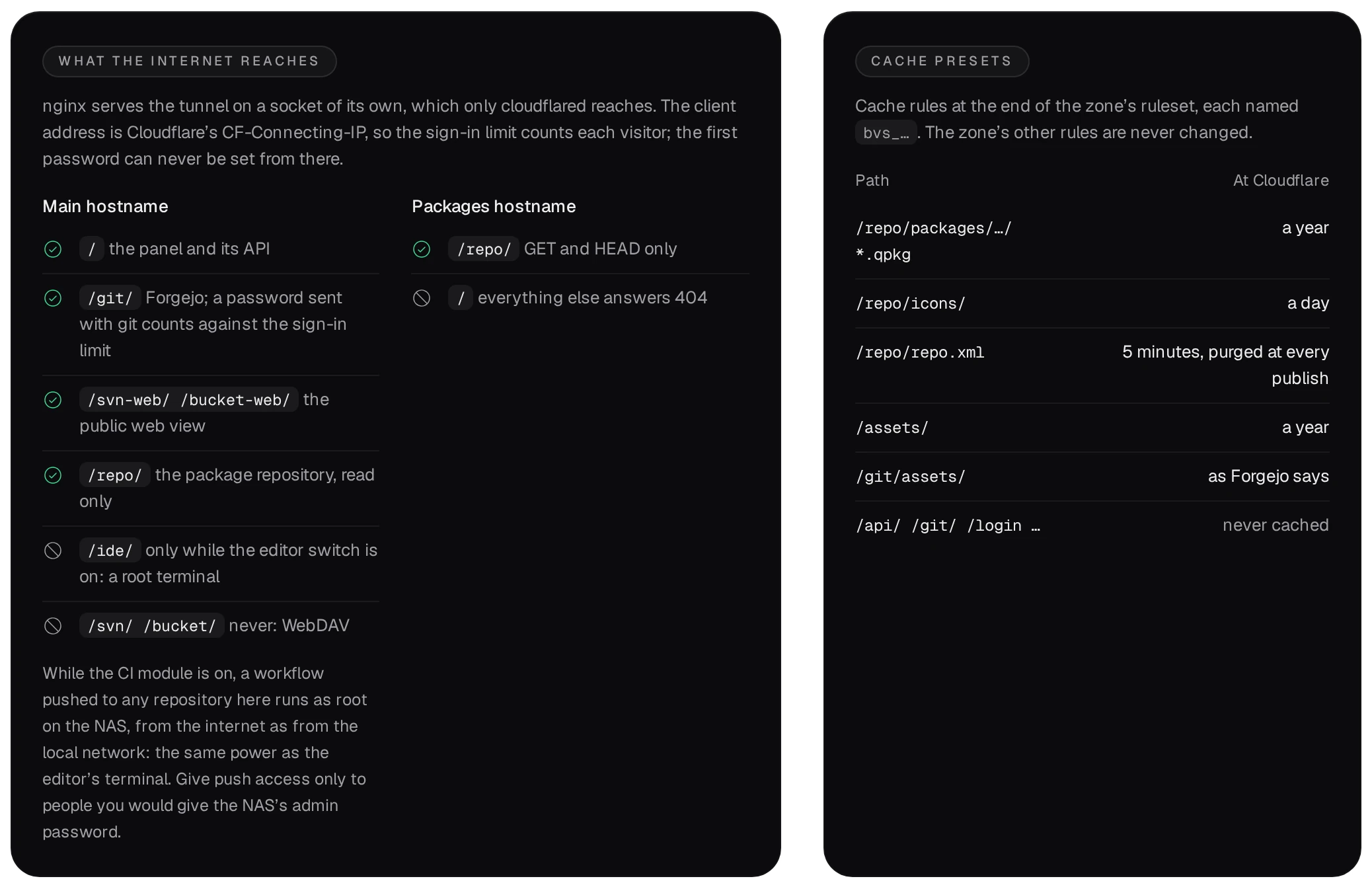
- The main hostname answers
/ide/with 404 until an admin turns on Publish the editor. The editor's terminal is a root shell on the NAS, so turn on two-factor authentication for developer and admin accounts first.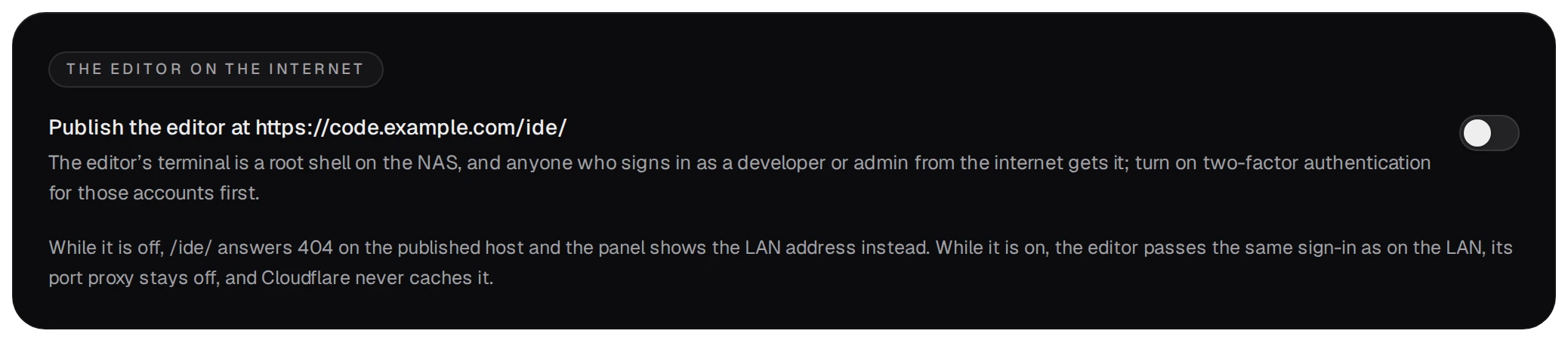
- While CI is on, a workflow pushed to any repository runs as root on the NAS, whether pushed from the internet or the LAN. Give push access only to people you would trust with the NAS's admin password.
- The first administrator password is never set through a published name: the first-run screen accepts only a client on the local network.
- Stop ends cloudflared and changes nothing at Cloudflare. Remove from Cloudflare deletes the DNS records, the cache rules and the tunnel the package made, and forgets the token.