My first Linux build: installing the Bucket & Code development environment on QNAP
Bucket & Code Server IDE puts Git (Forgejo), Subversion, versioned WebDAV buckets, VS Code in the browser and an App Builder on your NAS, behind one panel with its own accounts. This guide takes a new installation from App Center to an app built from recipes and running on the NAS.
- Installone repository in App Center
- Passwordwithin 60 minutes, from the LAN
- ModulesGit, CI, SVN, Editor
- Accountsone for each person
- First appbuild, then activate
The pictures come from the panel with each field filled in as this guide describes. The addresses in them are those of a NAS at 192.168.1.20 with the default ports.
01Install the package
It needs an x86_64 NAS with QTS 6.0 or QuTS hero 6.0 or newer. App Center installs it with its default settings.
- App Center → ⚙ Settings → App Repository → Add. Name it
QNAP Utilities, pastehttps://www.qnaputilities.com/repo.xmland press Add. - Open QNAP Utilities in the left rail and install Bucket & Code Server IDE.
- Its data goes to
BucketVSon the volume the package is installed on, for example/share/CACHEDEV1_DATA/BucketVS. You can move it to another volume later on the Storage page. - The Open button in App Center takes you to the panel:
https://<NAS address>:9951, orhttp://<NAS address>:9950. The HTTPS address uses a self-signed certificate at first, so the browser warns until your device trusts it.
02Set the administrator password
A new installation has no account and opens on the Set the administrator password screen for the
account administrator. Type a password of at least 10 characters twice and press Set the
password and sign in.
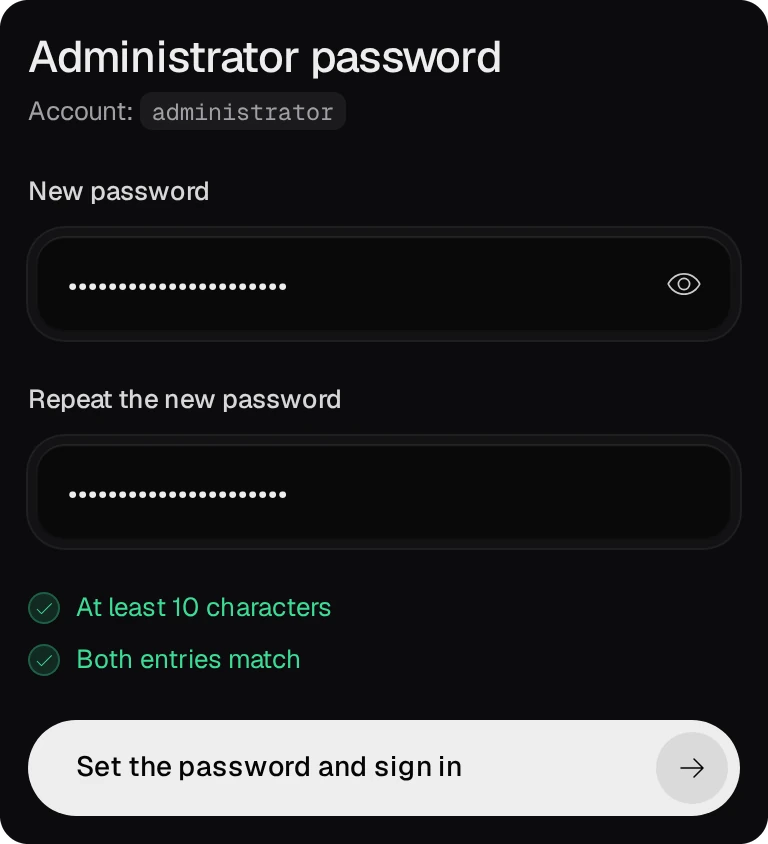
- The screen takes a password for 60 minutes after the package starts. After that, restart the package in App Center for another 60 minutes.
- Only a browser on the local network can set it, and only directly, not through a proxy. While the screen waits, QTS System Logs name the address to open.
- QTS accounts do not sign in to the panel: it has accounts of its own.
03Turn on the modules
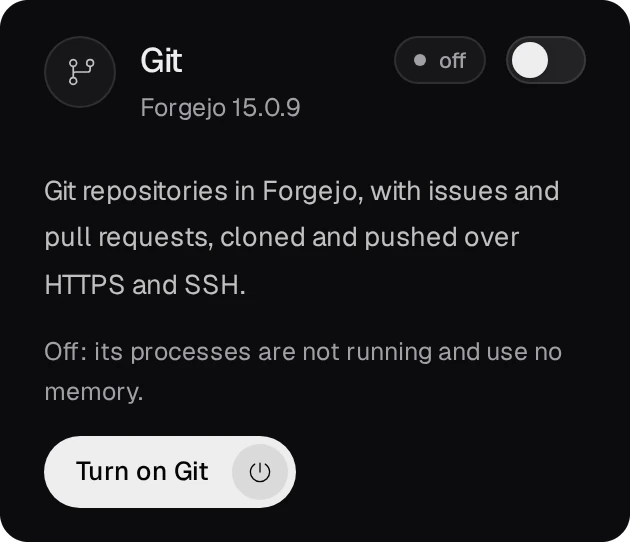
Git, CI, SVN & Bucket and the Editor are off on a new installation. On the Overview, each has a tile that says what it gives, with its button: Turn on Git, Turn on Editor and so on. The button runs a job that prepares the module and starts it, and the tile shows running when it is ready. CI needs Git: while Git is off, its button reads Turn on Git and CI.
04Add an account
One account signs in to the panel, Git, SVN and Bucket with the same name and password. On the Users page press New account.
- Username: lower case, for example
ola. It is also the Forgejo username. - Role: viewer can read, developer can also open the editor and build apps, and admin can do everything.
- Password: at least 10 characters, or press Generate. Leave Must choose their own password at the first sign-in ticked, then press Create the account.
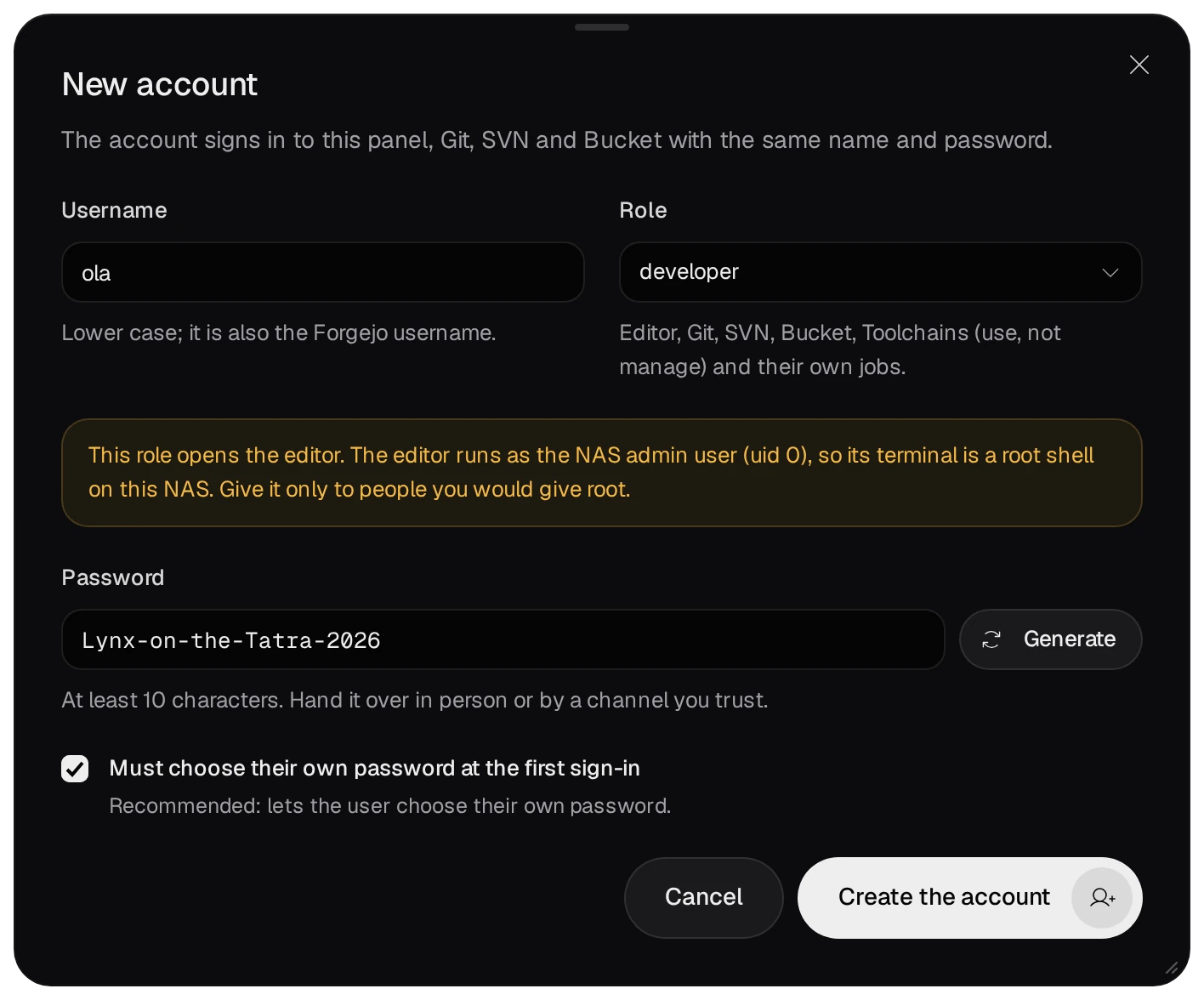
The editor's terminal is a root shell on the NAS, and a developer's scheduled jobs run as root too. Give the developer role only to people you would trust with the NAS's admin password.
05Clone a repository
The Open Forgejo button on the Git page takes you to Forgejo, where you create, import and mirror repositories; New repository in the page's In Forgejo card opens Forgejo's form for a new one. Forgejo signs you in with your panel session. On the same page, Clone a repository writes the clone commands for an owner and a repository.
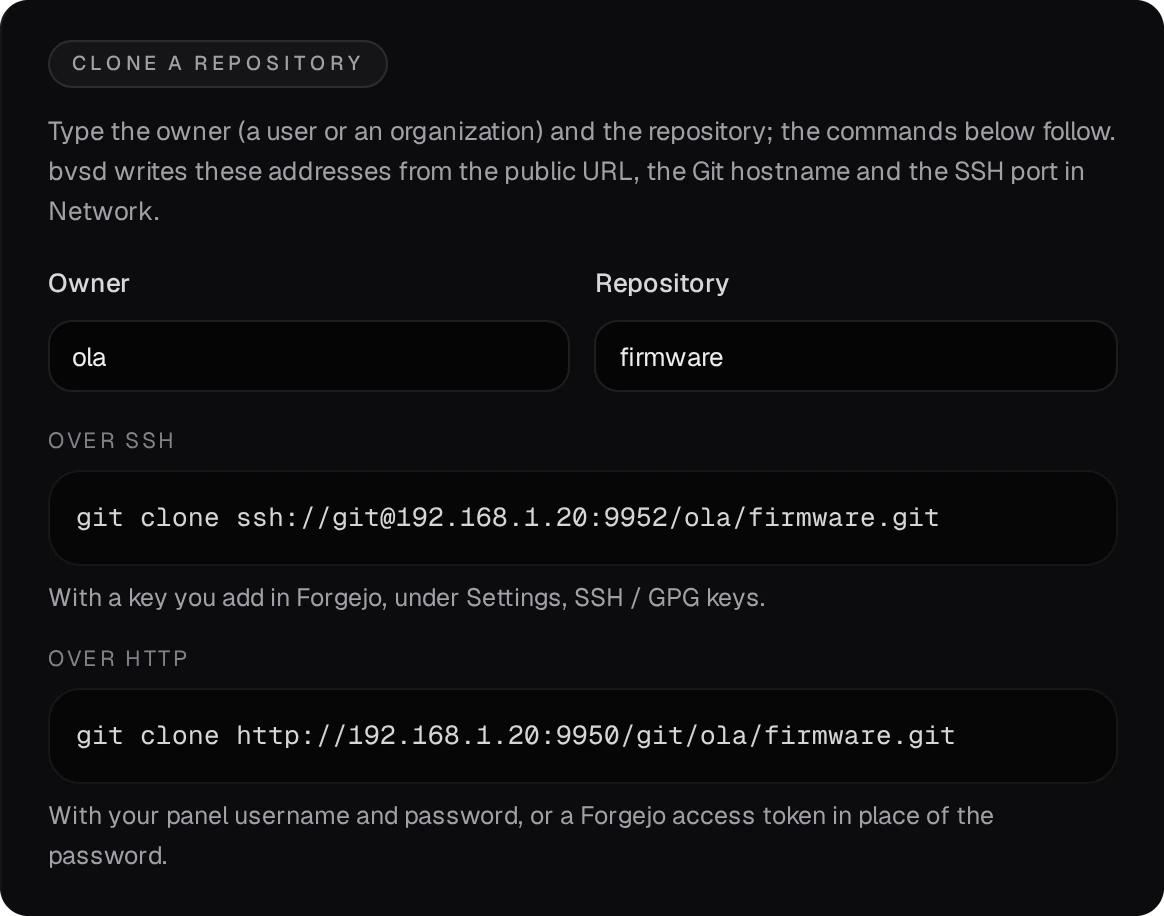
- Over HTTP or HTTPS, git takes your panel username and password. With two-factor authentication on, use a Forgejo access token instead of the password (Forgejo's Settings → Applications).
- Over SSH, on port 9952, git uses a key you add in Forgejo under Settings → SSH / GPG keys.
06Open the editor
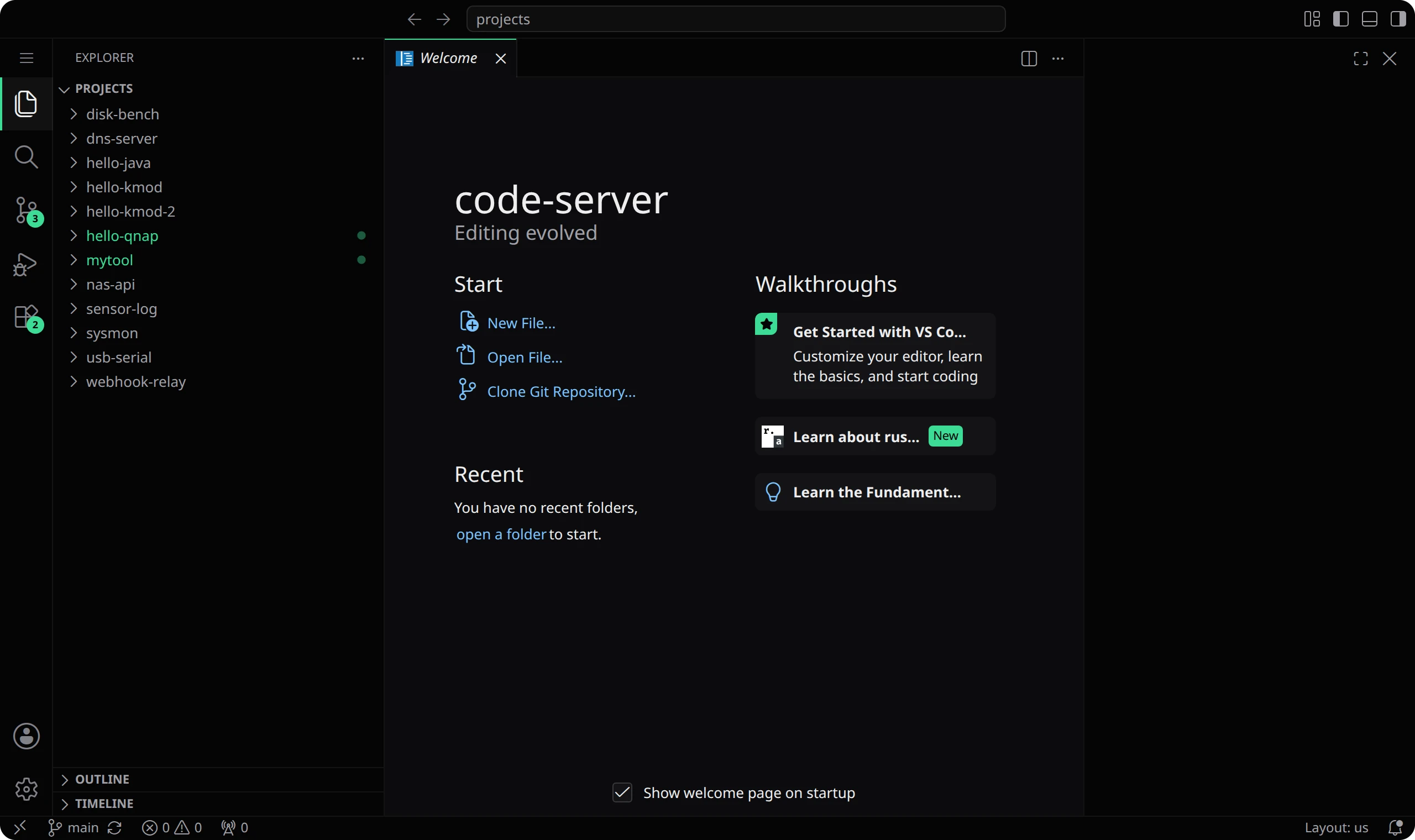
On the Editor settings page press Open the editor. VS Code opens in a new tab on the
projects folder of the data folder. Each account gets its own instance.

07Build an app
The App Builder compiles programs from recipes into one folder, the app's prefix. Each recipe names its source with a checksum, the recipes it needs and a check that the result runs. On the Apps page press New app.
- Configure. Type a Name, for example
mytools; the Prefix follows it as/usr/app/mytools. Under Build environment choose the environment. A fresh installation has no build environment: press Create a Builder environment (admin), which prepares Ubuntu 24.04 with the build tools and chooses it when it is ready. Then press Choose recipes.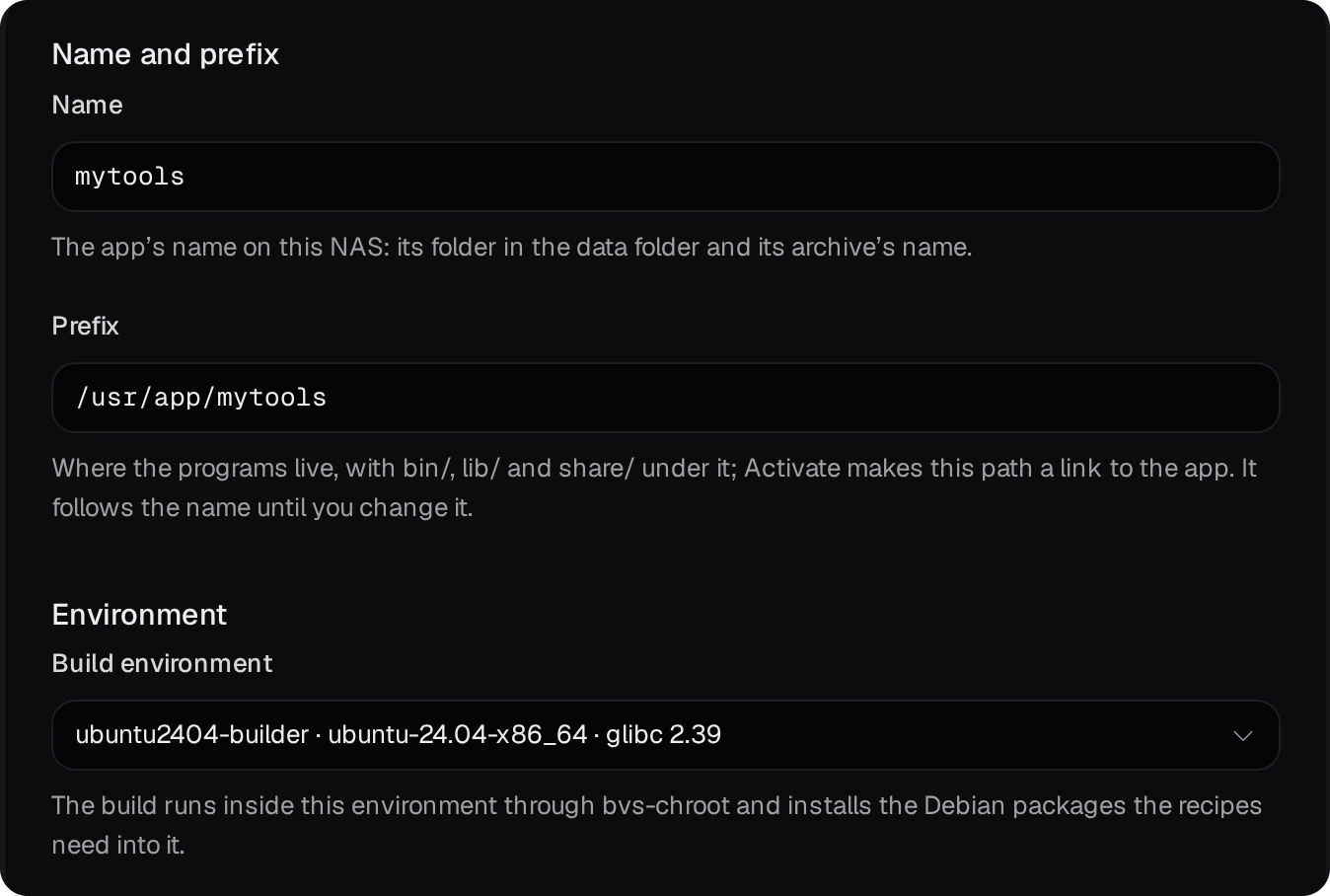
- Recipes. Search for a program and tick it. Its required dependencies are added automatically, in build order:
tmuxbringslibeventandncurses. Press Review.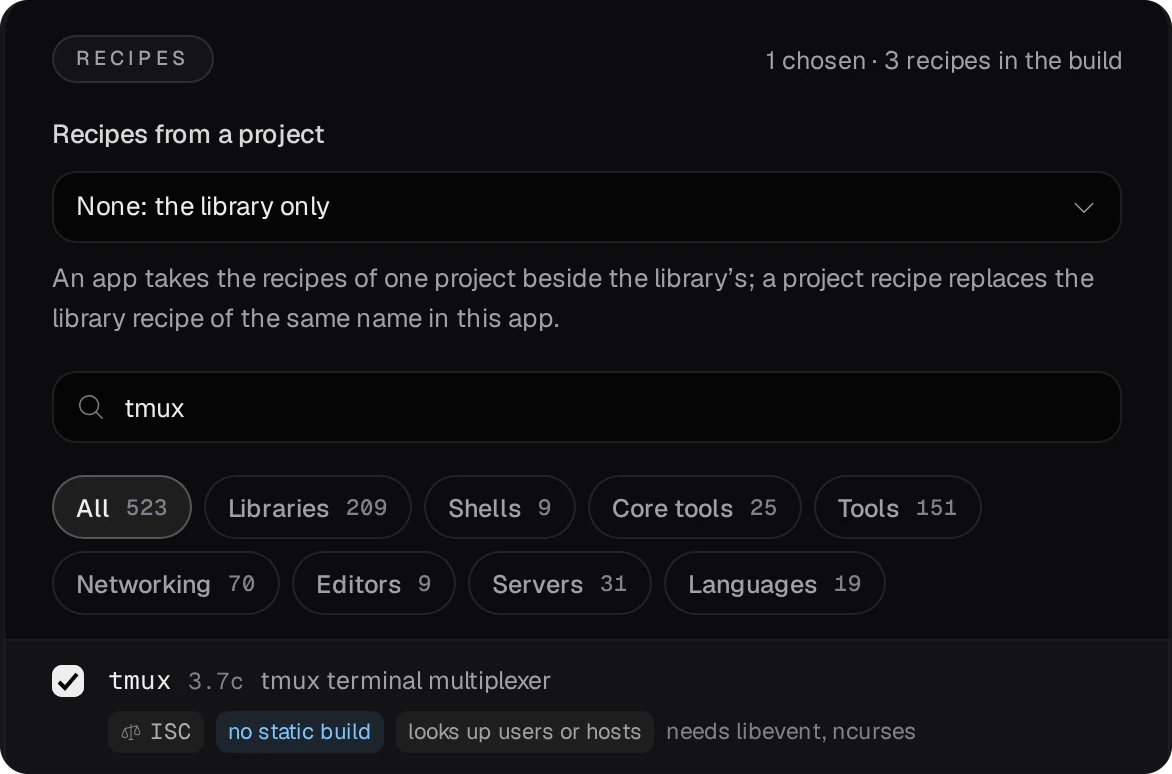
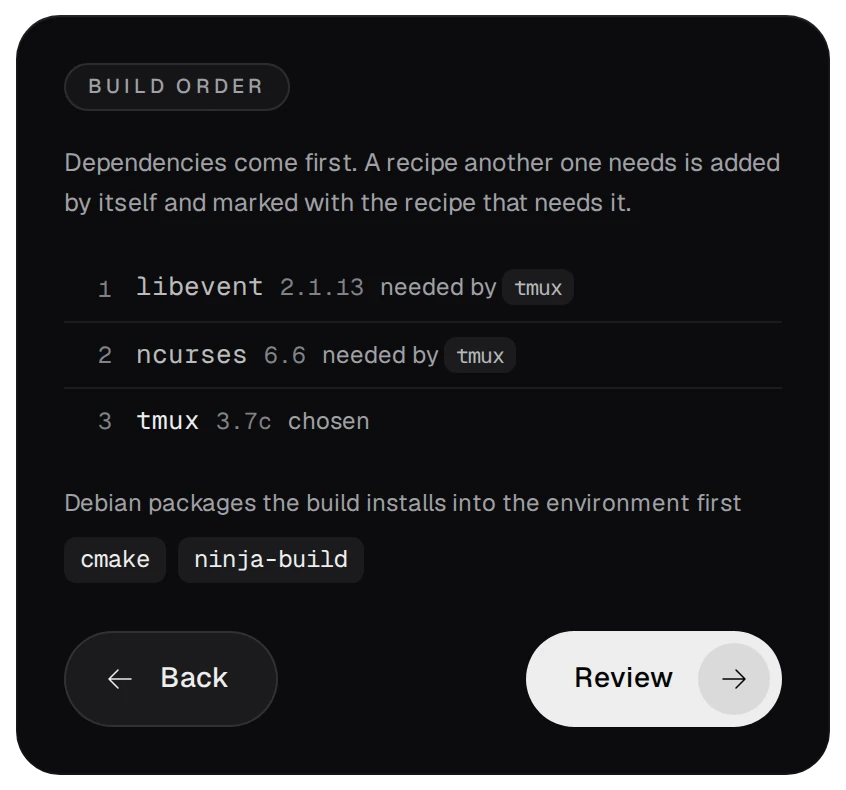
- Review and build. Check the summary and press Create and build.
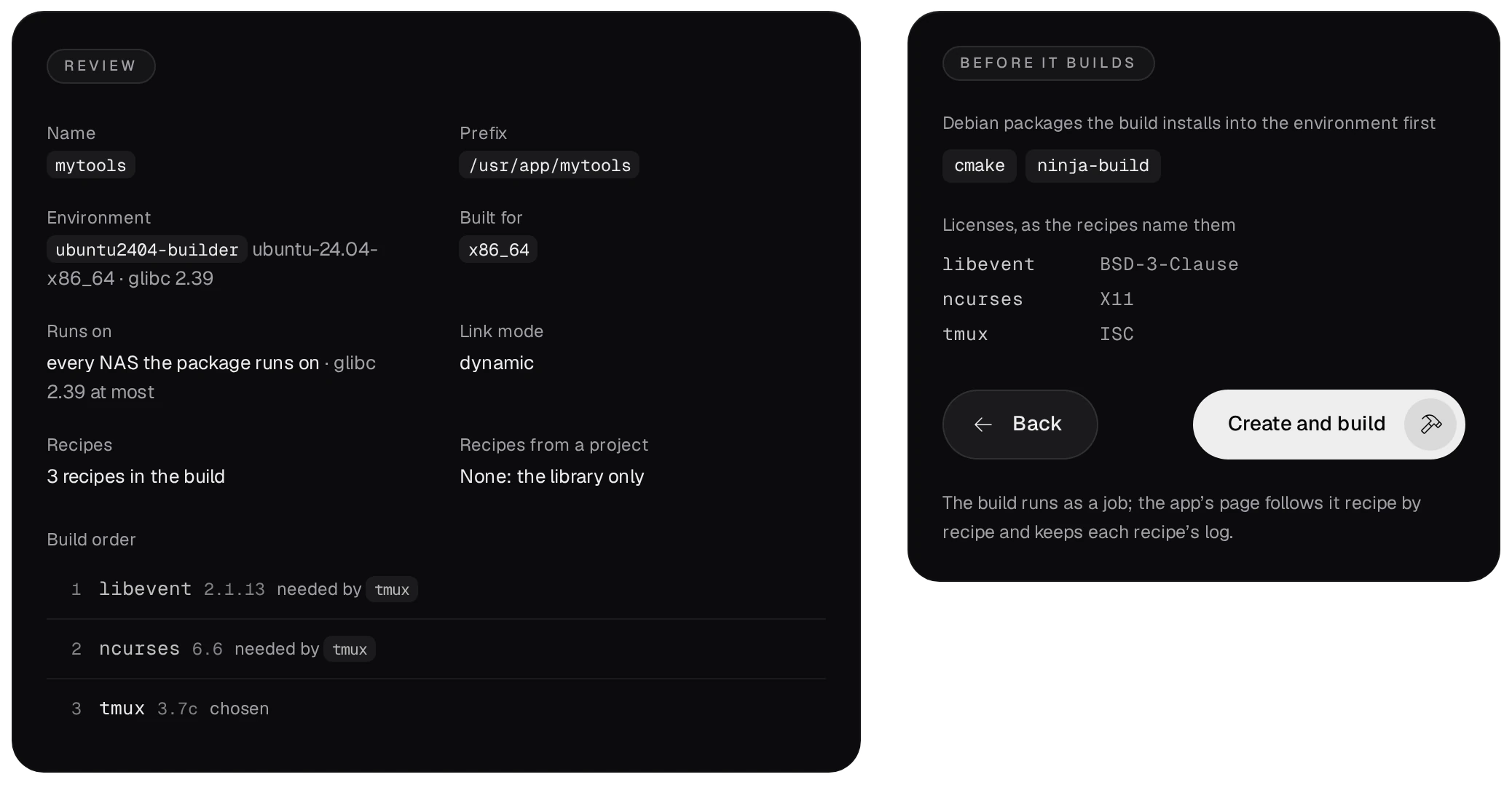
Leave Runs on at every NAS the package runs on. No program may then need a glibc above 2.39, so the app also runs on other x86_64 NAS units with QTS 6.0, QuTS hero 6.0 or newer.
08Run, download or export the app
The app's page shows its pipeline: the build, a QPKG export and publishing.

- Activate (admin) makes the prefix a link to the newest successful build, so the programs run as
/usr/app/<name>/bin/…. The package restores the link at startup.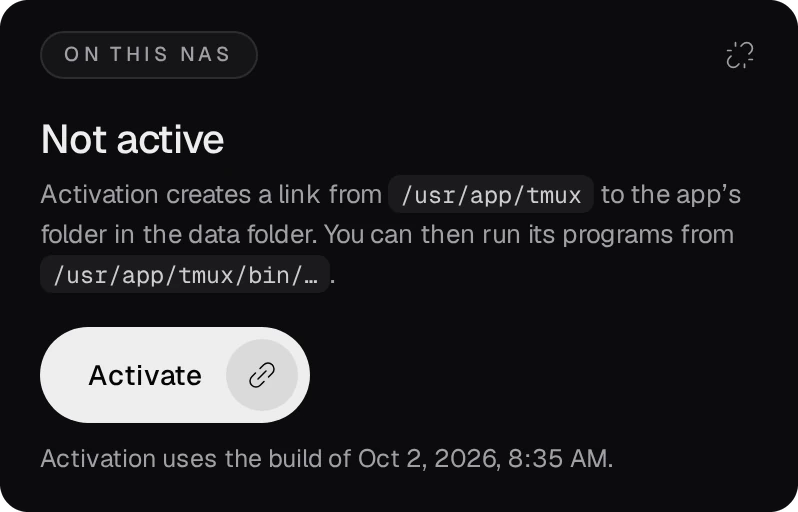
- Download gives the newest successful build as a
.tar.zstarchive. - Export as QPKG (admin) packs the build as a QPKG that installs the app on another NAS without this package. It needs QDK: install QNAP QDK 2.5.0 on the Toolchains page, QNAP tab. The exported package carries no code signature, so the repository on the Packages page refuses it as it is.
09The App Center repository on your NAS
The Packages page is an App Center repository on this NAS. Its address goes into App Center on your other NAS units: ⚙ Settings → App Repository → Add.
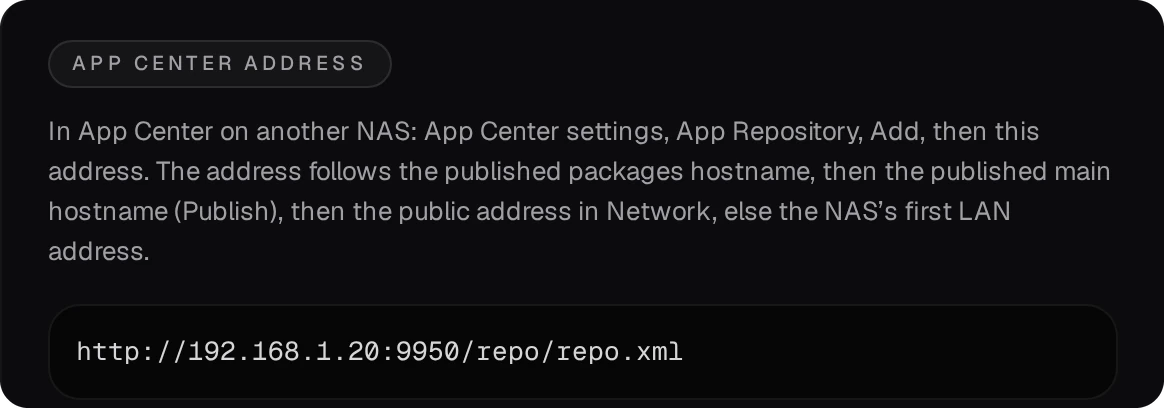
A developer uploads a code-signed QPKG there, and an admin chooses the version App Center offers. The user guide covers the rest, such as backups, publishing on the internet and the kernel workshop.