Three apps and one QNAP. Building our own corner of the network
A news reader, a proper start page, and files you can preview and share in a browser. All on your own NAS. First we will give WebHostPro ports 80 and 443, then set up FreshRSS, Heimdall and FileRise. Step by step, with the commands and an explanation of what they actually do.
Discuss on the forum (community.qnap.com) · The column from the same issue: Night of the Living Servers
Hello, QNAP people!
It was supposed to be a quiet evening at the computer. A few stories to read, a photo to show the family, perhaps a little housekeeping in the bookmarks. Except every app has a different address, the stories are scattered across several websites, and the file you need has disappeared into another folder. That sounds like a good little workshop: the kind that leaves you with something working.
We will start with WebHostPro and install three open-source apps, each in its own folder. FreshRSS will collect new articles from the sites you choose. Heimdall will organise the entrances to your NAS services. FileRise will add previews and sharing links to your files. At the end, we will cover the common stumbling blocks and the route back to QTS's Web Server.
Before we begin: hardware, an address and room for the apps
You need an Intel/AMD QNAP NAS with x86_64 architecture, running QTS 6.0 or QuTS hero 6.0 or newer. We will install WebHostPro 0.8.2 and use PHP 8.4. Select the current PHP 8.4 patch release available in WebHostPro.
In App Center → Settings → App Repository → Add, enter the name QNAP Utilities and the address https://www.qnaputilities.com/repo.xml. Then install (example) WebHostPro from the QNAP Utilities list. You can also find illustrated help in the hosting guide.
We will download the application files over SSH using an administrator account. Enable SSH in Control Panel → Network & File Services → Telnet / SSH by selecting "Allow SSH connection". WebHostPro has no file-upload function in its panel; you can use SSH, SMB or File Station.
Our example NAS address is 192.168.1.20. Substitute your own address throughout, including in the names:
| App | Site name | Web server |
|---|---|---|
| FreshRSS | rss.192-168-1-20.nip.io | httpd |
| Heimdall | home.192-168-1-20.nip.io | nginx |
| FileRise | files.192-168-1-20.nip.io | httpd |
The nip.io service reads the address from the name: rss.192-168-1-20.nip.io resolves to 192.168.1.20. For a NAS at 10.0.0.5, use rss.10-0-0-5.nip.io.
This is still a local network. A nip.io name pointing to a private address does not publish the site on the Internet. The computer or phone needs access to that network, directly or through a suitably configured VPN. This guide does not create router port forwards. We will run the sites without TLS, over HTTP; this setup is intended for a trusted local network. HTTP does not encrypt the data or login credentials sent over it.
1. Making room on ports 80 and 443
WebHostPro has its own nginx front server. Initially, it accepts connections on 9542 for HTTP and 9543 for HTTPS. The management panel runs separately on 9541. Remembering that distinction will save you from looking for your website in an administration window later.
First sign-in
Click Open in App Center, or visit https://192.168.1.20:9541/. The panel uses a self-signed certificate. If your browser asks whether to trust it, check that you are opening the correct local address of your NAS.
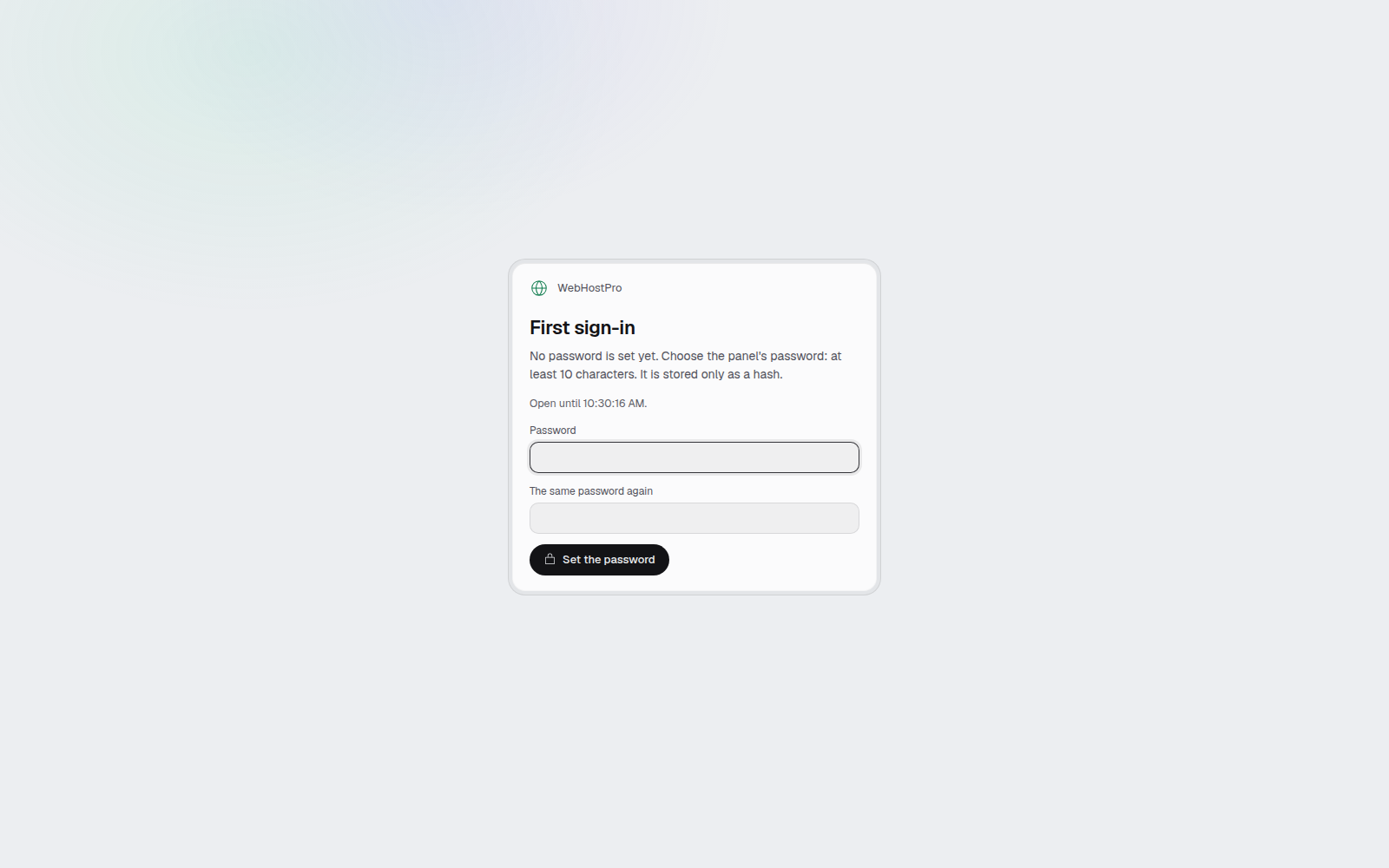
On the "First sign-in" page, enter a password of at least 10 characters twice and click "Set the password". The form accepts it from a computer on the LAN, within 60 minutes of the panel starting.
Find out what holds the ports
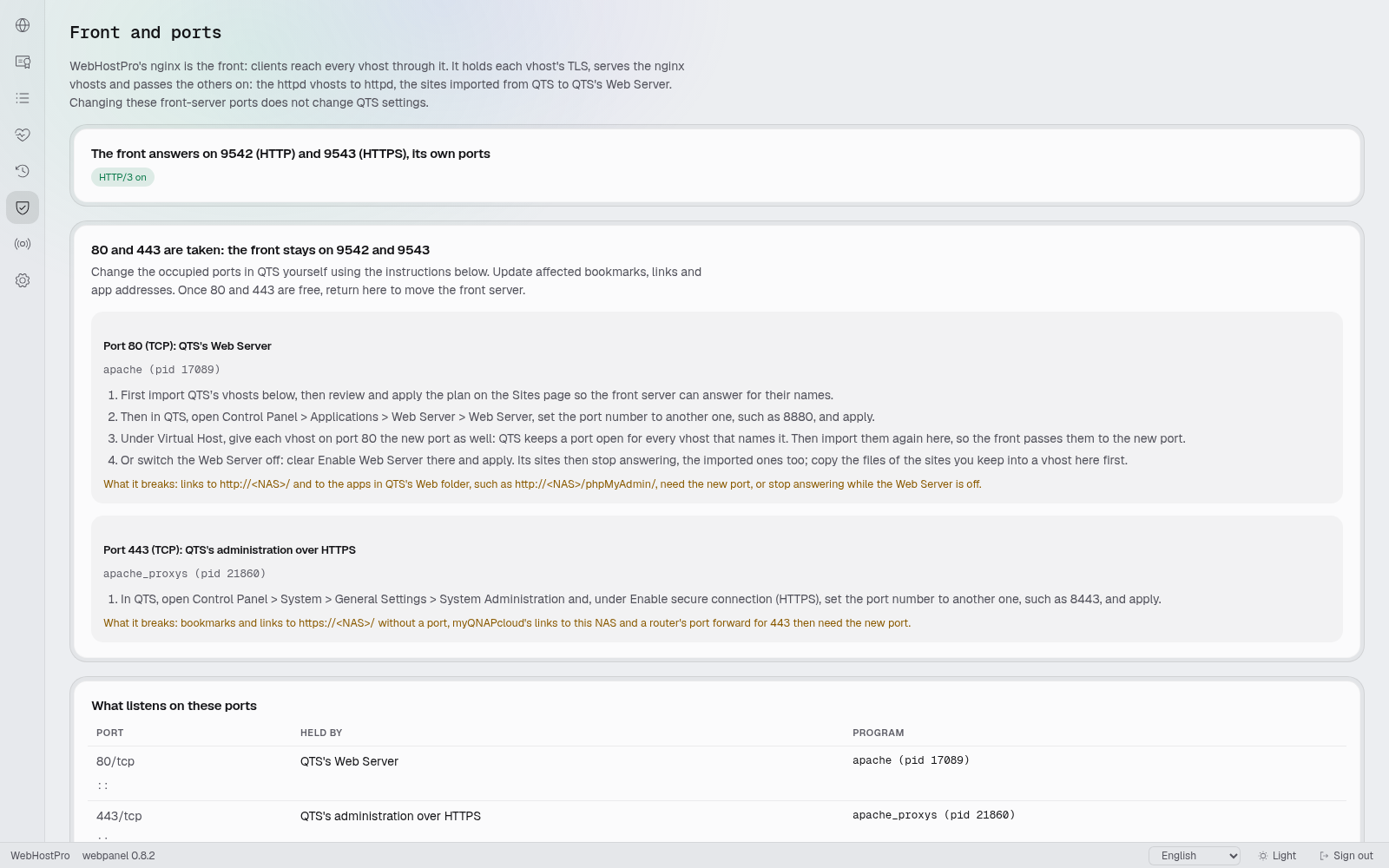
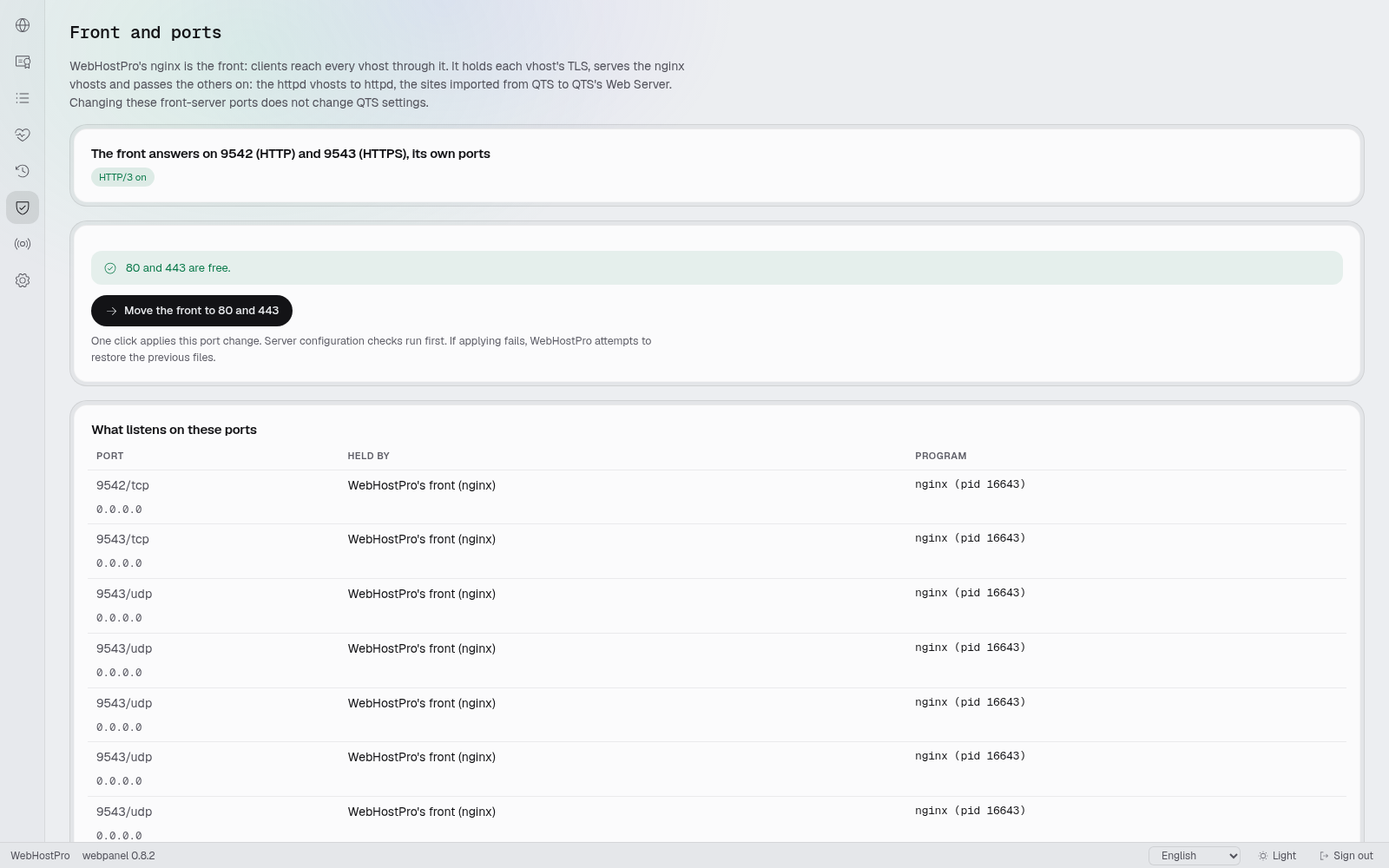
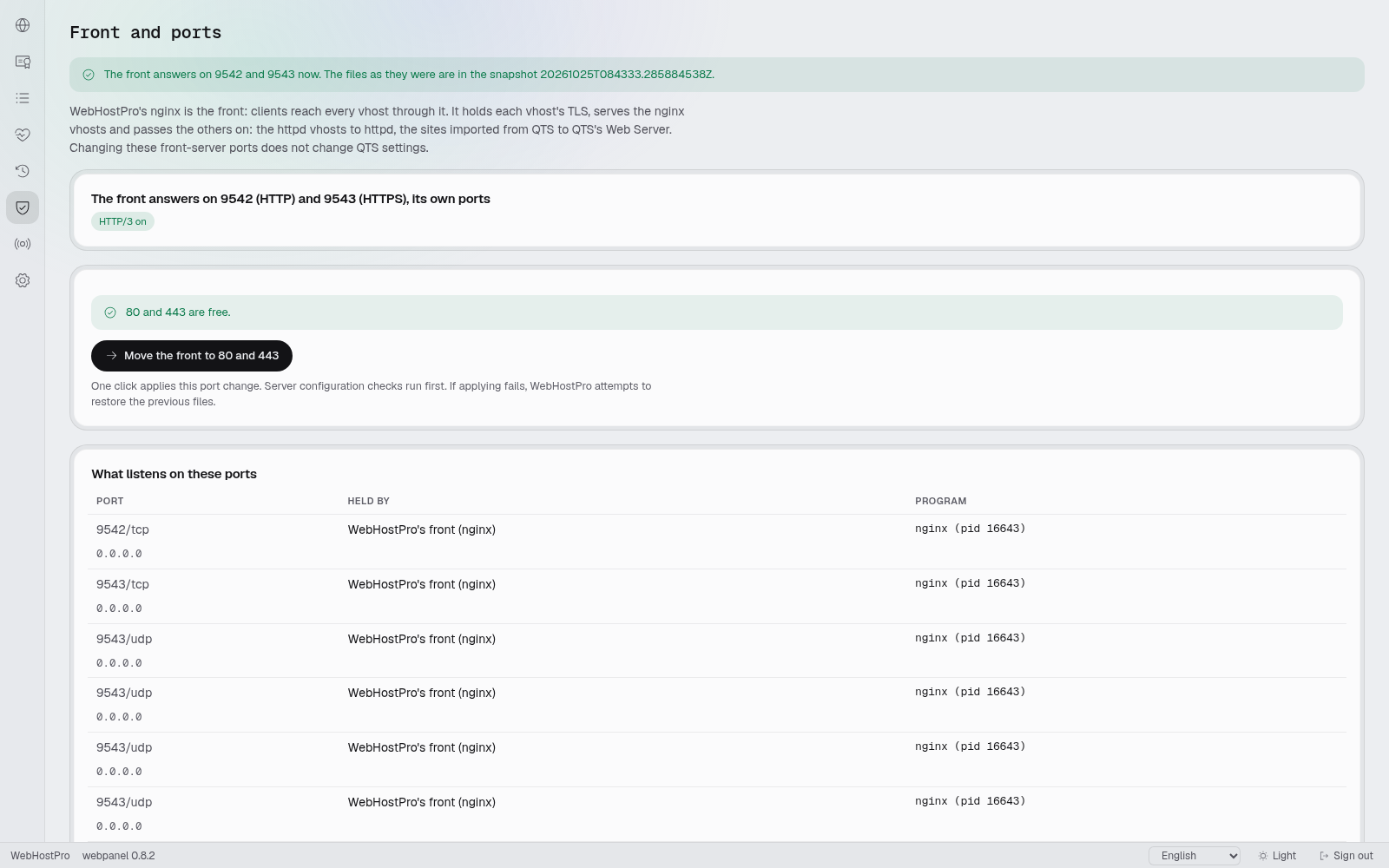
Open "Front and ports". The message "80 and 443 are taken: the front stays on 9542 and 9543" means you must free those ports first. The panel names the program, the change needed in QTS, and its consequences. WebHostPro does not change the QTS settings for you.
Free port 80
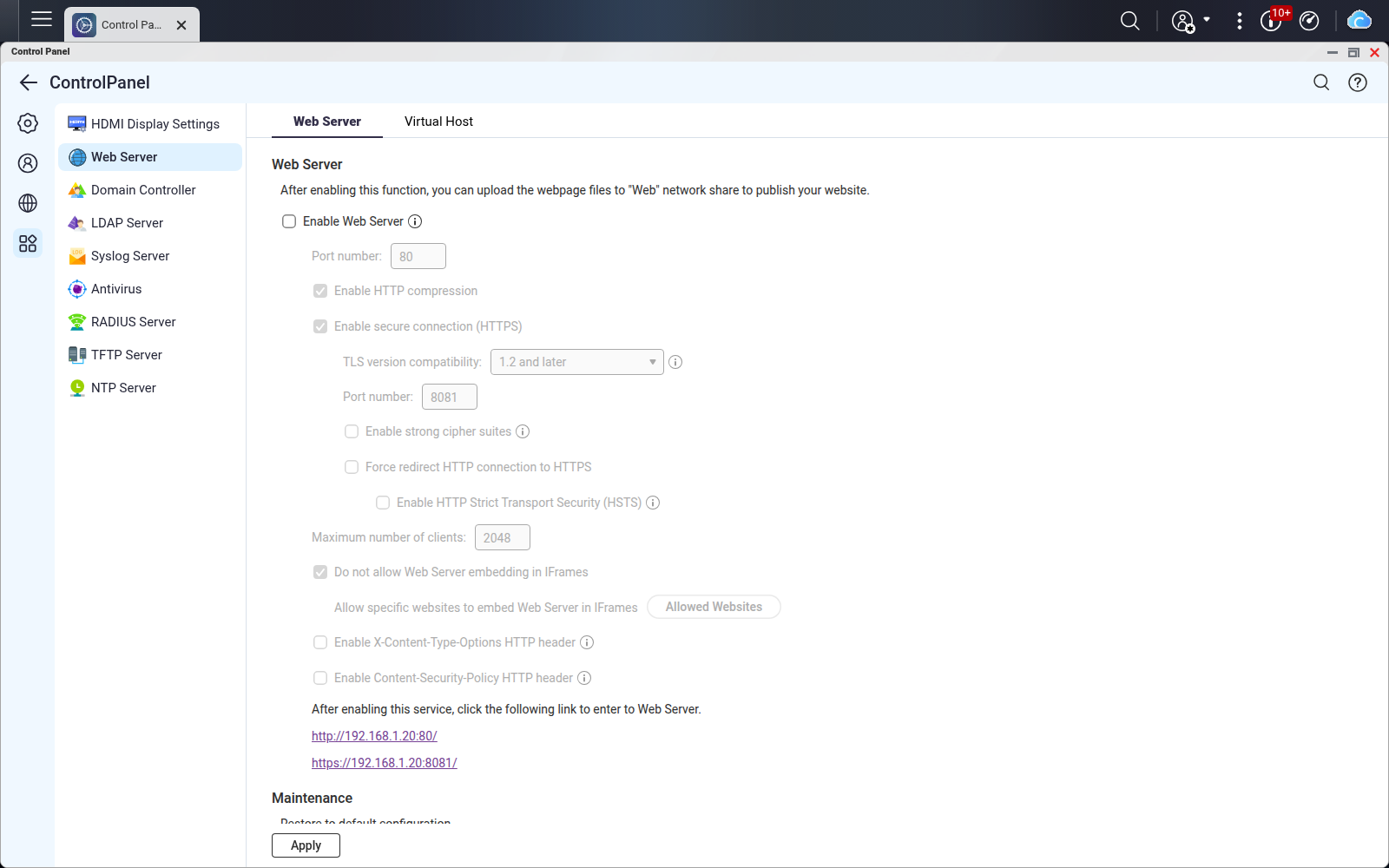
In Control Panel → Applications → Web Server, clear "Enable Web Server" and click "Apply".
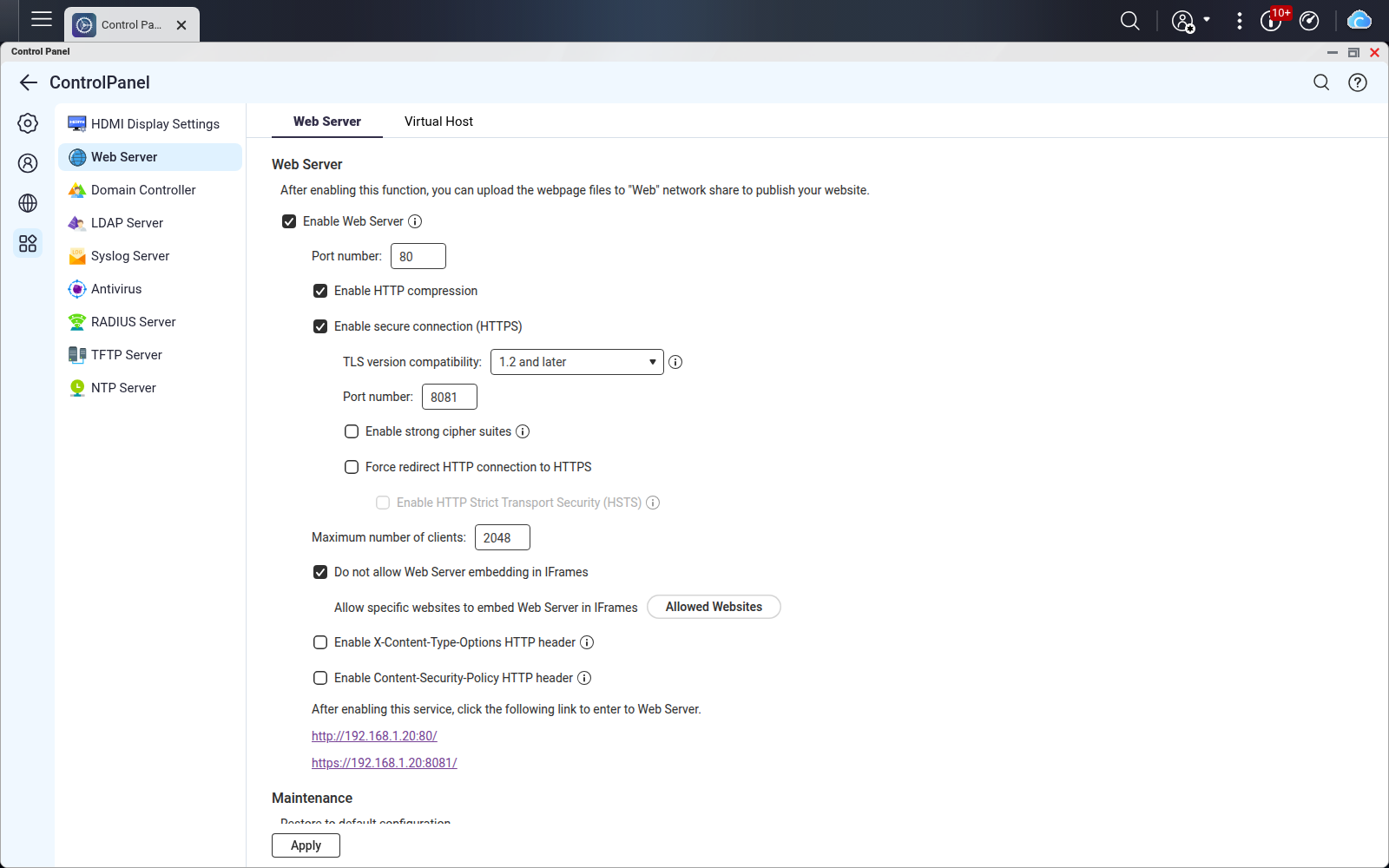
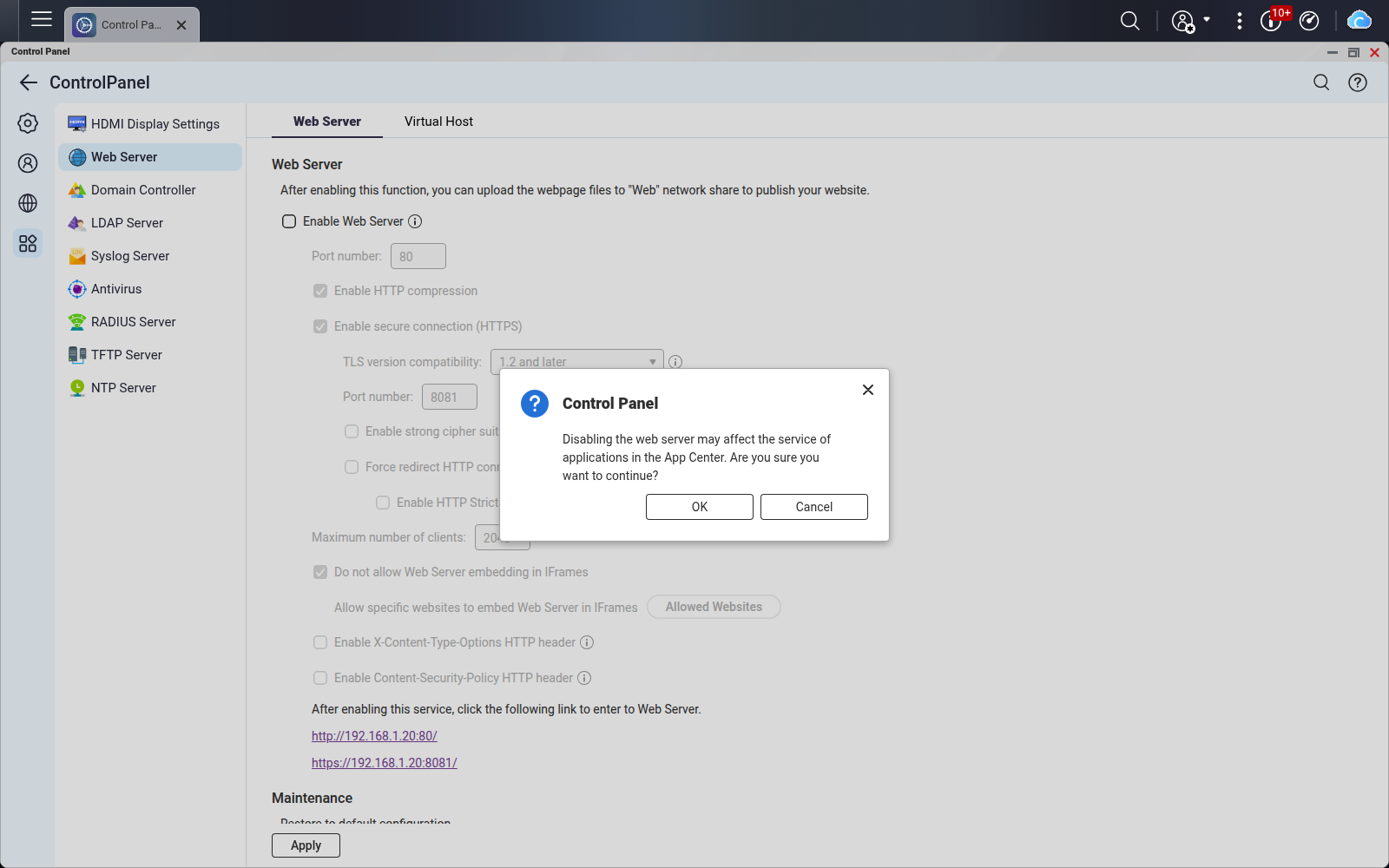
QTS displays the warning: "Disabling the web server may affect the service of applications in the App Center." Confirm with OK. Applications previously served by that web server will no longer be served by it. This includes addresses such as /phpMyAdmin/ if they relied on that mechanism. Moving the front server does not automatically migrate every such application.
Move the QTS panel to 8443
Open Control Panel → System → General Settings → System Administration. Under "Enable secure connection (HTTPS)", change "Port number" from 443 to 8443, then click "Apply".
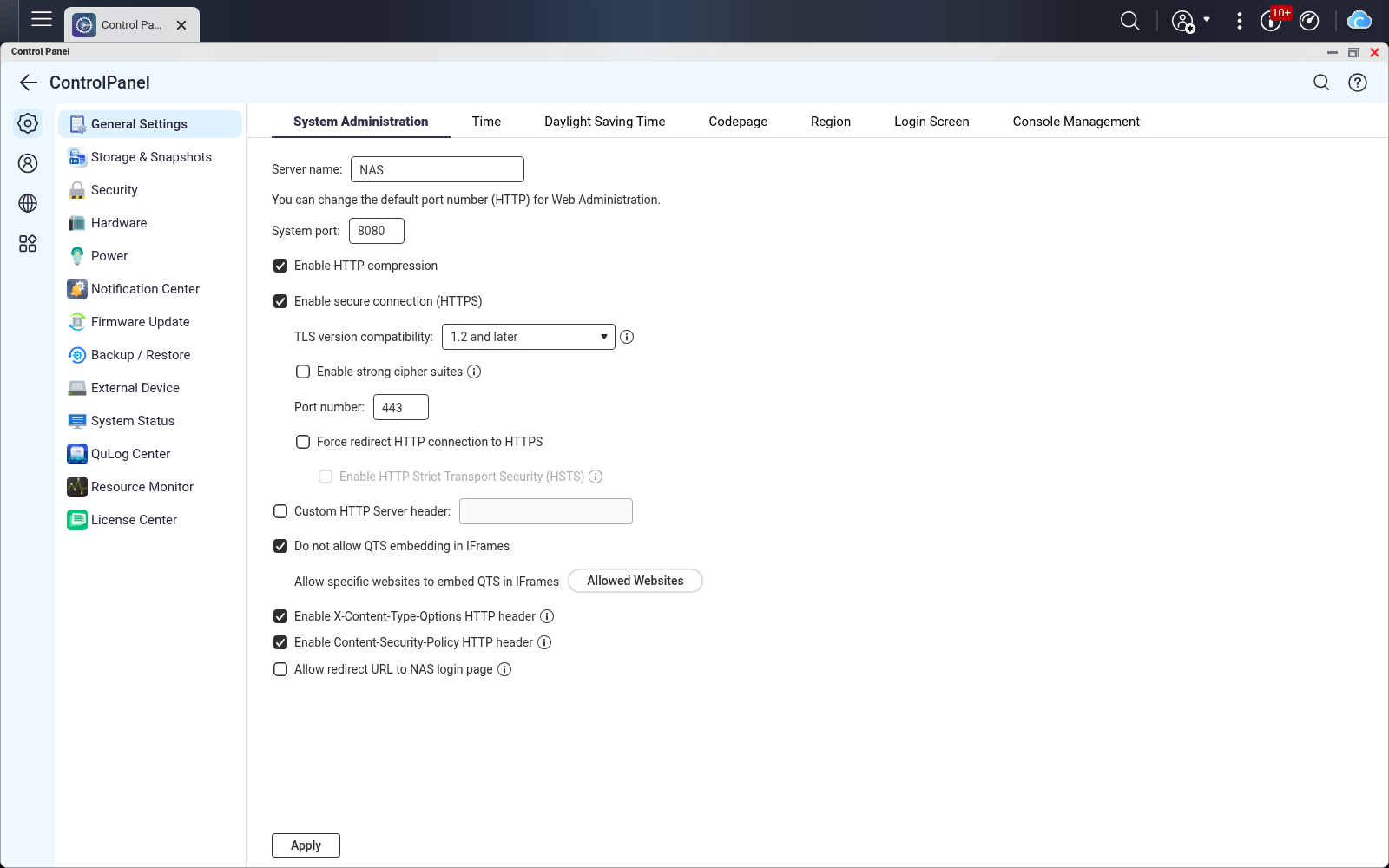
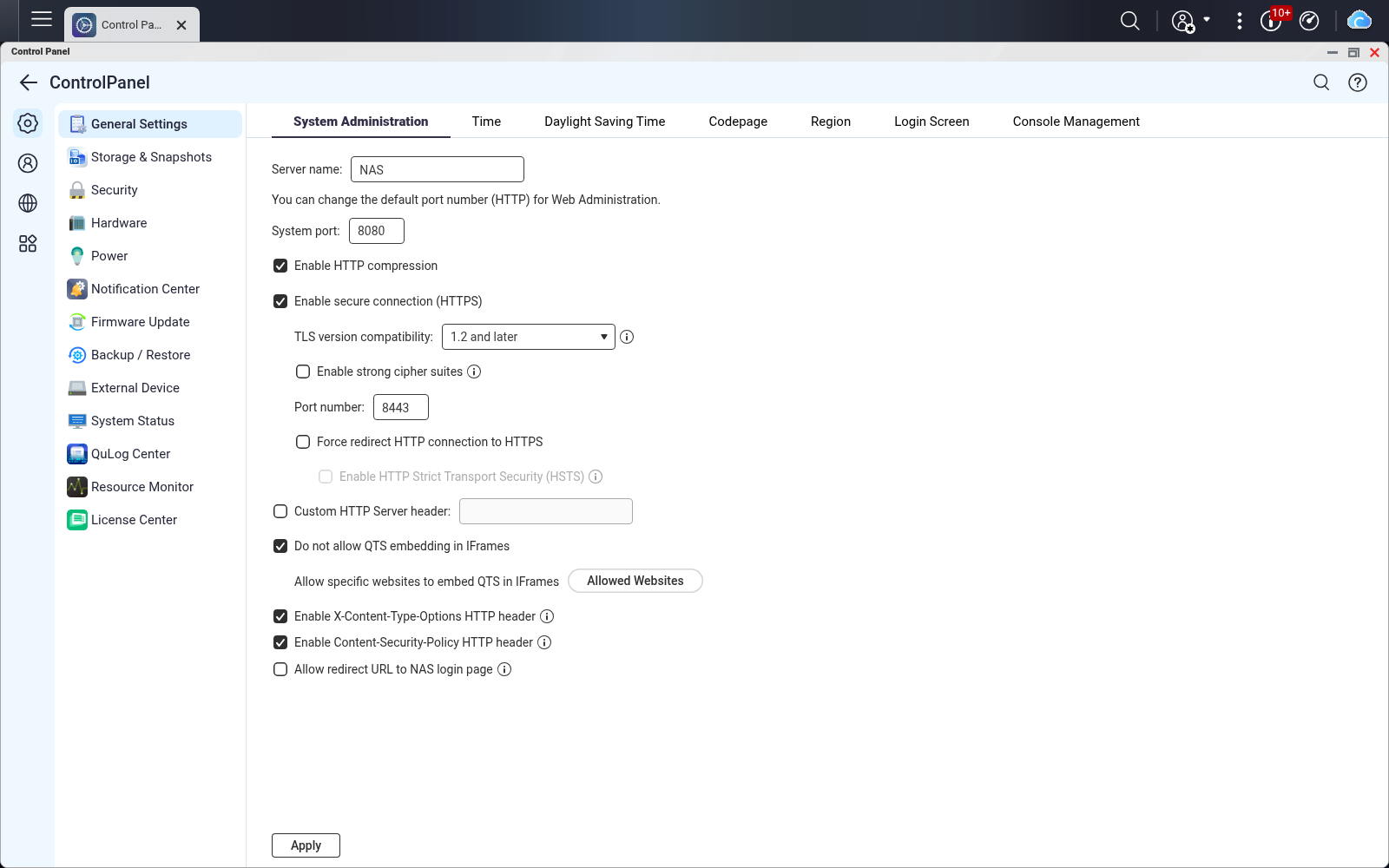
The panel's new address is https://192.168.1.20:8443/. The address http://192.168.1.20:8080/ remains an alternative if HTTP access is still enabled on that port. Update your bookmarks and saved links, including myQNAPcloud references.
If you already have a router forward pointing to port 443 on the NAS, check its destination: after this change, WebHostPro will answer there. Moving the QTS panel does not update the router rule.
Give the ports to WebHostPro
Return to "Front and ports". When you see "80 and 443 are free.", click "Move the front to 80 and 443". The app checks the server configurations, applies the change, and keeps the previous files in a snapshot.
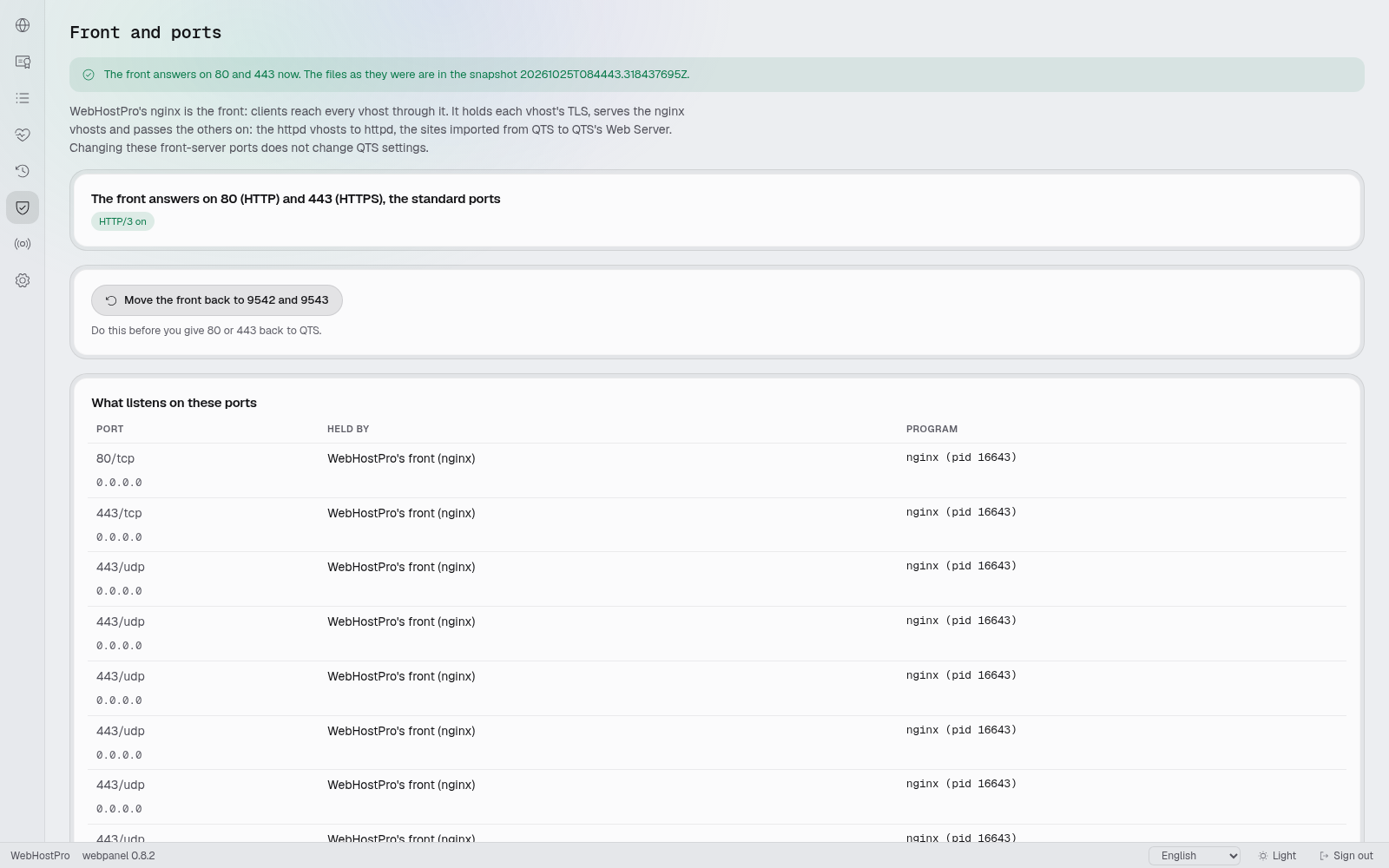
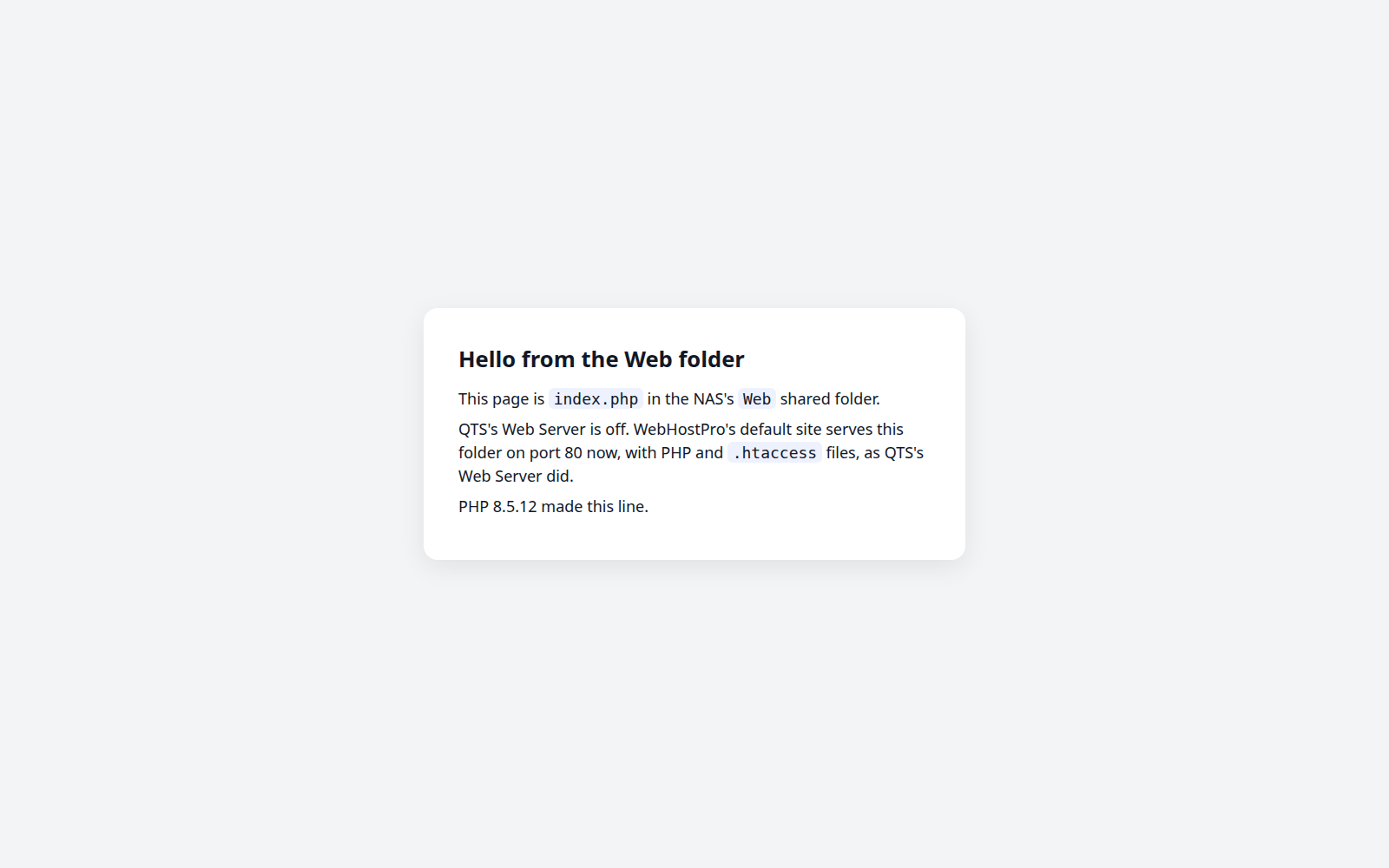
Open http://192.168.1.20/. The Default site serves QTS's Web folder for names not used by any of your sites, including the NAS address itself. It runs PHP and reads .htaccess. What appears depends on the files in Web; the illustration shows an example using index.php.
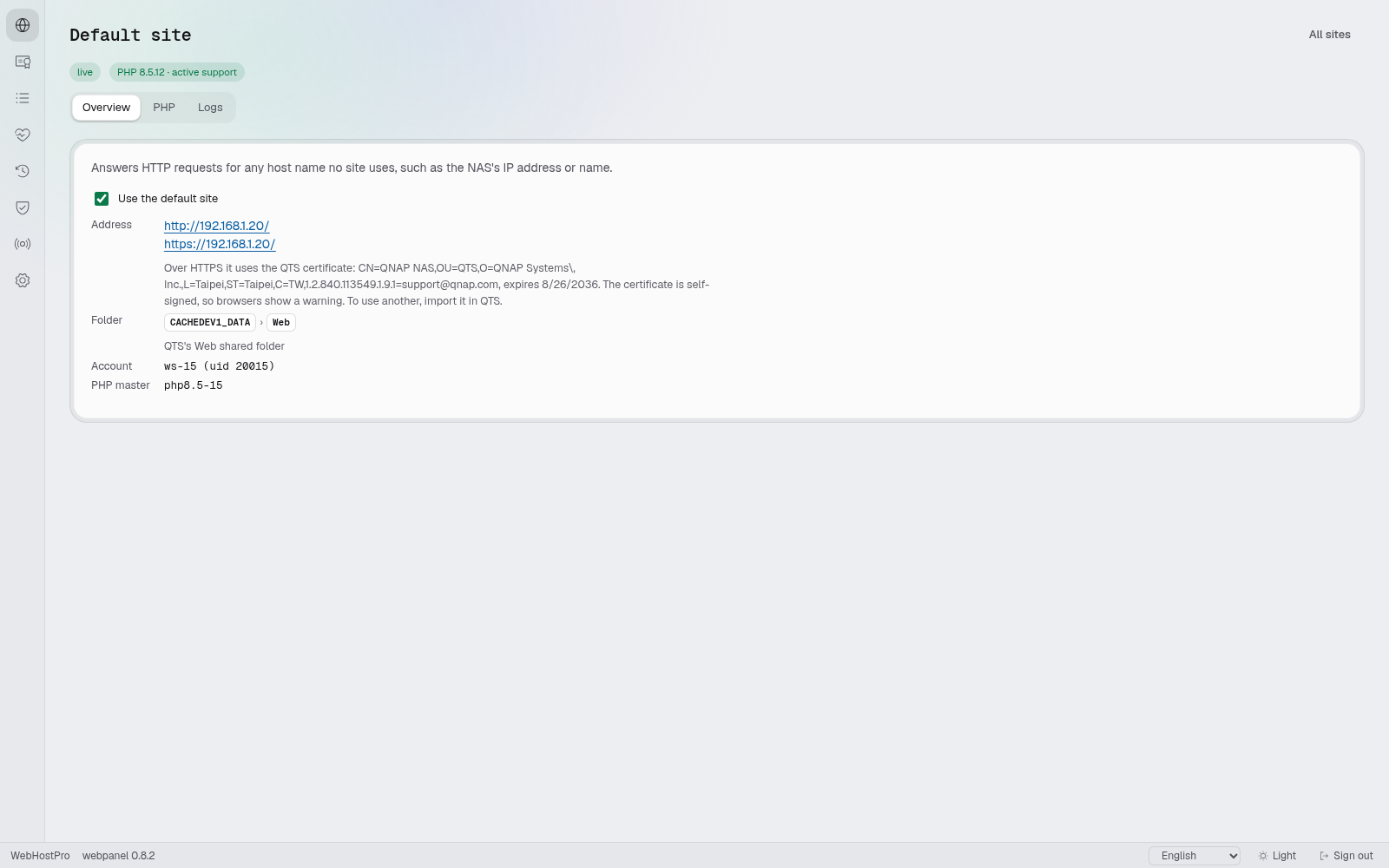
Its settings are under "Sites" → "Default site". Over HTTPS, it uses the QTS certificate. If that certificate is self-signed, the browser will warn. The Default site does not show a directory listing or serve your sites' folders, names starting with a dot (except .well-known), or QTS folders starting with @.
2. A room of its own for each app
WebHostPro gives each site its own folder, account and PHP. Visitors see the site's public subfolder. Let's go through the wizard for FreshRSS; you will repeat the same route for the other two names.
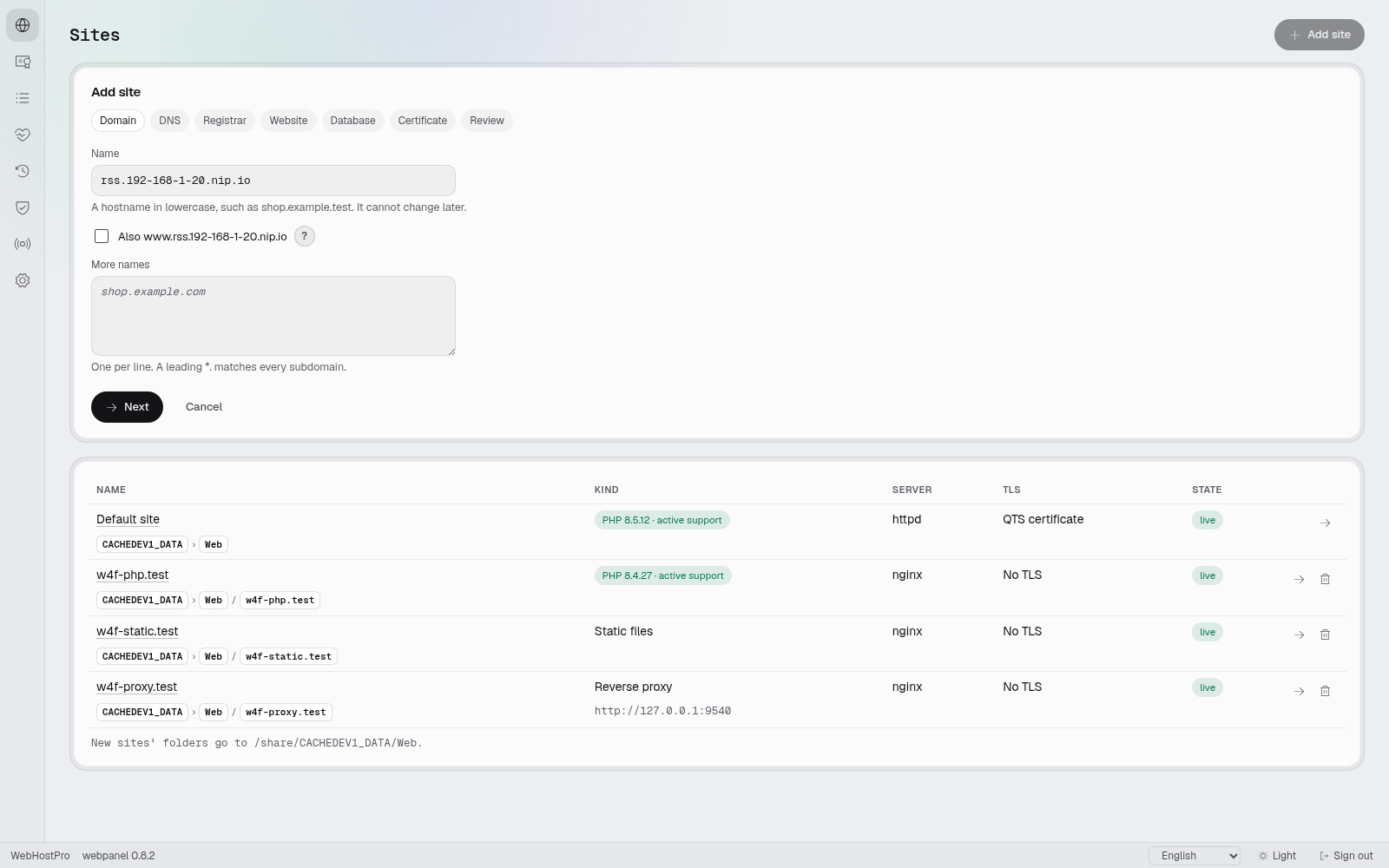
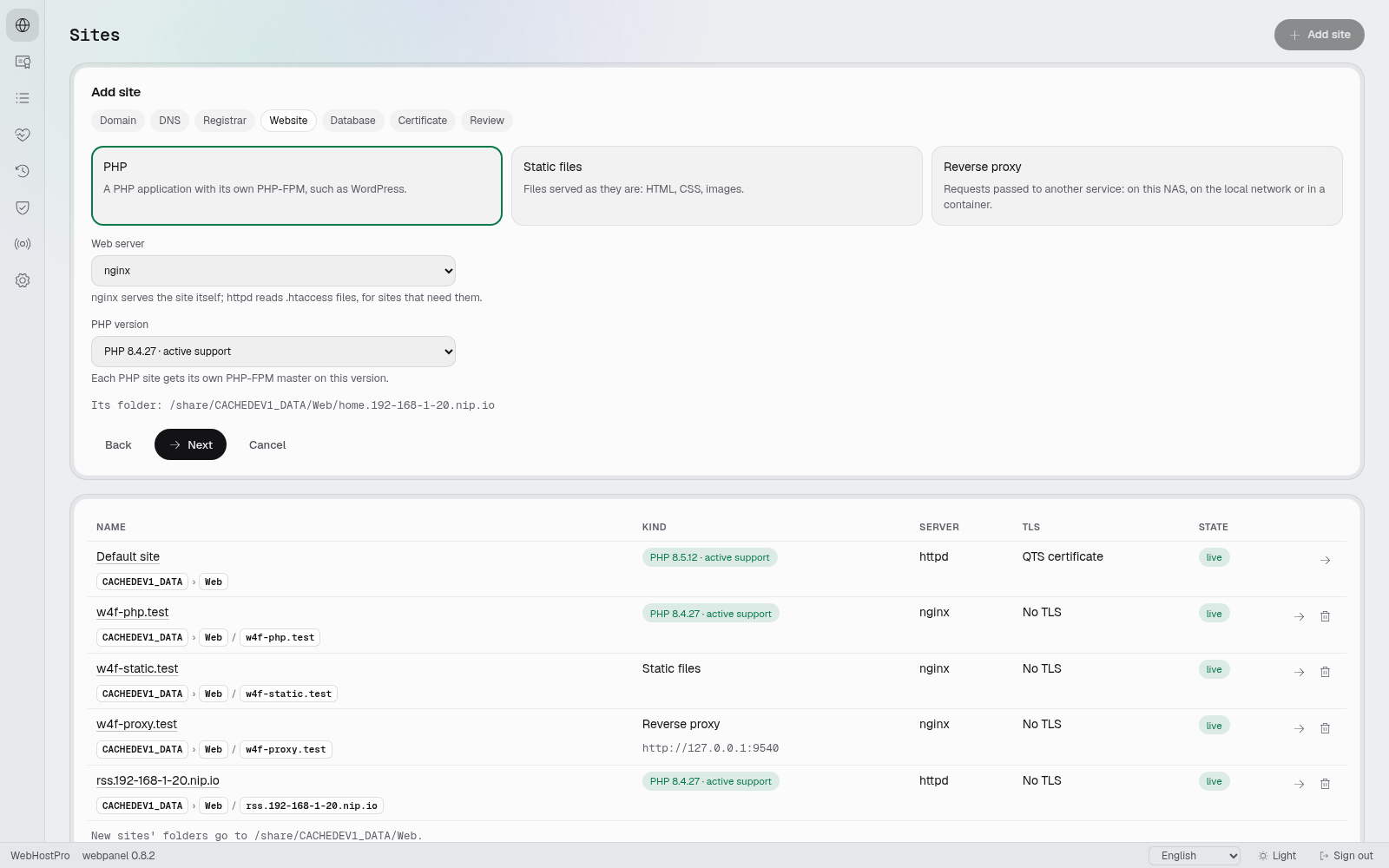
1. Domain. In "Sites", click "Add site". Enter rss.192-168-1-20.nip.io and clear "Also www.rss.192-168-1-20.nip.io". When the panel asks where to save the sites, choose the Web shared folder. The commands below refer to that location. On QuTS hero, the folder used for sites must not have Advanced Folder Permissions enabled. If the panel reports this problem, choose a suitable separate folder and use its path in the commands.
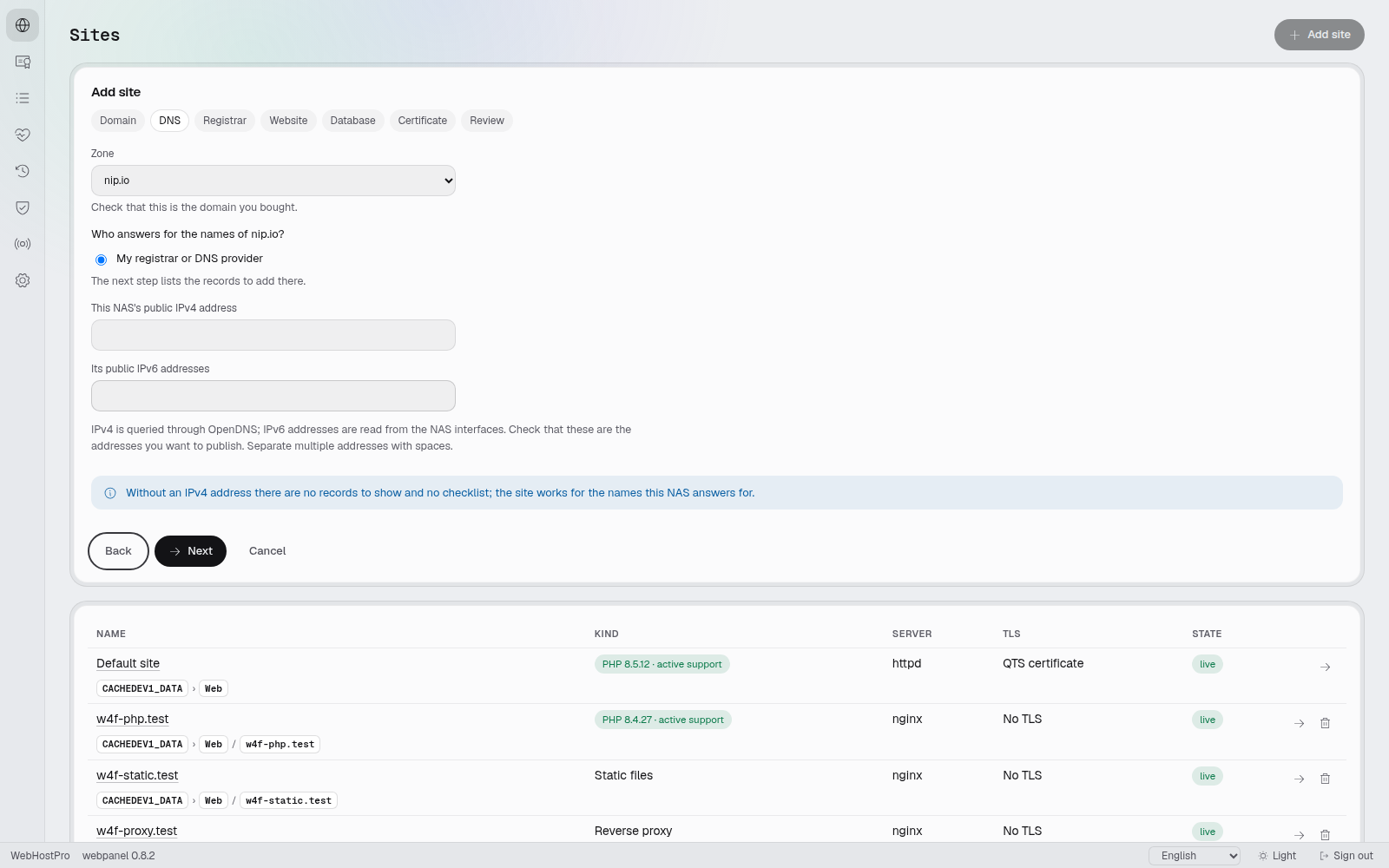
2. DNS. Select "My registrar or DNS provider". Clear both public-address fields for the NAS: IPv4 and IPv6. The nip.io name already resolves to the right address. The message "Without an IPv4 address there are no records to show and no checklist; the site works for the names this NAS answers for." is expected here.
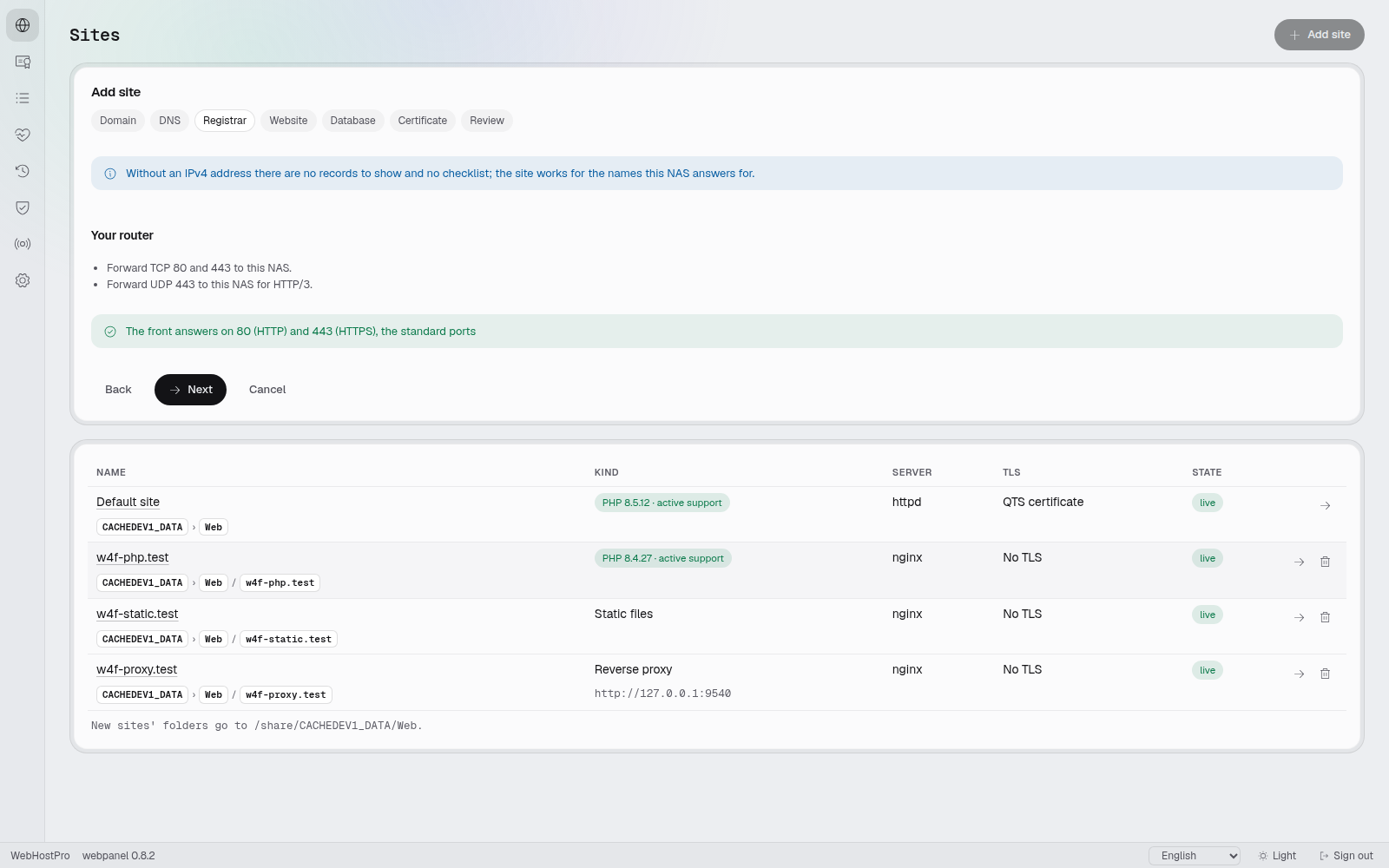
3. Registrar. There is nothing to change here for nip.io.
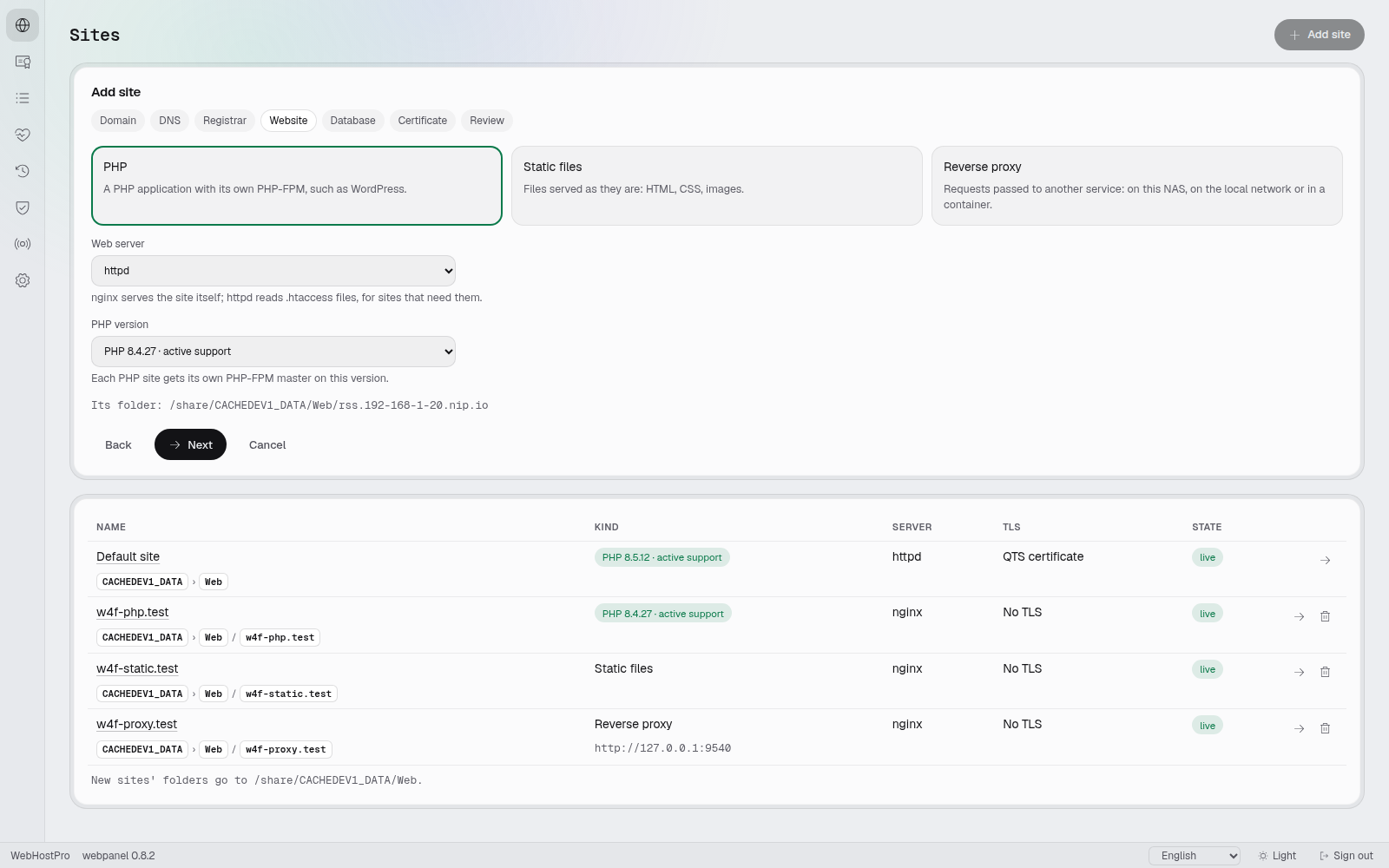
4. Website. Select PHP. Set "Web server" to httpd for FreshRSS and FileRise; their .htaccess rules need to be read. For Heimdall, select nginx. Set "PHP version" to 8.4 and note the location following "Its folder: …".
5. Database. Leave "No database" selected. The apps will use files or SQLite; we are not setting up a separate SQL server.
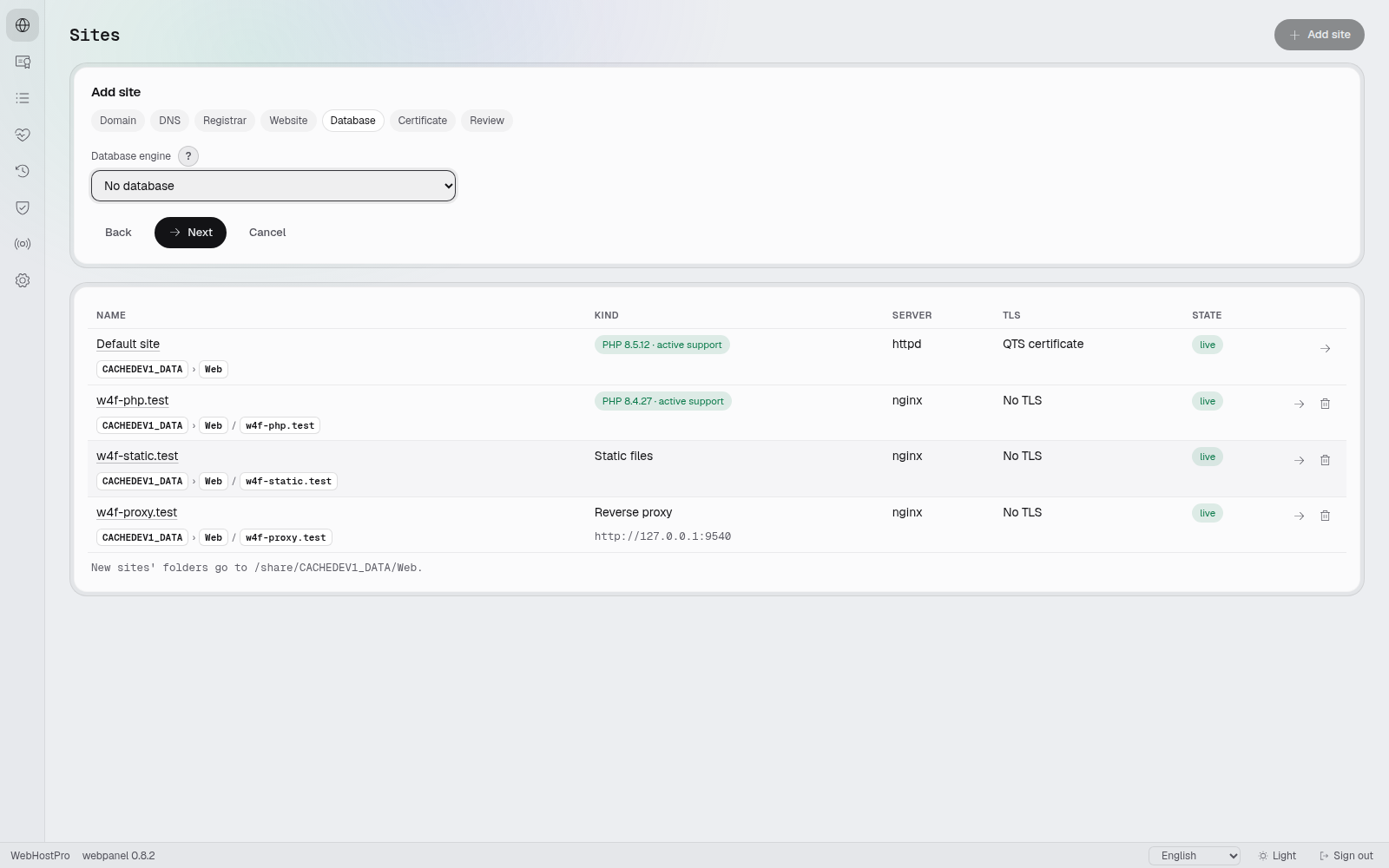
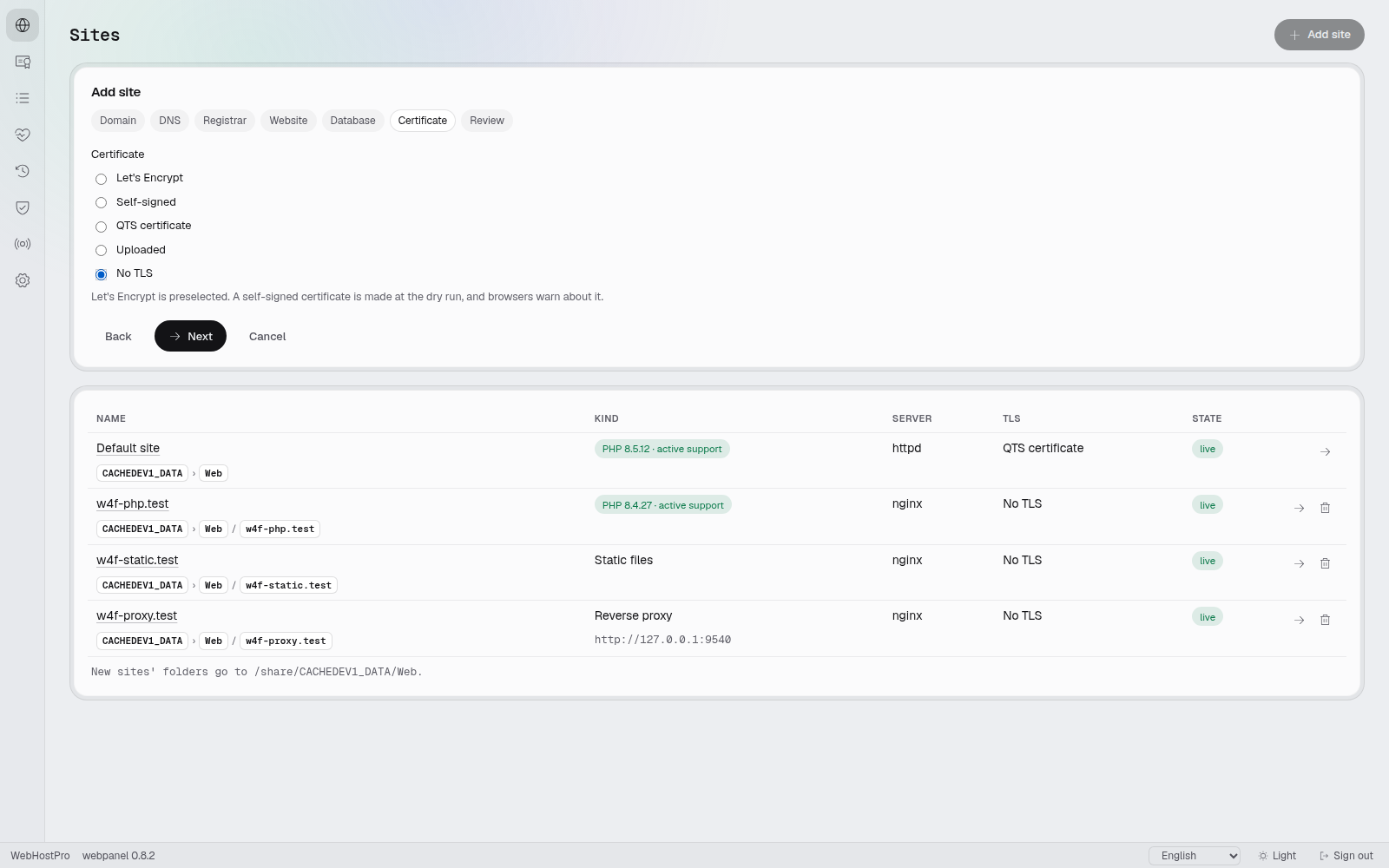
6. Certificate. Select "No TLS". Moving the front server to 443 does not automatically enable HTTPS on every site. The separate hosting guide covers a public domain with Let's Encrypt.
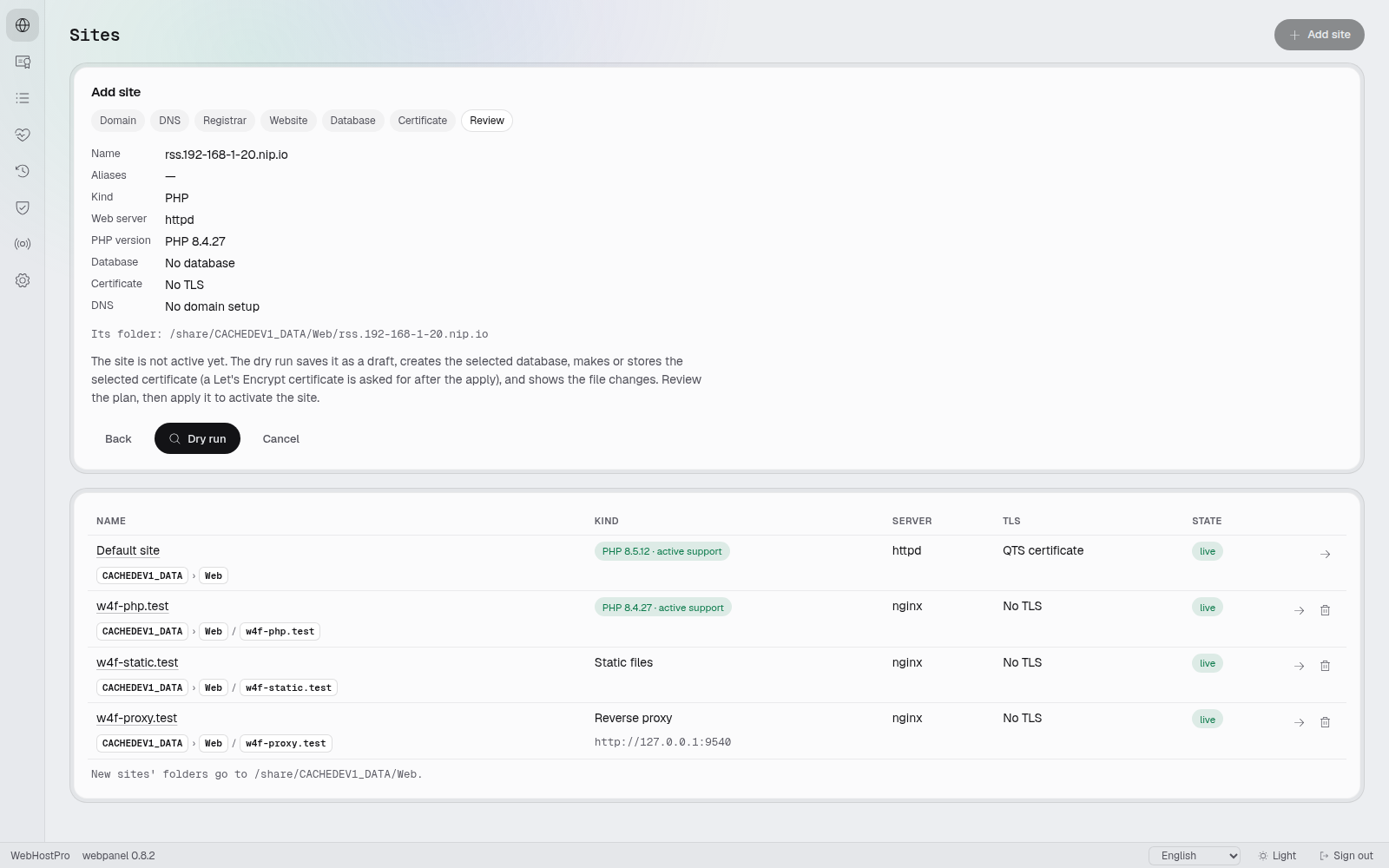
7. Review. Check the settings, click "Dry run", and read the list of files and the configuration-check results. Then choose "Apply this plan". A dry run alone leaves the changes as a draft.
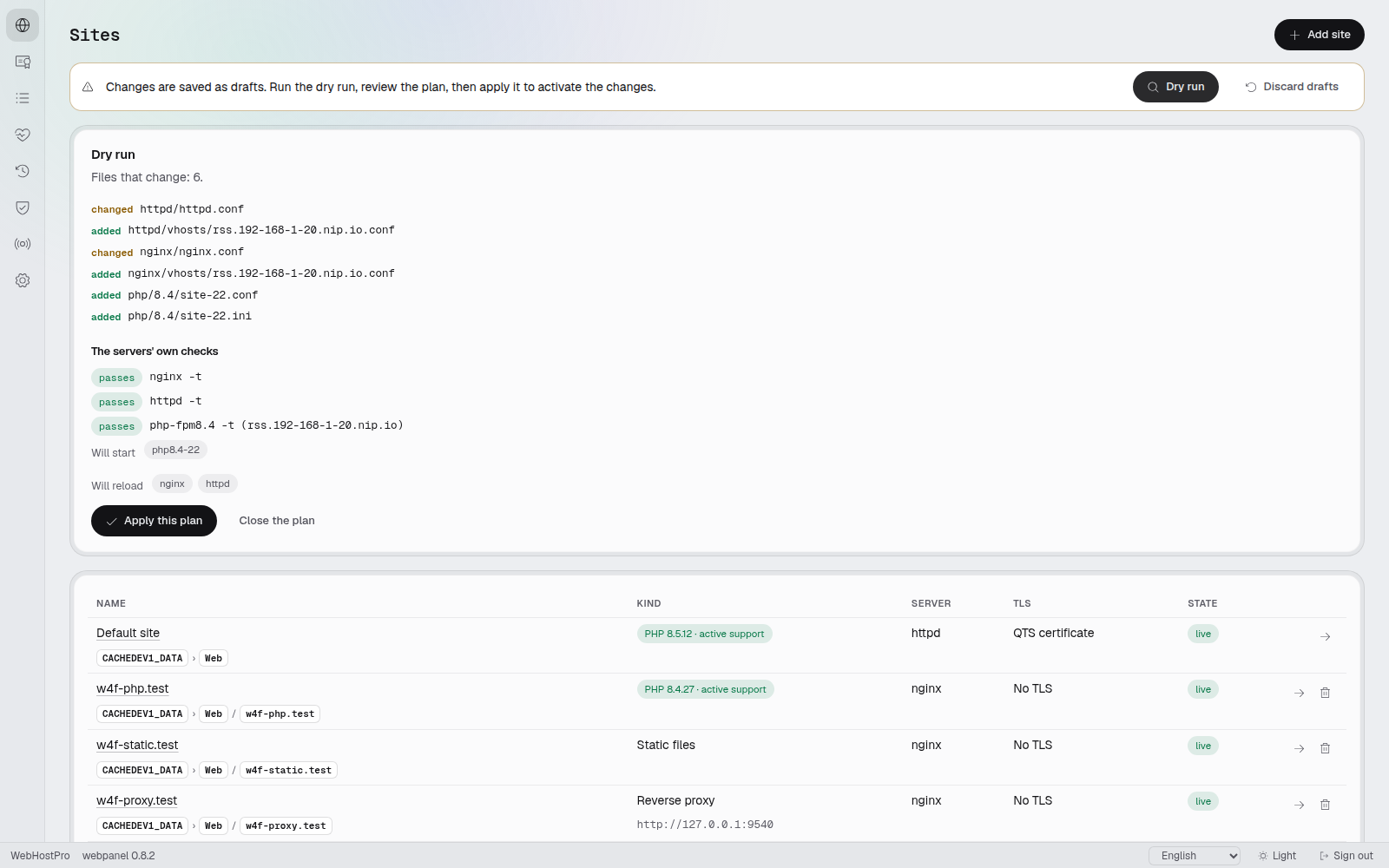
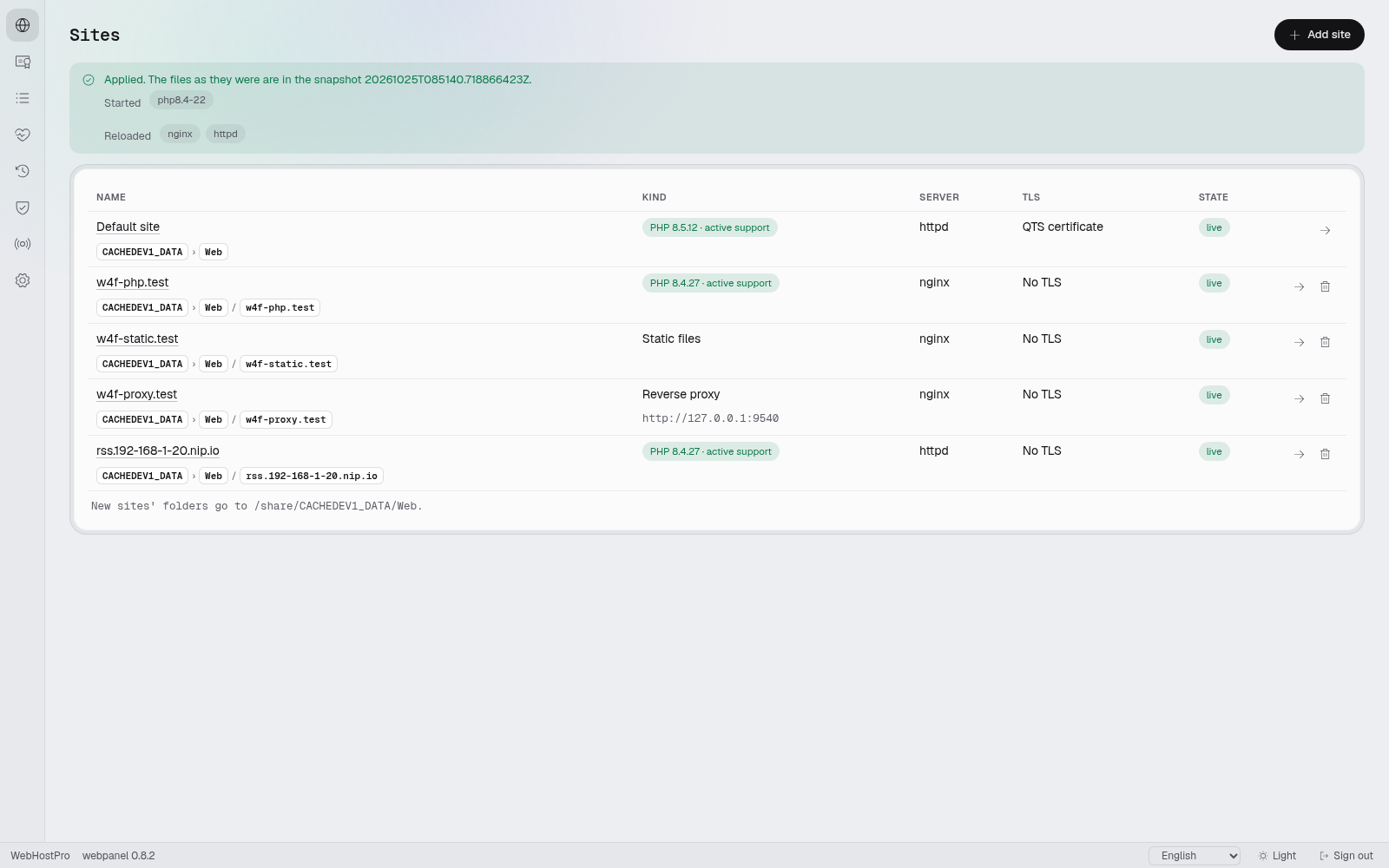
8. Permissions: after copying the app. Files copied with an administrator account need to be assigned to the site's account. On the "Files" tab, click "Fix permissions" and confirm. Do this after each installation below, before opening the app for the first time.
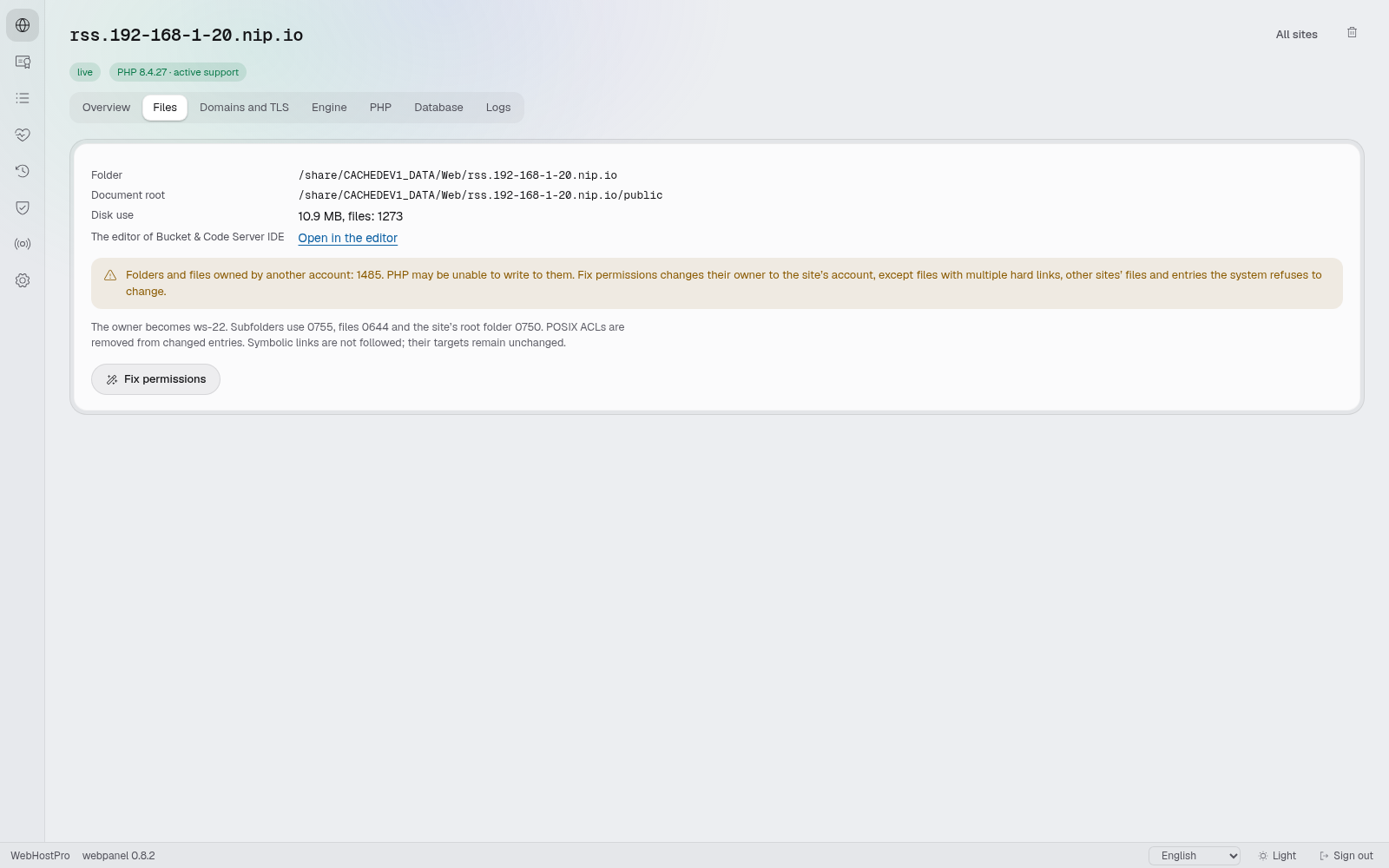
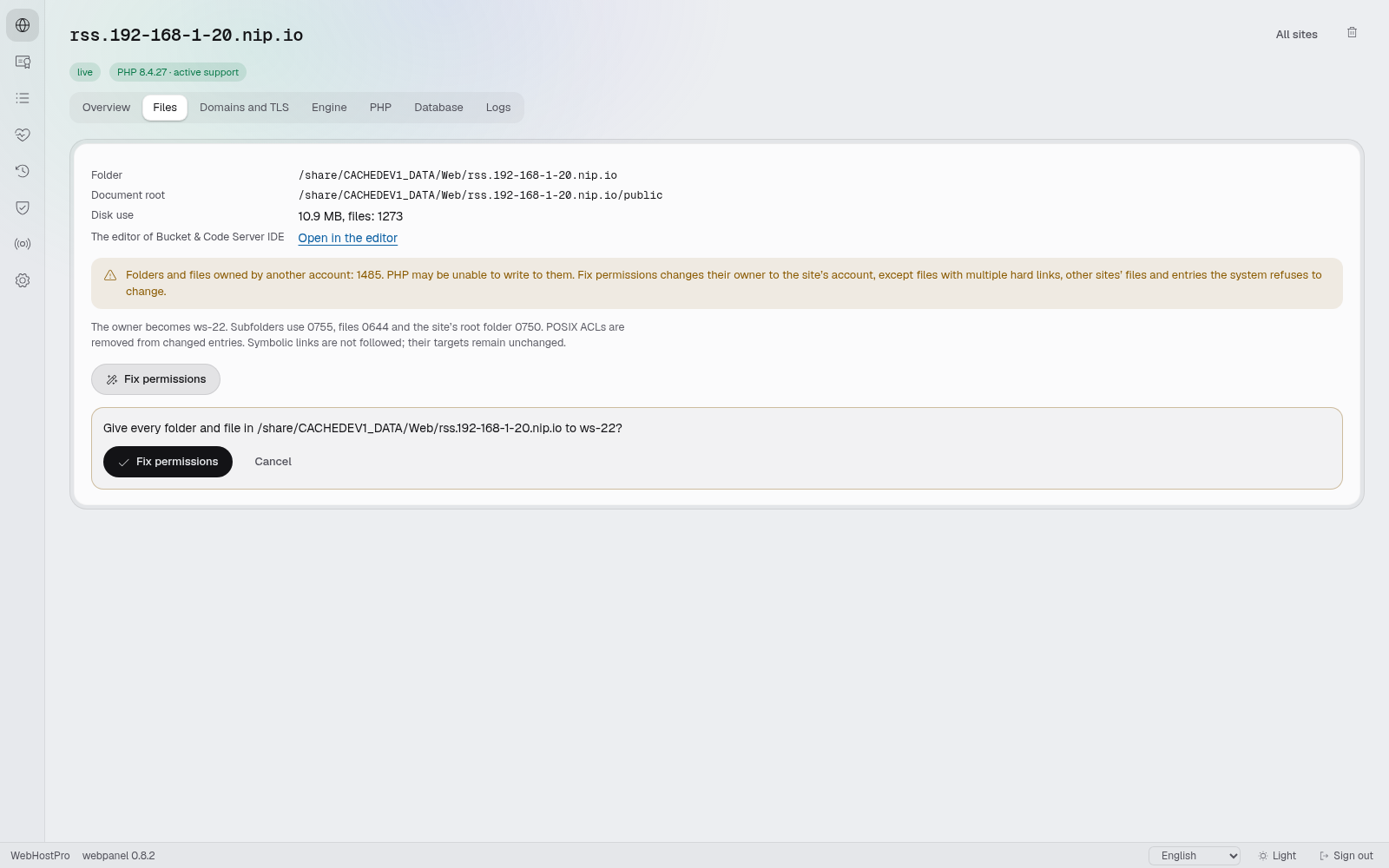
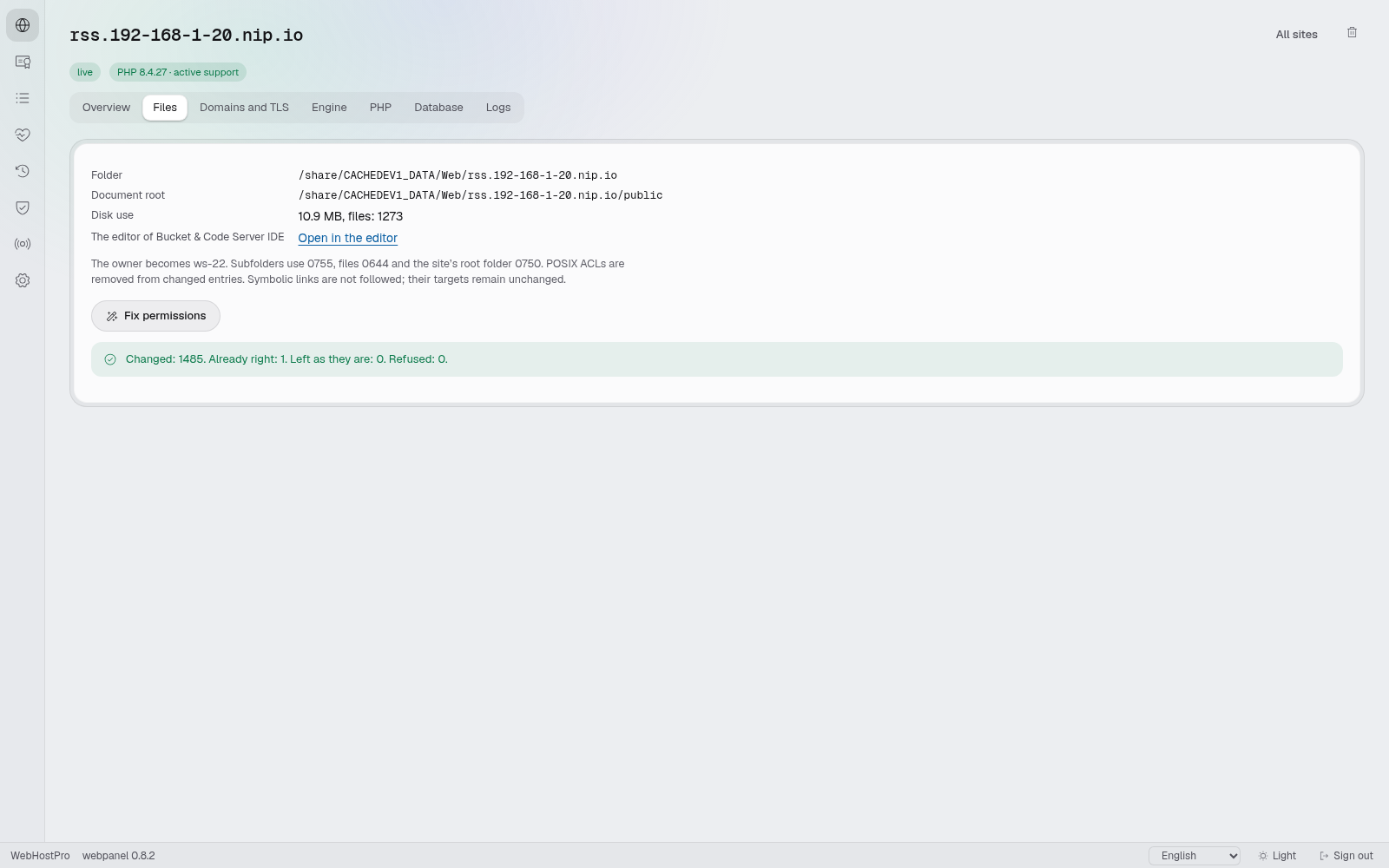
The commands below are for fresh installations in separate directories created by the wizard. If you chose somewhere other than Web, adjust cd to match "Its folder: …". Check that changing directory succeeded before running the next commands. These sequences are not update instructions for existing installations.
3. FreshRSS: let the stories come to you
An RSS reader has a pleasant quality: it lets you choose your sources and bring them together. An evening visit to familiar websites can start with one reading list. We will install FreshRSS 1.30.4, using PHP 8.4 and httpd.
Sign in over SSH as an administrator and run:
cd /share/Web/rss.192-168-1-20.nip.io
wget -O FreshRSS-1.30.4.zip https://github.com/FreshRSS/FreshRSS/archive/refs/tags/1.30.4.zip
unzip -q FreshRSS-1.30.4.zip
cp -a FreshRSS-1.30.4/. public/
cp public/.htaccess.dist public/.htaccess
rm -r FreshRSS-1.30.4 FreshRSS-1.30.4.zip
FreshRSS keeps its web pages in p, while WebHostPro serves public. We therefore copy the whole project into public and enable the supplied .htaccess.dist. The .htaccess rules block access to data, app and the other internal folders. This setup requires httpd; nginx does not read those files.
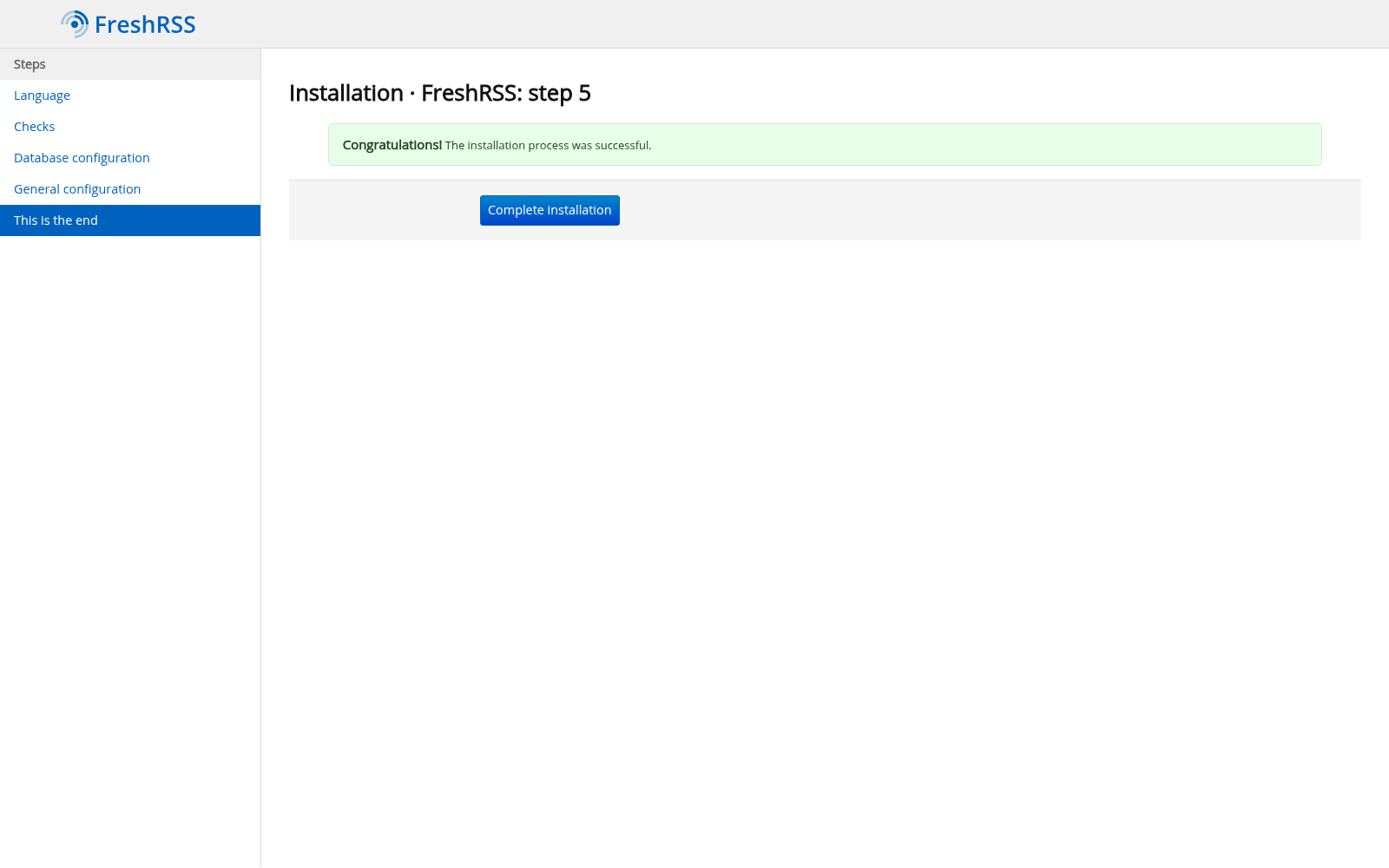
Click "Fix permissions", then open http://rss.192-168-1-20.nip.io/. The installer takes you through the language, requirement checks, choosing SQLite, and creating the first user.
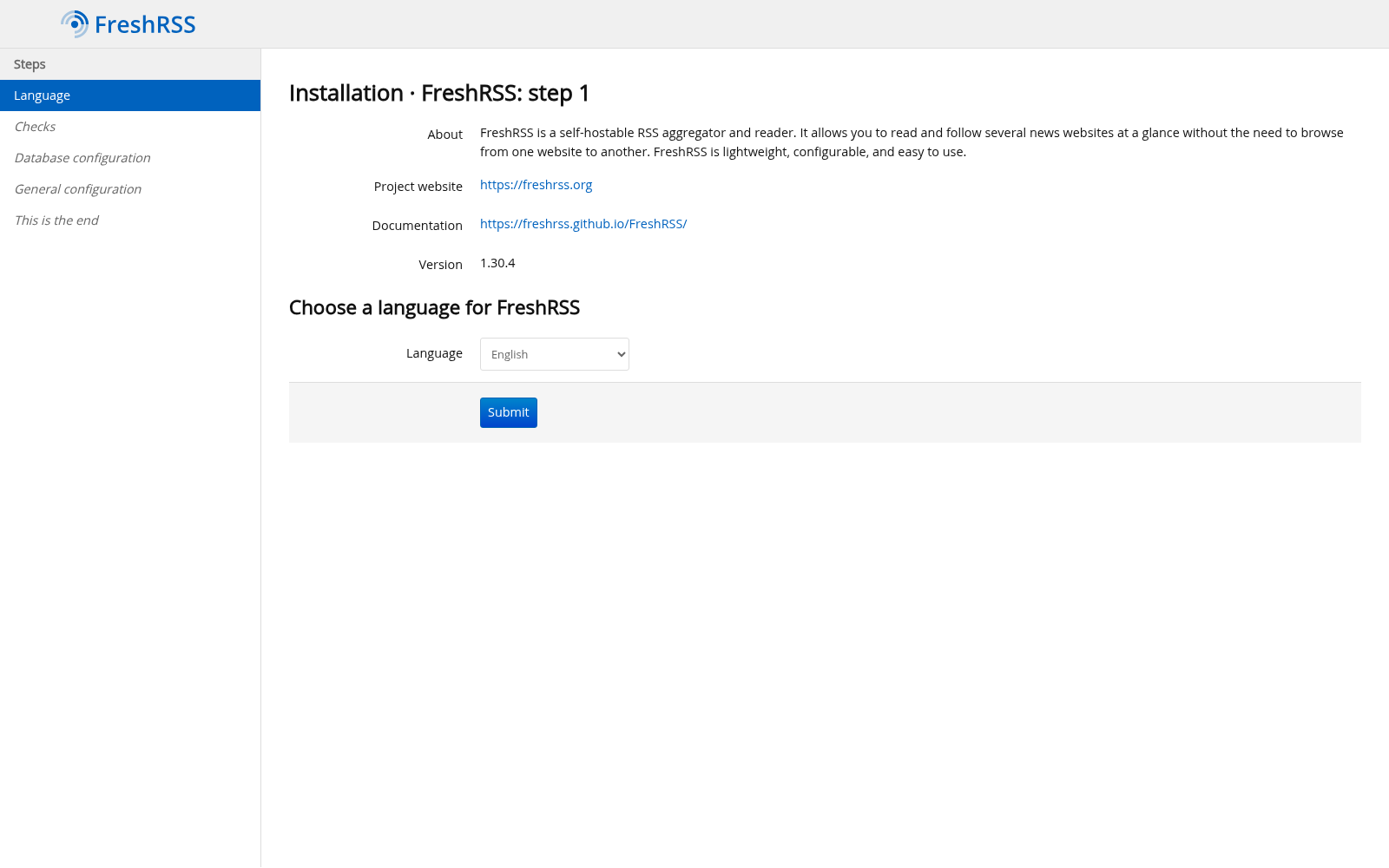
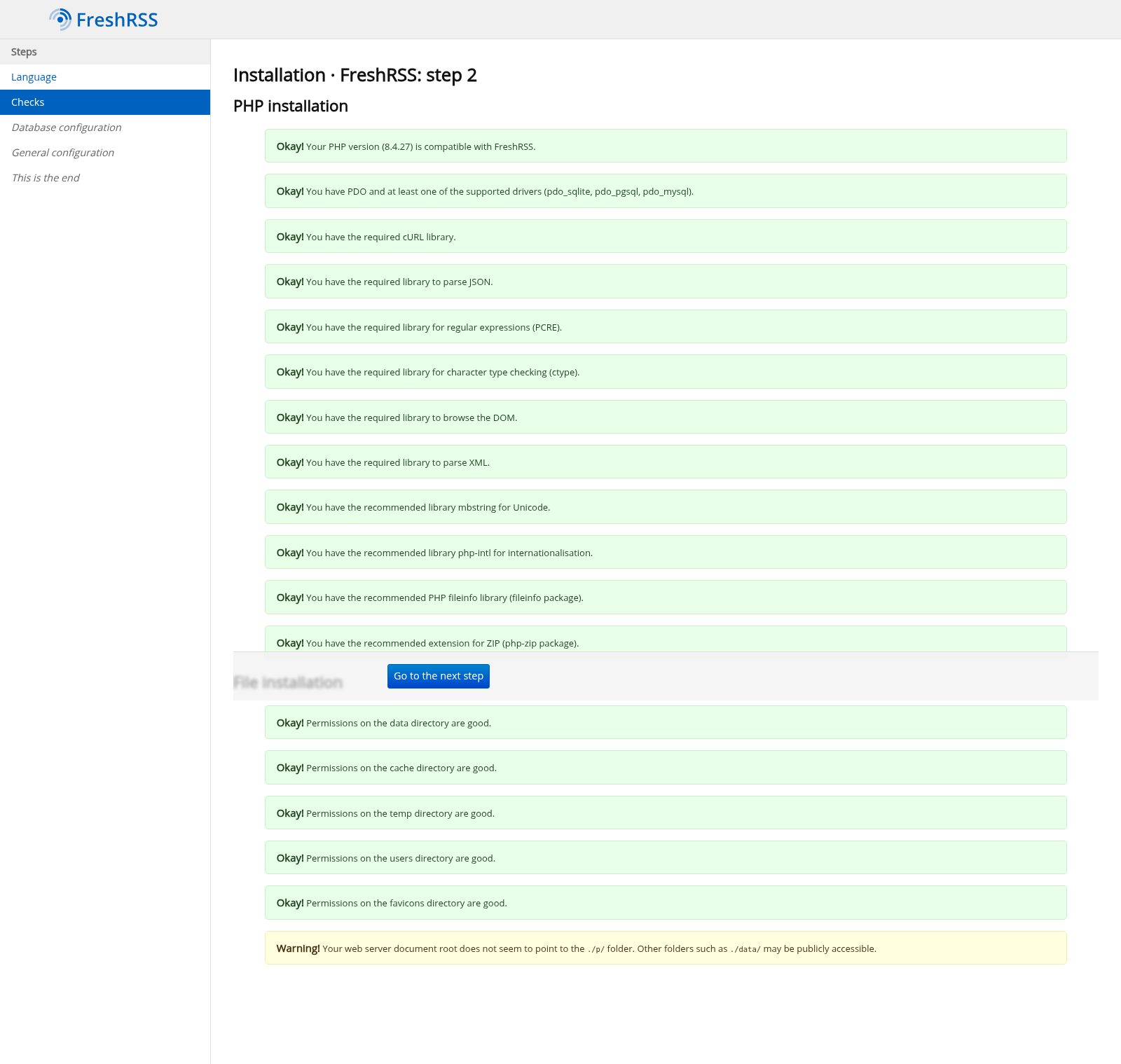
The warning that the web server's document root does not point to ./p/ follows from this layout. Also check that visiting http://rss.192-168-1-20.nip.io/data/ is blocked: a 403 or 404 response is desirable; the data contents should not open. If they do, revisit the httpd selection and the .htaccess copying step. An error for the directory address alone does not prove that the files inside are protected, however. Keep the application's supplied .htaccess files, including those in data and app with Require all denied, and use the httpd server that reads them.
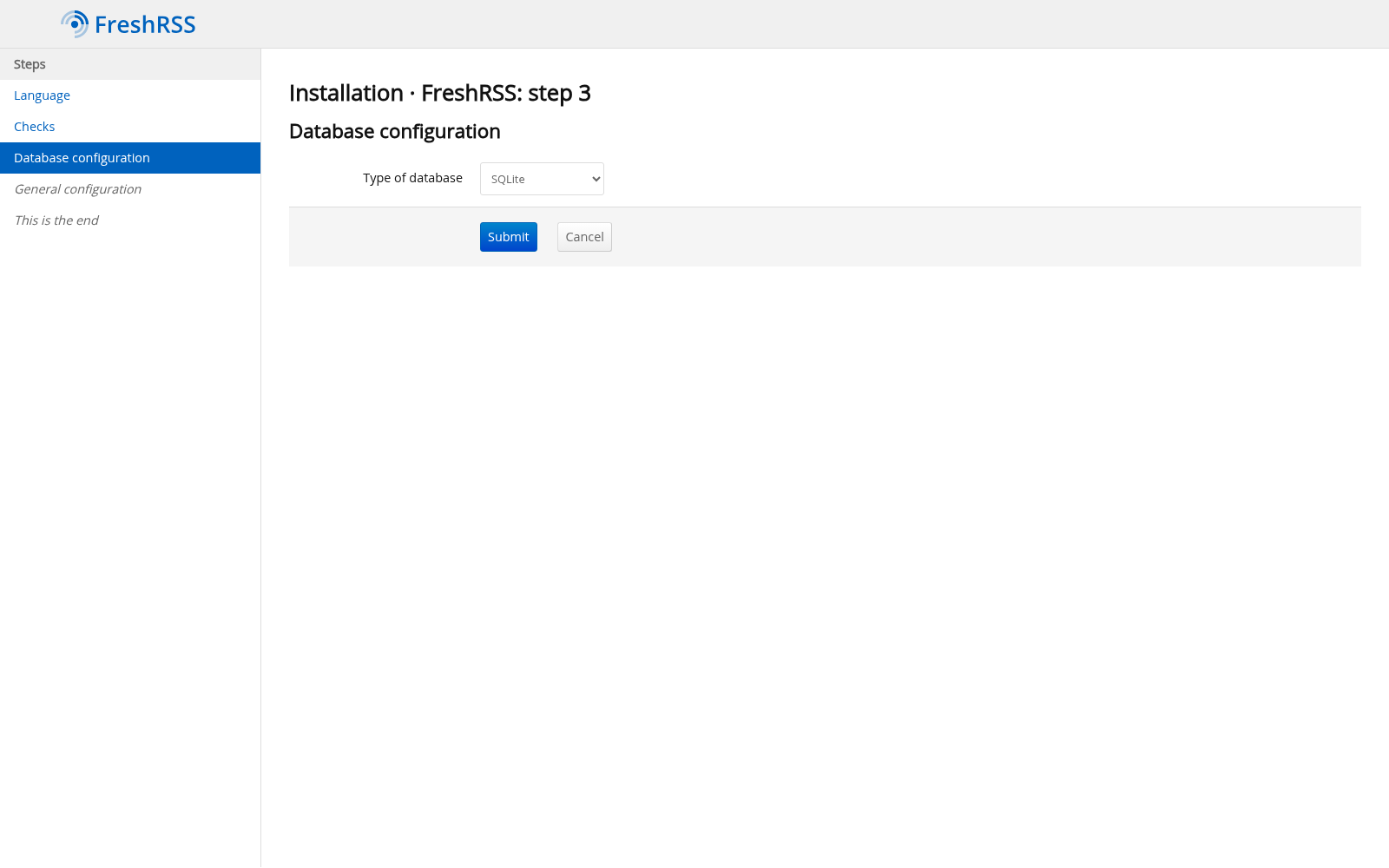
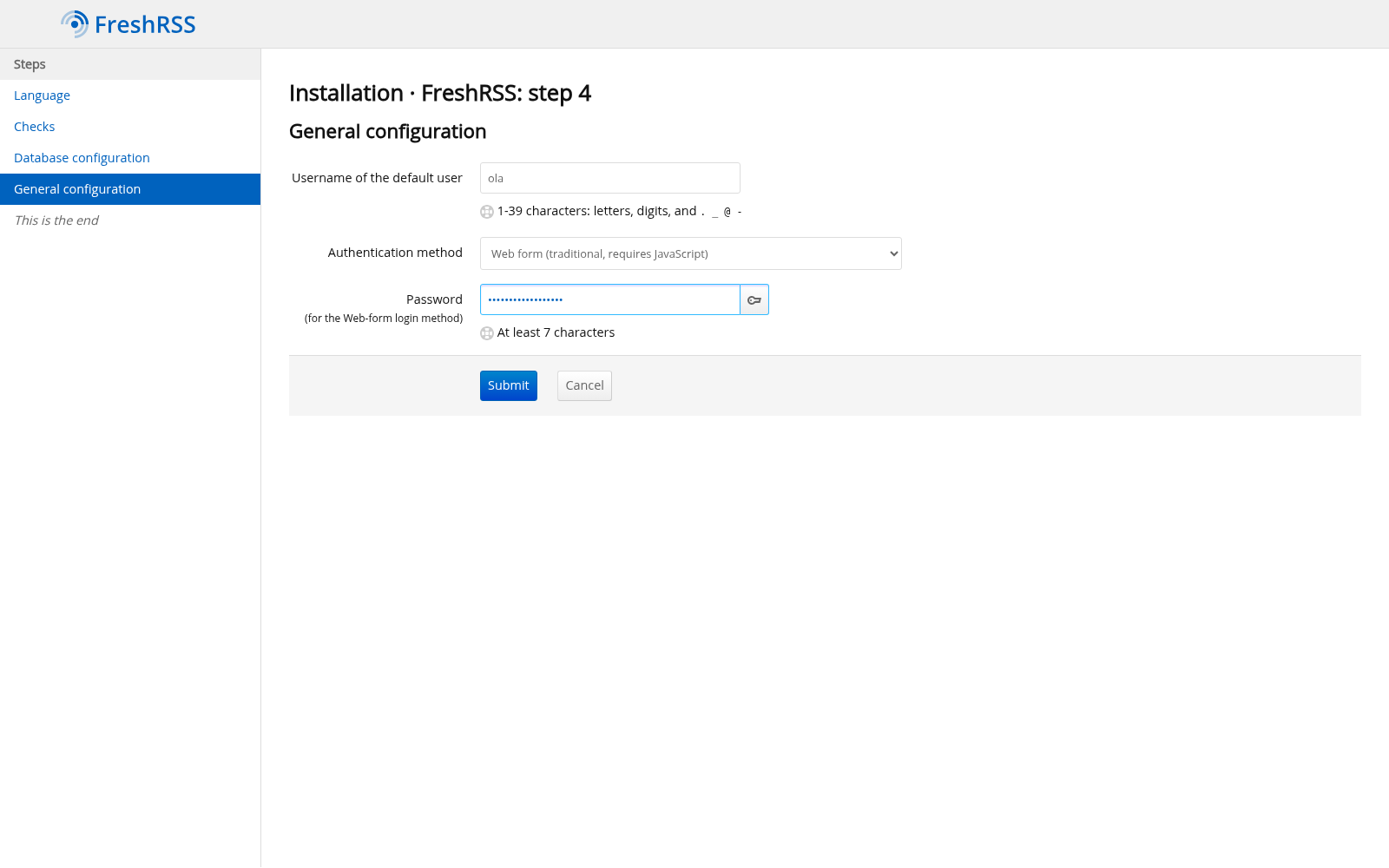
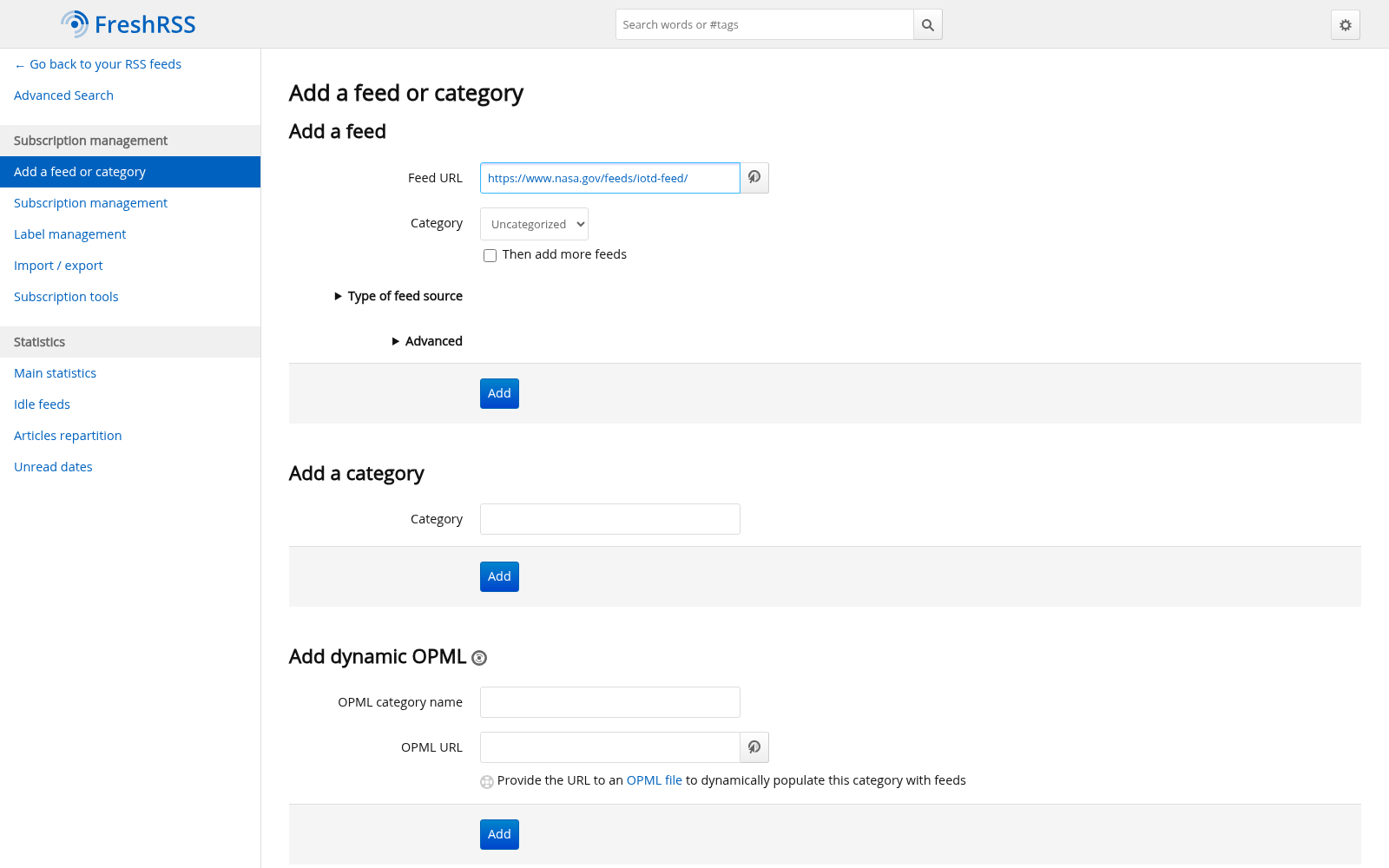
Add a feed with the + button next to "Subscription management". For a start, you could choose:
- NASA Image of the Day:
https://www.nasa.gov/feeds/iotd-feed/. - selfh.st:
https://selfh.st/rss/. - Hacker News:
https://news.ycombinator.com/rss.
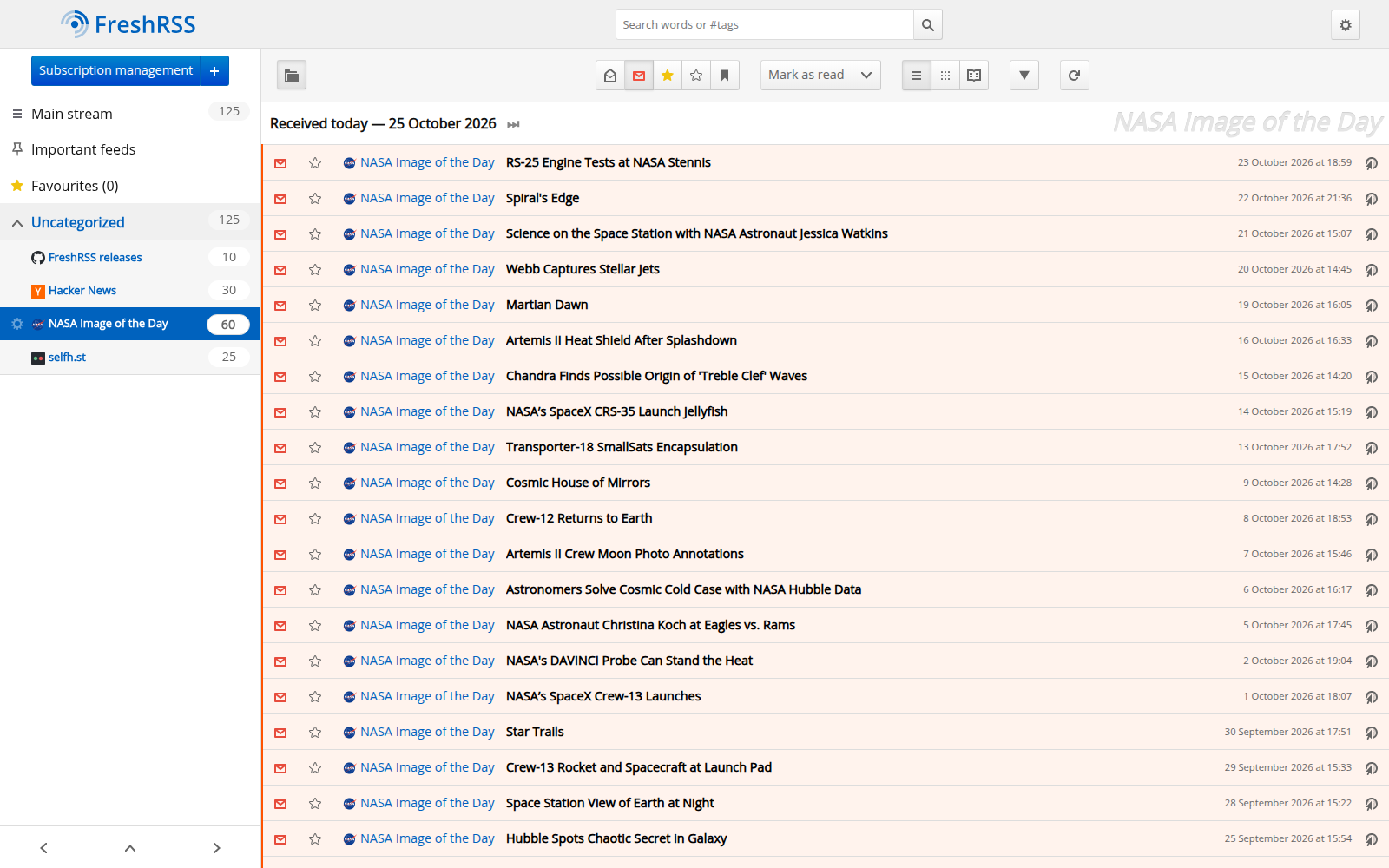
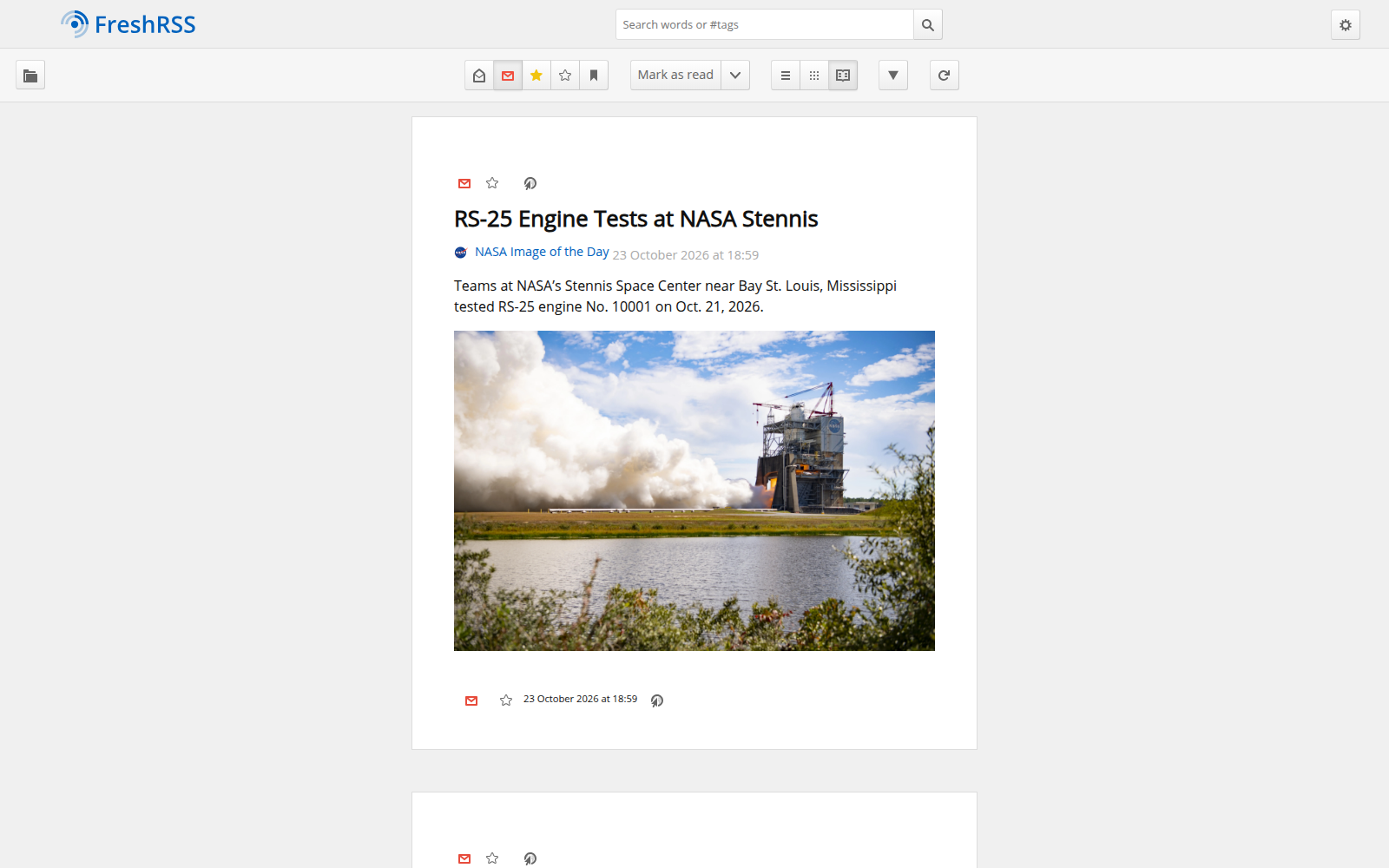
You can change the language in the display section of the settings. The light or dark appearance follows the browser's preference. "Update feeds" fetches new articles manually. To let the reader do that by itself, we need one more thing: a schedule.
Half an hour between rounds: online cron
WebHostPro has no scheduler of its own. We will use the online cron mechanism described in the FreshRSS documentation.
Open Profile from the settings behind the gear button. Set a long random "Master authentication token" and click "Submit". For this command, choose a random string of letters and digits, without special characters that need additional URL or shell encoding. Replace ola with your own user, YOUR_TOKEN with the token, and adjust the site name to match the NAS address:
echo "13,43 * * * * curl -s -H 'Host: rss.192-168-1-20.nip.io' 'http://127.0.0.1/p/i/?c=feed&a=actualize&maxFeeds=10&ajax=1&user=ola&token=YOUR_TOKEN' >/dev/null 2>&1" >> /etc/config/crontab
crontab /etc/config/crontab && /etc/init.d/crond.sh restart
The request runs at 13 and 43 minutes past each hour. The address 127.0.0.1 leads to the same NAS, while the Host header selects the FreshRSS site. This entry assumes that the front server is on port 80. maxFeeds=10 limits an individual call; it does not promise to refresh an arbitrarily large feed collection all at once.
The >> operator appends a line. Add it once, then make later corrections to the existing entry so that you do not accumulate identical jobs.
4. Heimdall: one bookmark for the whole NAS
Next comes Heimdall 2.8.3. Add the site home.192-168-1-20.nip.io, choose PHP 8.4 and nginx, and complete the remaining steps as before. Heimdall requires PHP 8.4 or newer. WebHostPro's nginx sends addresses that do not match a file to index.php, as the application requires.
Over SSH, run:
cd /share/Web/home.192-168-1-20.nip.io
wget -O Heimdall-2.8.3.zip https://github.com/linuxserver/Heimdall/archive/refs/tags/v2.8.3.zip
unzip -q Heimdall-2.8.3.zip
cp -a Heimdall-2.8.3/. .
rm -r Heimdall-2.8.3 Heimdall-2.8.3.zip
cp .env.example .env
sed -i 's|tempnam("/tmp"|tempnam(sys_get_temp_dir()|' app/Helper.php
Heimdall's public folder lands in the site's public. Copying .env.example to .env is a step from the Heimdall README; on the first visit, the app creates its key and SQLite database.
The last line corrects the choice of temporary directory. Heimdall checks a tile's icon in a file under /tmp, while the site's PHP has access to its own folder and temporary directory. sys_get_temp_dir() lets it use the appropriate one. Without this correction, saving a tile with an icon can end in "500 Server Error".
Click "Fix permissions" and open http://home.192-168-1-20.nip.io/.
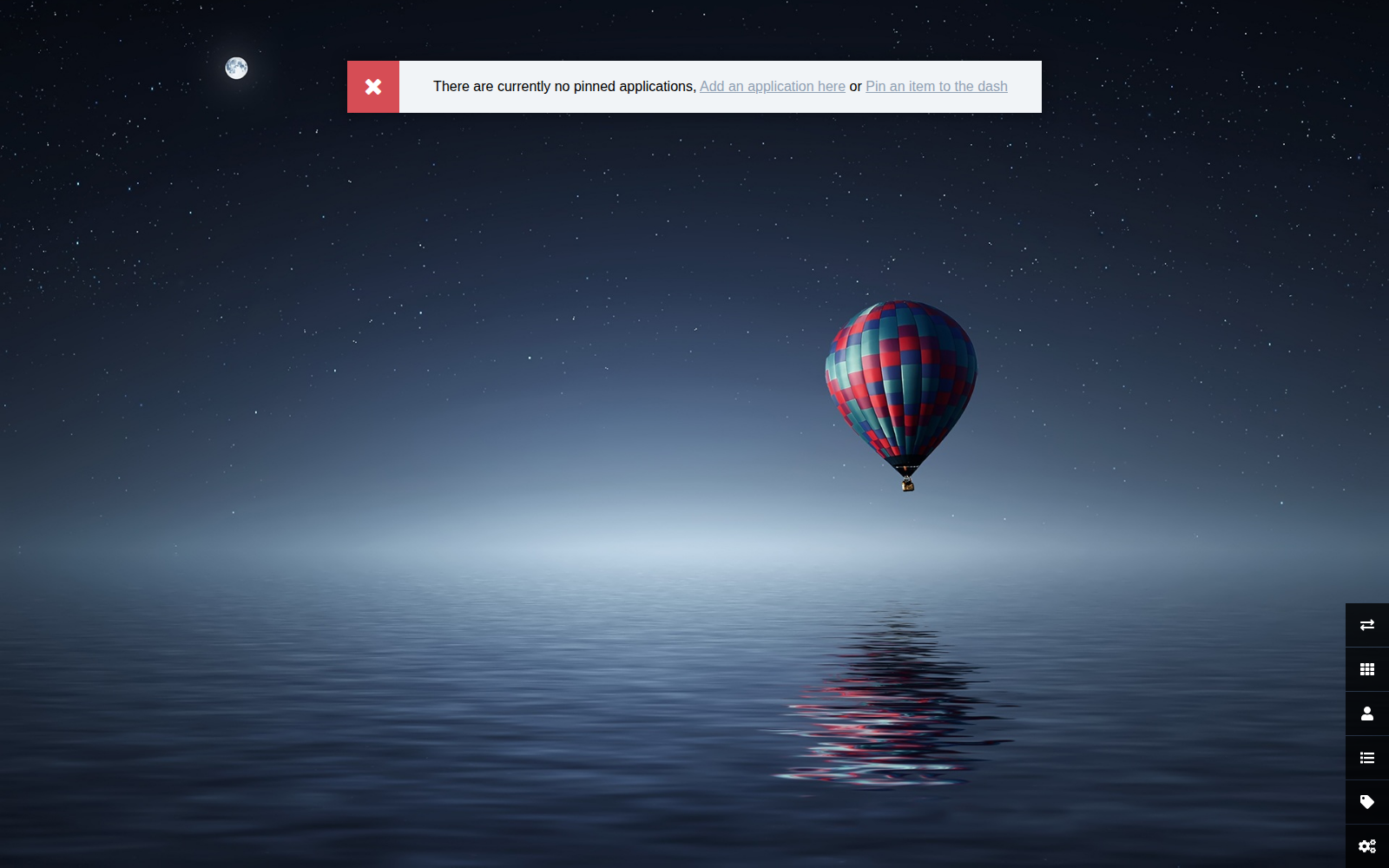
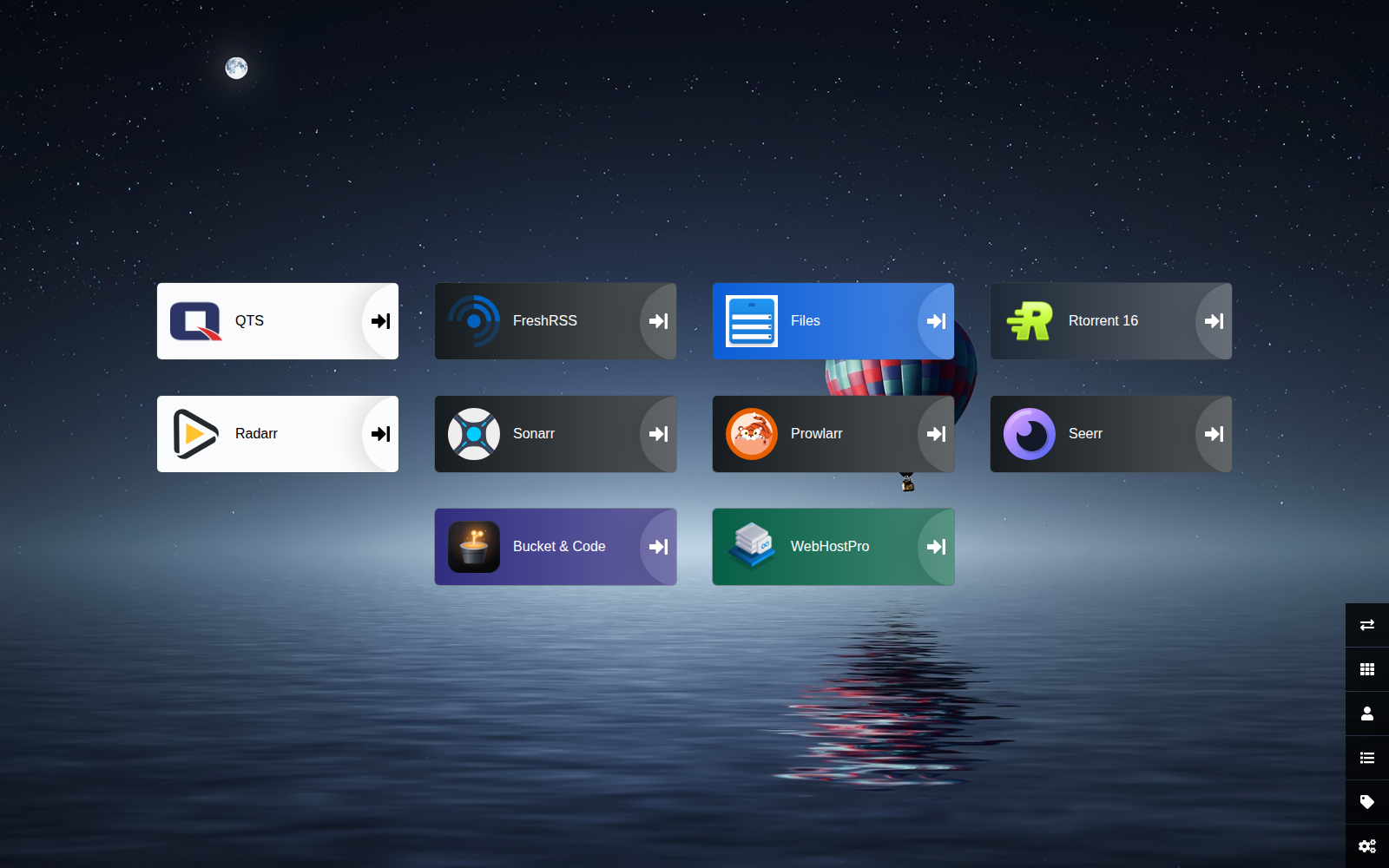
Click "Add an application here". Pick an application type, such as QNAP. Heimdall fills in the icon and colour. Enter the name and address: for the relocated QTS panel, use https://192.168.1.20:8443/; the http://192.168.1.20:8080/ shown in the illustration also makes sense if you still use that entrance. Click "SAVE".
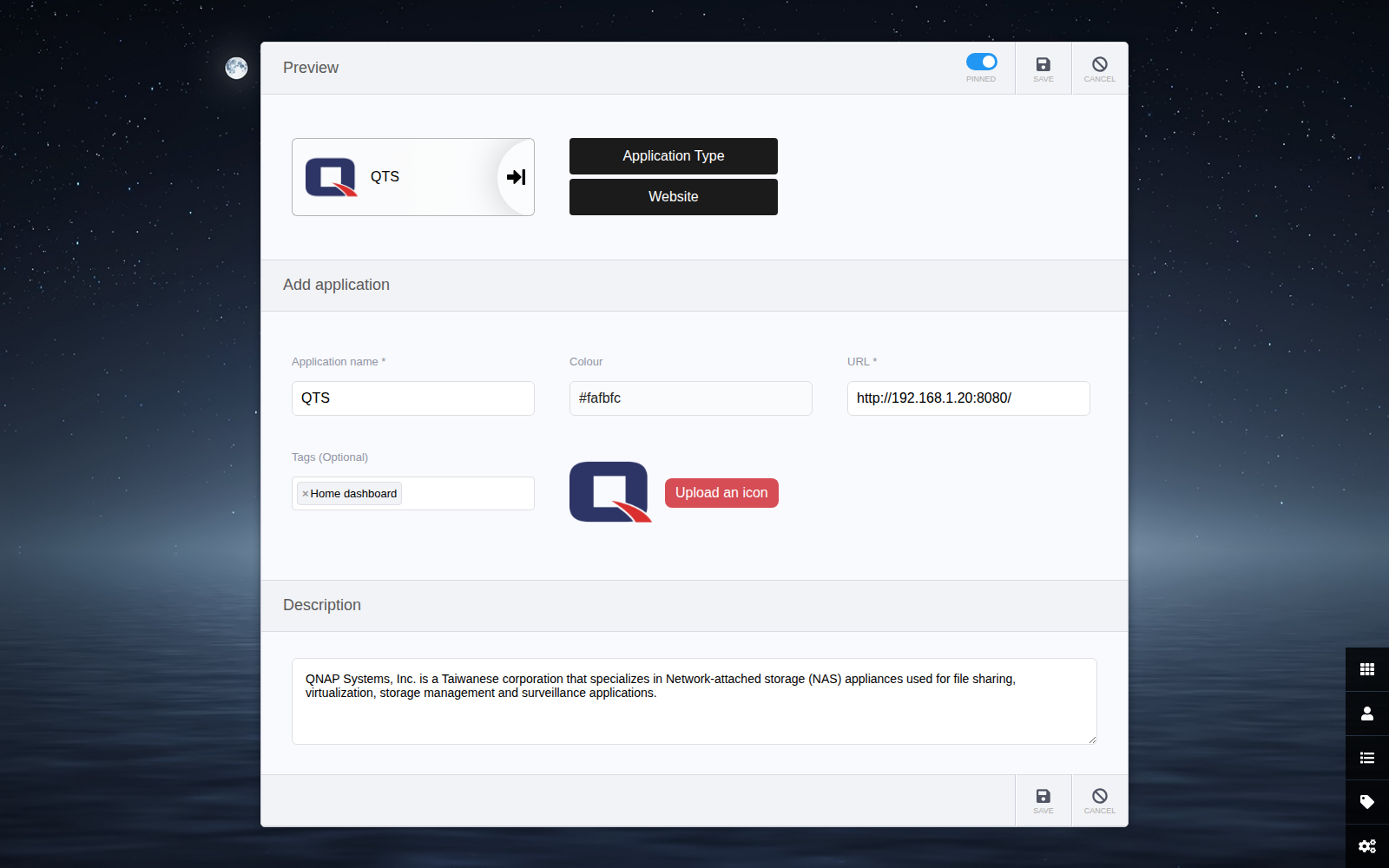
If an app is not on the list, choose None and use "Upload an icon" to add an image. Start with FreshRSS, FileRise, QTS and WebHostPro. Then add the services you use: Rtorrent 16, Radarr, Sonarr, Prowlarr, Seerr or Bucket & Code Server IDE. Each tile should lead somewhere you actually visit. These are shortcuts to existing services; adding a tile does not install an app.
5. FileRise: preview a file and pass it on
We will run FileRise 3.38.0 at files.192-168-1-20.nip.io. Choose PHP 8.4 and httpd in the wizard. The app requires PHP 8.3 or newer, and its .htaccess contains address rules and restrictions on direct calls to internal PHP files.
Over SSH, run:
cd /share/Web/files.192-168-1-20.nip.io
wget -O FileRise-v3.38.0.zip https://github.com/error311/FileRise/releases/download/v3.38.0/FileRise-v3.38.0.zip
unzip -q -o FileRise-v3.38.0.zip
rm FileRise-v3.38.0.zip
sed -i "s|'/var/www/|PROJECT_ROOT . '/|" config/config.php
sed -i "s|'America/New_York'|'Europe/Warsaw'|" config/config.php
mkdir -p uploads users metadata
The archive has no enclosing directory: its public lands directly in the site's public. The first sed changes the configured locations of uploads, users and metadata from /var/www to the application folder, alongside public. The second sets the time zone. The FileRise documentation describes this way of adjusting the locations.
Click "Fix permissions", open http://files.192-168-1-20.nip.io/, and create the administrator account.
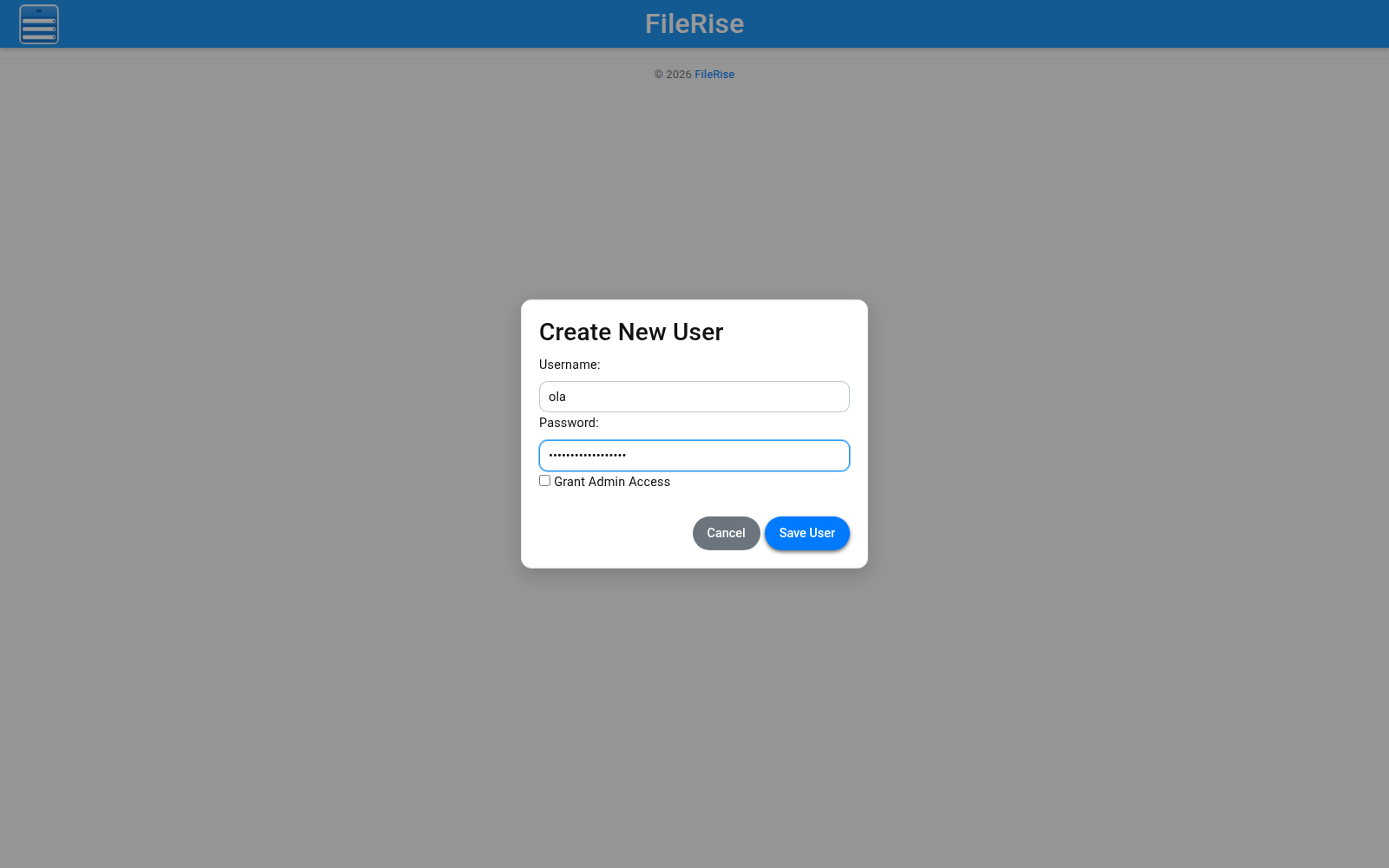
In this setup, FileRise works within its own site folder. It shows files uploaded through the app or copied into its uploads directory; it does not automatically open every shared folder on the NAS. Keep that in mind if you sign in and wonder where your family photo collection has gone.
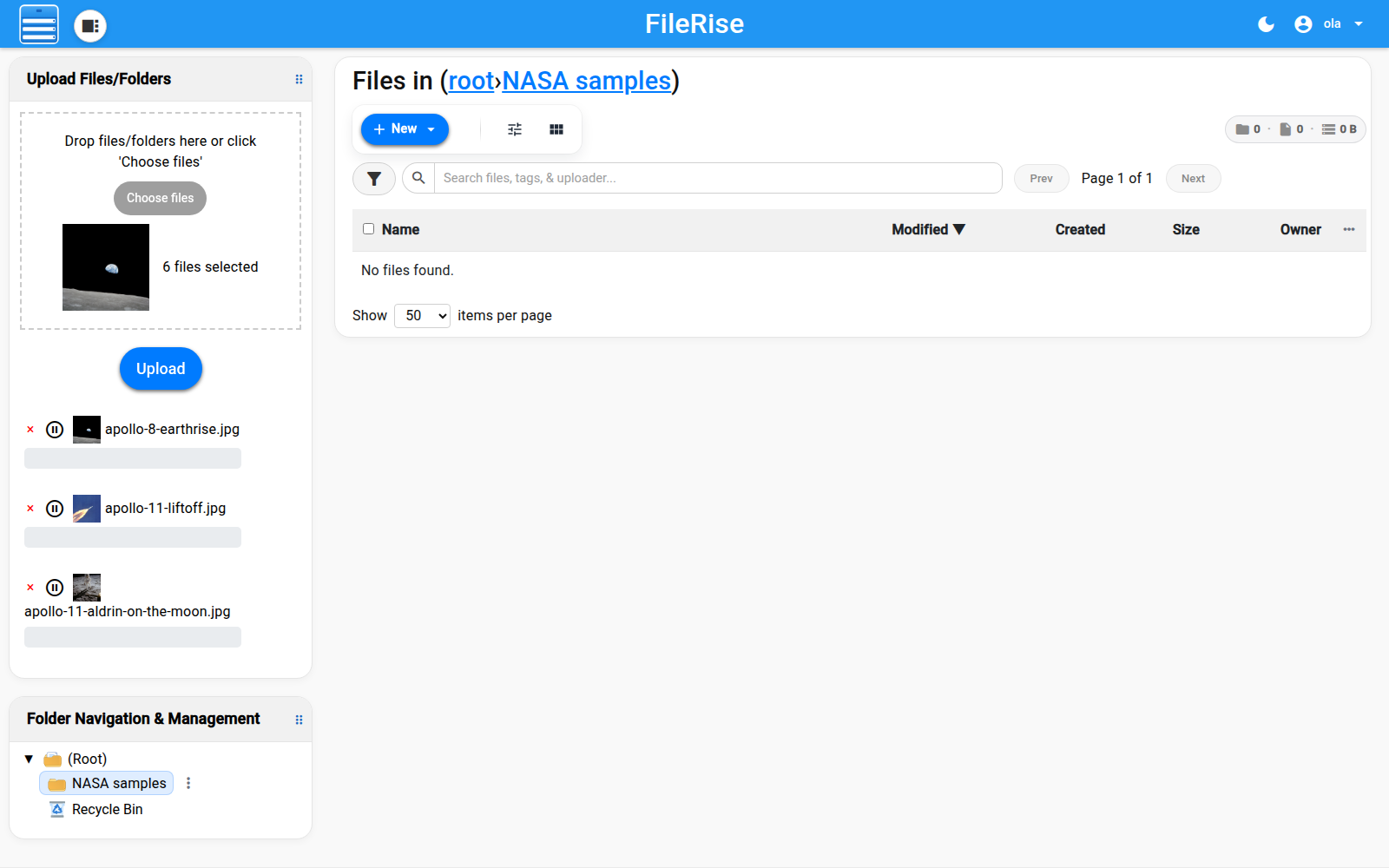
Change the language in "User Panel". Add a folder with New → "Create Folder", then click "Choose files" and "Upload".
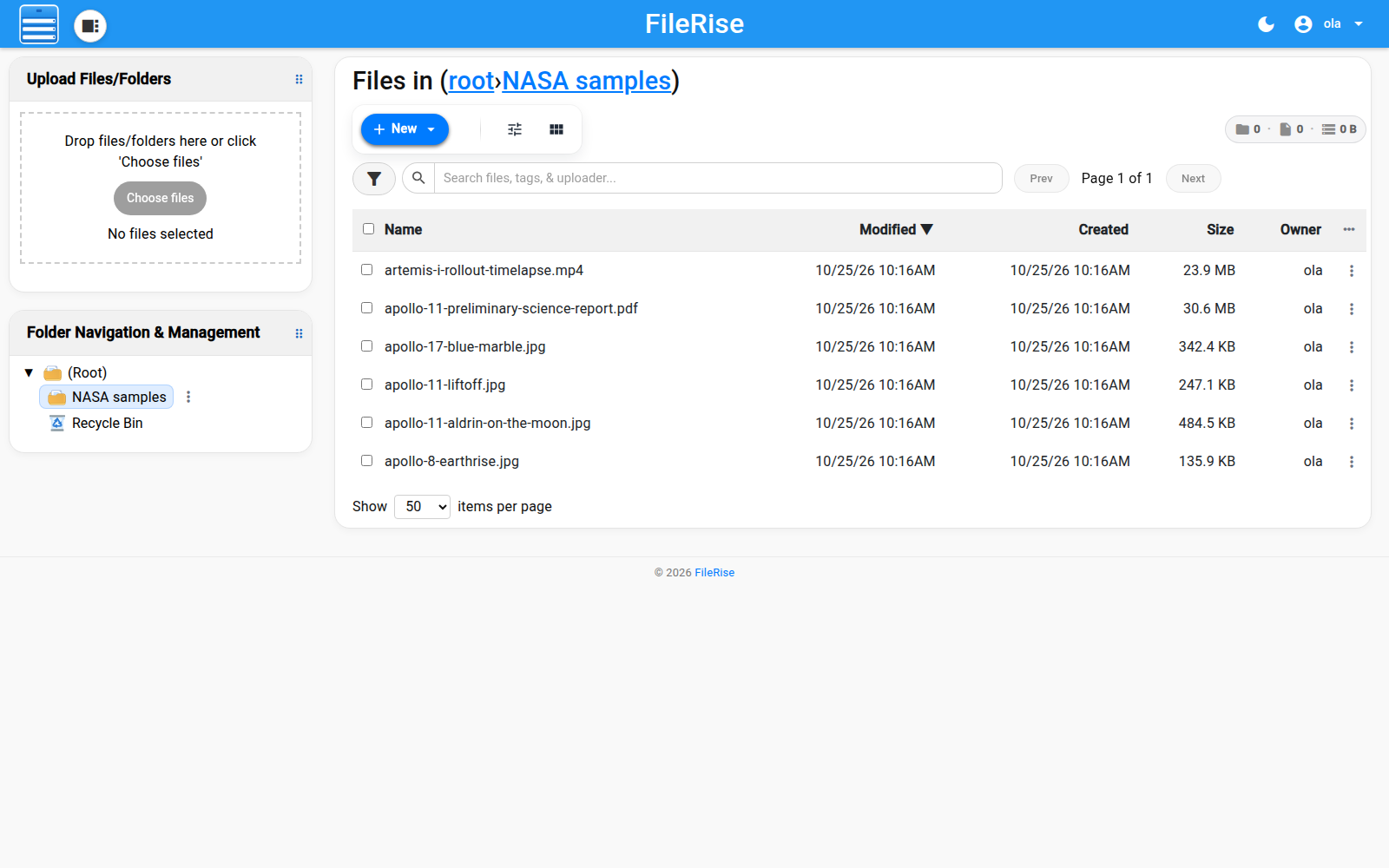
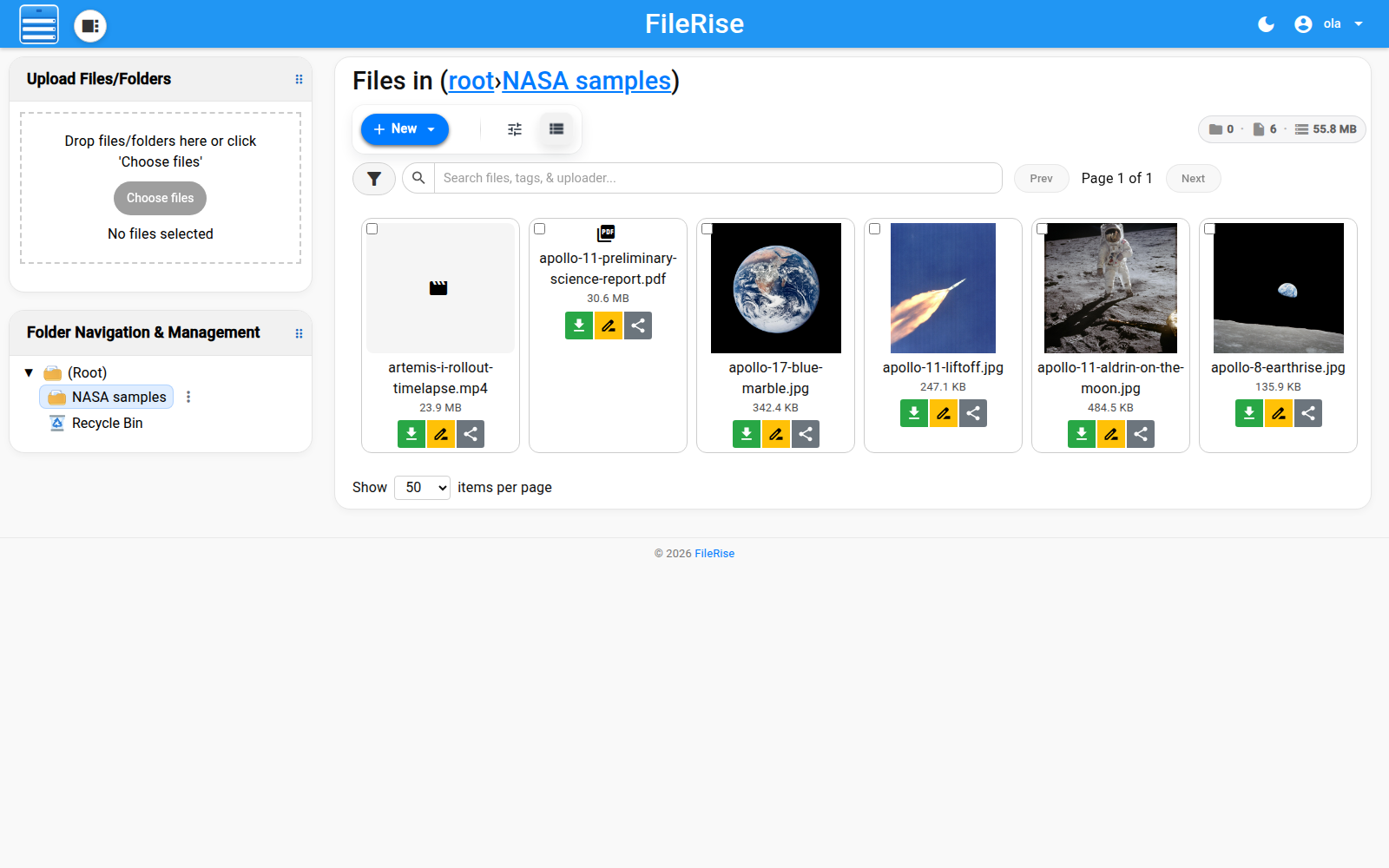
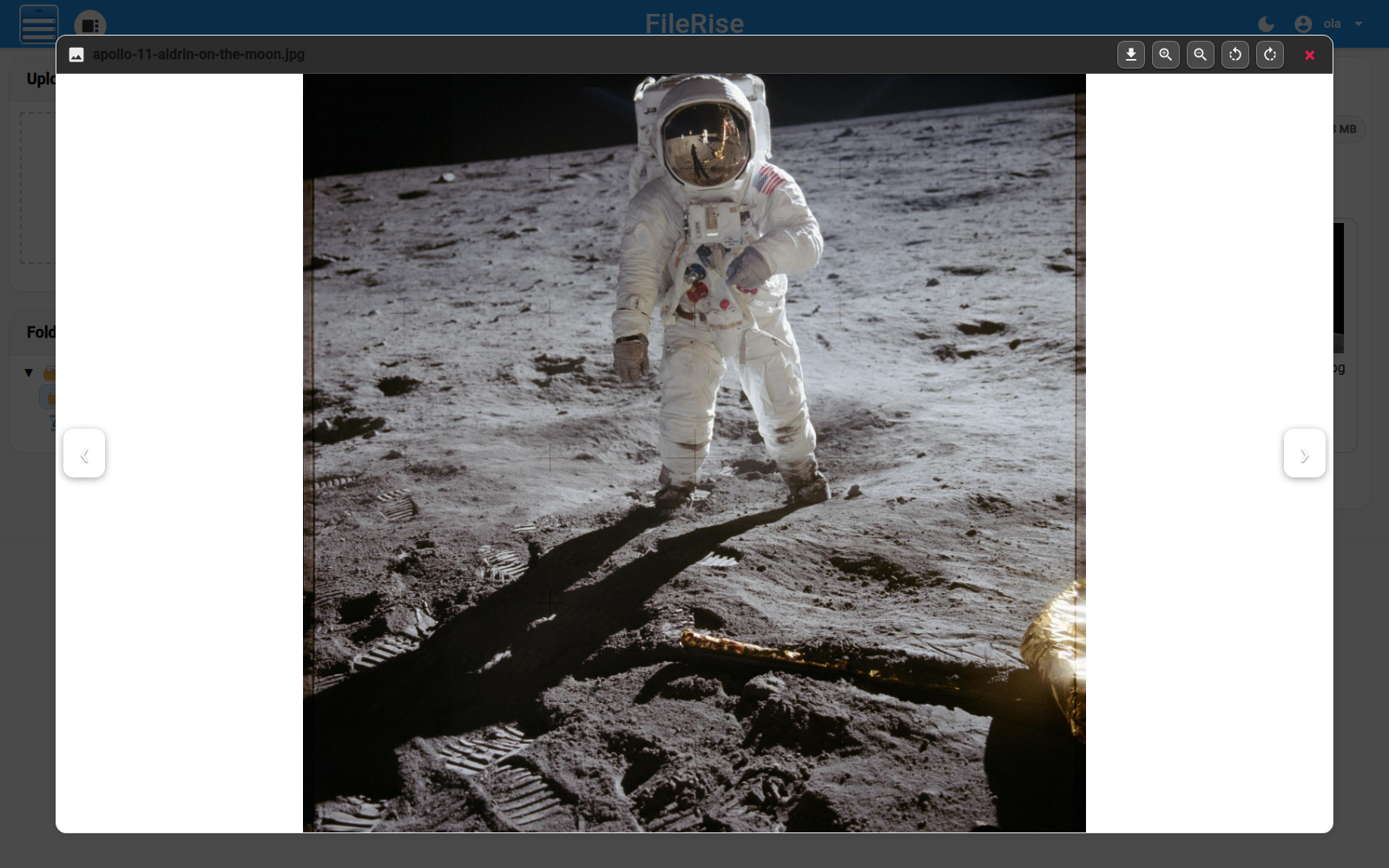
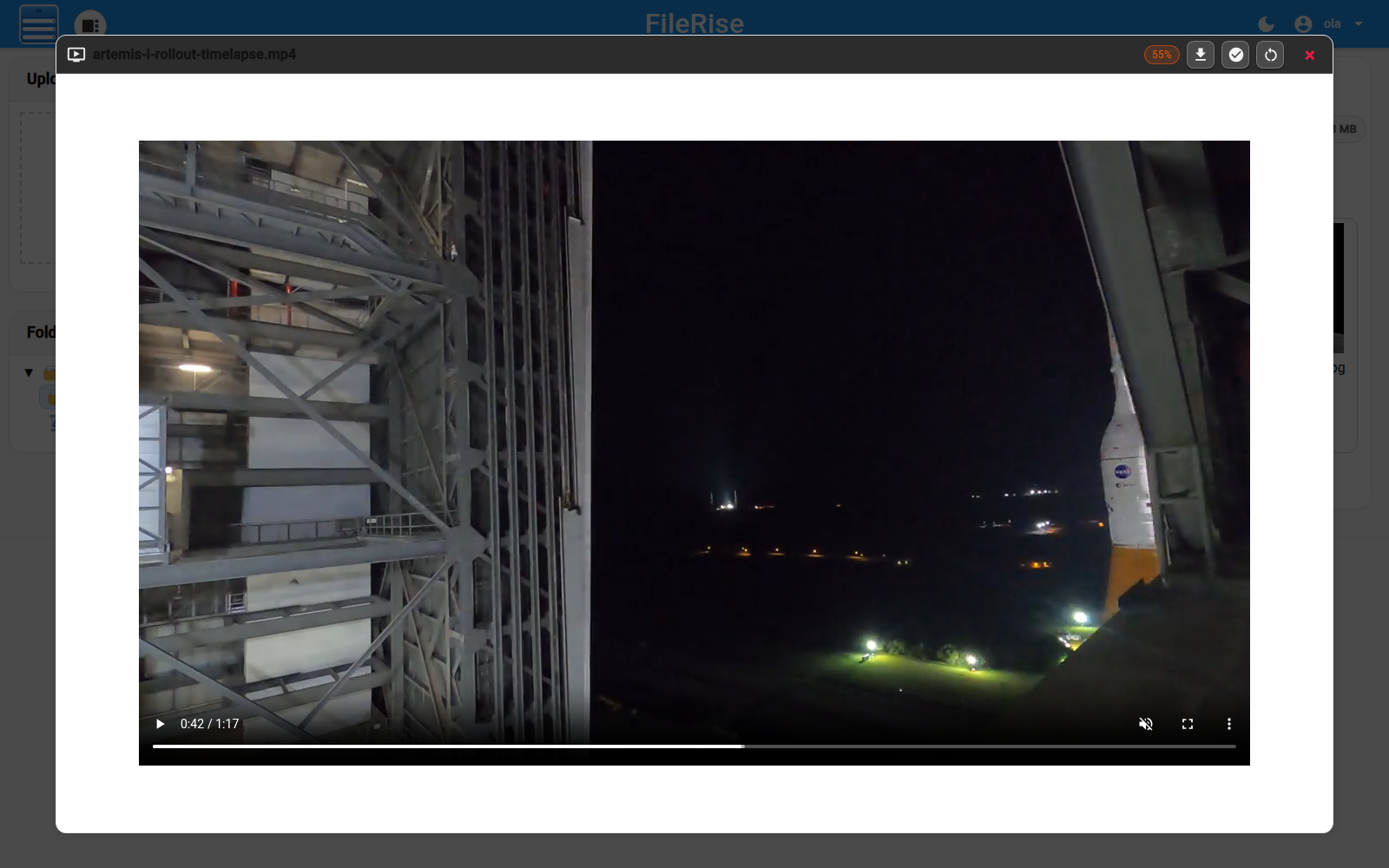
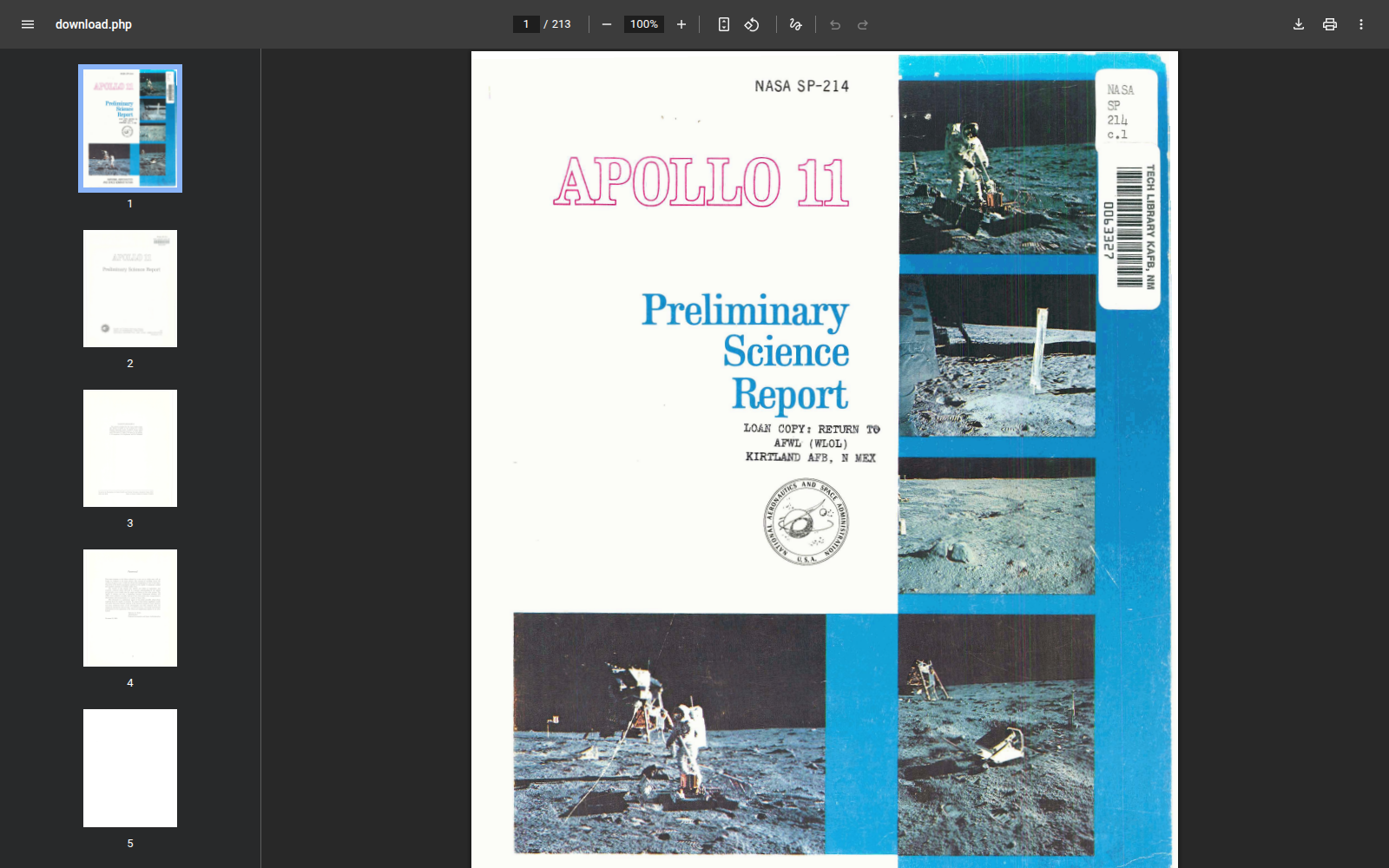
Switch to gallery view for thumbnails. Pictures and videos open in the page's preview; a PDF appears in a new tab using your browser's PDF viewer.
Sharing without creating an account for the recipient
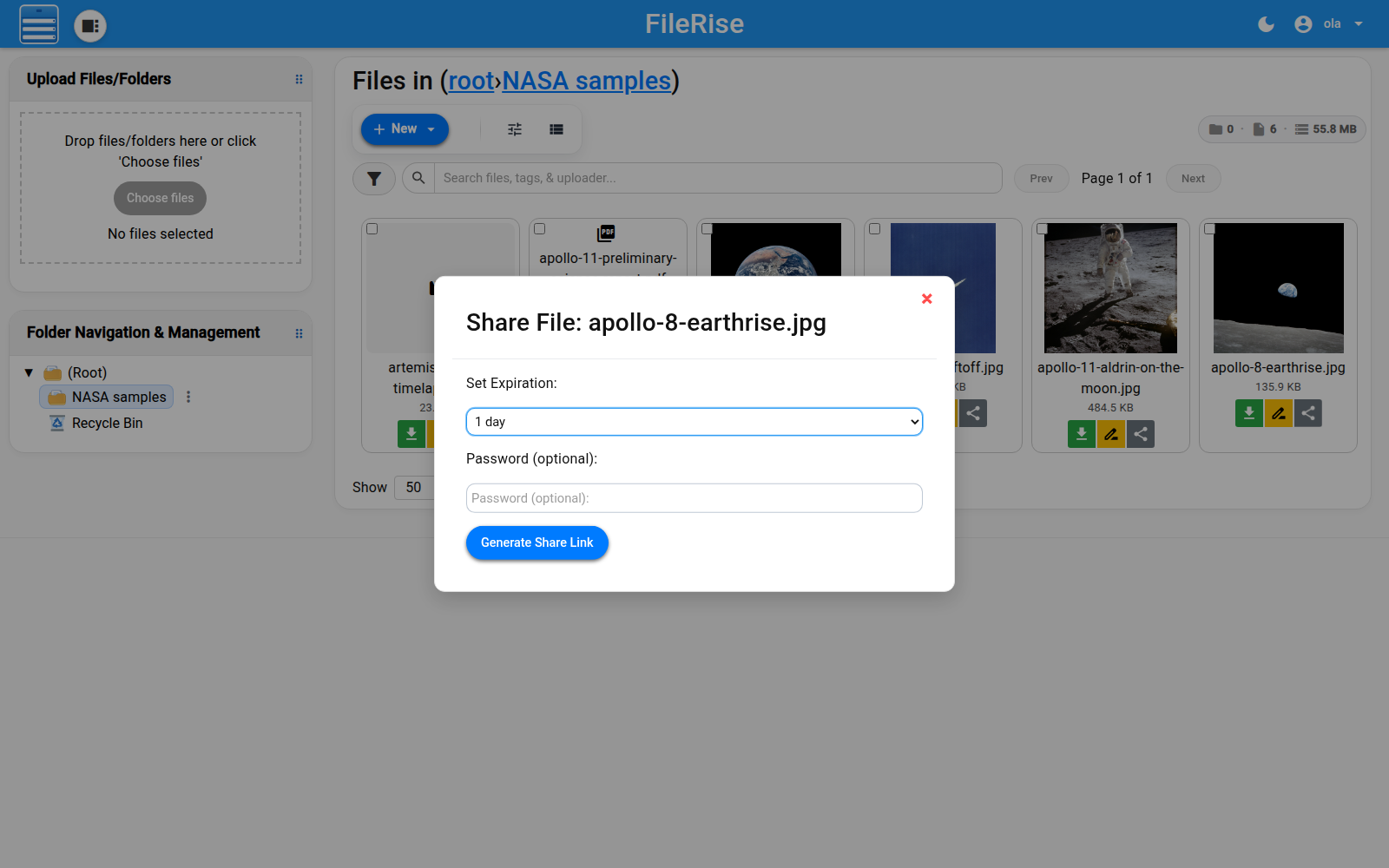
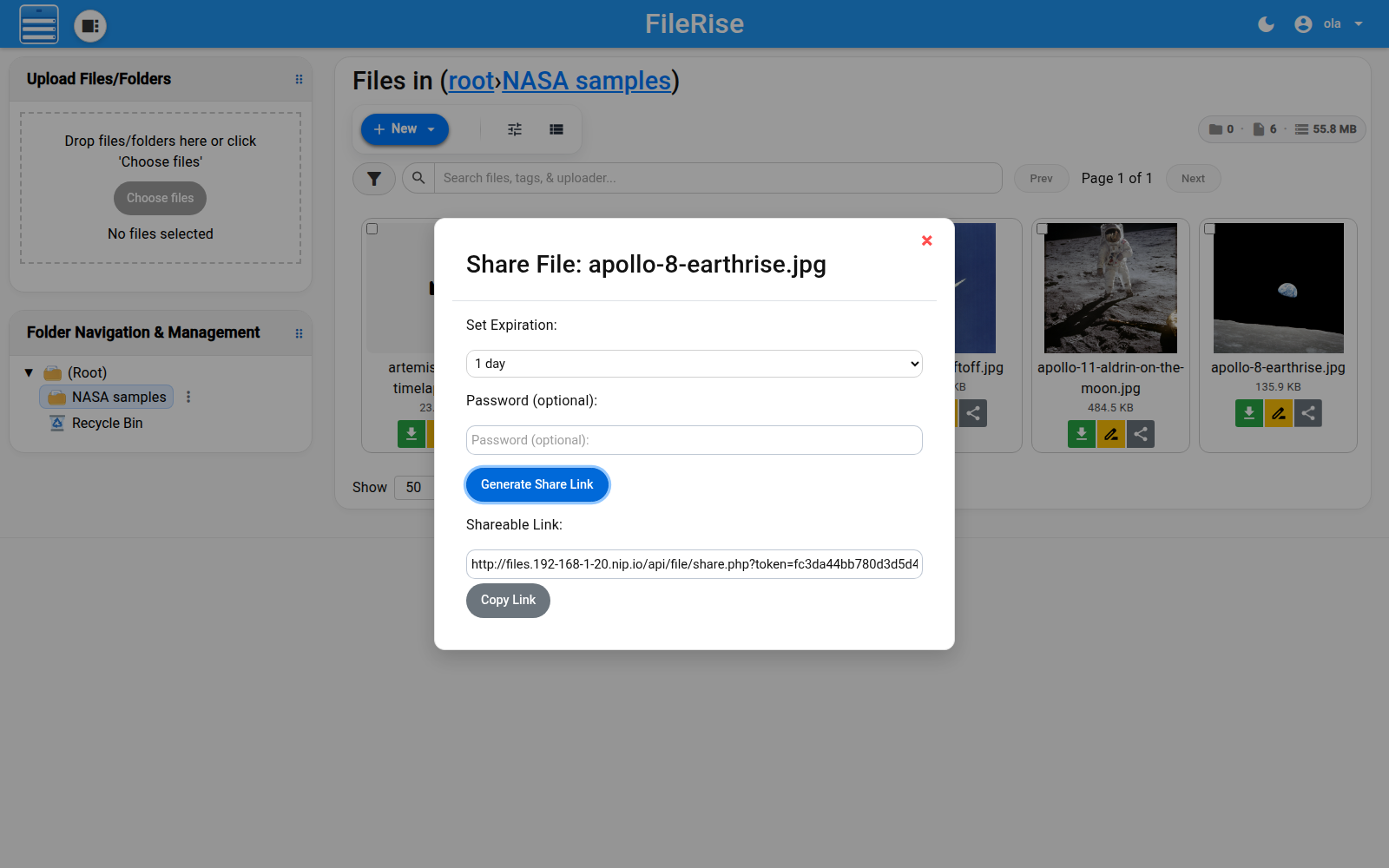
Click the share button beside a file. Choose how long the link remains valid: from 30 minutes to a day, or a custom period. You can also add a password. Click "Generate Share Link", then "Copy link". Folders can be shared too.
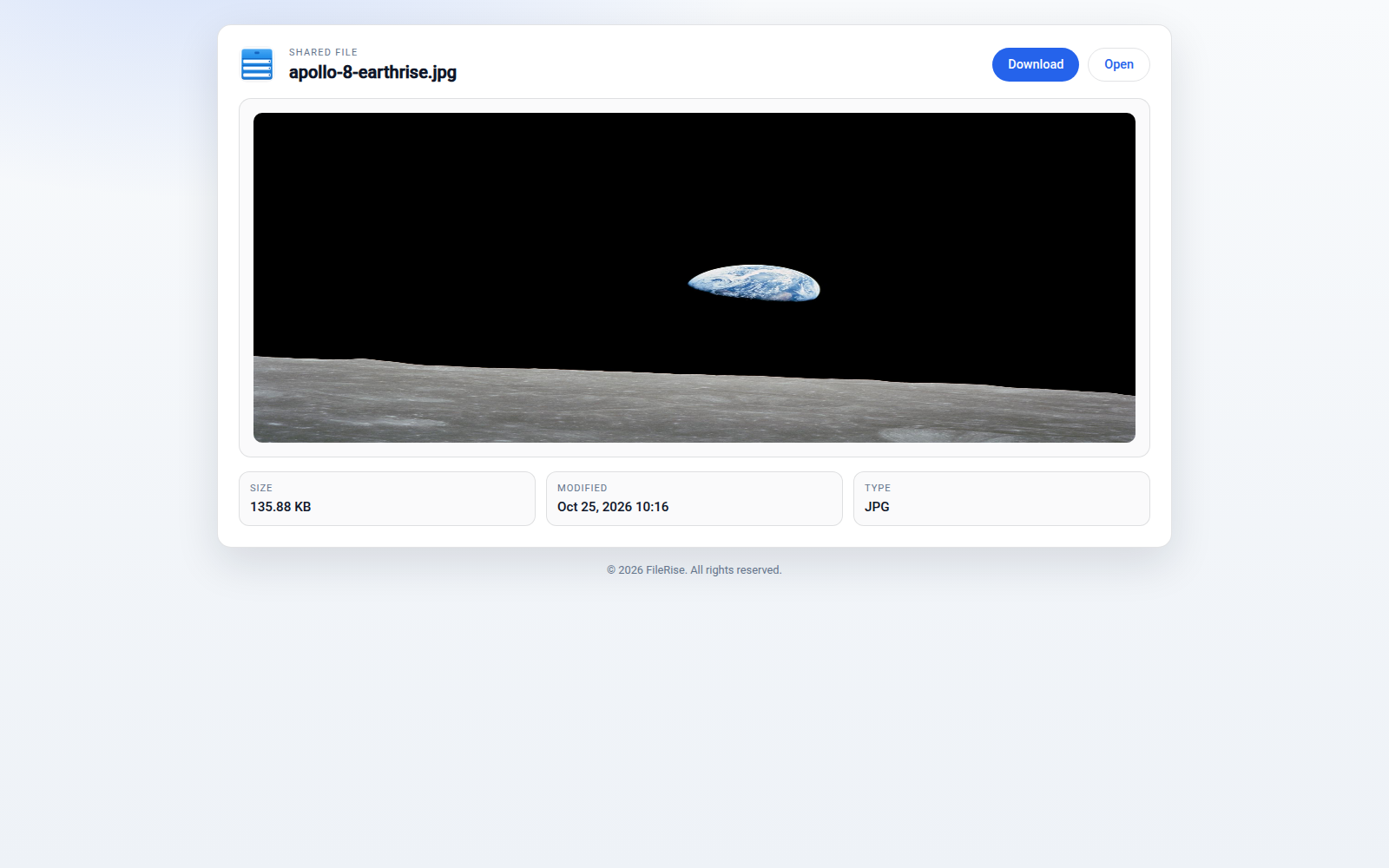
The recipient does not need a FileRise account. They will see the file and the open and download buttons; if you set a password for the link, they will need to enter it. They must still have access to this local network or connect through a VPN. Sending files.192-168-1-20.nip.io to someone outside your home does not create a route to your NAS for them.
6. If something stumbles, start with the symptom
| Symptom | What to check |
|---|---|
| A nip.io name will not open | The router may block DNS answers containing private IP addresses through DNS rebinding protection. Allow the required names, or add the names and NAS address to the computer's hosts file. |
| "Move the front to 80 and 443" is greyed out | Drafts may be waiting on "Sites". Run "Dry run" and apply them, or discard them. |
| The ports are still occupied | Read which program is named on "Front and ports", then change the settings of the relevant service. |
| A new site returns 403 | Check the contents of public and use "Fix permissions". |
| The first Heimdall visit ends in 500 | Check that .env exists and inspect the site's permissions. For a fresh installation, complete the .env.example copying step and use "Fix permissions". |
| Heimdall reports "500 Server Error" for an icon | Check the tempnam correction made by the sed command. |
| FreshRSS is not fetching articles | Use "Update feeds", then check the cron entry, user, token, Host header and front-server port. |
| A QTS update has taken port 80 again | Check which program holds the port. WebHostPro offers to move the front back to 9542 and 9543. |
7. Returning the ports to QTS: order matters
First free the ports in WebHostPro, then give them back to QTS.
- In "Front and ports", click "Move the front back to 9542 and 9543".
- In QTS → Control Panel → System → General Settings → System Administration, restore HTTPS to 443.
- In Control Panel → Applications → Web Server, select "Enable Web Server" again and apply.
WebHostPro sites remain available with the port number included, for example http://rss.192-168-1-20.nip.io:9542/. Update your Heimdall tiles too.
Remember cron: in the earlier entry, change http://127.0.0.1/p/i/ to http://127.0.0.1:9542/p/i/. The rest of the address, user, token and Host header stay the same. After editing /etc/config/crontab, run this again:
crontab /etc/config/crontab && /etc/init.d/crond.sh restart
Finish by opening your own start page
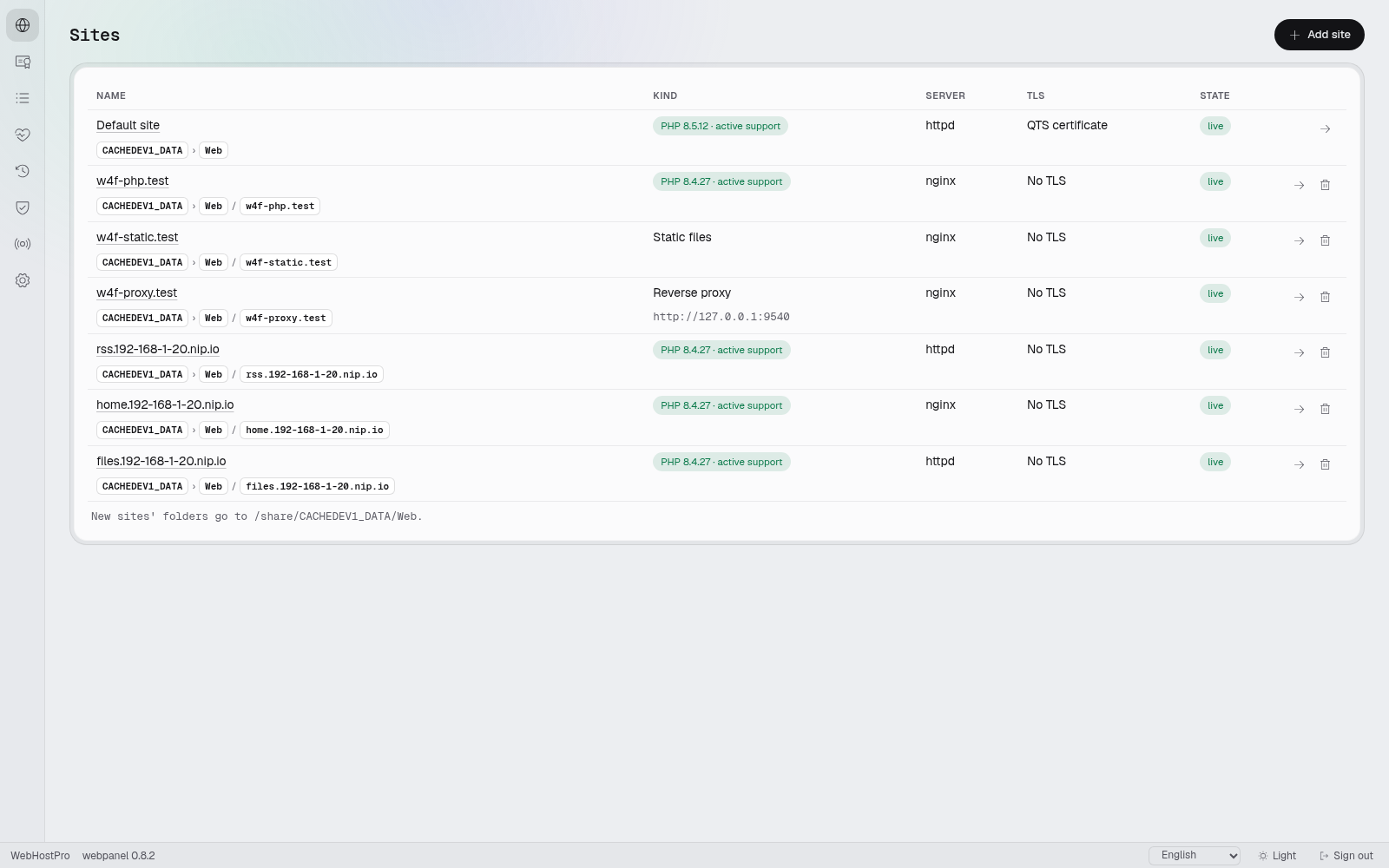
You should recognise the three apps you created on the "Sites" page. Open each one: add a feed, check a tile, upload a file and try its sharing link in another browser session.
That is a satisfying end to an autumn evening. You have a reader with your own sources, organised entrances to your services, and a place for files you want to show the family. Along the way, you have learnt where their directories are, which service handles the ports, and why one app needs httpd while another runs on nginx.
Next time, you will only need to open Heimdall. At least, that is the plan.
Versions, sources and illustrations
| App | Version used in this guide | Licence or availability |
|---|---|---|
| WebHostPro | 0.8.2 | Free of charge, from the QNAP Utilities repository |
| FreshRSS | 1.30.4 | AGPL-3.0 |
| Heimdall | 2.8.3 | MIT |
| FileRise | 3.38.0 | MIT for the core version; FileRise Pro is a separate paid edition |
- WebHostPro hosting guide, including a video walkthrough.
- QNAP Utilities repository for App Center.
- FreshRSS documentation.
- Heimdall README and repository.
- FileRise repository and documentation.
- nip.io.
The illustrations come from QNAP Forum Polska's materials for this guide. The example NASA photographs (AS08-14-2383, AS17-148-22727, AS11-40-5903 and KSC-69PC-413) come from images.nasa.gov. The video is "Artemis I Rollout for Launch - TIMELAPSE", NASA/Frank Michaux and Kim Shiflett. NASA SP-214, the "Apollo 11 Preliminary Science Report", is available from NTRS.
Discuss on the forum (community.qnap.com) · The column from the same issue: Night of the Living Servers