Every site and app as a tile
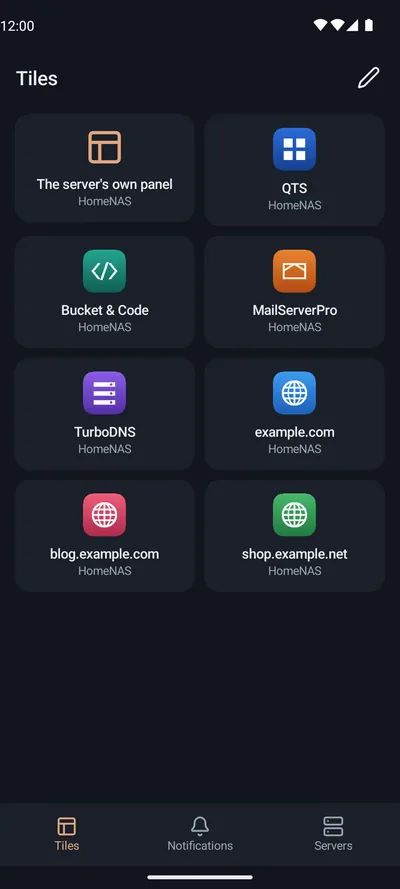
One grid holds the tiles of every WebPortico you paired: its panel, its sites and the NAS's apps.
WebPortico›Android
 RePortico
您可在手機上以方塊查看 NAS 上由 WebPortico 提供的網站,以及 NAS 的 App。點一下即可開啟網站或 App。
此 App 尚未發布。
RePortico 會與您 QNAP NAS 上的 WebPortico 配對。共有兩個分頁:「Tiles」和「Servers」。
One grid holds the tiles of every WebPortico you paired: its panel, its sites and the NAS's apps.
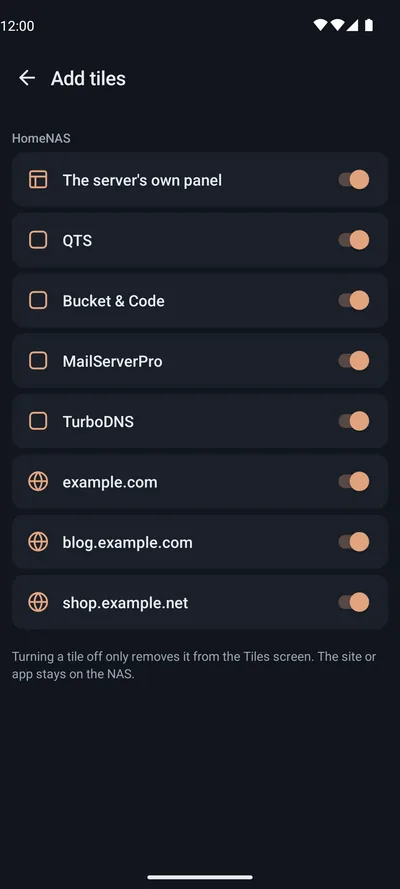
Edit lists each server's sites and apps with a switch for each. A switch takes effect at once.
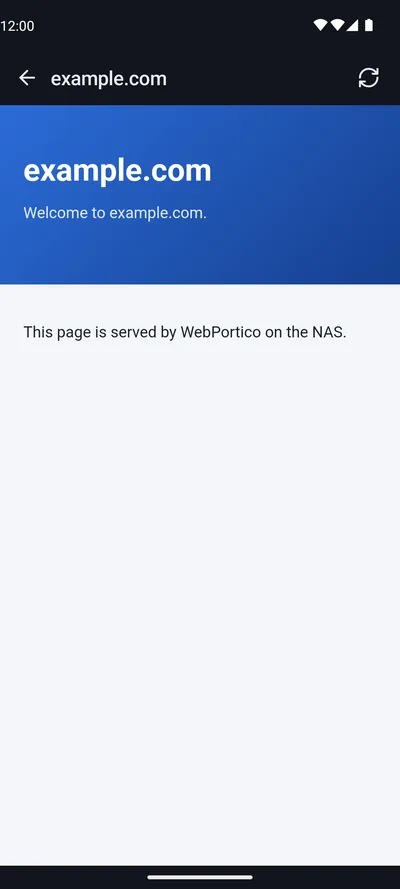
The site opens through WebPortico's phone port, signed in for that tile only.
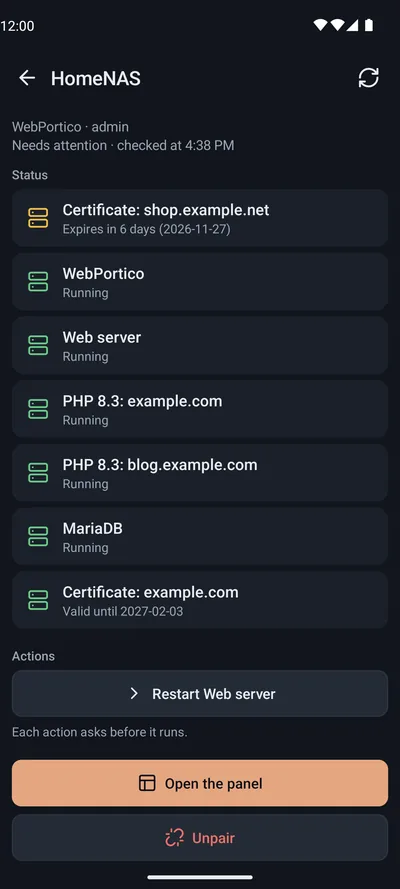
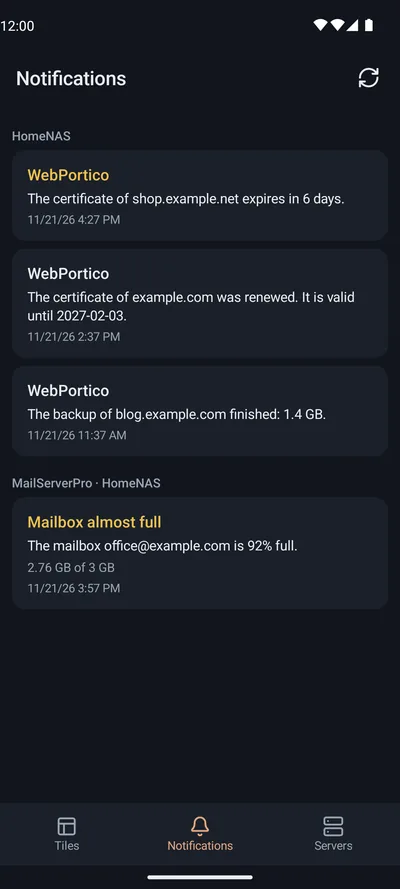
Errors come first, then WebPortico's actions, each after a confirmation.
請在連上您家中網路的電腦上,以 WebPortico 面板自己的網址開啟面板,然後前往:
頁面會顯示 QR 碼。這組碼只可使用一次,有效時間為 10 分鐘。
將手機連到與 NAS 相同的網路。在 App 中點選「Add server」,再點選「Scan the QR code」。
也可手動輸入位址和配對碼. QR 碼下方會顯示位址、配對碼和憑證指紋。請在 App 中輸入位址和配對碼。只有在 App 顯示的指紋相符時,才進行配對。
在「手機 App」頁面的「遠端存取」區段中,開啟「允許從家用網路外部連線」。在您的路由器上設定頁面指定的 TCP 連接埠轉送。App 就能透過該連接埠連線。這個連接埠只回應已配對的手機。
需要 Android 8.0 或更新版本。方塊透過 WebPortico 的手機連接埠開啟,這需要 Android 10 或更新版本。在 Android 8 和 9 上,App 只能在您家中的網路上顯示狀態畫面和面板。
WebPortico 在 QNAP NAS 上執行,面板中有「手機 App」頁面。
RePortico 是 Silas, Mariusz Grzybacz 的免費軟體。這是獨立專案,並非由 QNAP 或 Google 製作或認可;QNAP 是 QNAP Systems, Inc. 的商標。
Android、Google Play 與 Google Play 標誌是 Google LLC 的商標。本站選單中的 Android 機器人是根據 Google 建立及分享的作品重製或修改而成,並依照創用 CC 姓名標示 3.0 授權中的條款使用。